In this guide
In Preview, choose Tools, Redact, drag over the text and save. Do not just draw a black rectangle with Markup: when we tried it, the number under the box could still be selected, copied and pasted.
- Device
- Mac
- Shown on
- macOS 27.0.1 (MacBook Neo)
- App
- Preview
- Path
- Preview › Tools › Redact
- Real screenshots
- 7 of 7 steps
- Checked
- October 2026
- Sources
- 1 official, linked below
Step by step
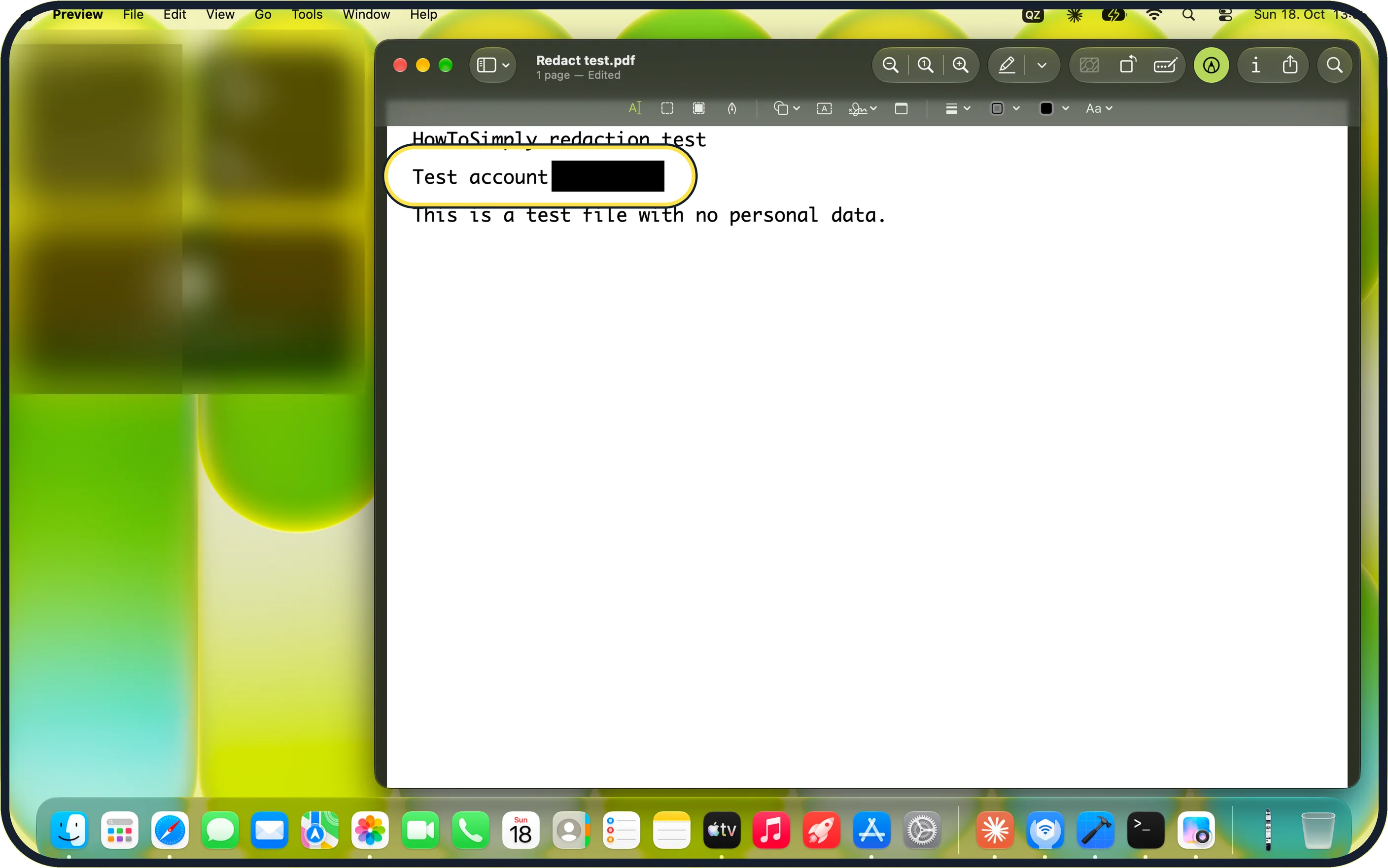
Tap the picture to see it full size Do not use a black box
A filled rectangle from the Markup toolbar covers the number on screen, but the text is still in the file.
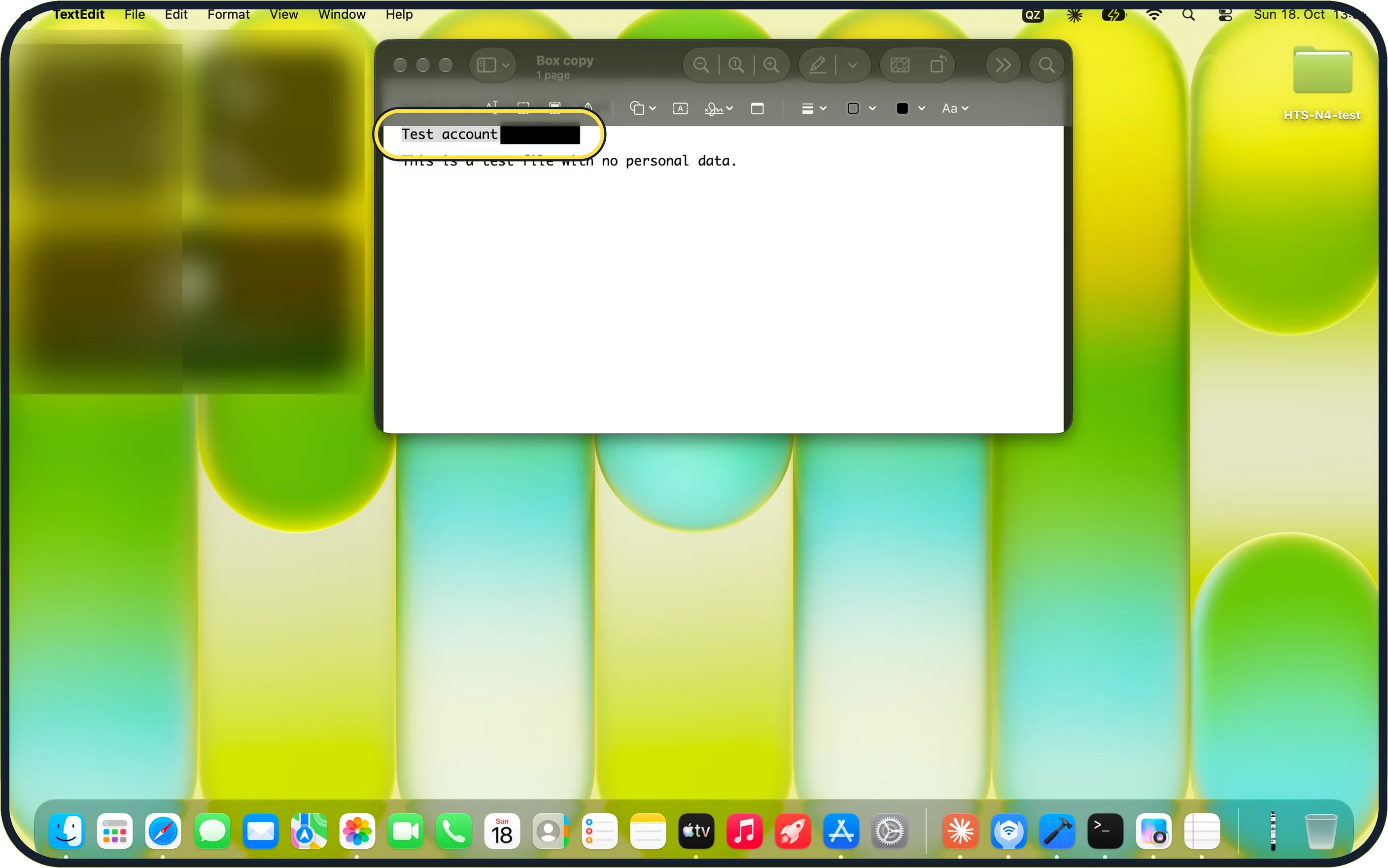
Tap the picture to see it full size See why: select under the box
In a saved copy, we dragged across the line, including the black box. The text under it was selected.
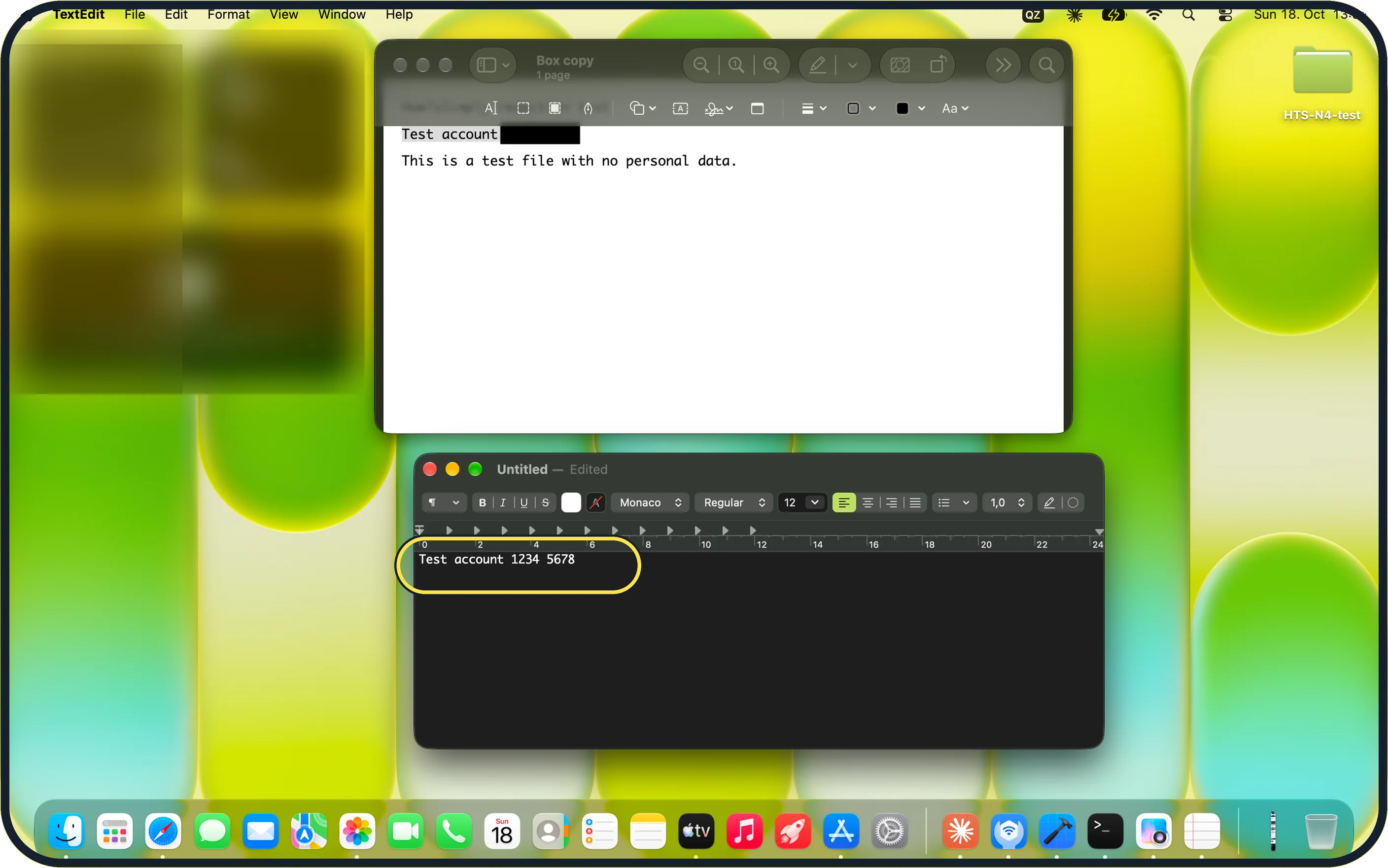
Tap the picture to see it full size The number is still there
Pasted into TextEdit, the copy read "Test account 1234 5678".
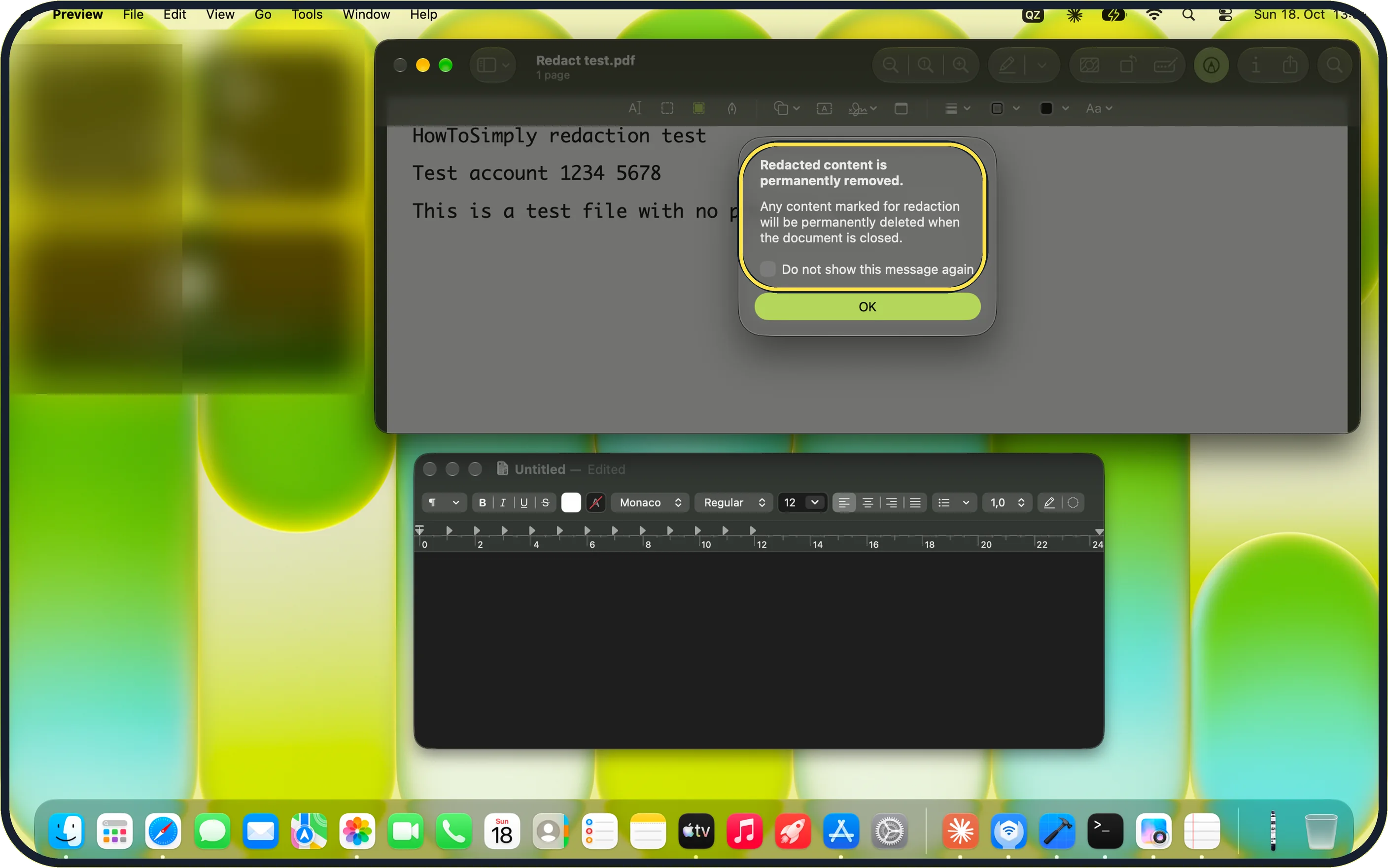
Tap the picture to see it full size Use Tools, Redact instead
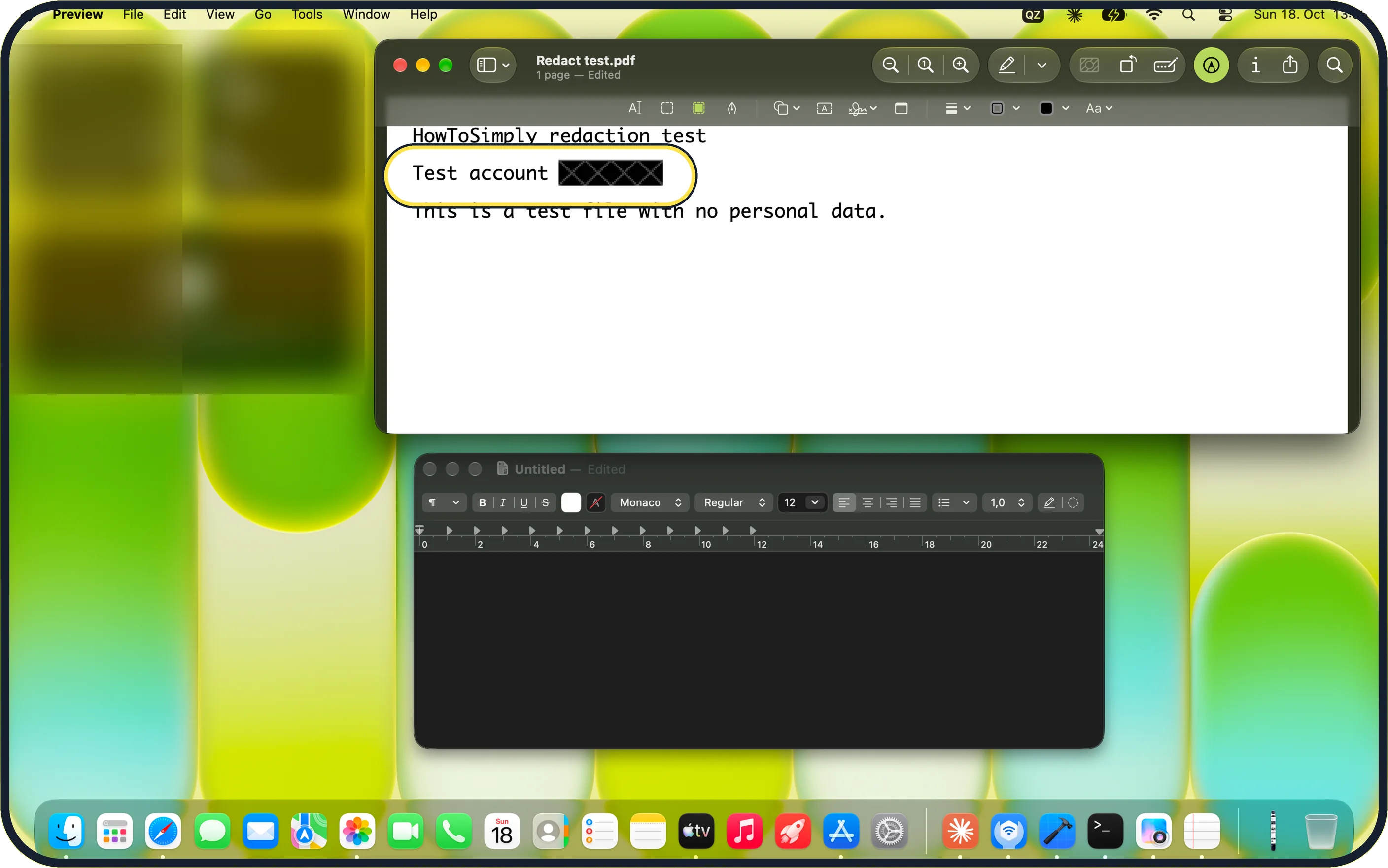
Choose Tools, Redact, then drag over the text. Preview warns that redacted content is permanently removed when the document is closed. Click OK.
Tap the picture to see it full size Check the redaction
The redacted text shows as a hatched box. Save the file, or save a copy and keep the original somewhere safe.
Tap the picture to see it full size Test the saved copy
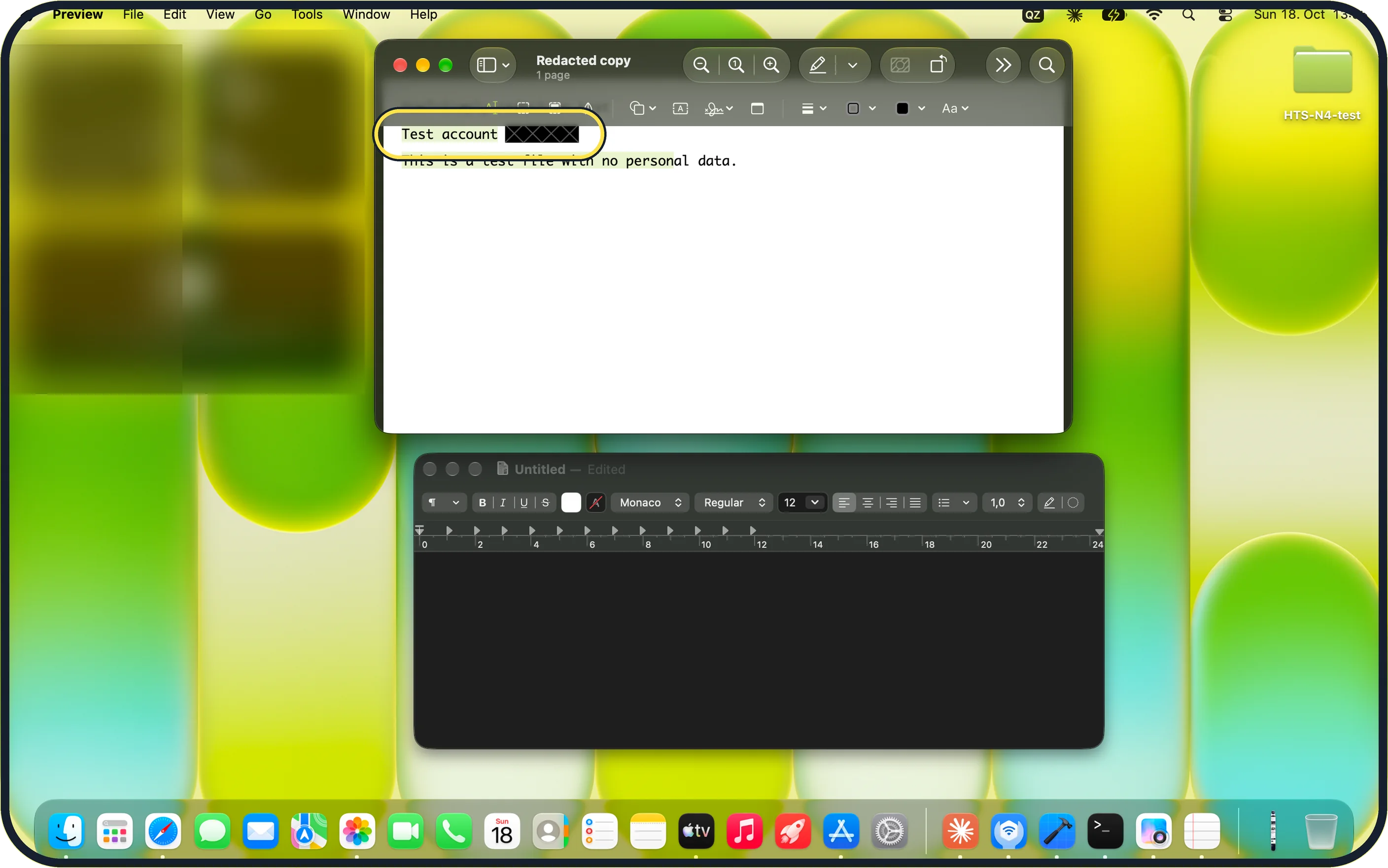
Open the saved copy and select the same line again.
Tap the picture to see it full size Only the label is left
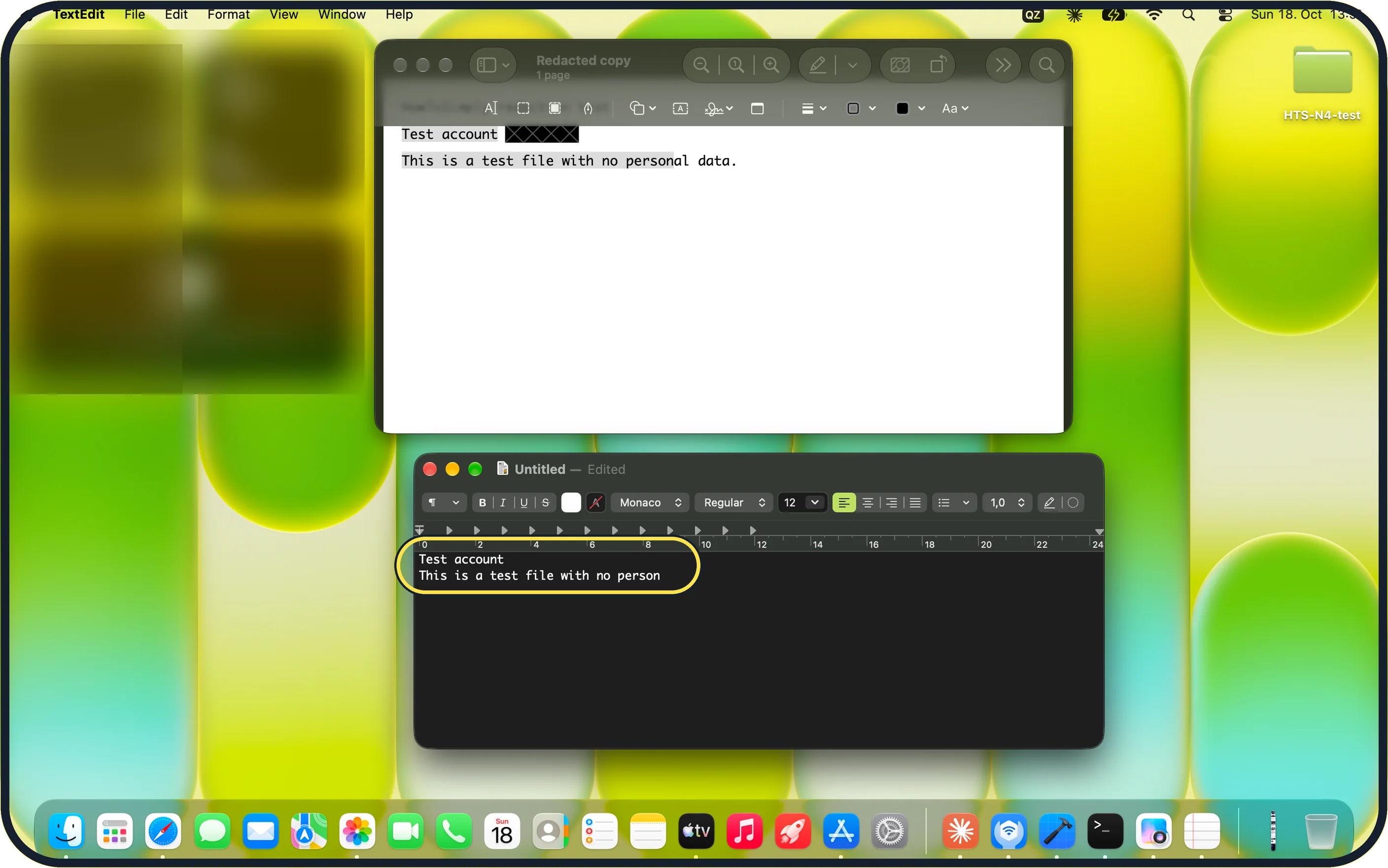
Pasted into TextEdit, the line read just "Test account", followed by the next line of the file. The number was gone.
If you do not see this option
- No Redact in the Tools menu? Open the PDF in Preview, not in Safari or another viewer. Redact works on PDFs; for an image, crop the part out instead.
- Looking in the Markup toolbar? Apple's Preview guide also describes a redaction tool in the Markup toolbar, and says to redact a duplicate so the original stays safe. Source: Annotate a PDF in Preview on Mac
If this does not work
- Still afraid it leaked? Do what we did: select the line in the saved copy, copy and paste it into TextEdit. Only what you kept should paste.
- Already sent a boxed PDF? Assume the text can be read. Redact it properly and send it again, and change anything sensitive it contained.
About this guide
We made a test PDF with the line "Test account 1234 5678" and hid the number two ways in Preview.
The screenshots are from our MacBook Neo with macOS 27.0.1, taken on 18 October 2026. Test file only: no real data.
Good to know
Signing it next? How to sign a PDF on a Mac.
In short: Preview, Tools, Redact, drag over the text, OK, save. Test it by copying the line.
Links checked in October 2026. Menus and features can change after software updates. These steps match the version named at the top.
Did this guide work for you?
Sorry about that. What happened?