SAMSUNG GALAXY
How to recover deleted photos on a Samsung Galaxy (Trash)
Open Gallery, tap Menu at the bottom right, then Trash. Tap Select, tick the photos you want back and tap Restore. Deleted pictures and videos stay in Trash for 30 days. The same Trash also opens from My Files.

4 of 4 steps show a real screenshot from our Galaxy S26. Each step was checked against the maker's own instructions, linked at the end.
Steps
- 1
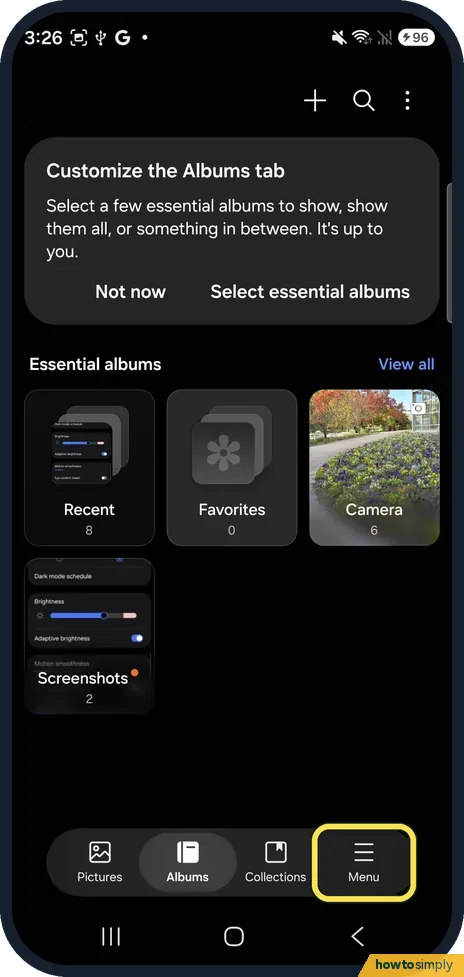
Open Gallery and tap Menu
Open the Gallery app. At the bottom are Pictures, Albums, Collections and Menu. Tap Menu, at the bottom right.
- 2
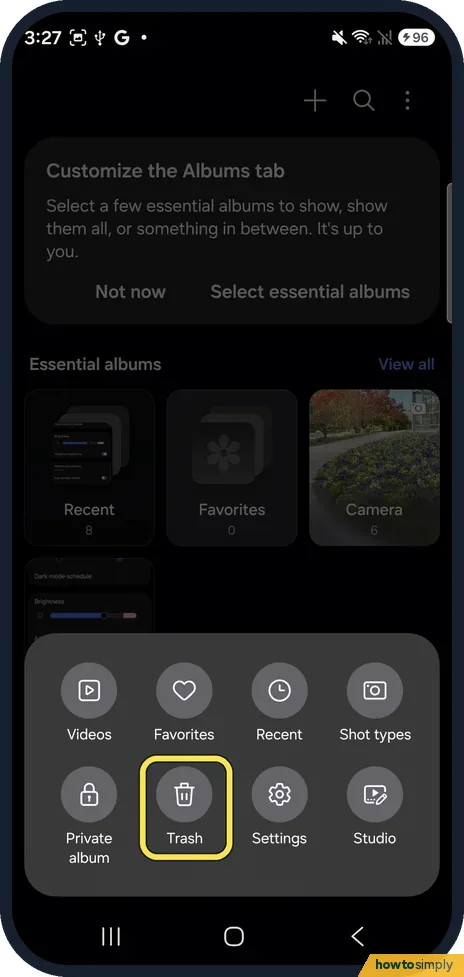
Tap Trash
Menu opens a panel with Videos, Favorites, Recent, Shot types, Private album, Trash, Settings and Studio. Tap Trash, the bin icon.
- 3
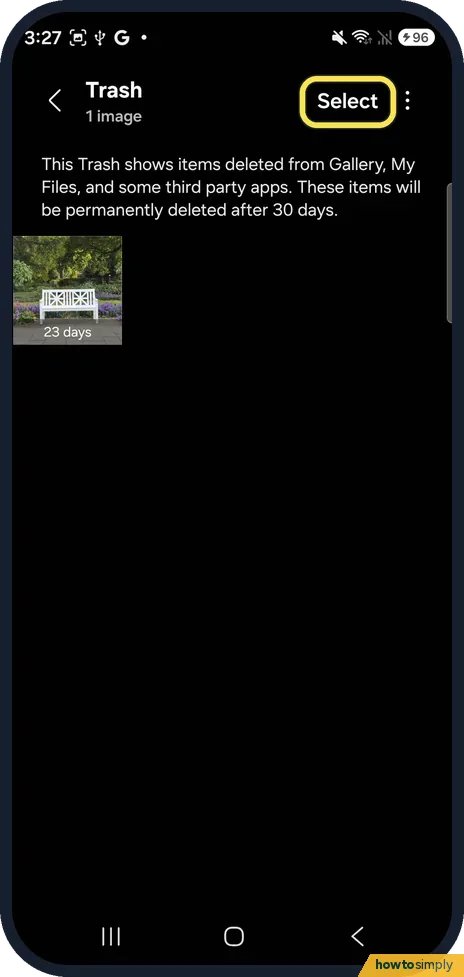
Tap Select, tick the photos and tap Restore
Trash lists everything deleted in the last 30 days. The page on ours said: This Trash shows items deleted from Gallery, My Files, and some third party apps. These items will be permanently deleted after 30 days. Our test photo showed 23 days. Tap Select at the top right and tick the photos you want back; Samsung's steps then say to tap Restore. Samsung's page calls the first button Edit; on our S26 it read Select. We stopped here and did not restore our photo, so no picture shows the Restore button.
- 4
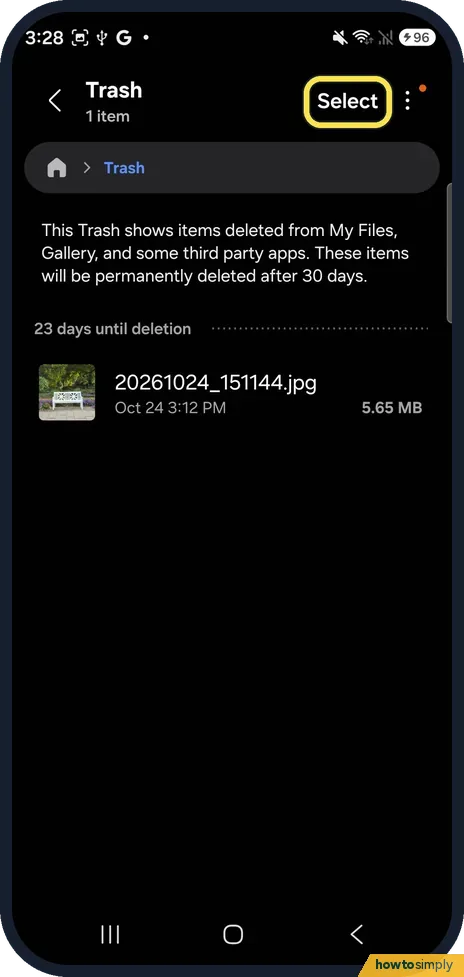
Or open the same Trash in My Files
Open My Files and scroll down to Trash. On ours it showed the same photo, 20261024_151144.jpg, under 23 days until deletion, with the same 30-day note. Select is at the top right here too.
If you do not see this option
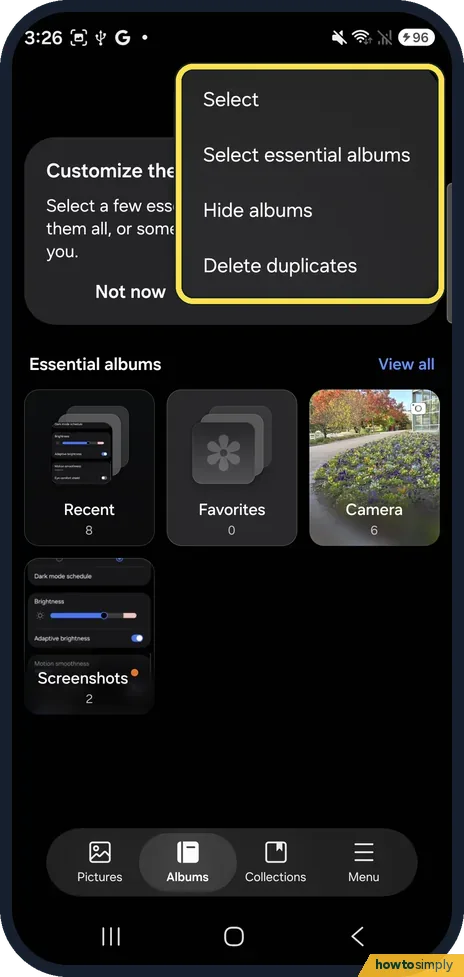
- No Trash in the three dots? On One UI 9 the three dots on the Albums tab only offer Select, Select essential albums, Hide albums and Delete duplicates. Trash is under Menu at the bottom.
- Trash is empty, or missing? Samsung says Trash has to be turned on before you delete photos. Turn it on under Gallery, Menu, Settings, Trash so the next deleted photo goes there. Source: How can i recover deleted photo
- Your Galaxy runs an older One UI? Samsung's steps say Gallery, Menu, Trash, then Edit, select the photos and Restore. On our One UI 9 phone the button read Select instead of Edit. Source: How can i recover deleted photo
If this does not work
- The photo is not in Trash After 30 days Samsung says items in Trash are deleted forever. If the photo was backed up, look in Google Photos too.
- Deleted it in Google Photos, not in Gallery? Google says that deleting a backed-up photo also deletes it on all devices with backup on, and that it stays in the Google Photos trash for 30 days. Restore it there.
- My Files shows a message about summaries The first time we opened Trash in My Files, it showed My Files summarizes files' content, about short AI summaries of PDF and TXT files. Tap OK to reach the Trash list.
Good to know
Restore puts a photo back where it came from. If you are not sure which photo you need, open it in Trash first: the thumbnail shows how many days it has left, 23 days on ours.
Emptying Trash, or waiting past the 30 days, removes the files from the phone for good. Samsung's page says they are then deleted forever, so restore anything you need before that.
If you back up with Google Photos, deleting a backed-up photo on the phone also deletes it in Google Photos on every device with backup on. Google says backed-up items you delete stay in the Google Photos trash for 30 days, so check that trash too if the photo is gone from Gallery.
Need the space back rather than the photo? See how to check and free up storage on a Samsung Galaxy.
About this guide
- Device
- Android
- Shown on
- Samsung Galaxy S26 (SM-S942N, Korean model), One UI 9, Android 17 (build S942NKSS4BZIG)
- App
- Gallery
- Path
- Gallery › Menu › Trash › Select
- Real screenshots
- 4 of 4 steps
- Checked
- October 2026
- Sources
- 2 official, linked below
Sources
Links checked October 2026. Menus and features can change with updates.Spotted a mistake? Menus change with updates, and we want every step to match your screen. Email us about this page or use the contact form. We read every report, and fixes are listed on What changed.
Liked this guide?
Follow us for new guides and short how-to videos.
Did this guide work for you?
Sorry about that. What happened?