
macOS 27 compared with macOS 26: We rewrote steps 1, 2, 3 and 4 to match the macOS 27 screens. The macOS 26 page keeps the steps and screenshots as they were.
howtosimply.com/guides/how-to-fix-sound-that-is-louder-on-one-side-on-a-mac/ · Checked October 2026 · MacBook Neo · macOS 27.0.1
In this guide
Open System Settings, click Sound, choose your device under Output, then drag the Balance slider back to the middle between Left and Right.
3 of 4 steps with real screenshots · 3 official sources below
- Device
- Mac
- Shown on
- macOS 27.0.1 (MacBook Neo)
- App
- System Settings
- Real screenshots
- 3 of 4 steps
- Checked
- October 2026
- Sources
- 3 official, linked below
Step by step
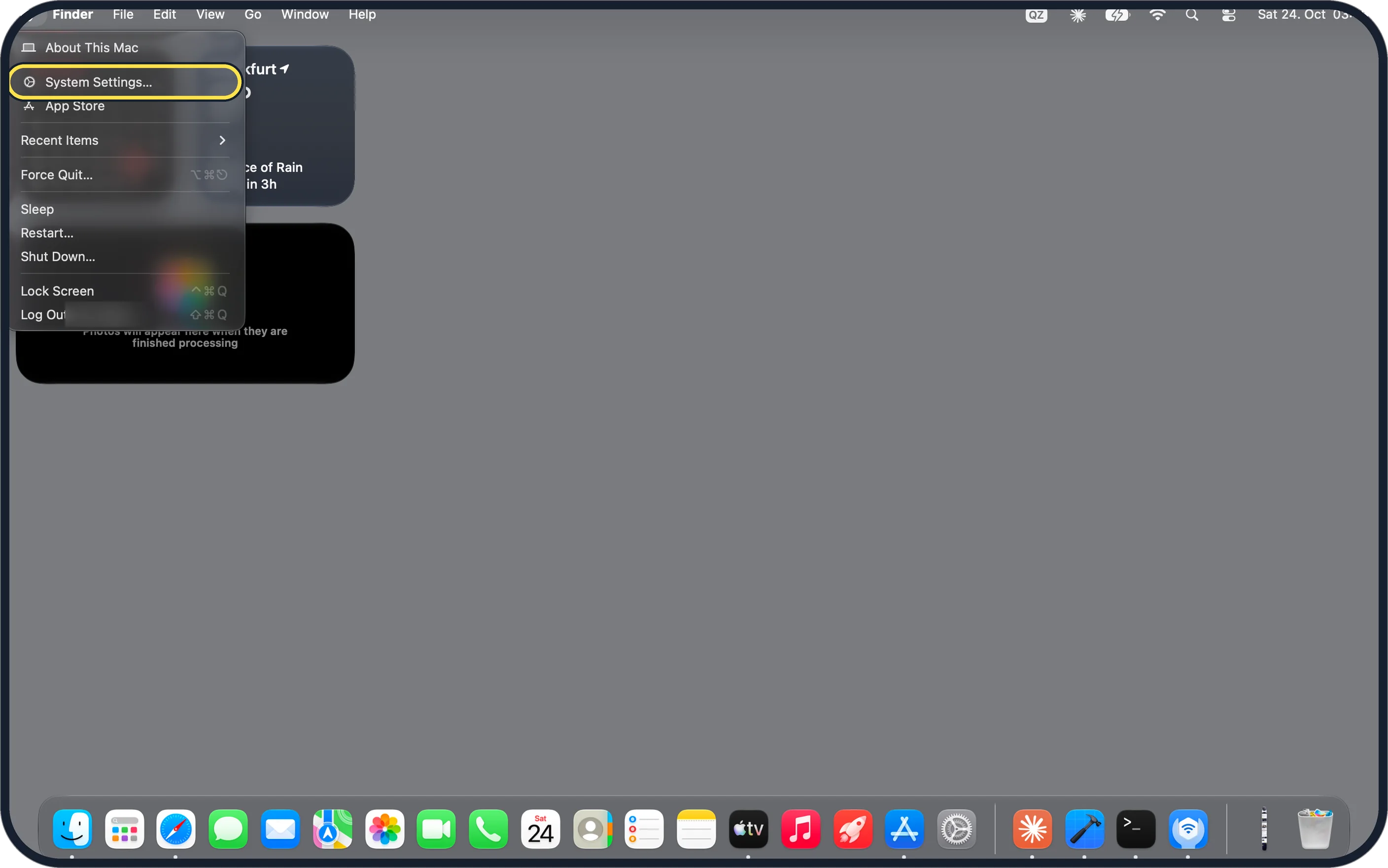
Zoomed in on the setting. Tap to see the whole screenTap the picture to see it full size Open System Settings
Click the Apple menu in the top left corner of the screen and choose System Settings….
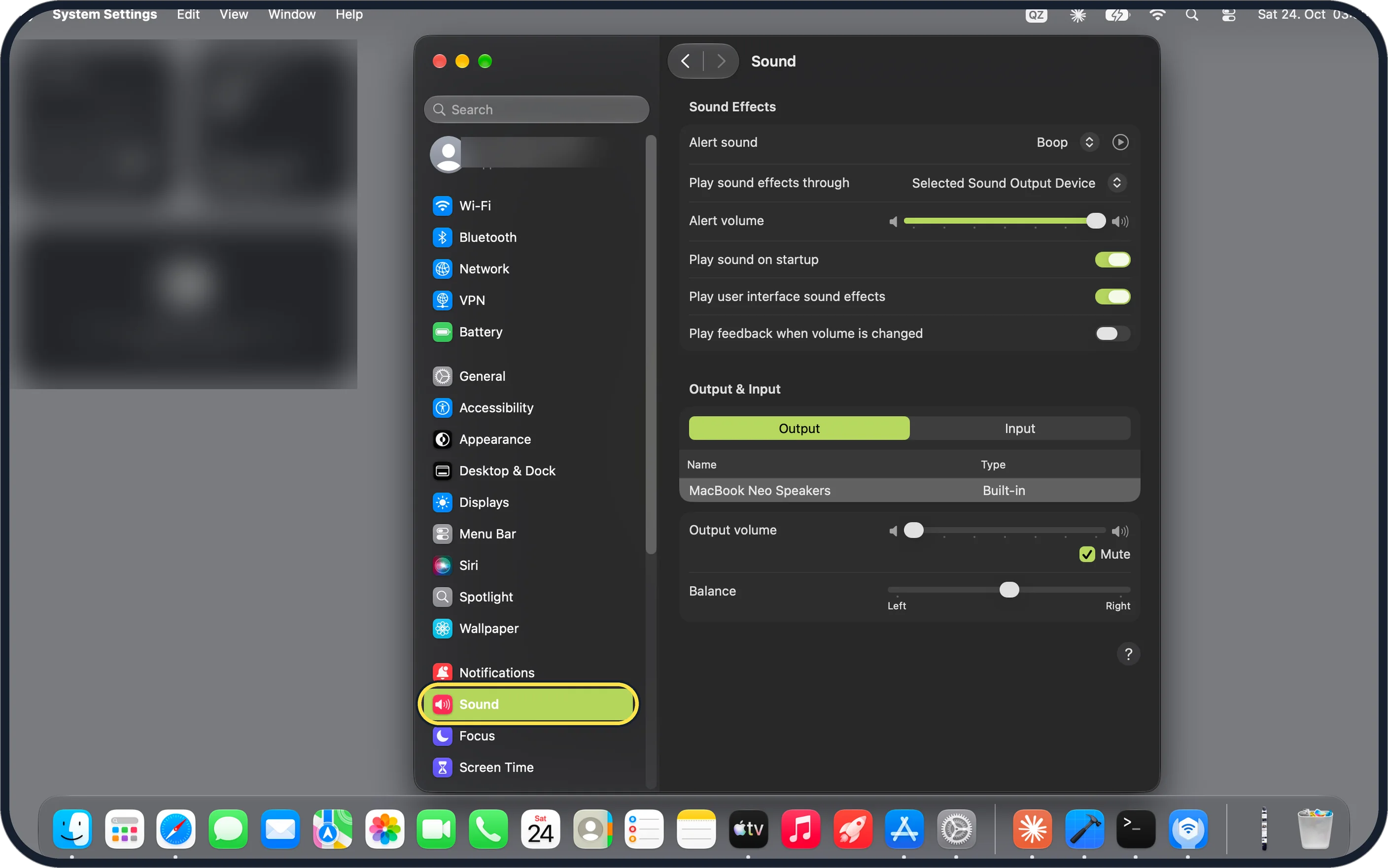
Zoomed in on the setting. Tap to see the whole screenTap the picture to see it full size Click Sound in the sidebar
Sound is between Notifications and Focus. You may need to scroll down in the sidebar.
Select the output device
Under Output & Input, with Output selected, click the device you are listening on.
On our MacBook Neo the only device listed was MacBook Neo Speakers, with the Type Built-in.
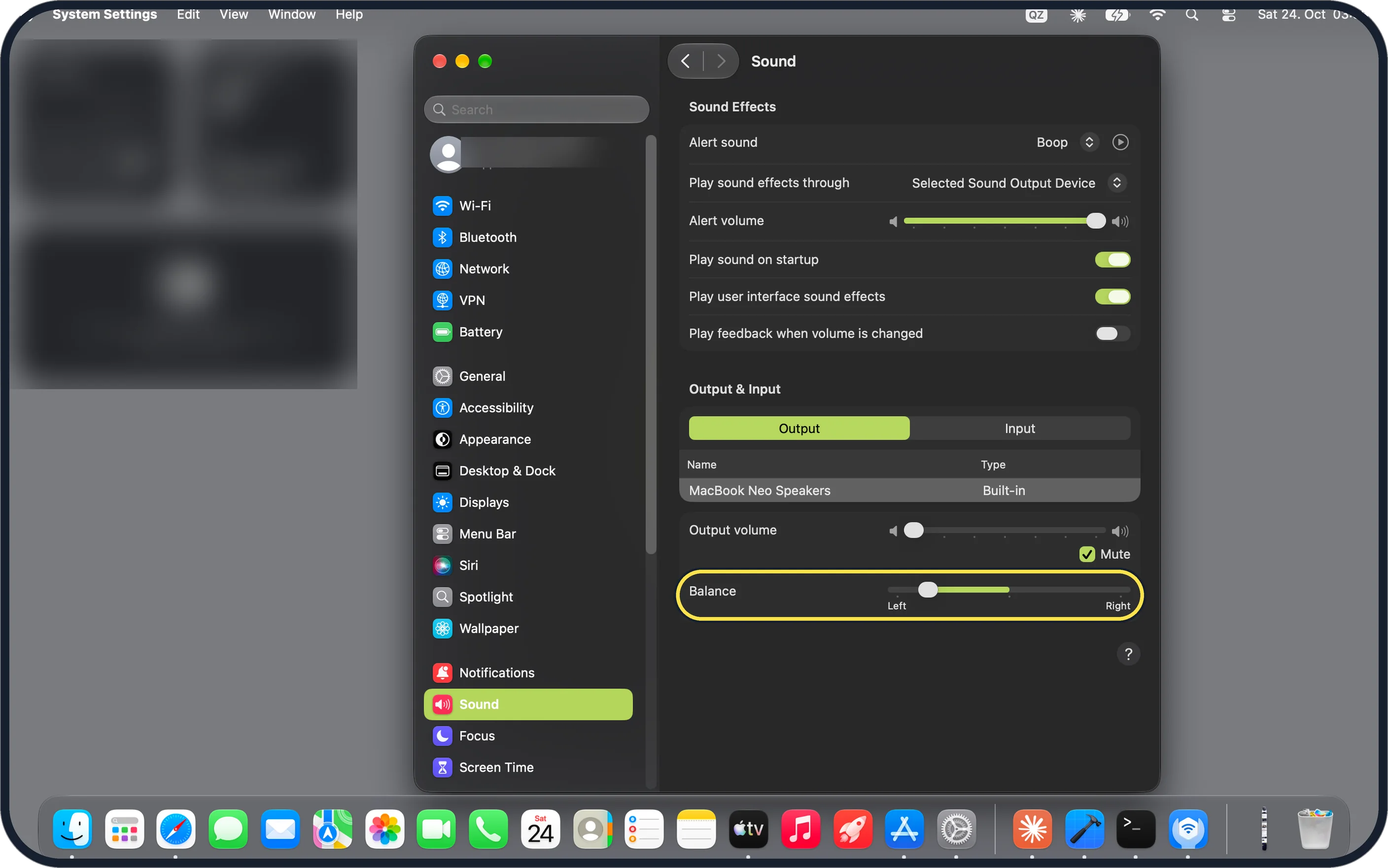
Zoomed in on the setting. Tap to see the whole screenTap the picture to see it full size Drag Balance to the middle
The Balance slider runs from Left to Right. In our picture it has been pushed towards Left, so drag the knob back to the centre.
If you do not see this option
- A row is missing Apple says not all options in Sound settings appear for all Mac models. Depending on your Mac and the devices you use, the Audio MIDI Setup app may offer other volume options. Source: Change Sound settings on Mac · Source: Change Audio settings for accessibility on Mac · Source: Change the sound output settings on Mac
- The wrong device is selected Apple says the list under Output is where you select the device for sound. Pick the one you are listening on before you move Balance. On our MacBook Neo only MacBook Neo Speakers was listed. Source: Change Sound settings on Mac · Source: Change Audio settings for accessibility on Mac · Source: Change the sound output settings on Mac
- Your headphones are not in the Output list Apple says the list shows the Mac's own speakers, USB speakers and AirPlay devices, and that for any device plugged into the Mac's sound port you choose Headphones. Source: Change Sound settings on Mac · Source: Change Audio settings for accessibility on Mac · Source: Change the sound output settings on Mac
If this does not work
- You hear nothing at all Apple says the Mute checkbox stops sound output. On our MacBook Neo Mute was ticked and Output volume was at its lowest, so untick Mute and raise the volume. Source: Change Sound settings on Mac · Source: Change Audio settings for accessibility on Mac · Source: Change the sound output settings on Mac
- One side is still quieter Apple says Play stereo audio as mono, in Accessibility, Audio, plays the same sound in both speakers or headphones. Source: Change Sound settings on Mac · Source: Change Audio settings for accessibility on Mac · Source: Change the sound output settings on Mac
About this guide
When sound comes mostly from one side, the cause is often the Balance slider in Sound settings, not a broken speaker.
Screenshots: MacBook Neo, macOS 27.0.1, dark mode.
Good to know
Output volume and the Mute checkbox are just above the Balance slider.
If you hear with one ear, mono may suit you better than balance: how to play stereo sound as mono on a Mac.
In short: Apple menu > System Settings… > Sound > Output > your device > Balance to the middle.
- Mac User Guide: Change Sound settings on Mac
- Mac User Guide: Change Audio settings for accessibility on Mac
- Mac User Guide: Change the sound output settings on Mac
Links checked in October 2026. Menus and features can change after software updates. These steps match the version named at the top.
Did this guide work for you?
Sorry about that. What happened?