
howtosimply.com/guides/no-sound-on-your-mac-7-fixes-to-try/ · Checked October 2026 · MacBook Neo · macOS 27.0.1
In this guide
Press the volume up key and check that Mute is not ticked, then open System Settings, Sound, Output and select the built-in speakers or your headphones. Disconnect Bluetooth devices and displays that may have taken over the sound, then restart the Mac.
5 of 5 steps with real screenshots · 2 official sources below
- Device
- Mac
- Shown on
- macOS 27.0.1 (MacBook Neo)
- App
- System Settings
- Real screenshots
- 5 of 5 steps
- Checked
- October 2026
- Sources
- 2 official, linked below
Step by step
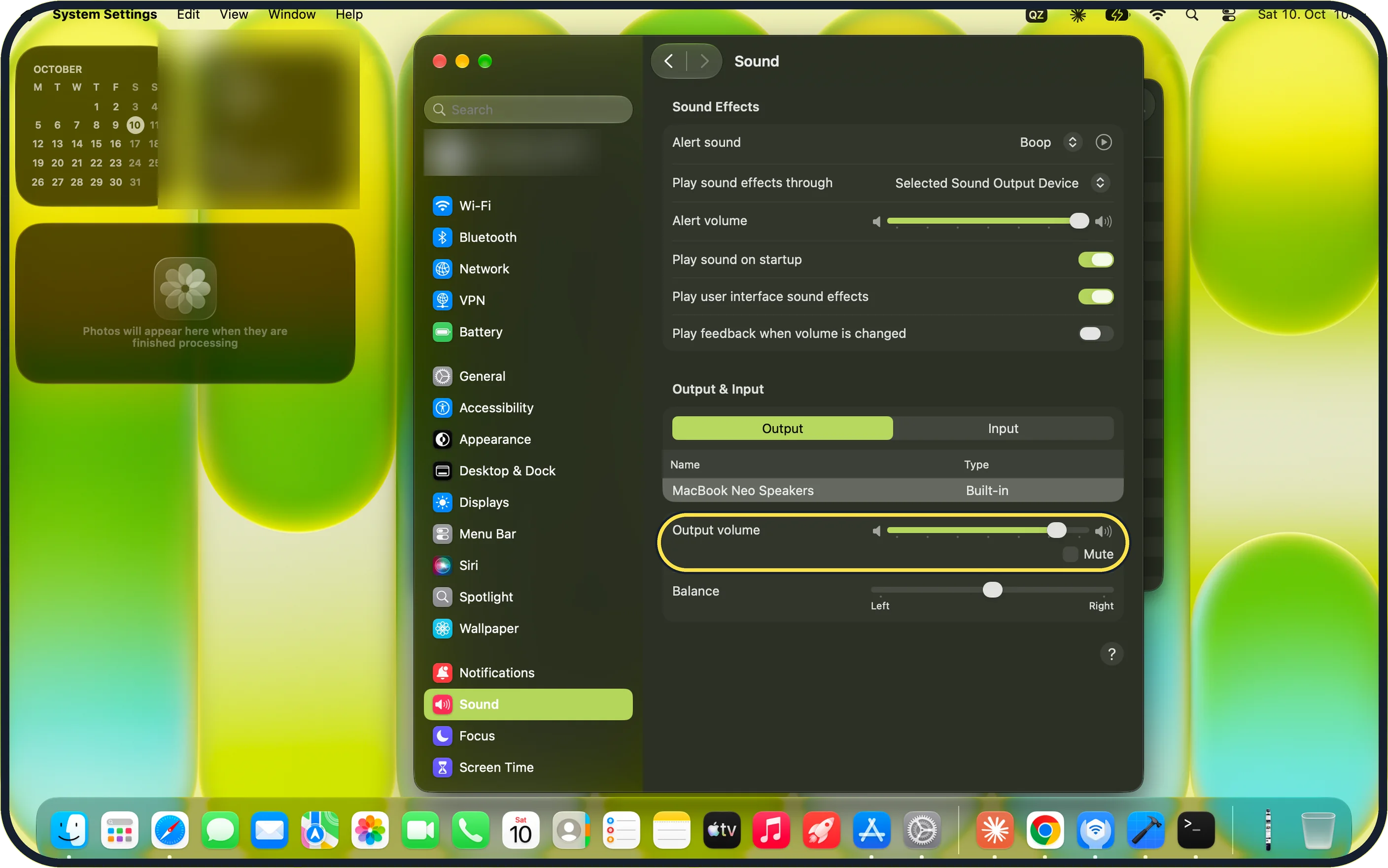
Zoomed in on the setting. Tap to see the whole screenTap the picture to see it full size Check volume and mute
Press the volume up key, or drag the Output volume slider under System Settings, Sound. On our MacBook Neo, Mute is a tick box just below that slider: make sure it is not ticked.
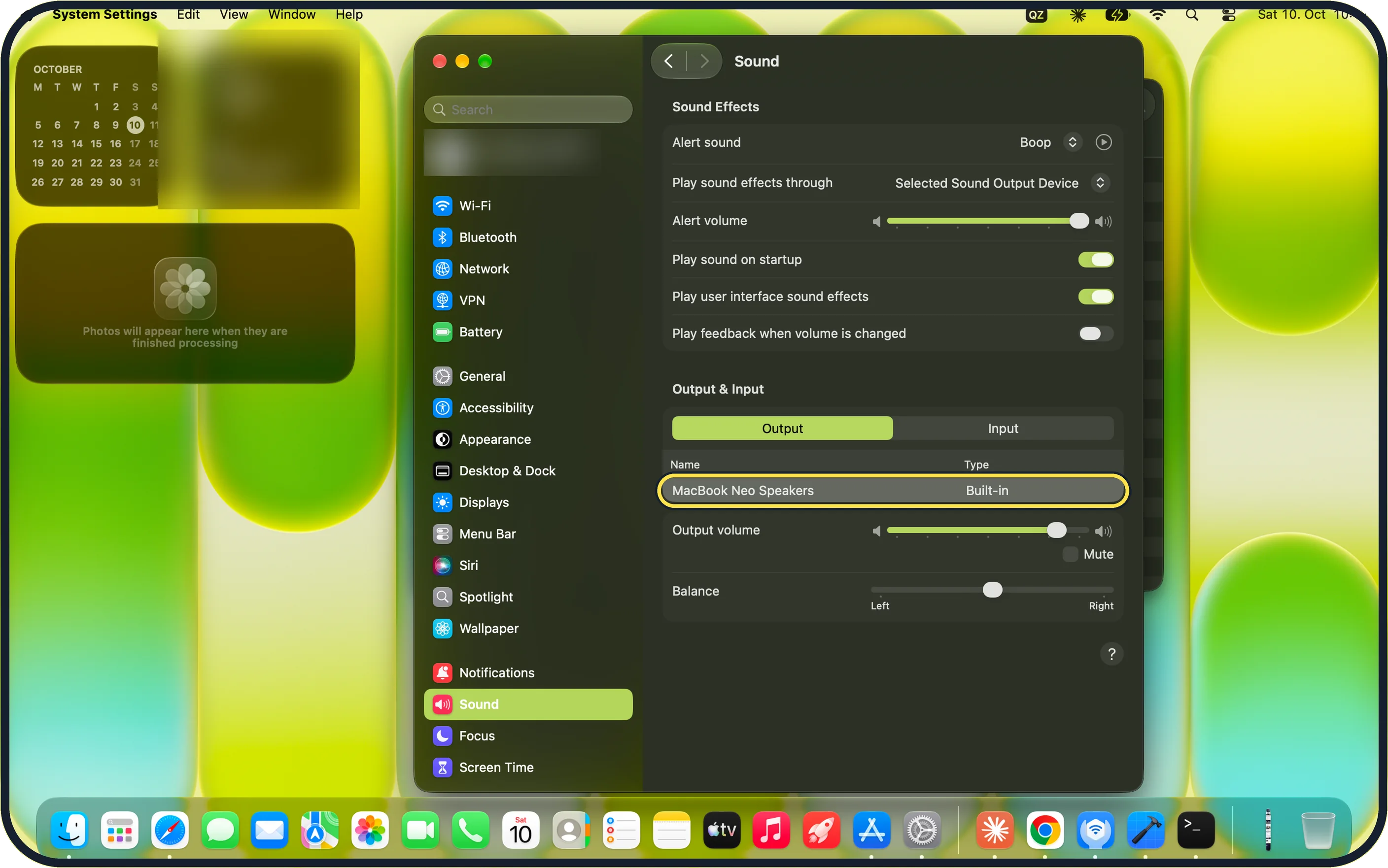
Zoomed in on the setting. Tap to see the whole screenTap the picture to see it full size Choose the right output
Open System Settings, Sound and click Output. Select the built-in speakers or your headphones. On our MacBook Neo the list shows MacBook Neo Speakers, type Built-in, with a Balance slider below.
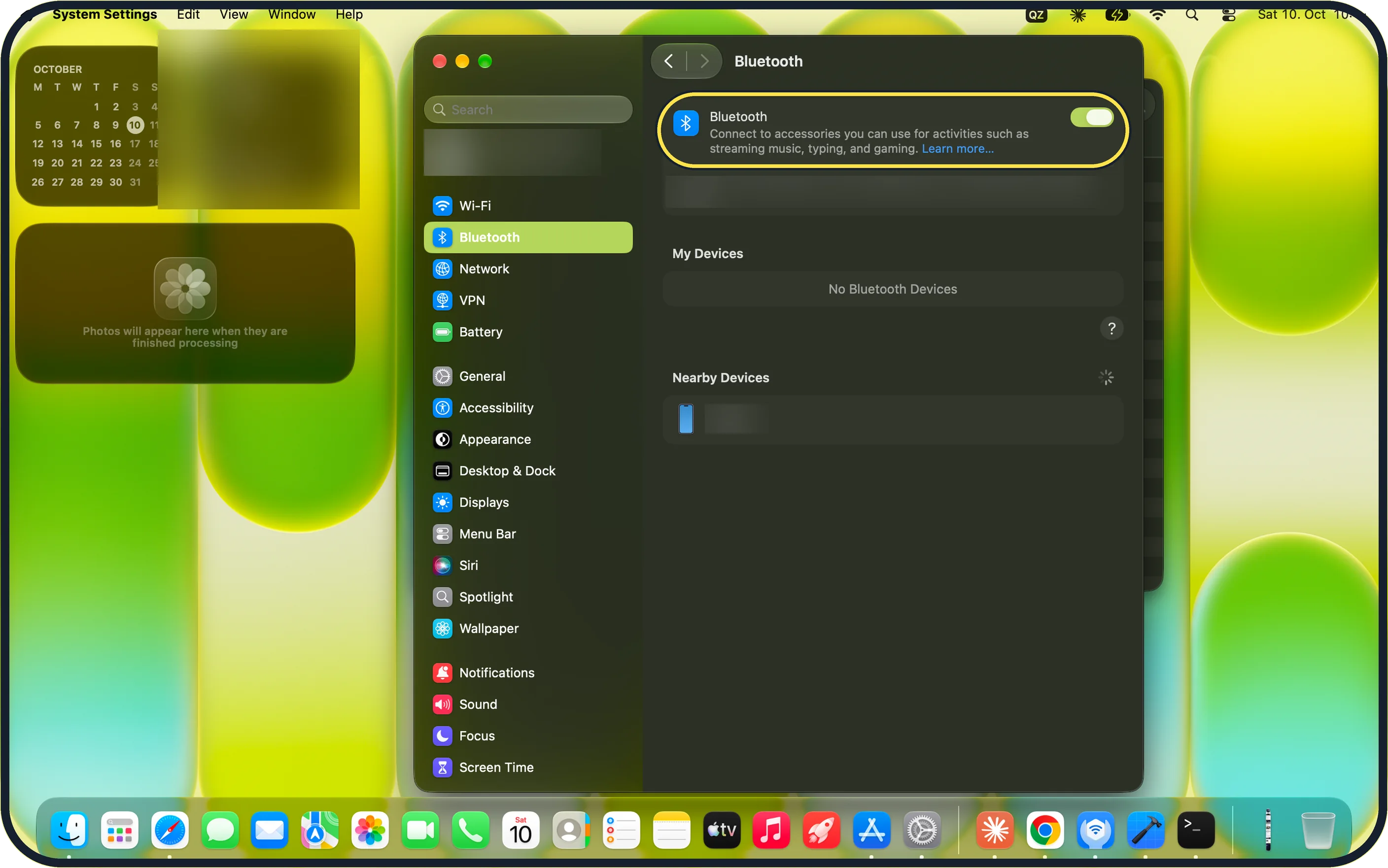
Zoomed in on the setting. Tap to see the whole screenTap the picture to see it full size Disconnect other audio devices
Turn off Bluetooth for a moment under System Settings, Bluetooth, and unplug headphones and displays. On our MacBook Neo, Bluetooth shows My Devices: No Bluetooth Devices.
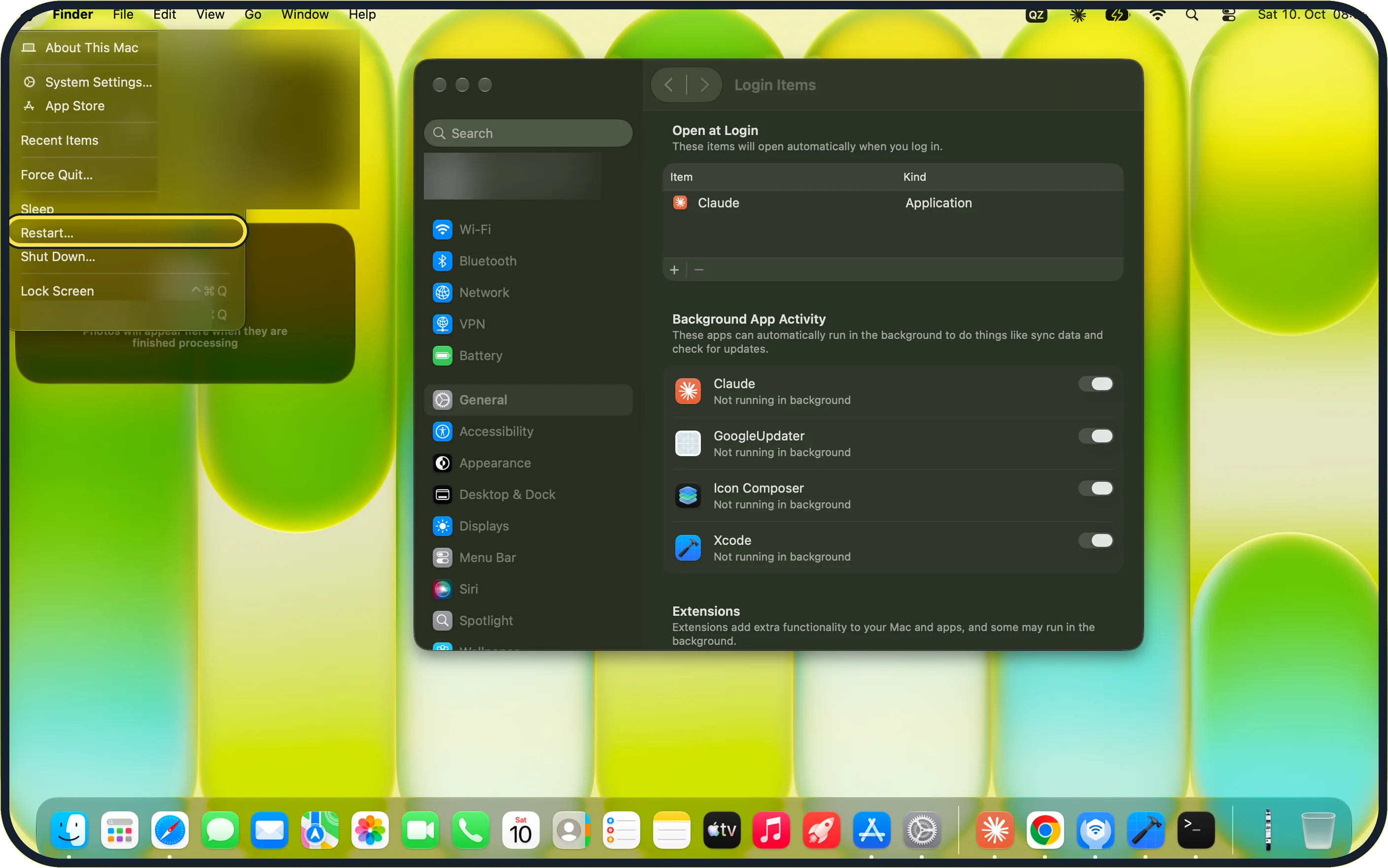
Zoomed in on the setting. Tap to see the whole screenTap the picture to see it full size Restart the Mac
Choose Apple menu, Restart…. On our MacBook Neo, Restart… sits between Sleep and Shut Down….
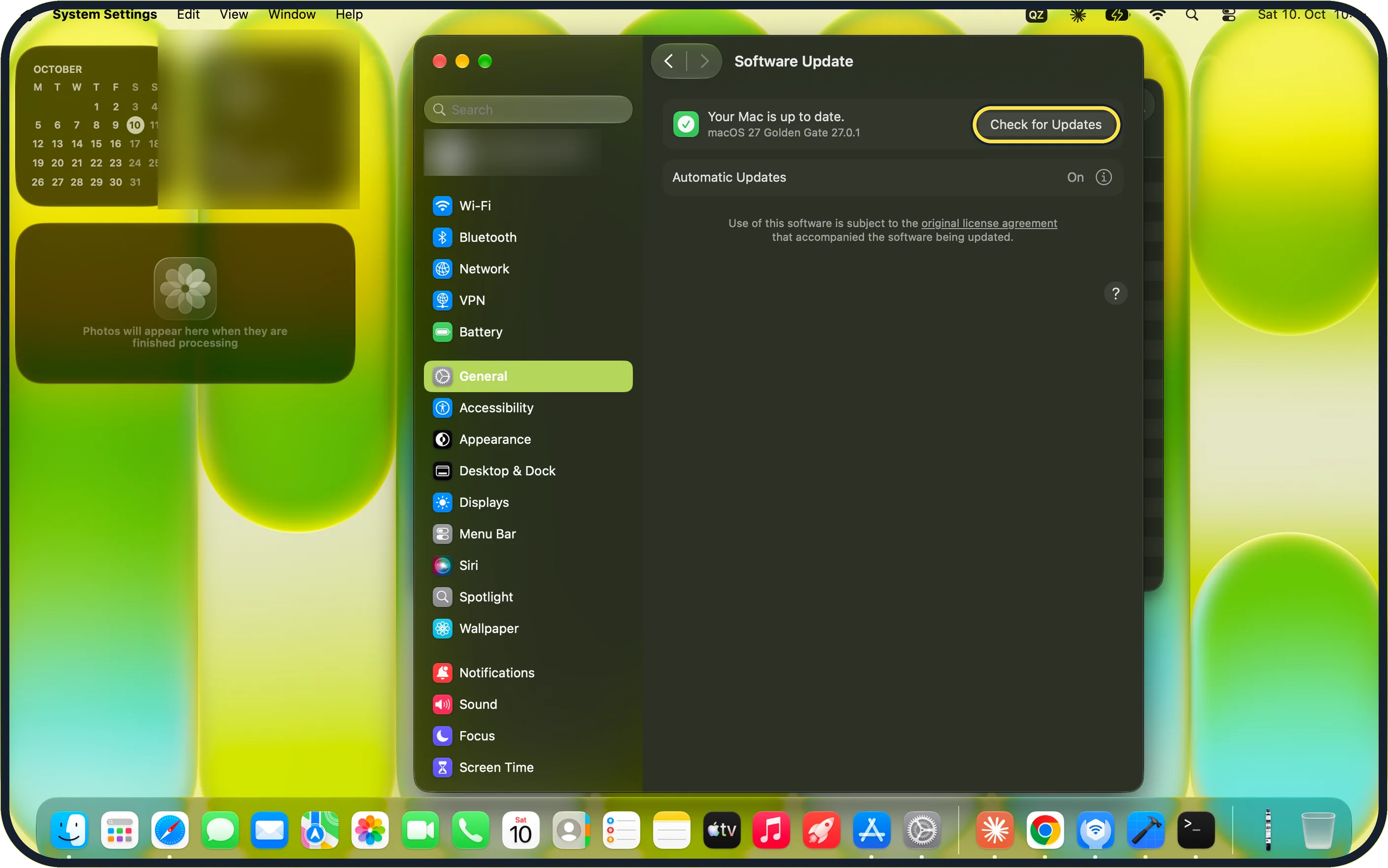
Zoomed in on the setting. Tap to see the whole screenTap the picture to see it full size Update macOS
Open System Settings, General, Software Update and click Check for Updates. Our MacBook Neo shows Your Mac is up to date: macOS 27 Golden Gate 27.0.1.
What we saw on our device
- Check volume and mute: On our MacBook Neo, Mute is a tick box just below that slider: make sure it is not ticked.
- Choose the right output: On our MacBook Neo the list shows MacBook Neo Speakers, type Built-in, with a Balance slider below.
- Disconnect other audio devices: On our MacBook Neo, Bluetooth shows My Devices: No Bluetooth Devices.
- Restart the Mac: On our MacBook Neo, Restart… sits between Sleep and Shut Down….
If you do not see this option
- No MacBook Speakers in the list On our MacBook Neo the Output list names the built-in speakers MacBook Neo Speakers, type Built-in. Select that row.
- Headphones not in the Output list Apple's macOS 27 guide: for Bluetooth headphones, choose Apple menu, System Settings, Sound, click Output and select the device. Connect them under Bluetooth first. Source: Connect a Bluetooth device with your Mac
If this does not work
- Sound only fails in one app Play sound in another app, such as Music. If that works, check the first app's own volume. In Safari, a webpage with audio may be muted: Apple's speaker article says to click the Audio button in the search field at the top of the window. Our Mac plays alert sounds through the Selected Sound Output Device: the play button next to Alert sound tests that output. Source: If the internal speakers on your Mac aren't working
- Sound goes to a Bluetooth device Disconnect it: Apple's guide says hold the pointer over the device in System Settings, Bluetooth and click Disconnect. Source: Connect a Bluetooth device with your Mac
About this guide
Silence on a Mac can come from the wrong output device: sound going to a display, a Bluetooth speaker or headphones that are not in use.
Screenshots: MacBook Neo, macOS 27.0.1, dark mode.
Good to know
Alert sounds have their own volume under System Settings, Sound, Sound Effects. On our MacBook Neo the alert sound is Boop.
If the built-in speakers still make no sound after these steps, contact Apple Support.
In short: Volume up, unmute, System Settings, Sound, Output, pick the right device.
- Apple Support: If the internal speakers on your Mac aren't working
- Apple Support: Connect a Bluetooth device with your Mac
Links checked in October 2026. Menus and features can change after software updates. These steps match the version named at the top.
Did this guide work for you?
Sorry about that. What happened?