
howtosimply.com/guides/how-to-change-the-alert-sound-and-its-volume-on-a-mac/ · Checked October 2026 · MacBook Pro · macOS Tahoe 26
In this guide
Open System Settings and click Sound. Under Sound Effects, choose a sound from the Alert sound menu. It plays when you select it, so you hear what it sounds like. Drag the Alert volume slider to make alerts quieter or louder than the rest.
5 of 5 steps with real screenshots · 1 official source below
- Device
- Mac
- Shown on
- macOS Tahoe 26 (MacBook Pro)
- App
- System Settings
- Path
- System Settings › Sound › Alert sound and Alert volume
- Real screenshots
- 5 of 5 steps
- Checked
- October 2026
- Sources
- 1 official, linked below
Step by step
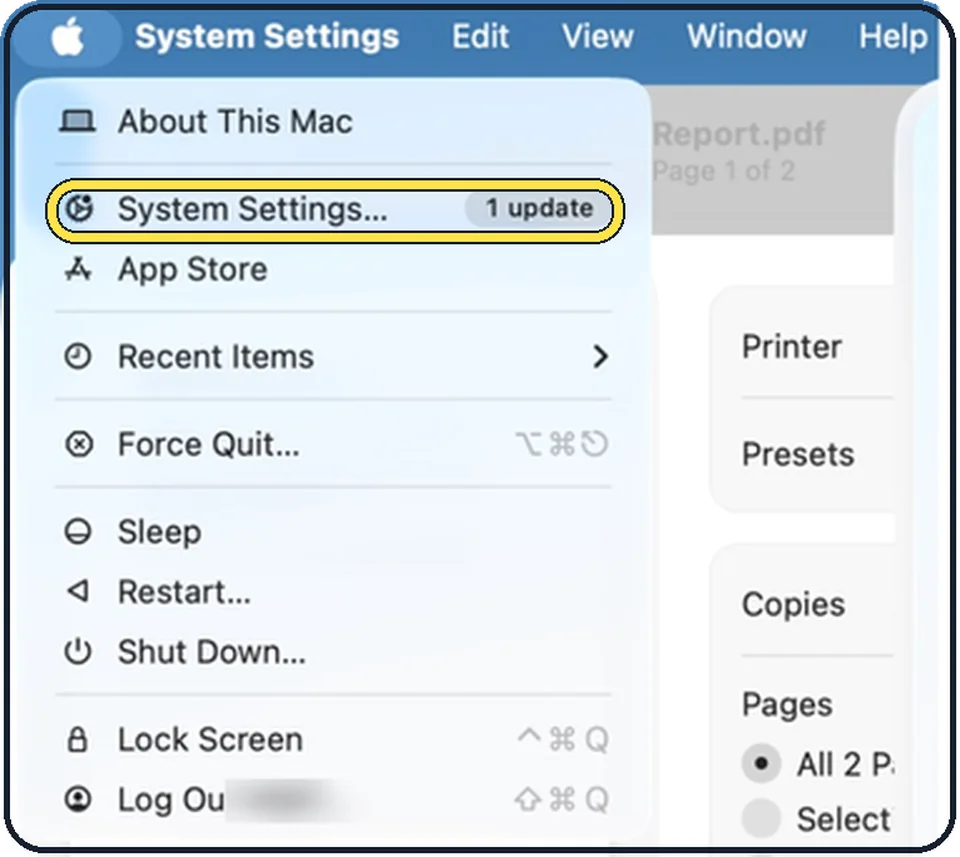
Tap the picture to see it full size Open System Settings
Click the Apple menu in the top left corner of the screen and choose System Settings.
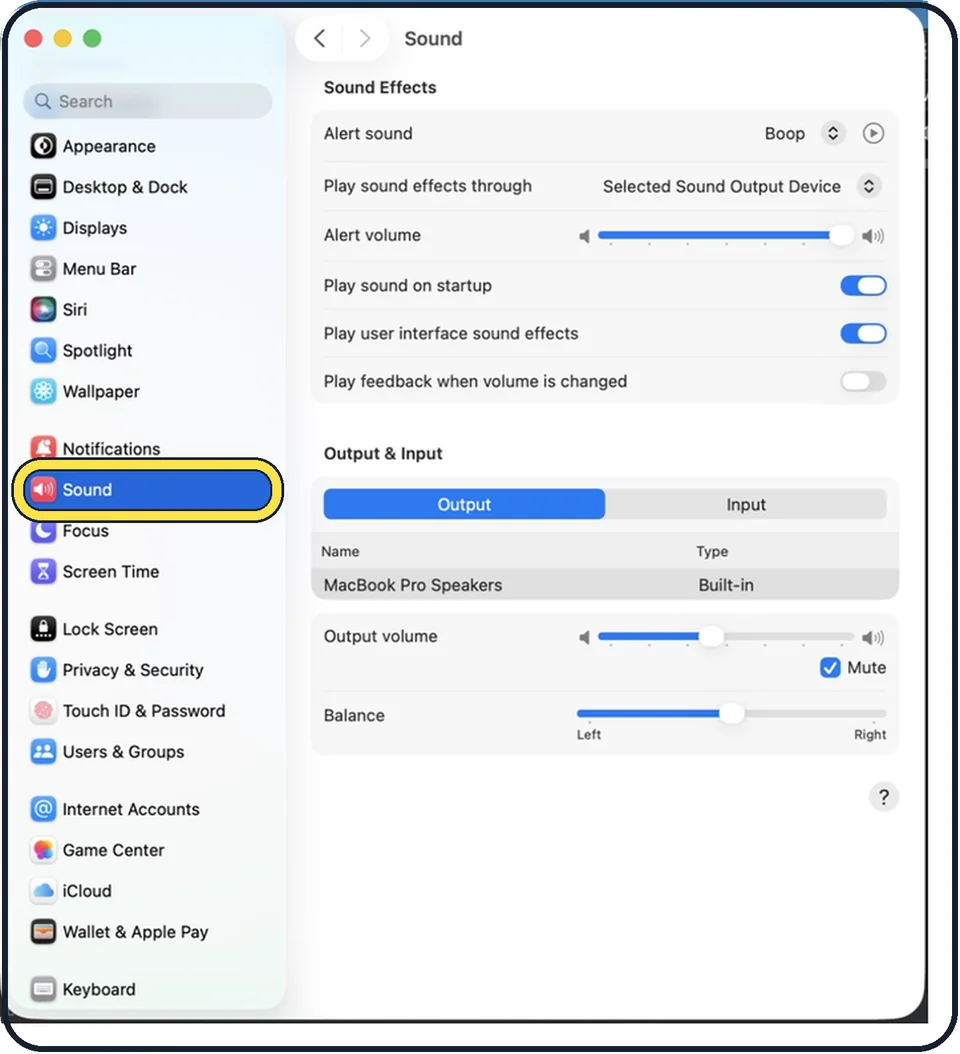
Zoomed in on the setting. Tap to see the whole screenTap the picture to see it full size Click Sound in the sidebar
Sound is in the group with Notifications and Focus. You may need to scroll down in the sidebar.
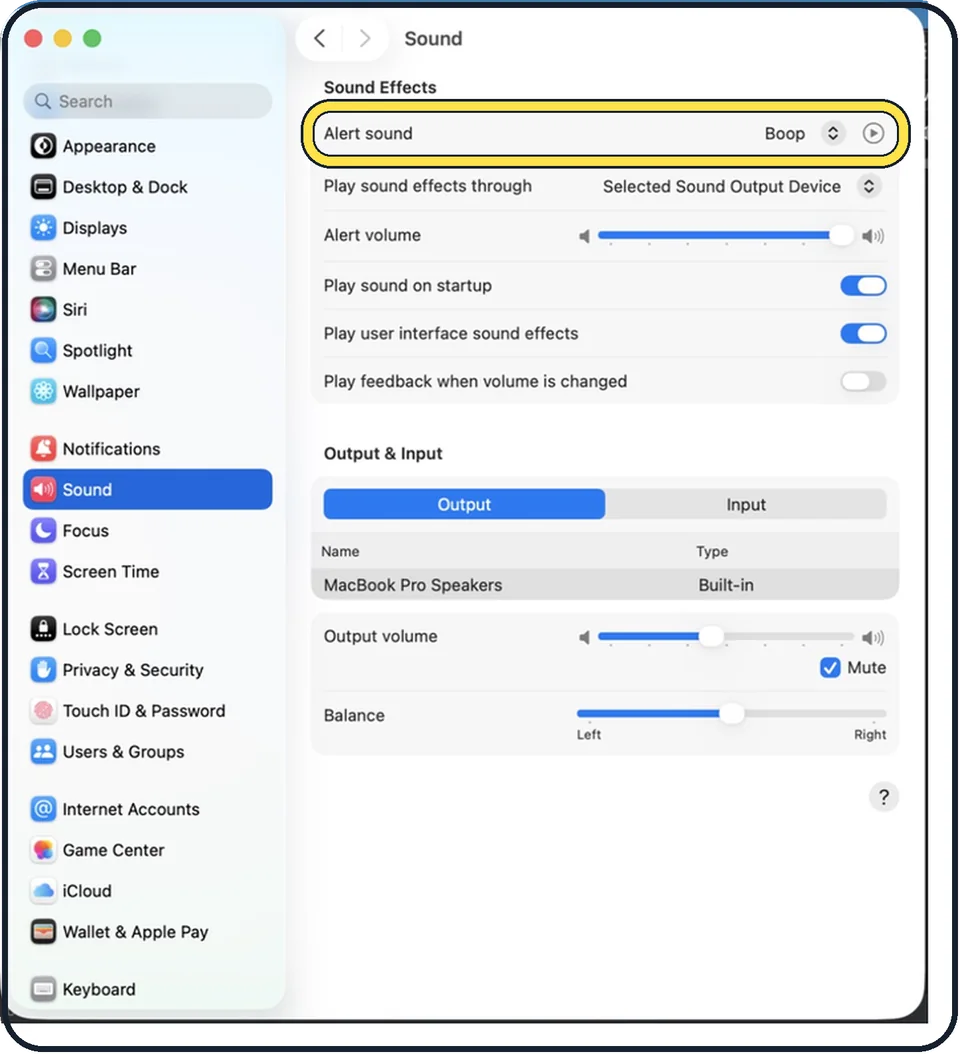
Tap the picture to see it full size Choose the alert sound
Click the menu in the Alert sound row. In the picture it is set to Boop. The play button at the right plays it again.
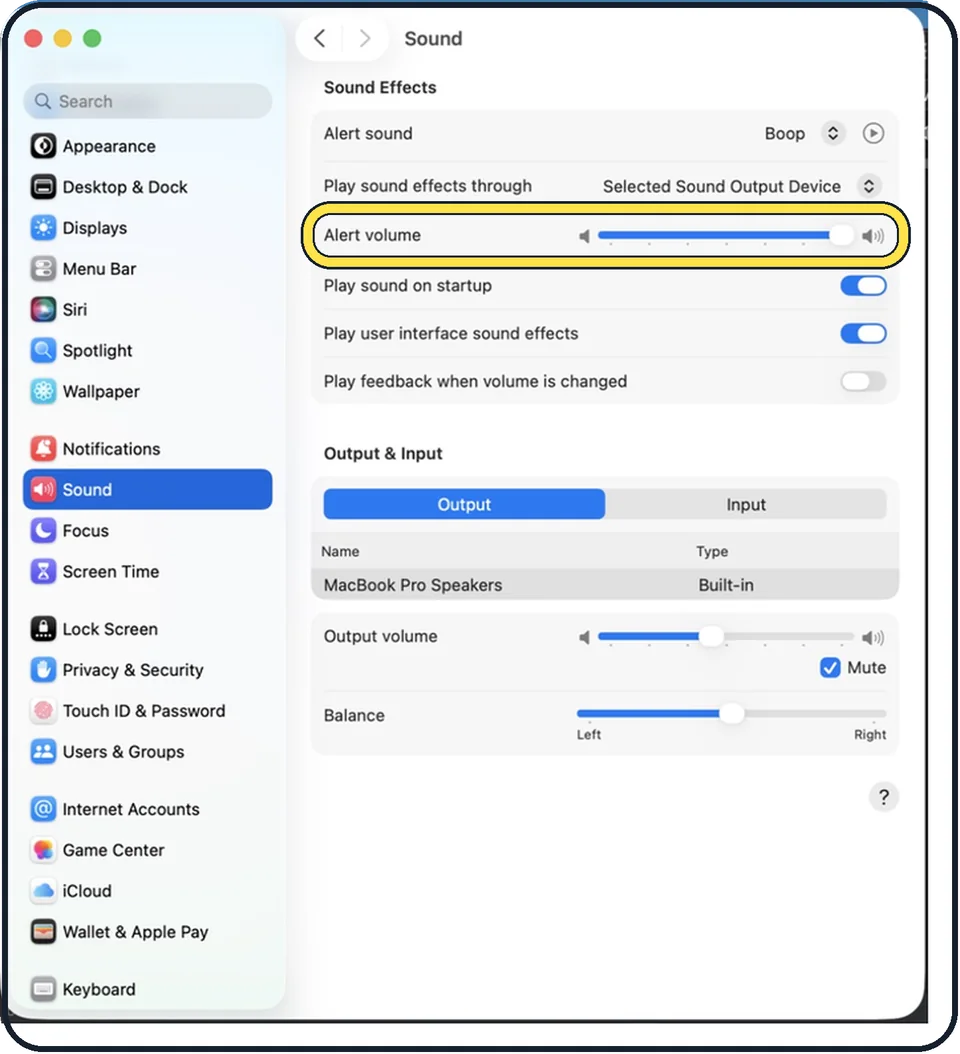
Tap the picture to see it full size Set the alert volume
Drag the Alert volume slider.
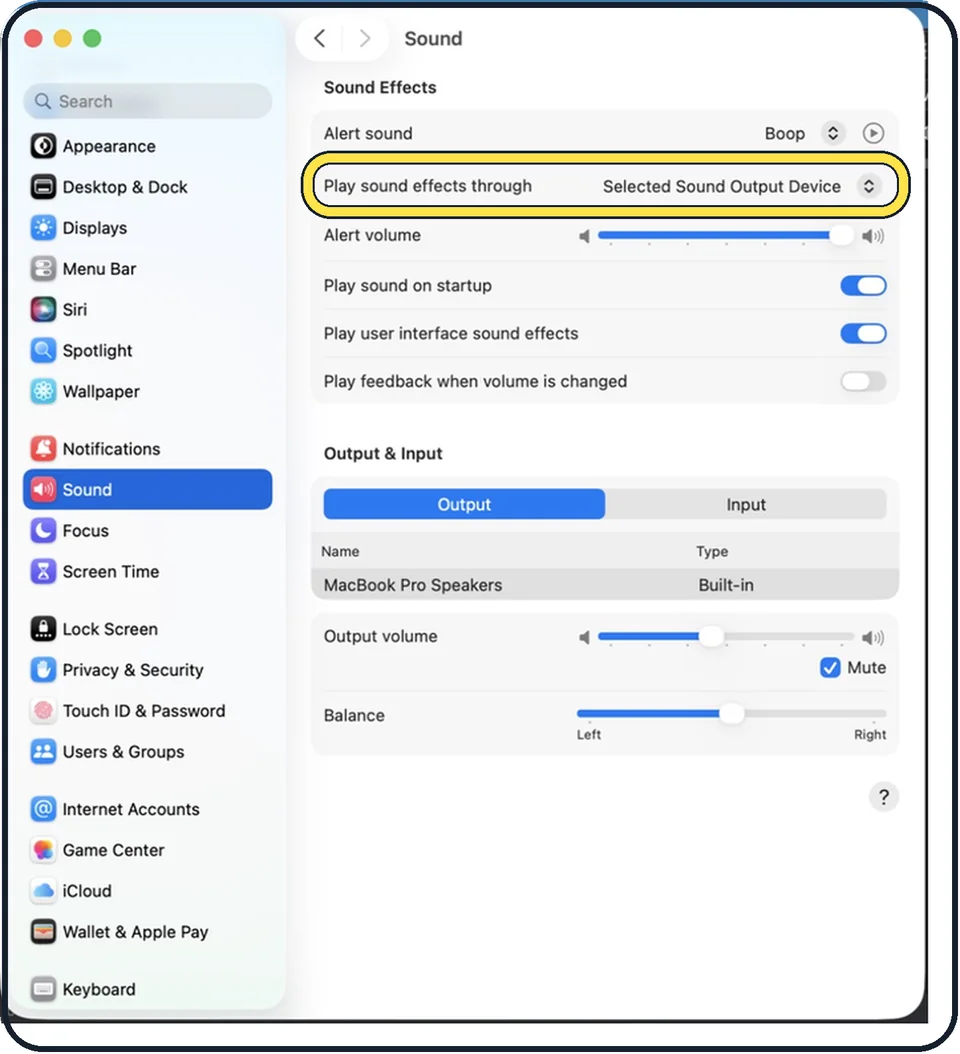
Tap the picture to see it full size Choose where alerts play
Play sound effects through decides which output device plays them. In the picture it is Selected Sound Output Device.
If you do not see this option
- A row is missing Apple says not all options in Sound settings appear for all Mac models. Source: Change Sound settings on Mac
- Sound is not in view Apple says you may need to scroll down the sidebar. In our picture Sound sits just below Notifications. Source: Change Sound settings on Mac
If this does not work
- You hear no alert Apple says the Mute checkbox stops sound output. It was ticked in our picture, so untick it. Source: Change Sound settings on Mac
- Alerts stay quiet at full Alert volume Apple says alert volume is relative to the output volume, so raise Output volume as well. Source: Change Sound settings on Mac
- Alerts play on the wrong speakers Apple says Play sound effects through chooses the device that plays them. Source: Change Sound settings on Mac
About this guide
The alert sound is the short tone a Mac plays when something needs your attention or cannot be done. You can pick another tone and give it its own volume. Apple explains that the alert volume is relative to the output volume: if you lower the Mac volume, alerts get quieter too.
The screenshots show System Settings on macOS Tahoe 26.
Good to know
For a visible signal as well: how to make a Mac flash the screen for alerts.
The chime at startup is a separate switch: how to turn off the startup sound on a Mac.
In short: System Settings, Sound, Alert sound and Alert volume.
Links checked in October 2026. Menus and features can change after software updates. These steps match the version named at the top.
Did this guide work for you?
Sorry about that. What happened?