
macOS 27 compared with macOS 26: We rewrote this guide on macOS 27.0.1 (MacBook Neo): it now has 6 steps instead of 3. The macOS 26 page keeps the steps and screenshots as they were.
howtosimply.com/guides/how-to-play-stereo-sound-as-mono-on-a-mac/ · Checked October 2026 · MacBook Neo · macOS 27.0.1
In this guide
Open System Settings, click Accessibility, then Audio under Hearing, and switch on Play stereo audio as mono. Apple says the Mac then plays stereo tracks as mono in both the left and right speakers or headphones.
If you do not see this option
- Audio is not in the list The Accessibility page is long. Scroll down past Physical and Motor until you reach the Hearing group, where Audio sits below Hearing Devices.
- You opened the wrong page Use the back arrow next to the page title at the top of the window to return to Accessibility, then click Audio.
6 of 6 steps with real screenshots · 1 official source below
- Device
- Mac
- Shown on
- macOS 27.0.1 (MacBook Neo)
- App
- System Settings
- Real screenshots
- 6 of 6 steps
- Checked
- October 2026
- Sources
- 1 official, linked below
Step by step
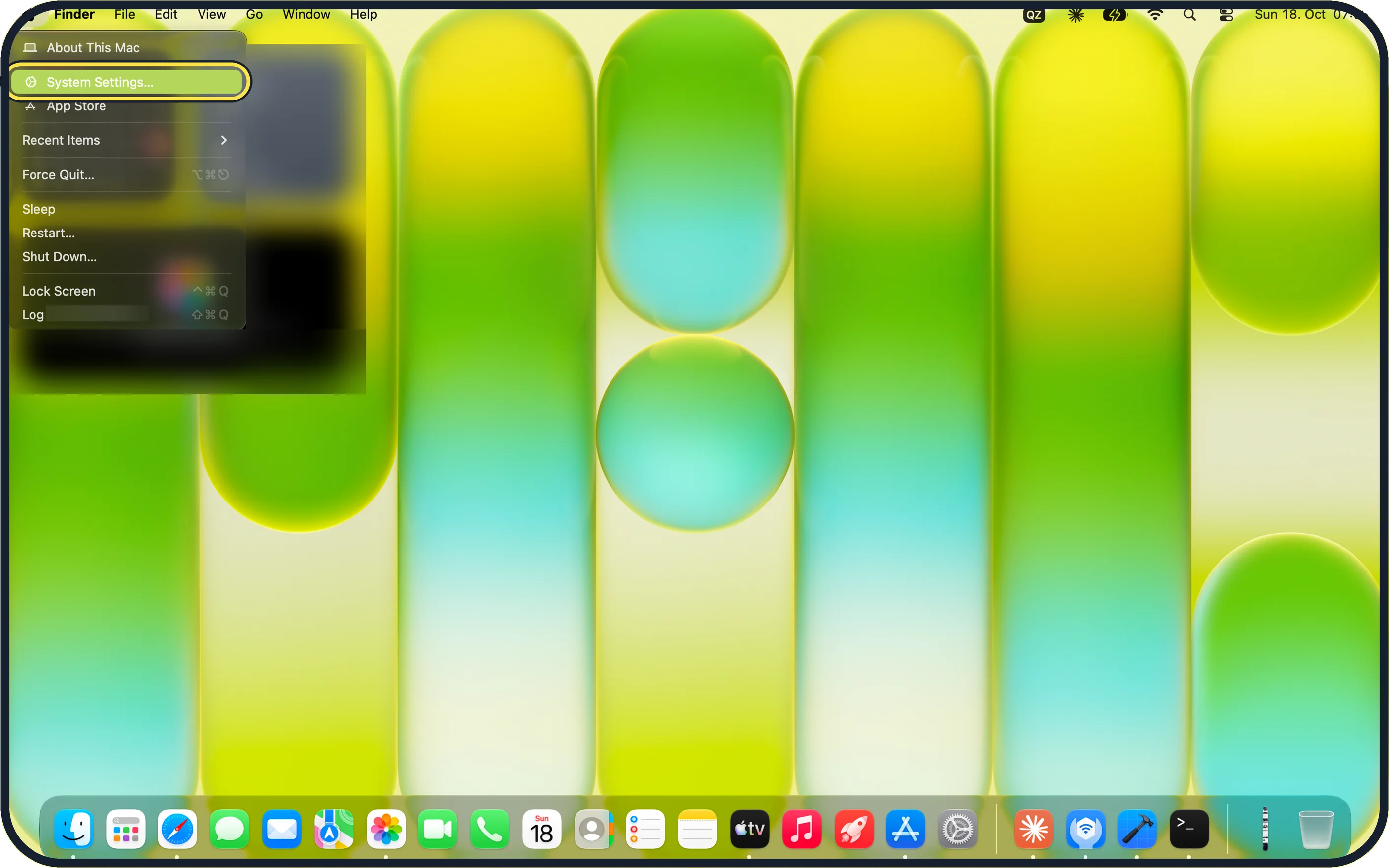
Zoomed in on the setting. Tap to see the whole screenTap the picture to see it full size Open System Settings
Click the Apple menu in the top left corner of the screen and choose System Settings.
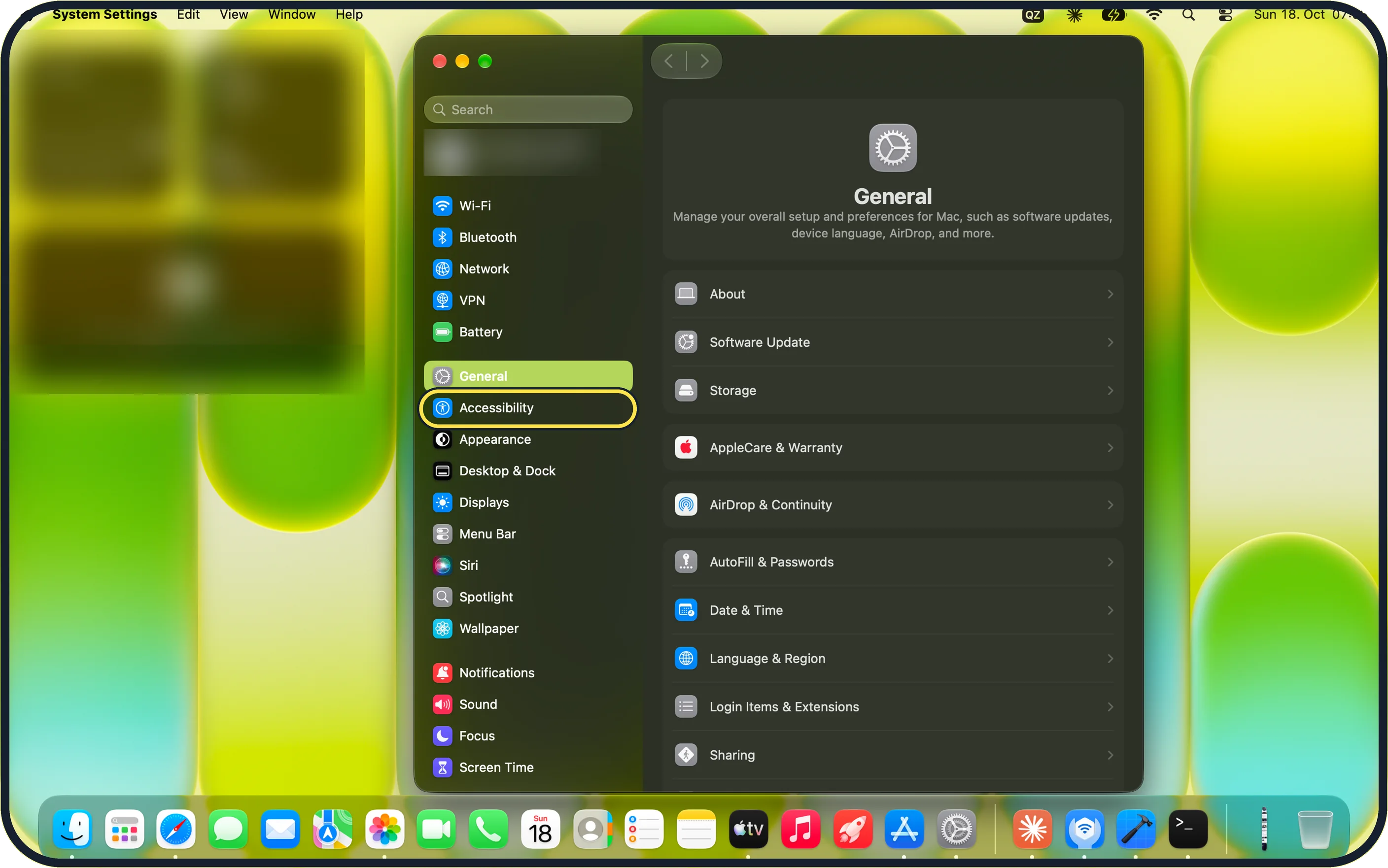
Zoomed in on the setting. Tap to see the whole screenTap the picture to see it full size Click Accessibility in the sidebar
On our MacBook Neo, Accessibility is near the top of the sidebar, just below General.
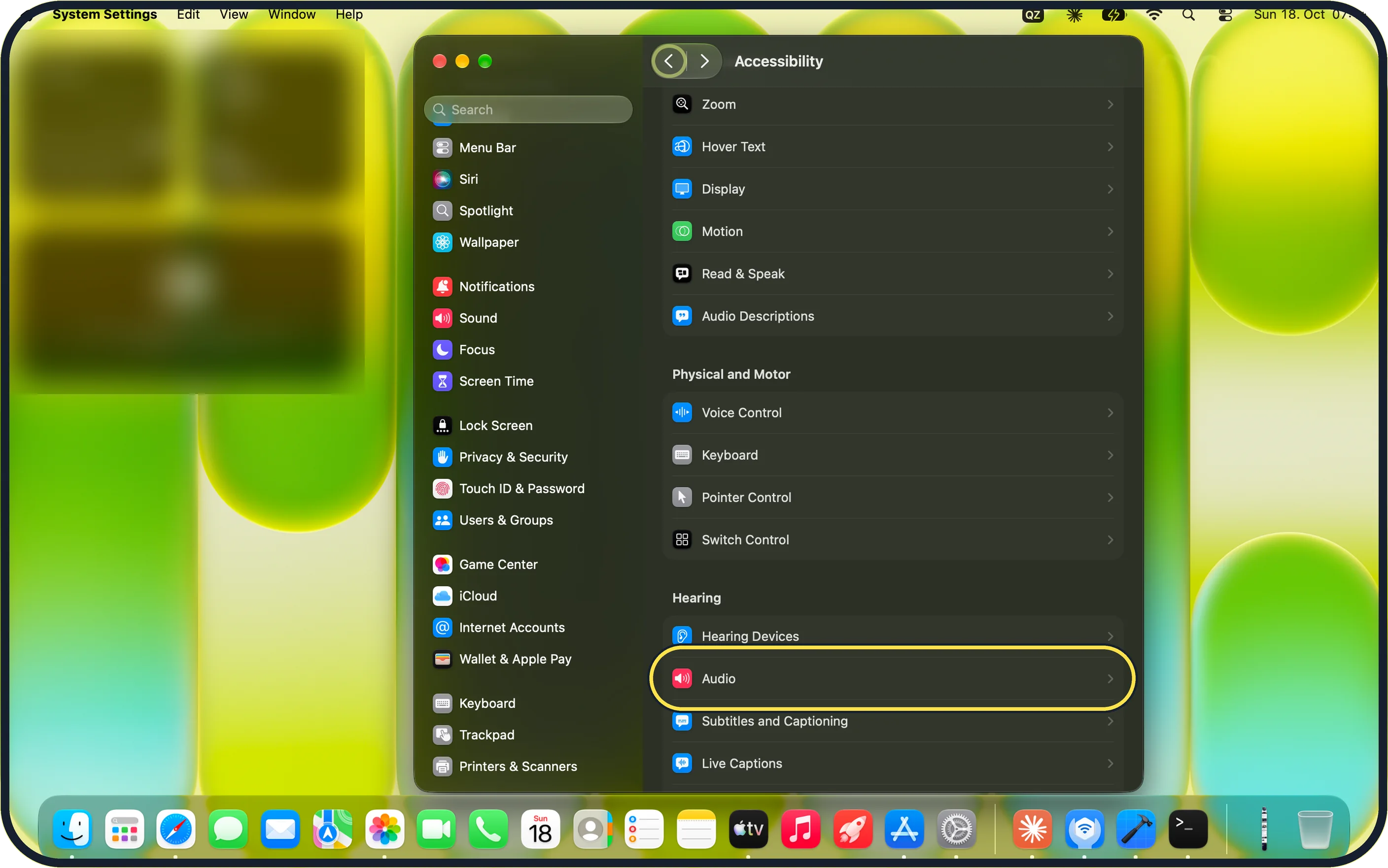
Zoomed in on the setting. Tap to see the whole screenTap the picture to see it full size Click Audio
Scroll down to the Hearing group on the right and click Audio.
On our MacBook Neo, Audio is the second row under Hearing, below Hearing Devices and above Subtitles and Captioning and Live Captions.
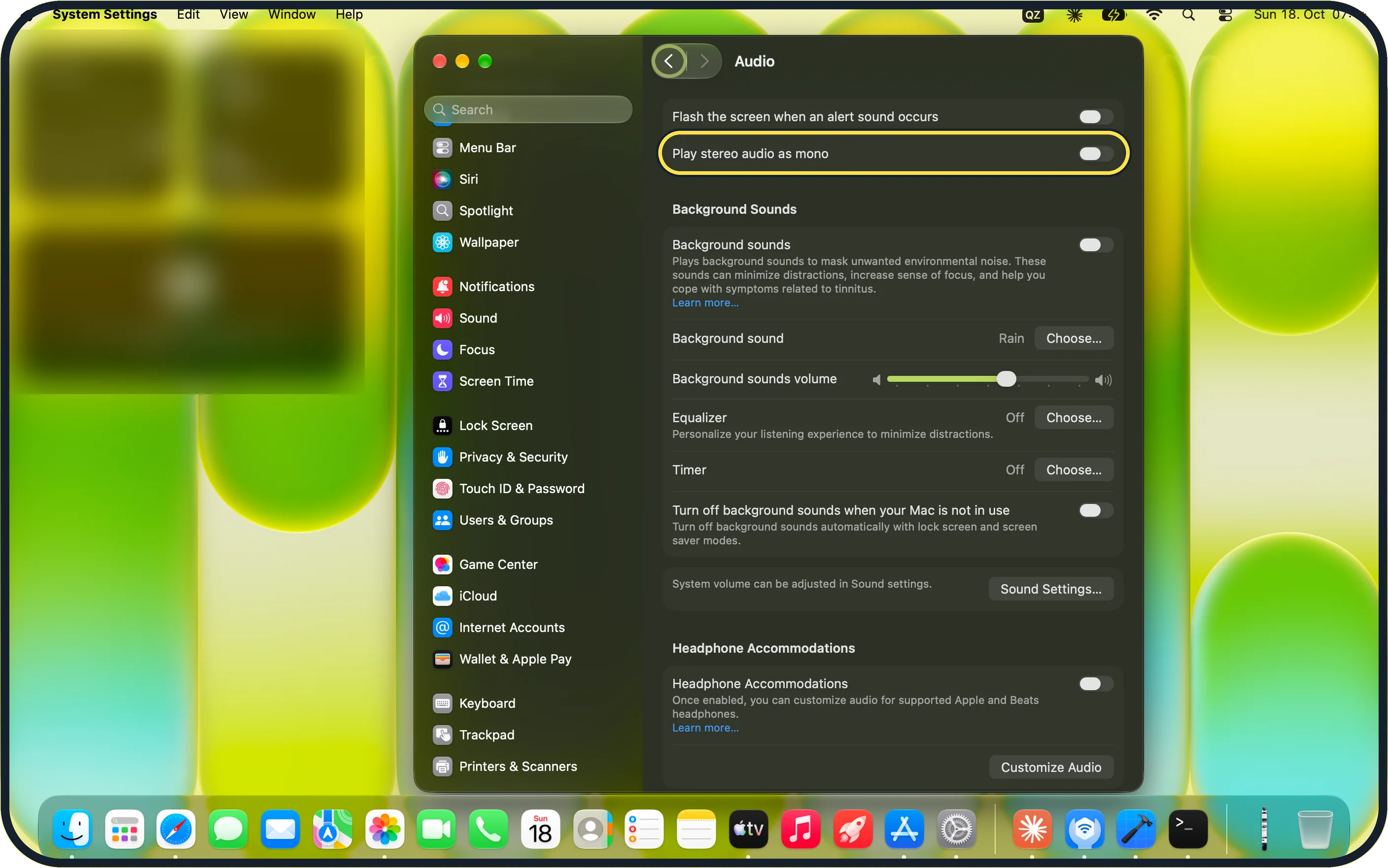
Zoomed in on the setting. Tap to see the whole screenTap the picture to see it full size Switch on Play stereo audio as mono
It is the second switch at the top of the Audio page, below Flash the screen when an alert sound occurs.
On our MacBook Neo it was off to start with.
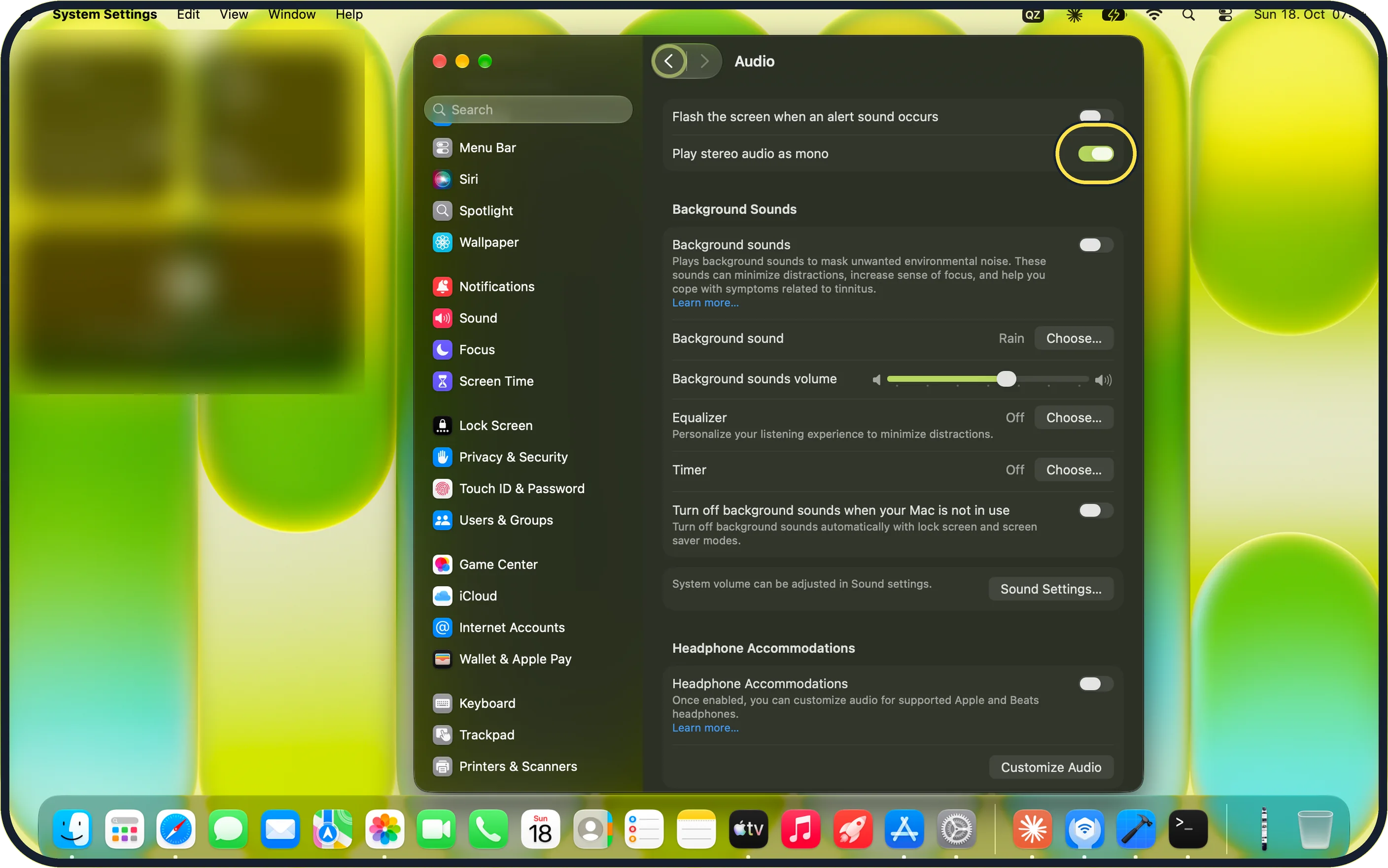
Zoomed in on the setting. Tap to see the whole screenTap the picture to see it full size Check that the switch is on
The switch turns green when mono audio is on. Play some music to check that both sides now carry the whole sound.
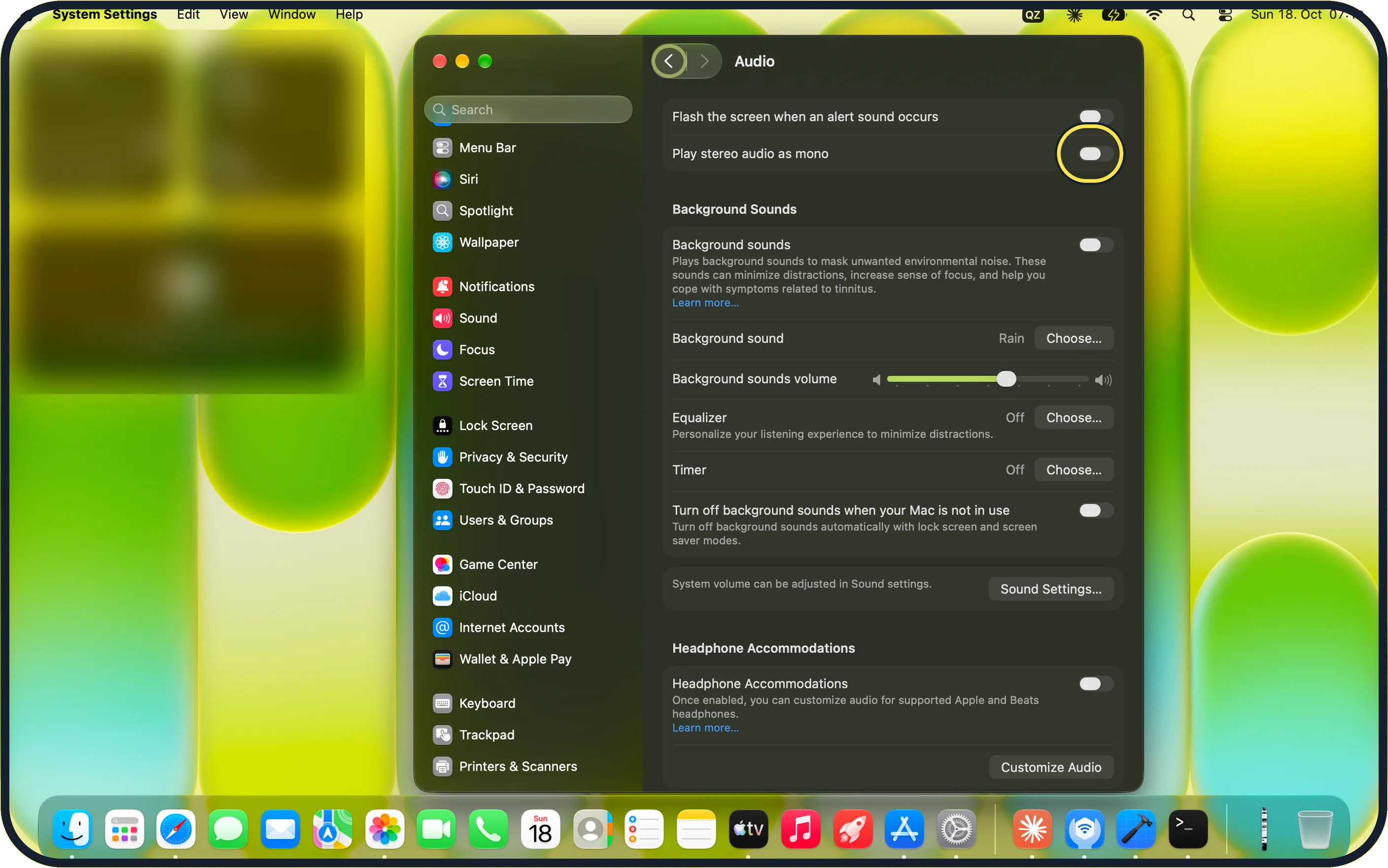
Zoomed in on the setting. Tap to see the whole screenTap the picture to see it full size Switch it off to go back to stereo
Click the same switch again. It turns grey and the Mac plays stereo as before.
If this does not work
- You still hear only one side Check that the Play stereo audio as mono switch is green. Apple says that with it on, stereo tracks play as mono in both the left and right speakers or headphones. Source: Change Audio settings for accessibility on Mac
- The sound is too quiet Click Sound Settings… on the Audio page to change the system volume and the output device.
- You hear rain or other noise That comes from Background Sounds on the same page. Make sure the Background sounds switch is off if you do not want it.
About this guide
Stereo music puts some sounds on the left and others on the right, so with one earbud in, or hearing in one ear, part of it is missing. Mono sends the whole sound to both sides.
Screenshots: MacBook Neo, macOS 27.0.1, dark mode.
Good to know
The system volume and the output device are in Sound settings. The Sound Settings… button further down the Audio page opens them.
On our MacBook Neo, the line next to that button reads "System volume can be adjusted in Sound settings."
On our MacBook Neo, the same Audio page also holds Background Sounds (set to Rain, switched off) and Headphone Accommodations.
In short: System Settings > Accessibility > Audio > Play stereo audio as mono.
Links checked in October 2026. Menus and features can change after software updates. These steps match the version named at the top.
Did this guide work for you?
Sorry about that. What happened?