
macOS 27 compared with macOS 26: We rewrote this guide on macOS 27.0.1 (MacBook Neo): it now has 5 steps instead of 3. The macOS 26 page keeps the steps and screenshots as they were.
howtosimply.com/guides/how-to-move-between-buttons-with-the-tab-key-on-a-mac/ · Checked October 2026 · MacBook Neo · macOS 27.0.1
In this guide
Open System Settings, click Keyboard in the sidebar and switch on Keyboard navigation. Then press Tab to move the focus forward between controls, and Shift Tab to move it backward.
If you do not see this option
- Keyboard is not in the sidebar Scroll down the sidebar, or type Keyboard in the Search field at the top of it. On our MacBook Neo it sits just above Trackpad.
- You cannot see Keyboard navigation It is in the first section of the Keyboard page, under Press 🌐 key to and above the Keyboard Shortcuts… button. Scroll to the top of the page.
5 of 5 steps with real screenshots · 1 official source below
- Device
- Mac
- Shown on
- macOS 27.0.1 (MacBook Neo)
- App
- System Settings
- Real screenshots
- 5 of 5 steps
- Checked
- October 2026
- Sources
- 1 official, linked below
Step by step
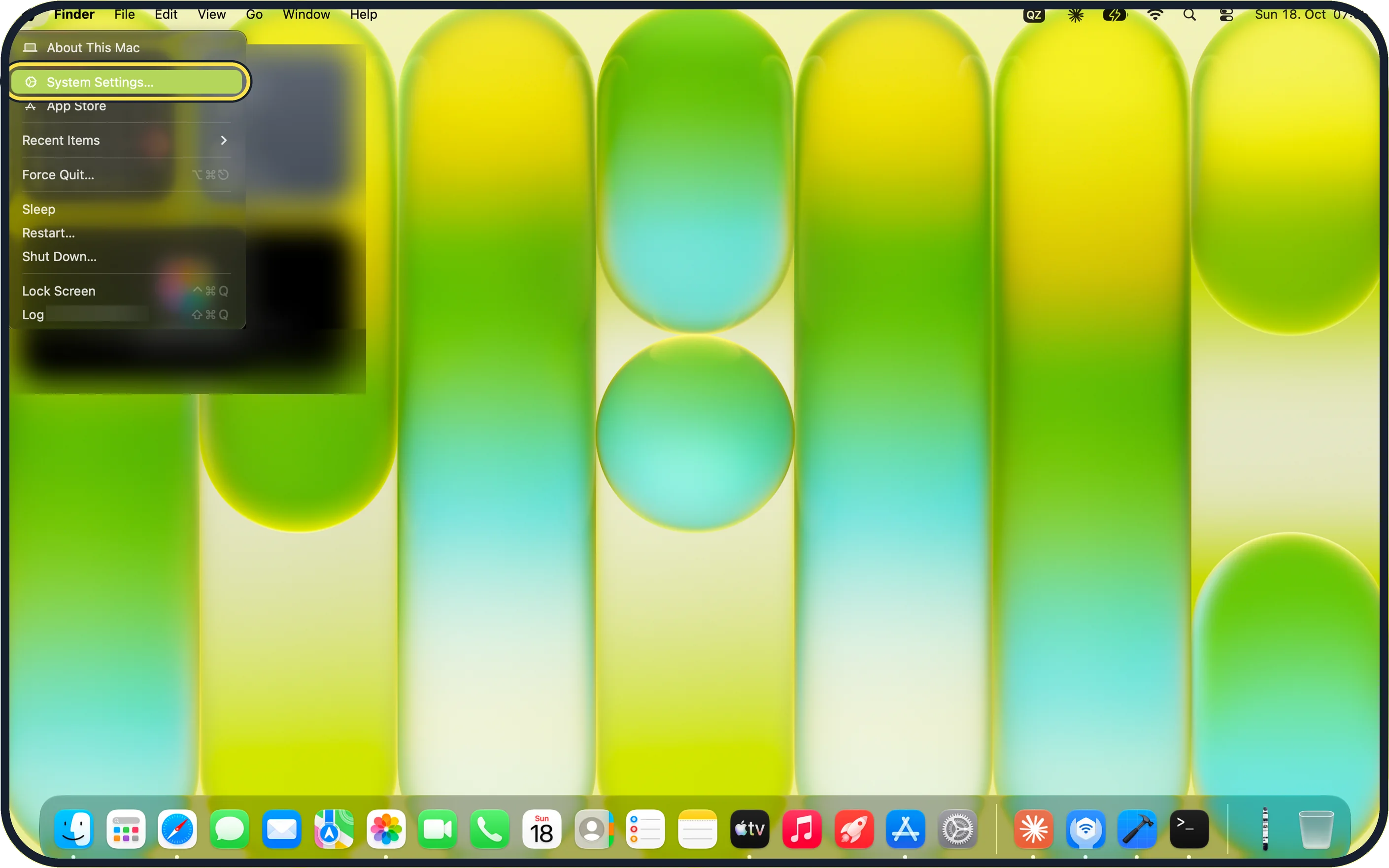
Zoomed in on the setting. Tap to see the whole screenTap the picture to see it full size Open System Settings
Click the Apple menu in the top-left corner of the screen and choose System Settings.
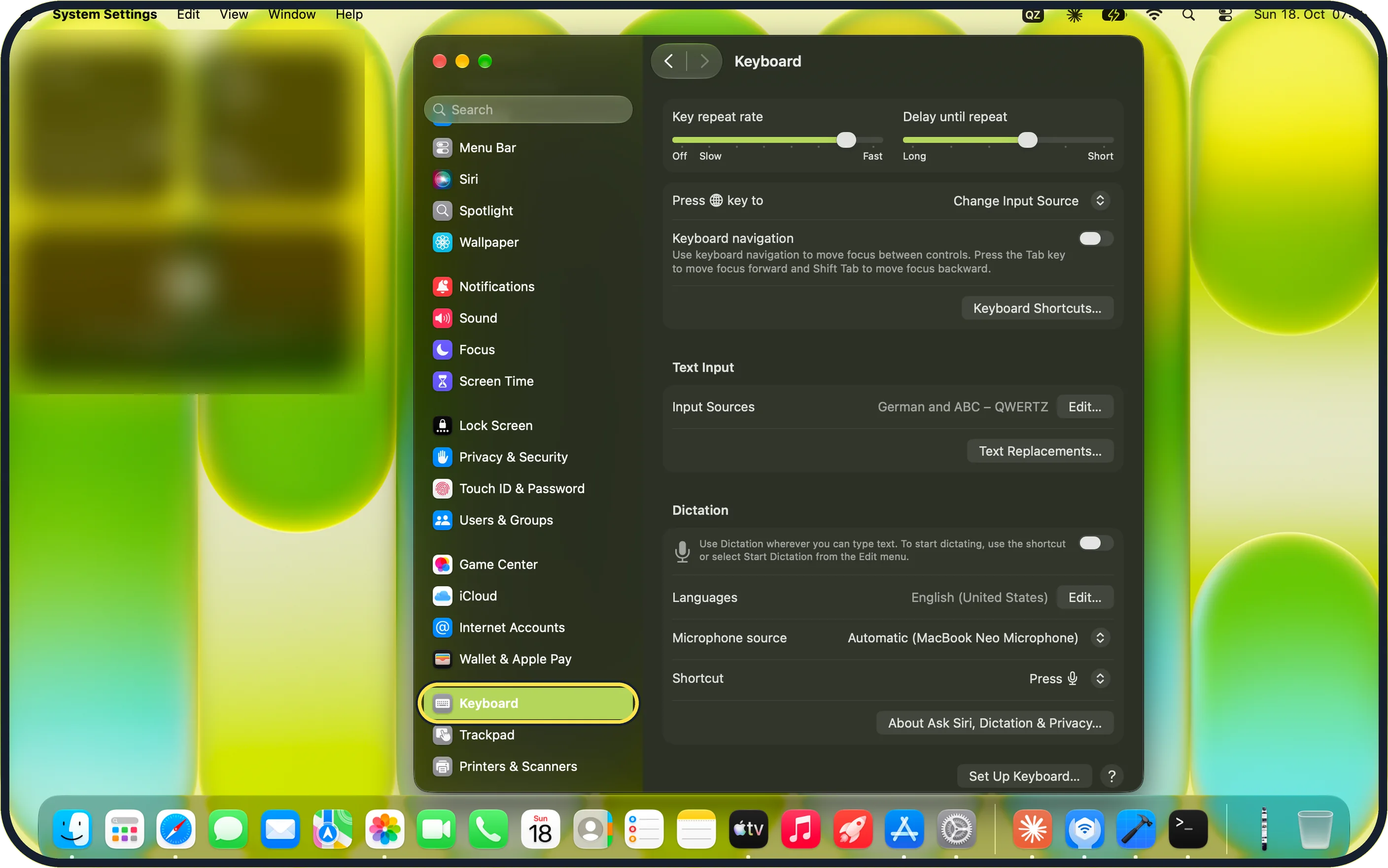
Zoomed in on the setting. Tap to see the whole screenTap the picture to see it full size Click Keyboard in the sidebar
Scroll down the sidebar if you need to. On our MacBook Neo, Keyboard sits between Wallet & Apple Pay and Trackpad.
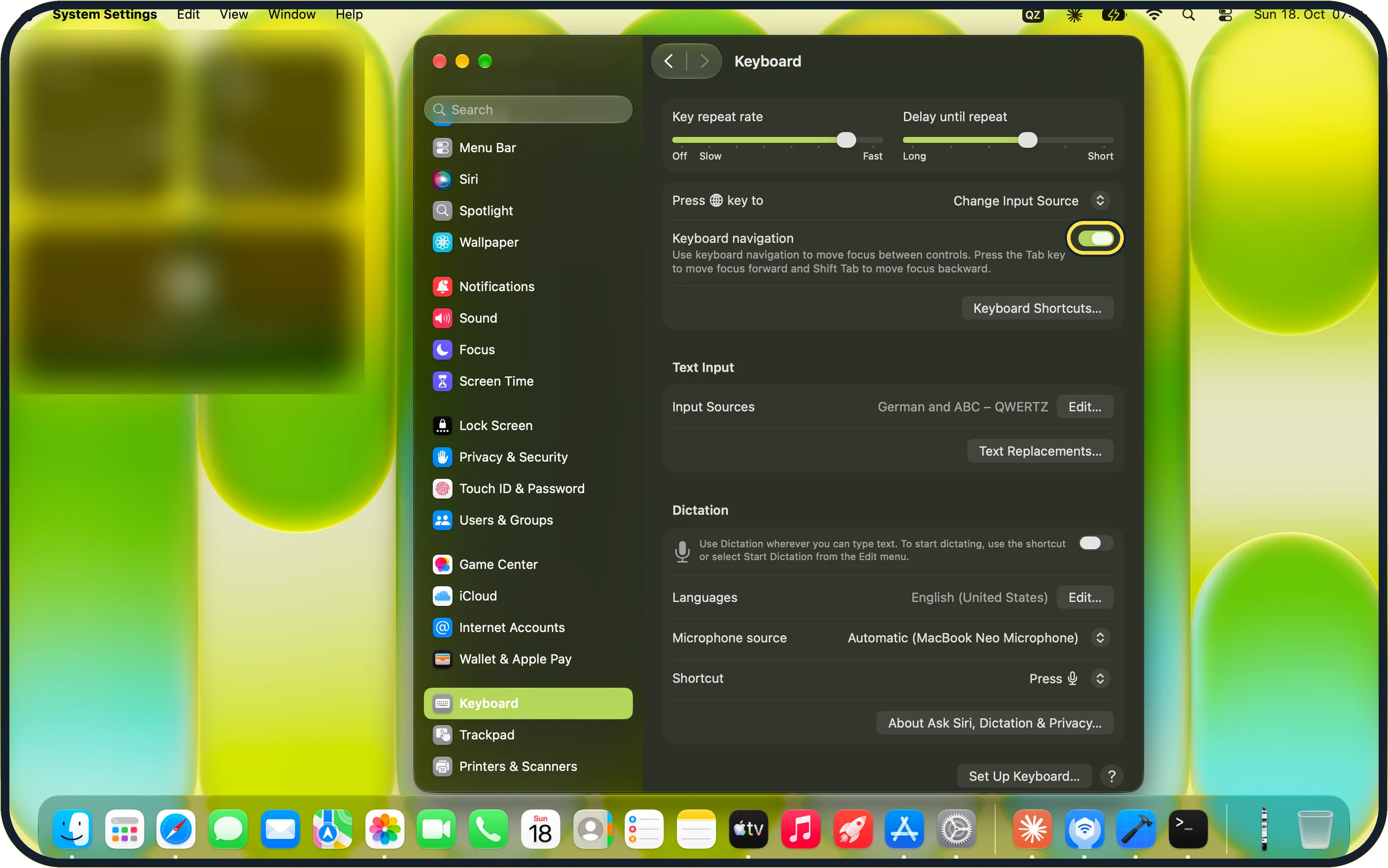
Zoomed in on the setting. Tap to see the whole screenTap the picture to see it full size Switch on Keyboard navigation
Click the switch next to Keyboard navigation so that it turns on.
On our MacBook Neo the note under it reads: "Use keyboard navigation to move focus between controls. Press the Tab key to move focus forward and Shift Tab to move focus backward."
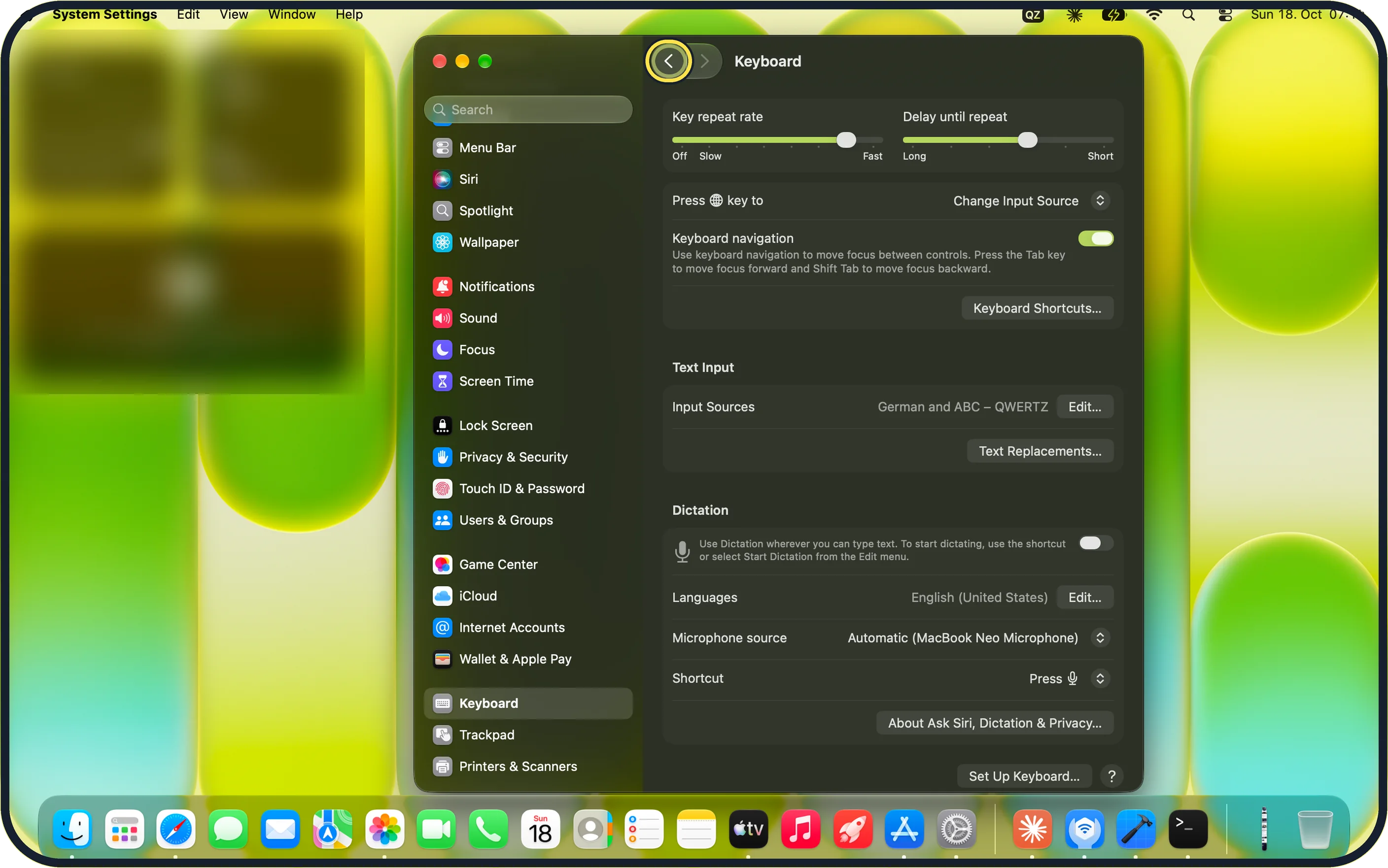
Zoomed in on the setting. Tap to see the whole screenTap the picture to see it full size Press Tab to move the focus
Press Tab to move to the next control and Shift Tab to go back. A ring shows which control has the focus.
On our MacBook Neo, the first Tab put the focus ring on the Back (<) button in the top-left of the window.
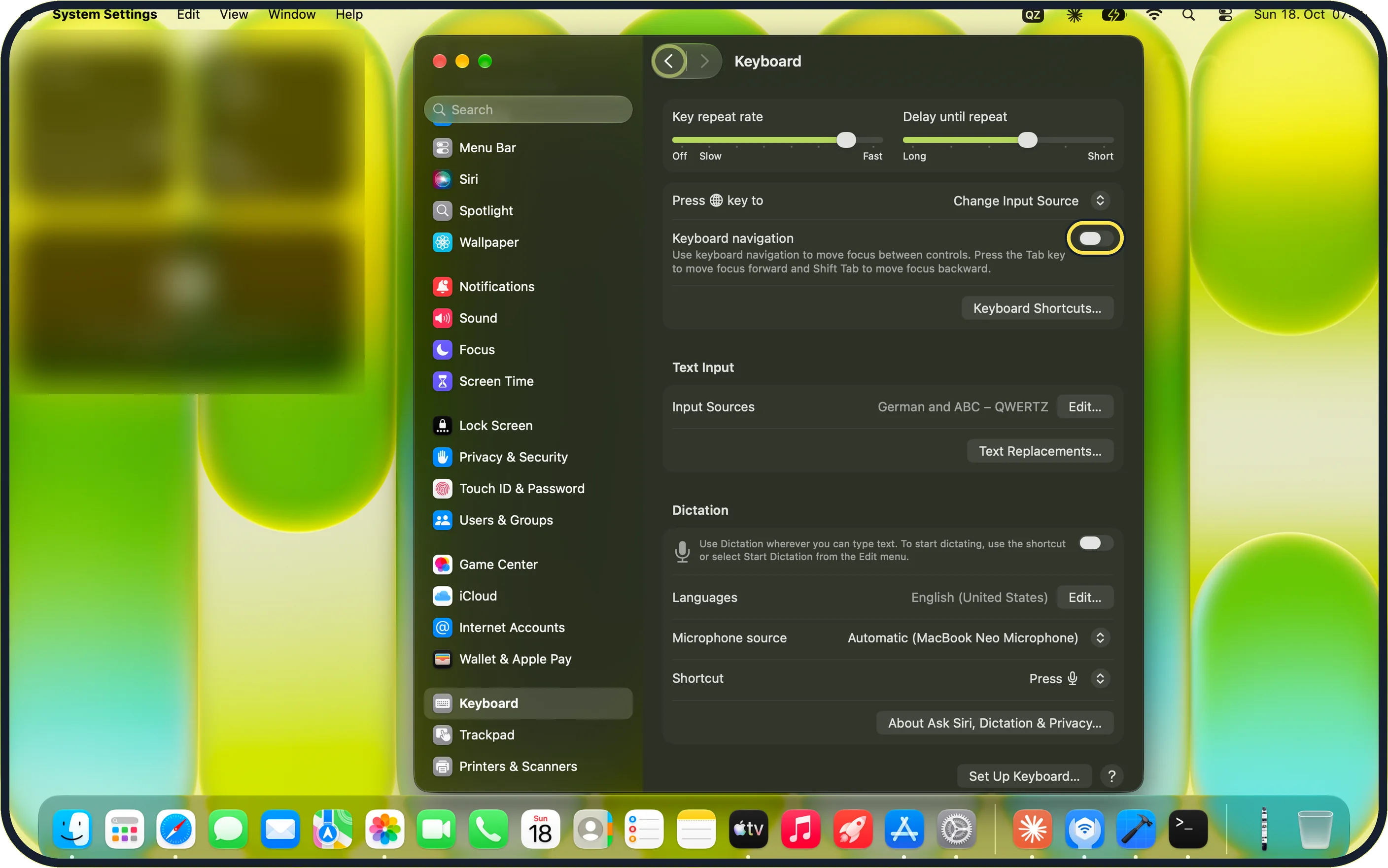
Zoomed in on the setting. Tap to see the whole screenTap the picture to see it full size Switch it off again if you want
Click the Keyboard navigation switch again to turn it off. Tab then goes back to its usual behaviour.
If this does not work
- Tab does not seem to do anything Check that the Keyboard navigation switch is on. Then look for a ring round a control; on our MacBook Neo the first press of Tab put it on the Back (<) button.
- You went past the control you wanted Press Shift Tab to move the focus backward, as the note under the switch says.
About this guide
Keyboard navigation lets you press the Tab key to move the focus between controls on the screen, so that you can use windows and dialogs without the mouse or trackpad.
Screenshots: MacBook Neo, macOS 27.0.1, dark mode.
Good to know
The Keyboard Shortcuts… button on the same page lists the shortcuts of macOS: how to create your own keyboard shortcuts on a Mac.
In short: System Settings > Keyboard > Keyboard navigation on, then Tab or Shift Tab.
Links checked in October 2026. Menus and features can change after software updates. These steps match the version named at the top.
Did this guide work for you?
Sorry about that. What happened?