
howtosimply.com/guides/windows-11-screen-flickering-how-to-find-the-cause-and-fix-it/ · Checked October 2026 · Windows 11 Enterprise 25H2 (build 26200.9457), Microsoft Cloud PC
In this guide
Press Windows + Ctrl + Shift + B to restart the graphics driver. If it still flickers, press Ctrl + Shift + Esc to open Task Manager. If Task Manager flickers too, the display driver is the cause. If it stays steady while the rest flickers, an app is the cause.
5 of 5 steps with real screenshots · 1 official source below
- Device
- Windows
- Shown on
- Windows 11 Enterprise 25H2 (build 26200.9457), Microsoft Cloud PC
- App
- Settings
- Real screenshots
- 5 of 5 steps
- Checked
- October 2026
- Sources
- 1 official, linked below
Step by step
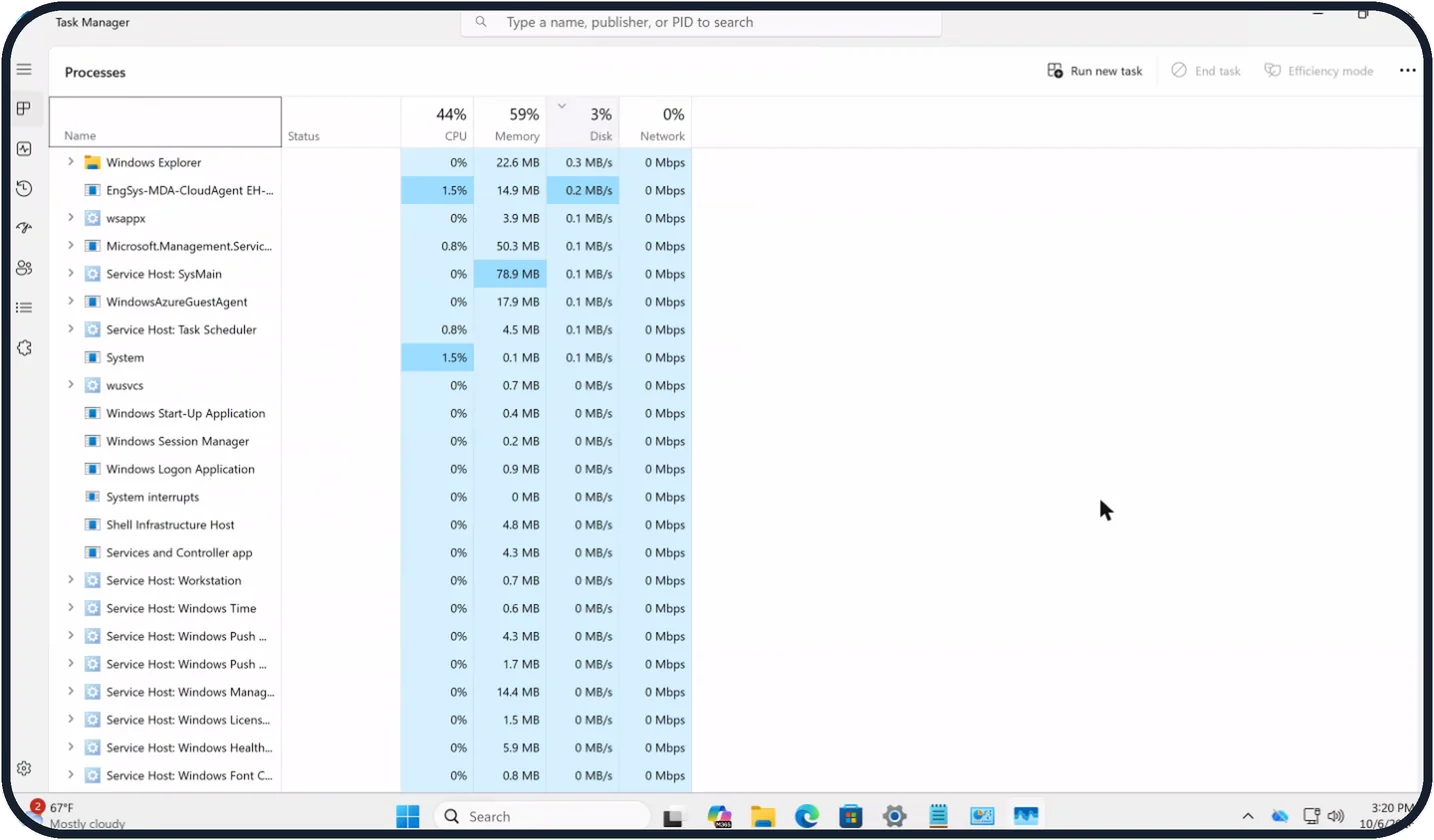
Tap the picture to see it full size Open Task Manager as a test
Press Ctrl + Shift + Esc and watch the Task Manager window.
If it flickers with everything else, go on with the driver steps. If it does not flicker, skip to the step about apps.
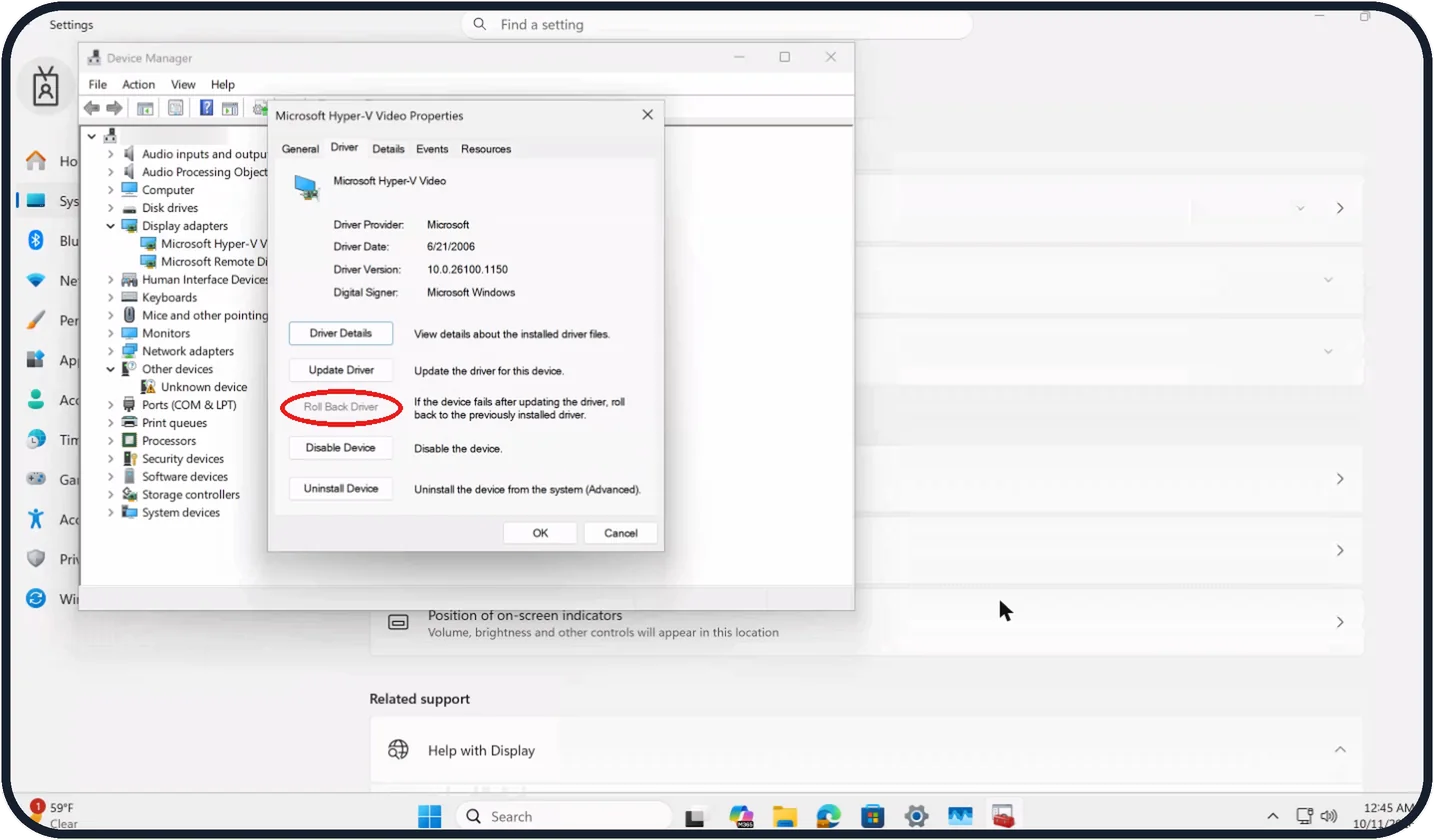
Tap the picture to see it full size Driver: roll back
Search the taskbar for Device Manager and open it. Expand Display adapters, right-click the adapter and choose Properties.
On the Driver tab, click Roll Back Driver, follow the prompts and restart.
On our Cloud PC the adapter is Microsoft Hyper-V Video, and Roll Back Driver is greyed out because there is no earlier driver to go back to.
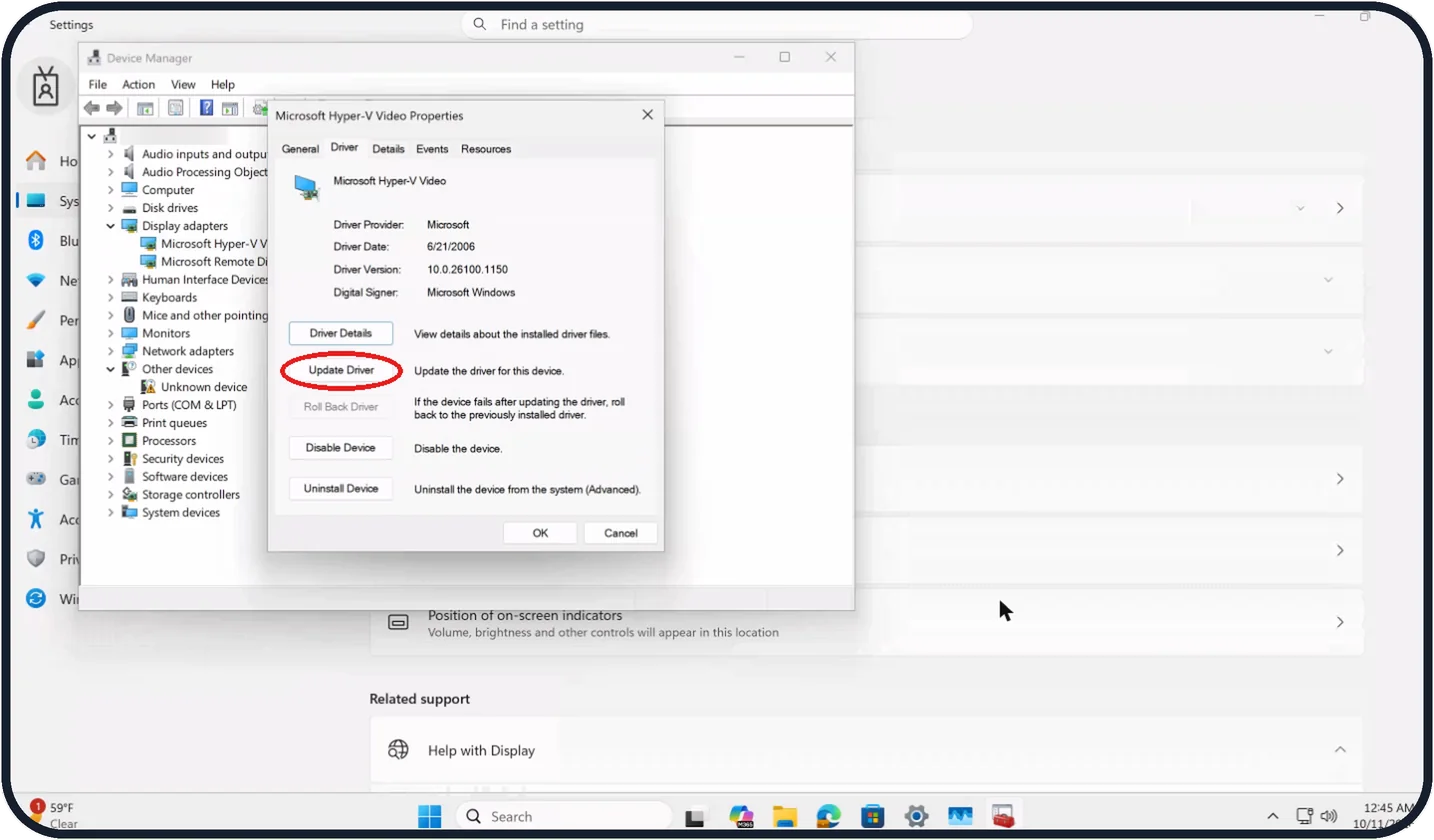
Tap the picture to see it full size Driver: update
On the same Driver tab, click Update Driver.
The newest driver is often only on the website of the PC or graphics card maker.
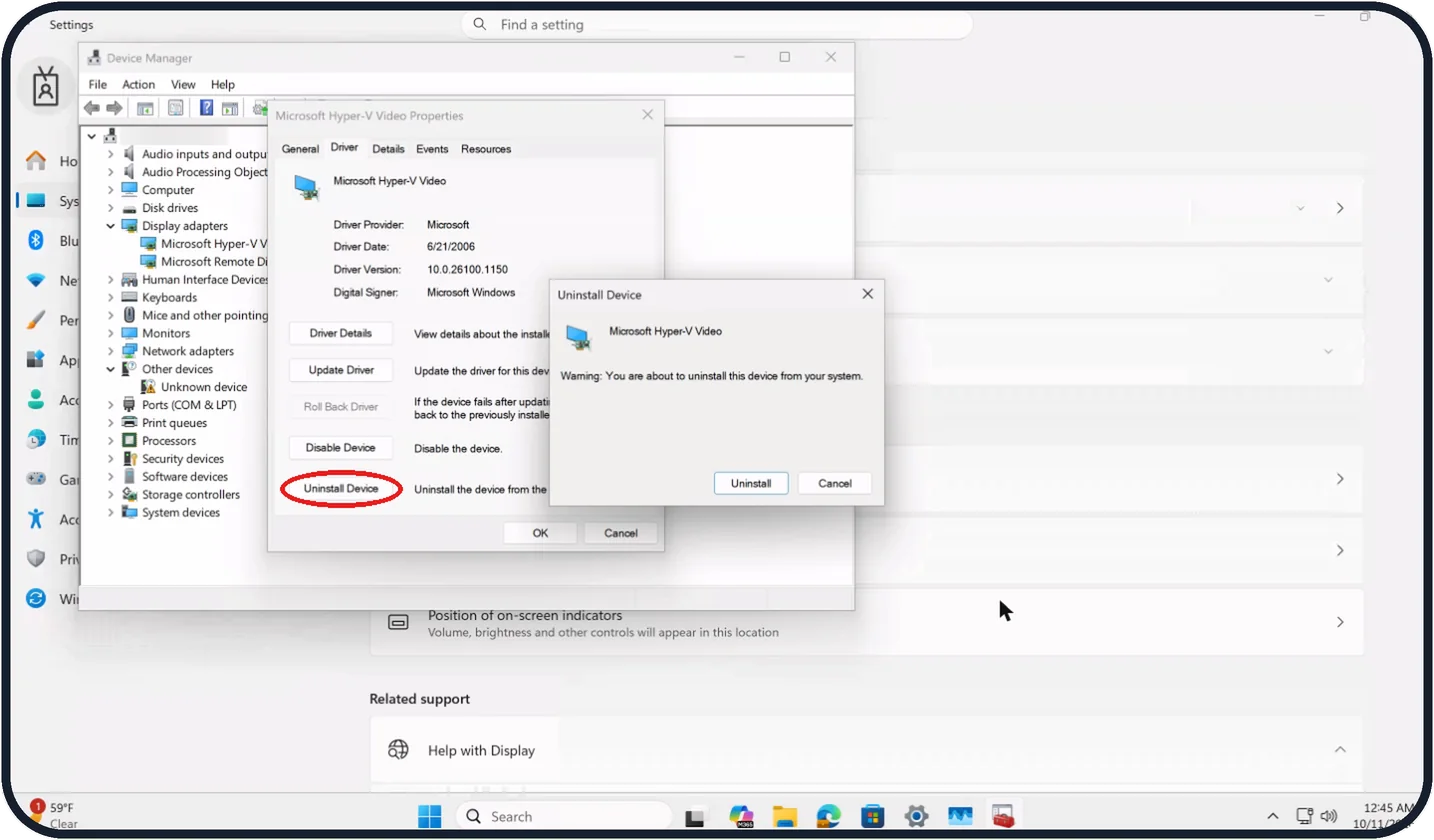
Tap the picture to see it full size Driver: uninstall and let Windows reinstall it
On the Driver tab, click Uninstall Device, then Uninstall in the box that opens, and restart the PC. Microsoft says Windows then installs a fresh driver by itself.
Microsoft also mentions an Attempt to remove the driver for this device box to tick, but on our Cloud PC the Uninstall Device dialog showed only a warning, with Uninstall and Cancel.
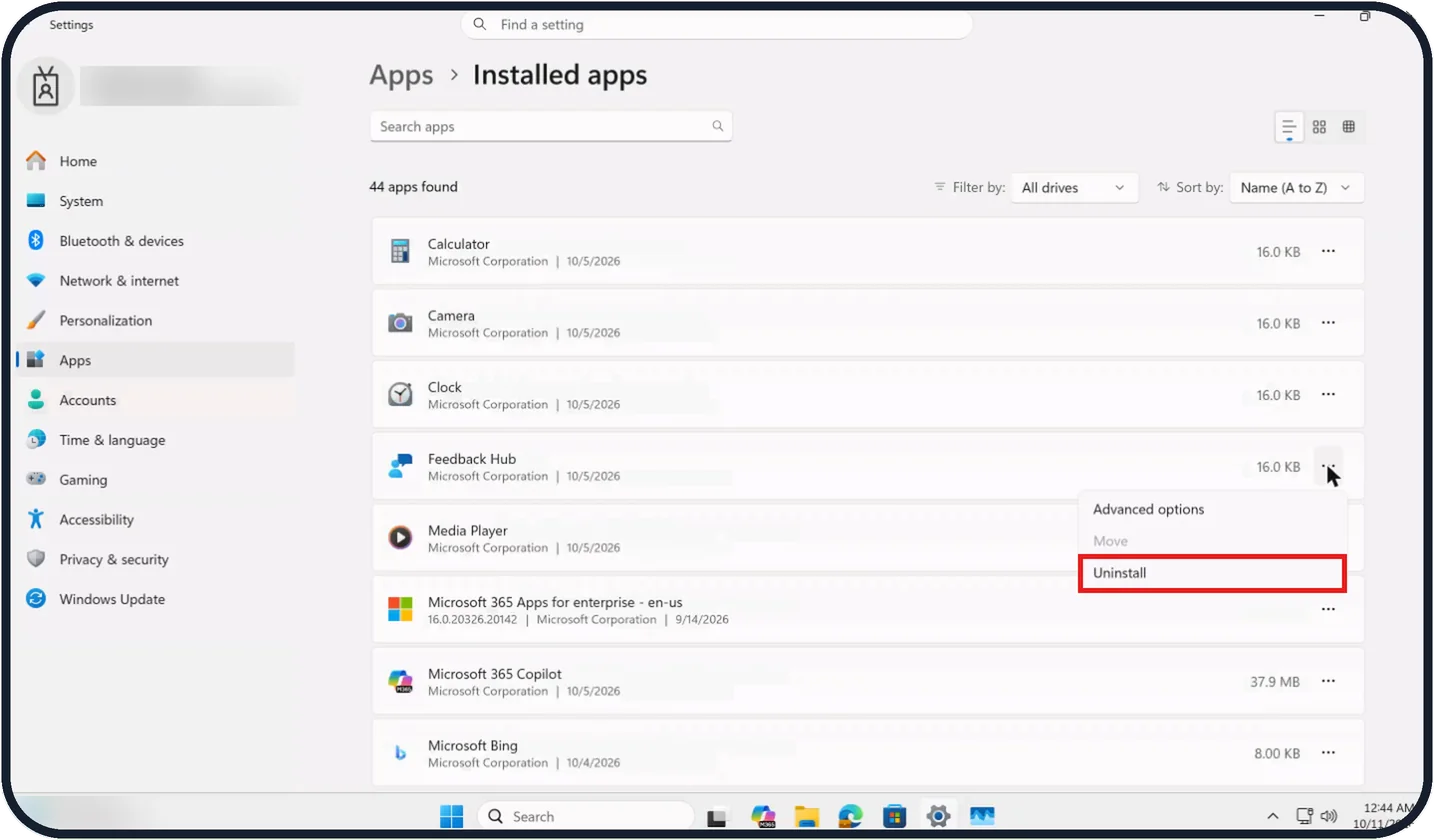
Tap the picture to see it full size App: update or remove it
If Task Manager did not flicker, think of what you installed recently and update it from the Microsoft Store or the maker's website.
If that does not help, open Settings > Apps > Installed apps, click the three dots next to the app and choose Uninstall.
Restart and test after each removal.
If you do not see this option
- Roll Back Driver is greyed out There is no earlier driver to go back to. On our Cloud PC it was greyed out for Microsoft Hyper-V Video; use Update Driver or Uninstall Device instead. Source: Troubleshoot screen flickering in Windows
- No box to remove the driver On our Cloud PC the Uninstall Device dialog showed only "Warning: You are about to uninstall this device from your system." with Uninstall and Cancel. Click Uninstall and restart.
- Cannot find the app Type its name in Search apps at the top of Installed apps. On our Cloud PC the page showed 44 apps found, sorted by Name (A to Z).
If this does not work
- Driver steps will not complete Microsoft says you may need to start the PC in Safe Mode to roll back, update or uninstall the display driver. Source: Troubleshoot screen flickering in Windows
- It flickers on an external monitor Microsoft's flickering page also points to the connection: reseat or replace the cable and try another port. Source: Troubleshoot screen flickering in Windows
- Refresh rate Microsoft suggests choosing a refresh rate the monitor supports under Settings > System > Display > Advanced display. Source: Troubleshoot screen flickering in Windows
About this guide
Microsoft narrows screen flickering down to two causes, a display driver or an incompatible app, and gives one simple test to tell them apart. A loose cable or a failing screen is the third possibility, and the test helps there too.
Start with Windows + Ctrl + Shift + B. The screen goes dark for a moment while Windows reloads the graphics driver. If the flicker remains, restart the PC, then follow the steps below.
The screenshots are our own, taken on Windows 11 Enterprise 25H2 running as a Microsoft Cloud PC, a Windows PC that runs in the cloud. All the pictures are real screenshots.
Good to know
If the screen flickers before Windows has even started, for example in the maker's logo, or when you move the lid of a laptop, the fault is in the hardware. Ask the maker about a repair.
Antivirus programs from other makers and old system utilities have been common app causes. Start with those.
Related: Windows 11 black screen: 8 fixes to try and second monitor not detected on Windows 11: 8 fixes to try.
In short: Windows + Ctrl + Shift + B, Task Manager test, then driver (roll back, update, uninstall) or app (update, uninstall); check the cable and refresh rate if it carries on.
Links checked in October 2026. Menus and features can change after software updates. These steps match the version named at the top.
Did this guide work for you?
Sorry about that. What happened?