
howtosimply.com/guides/ethernet-not-working-on-windows-11-6-fixes-to-try/ · Checked October 2026 · Windows 11 Enterprise 25H2 (build 26200.9457), Microsoft Cloud PC
In this guide
Check that the cable clicks into place at both ends and sits in a LAN port of the router, not the port for the modem. Try another cable. Then unplug the router and modem for 30 seconds and start the modem first. If that fails, reset the network under Settings, Network & internet.
4 of 7 steps with real screenshots · 1 official source below
- Device
- Windows
- Shown on
- Windows 11 Enterprise 25H2 (build 26200.9457), Microsoft Cloud PC
- App
- Settings
- Real screenshots
- 4 of 7 steps
- Checked
- October 2026
- Sources
- 1 official, linked below
Step by step
Check the cable at both ends
Push the plugs in until they click. On the router, the cable must be in one of the LAN ports. The port marked Internet or WAN is for the line to the modem. Small lights next to the port show that a link exists. Try another cable and another LAN port too.
Restart modem and router in order
Unplug the power of the router, then of the modem. If the modem has a backup battery and its lights stay on, take the battery out. Wait at least 30 seconds. Plug in the modem first and wait until its lights stop blinking. Then plug in the router and give it a few minutes.
Zoomed in on the setting. Tap to see the whole screenTap the picture to see it full size See what Windows says
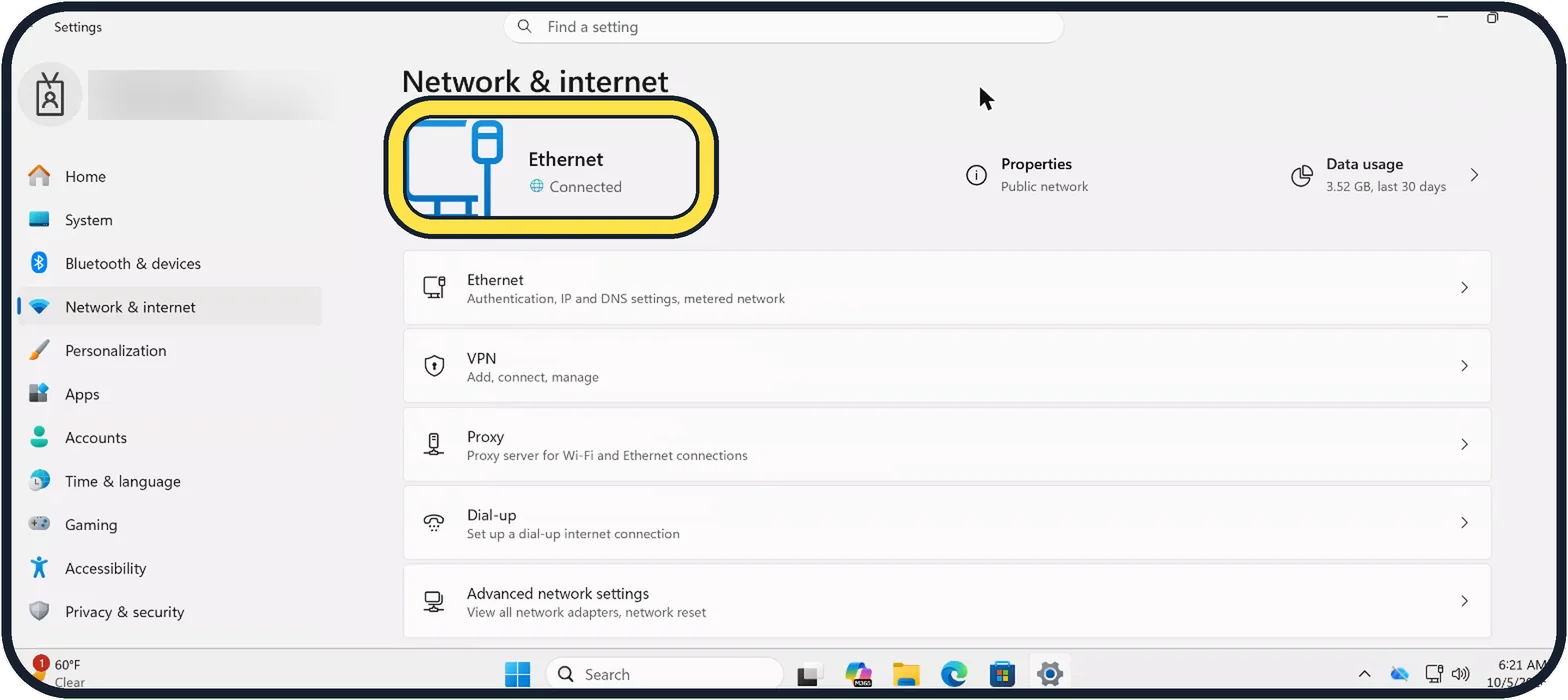
Open Start, Settings, Network & internet. The top of the page shows Ethernet and its state. Connected means the cable and adapter work. Connected with No internet means the problem is at the router or the provider.
Tap the picture to see it full size Open the Ethernet details
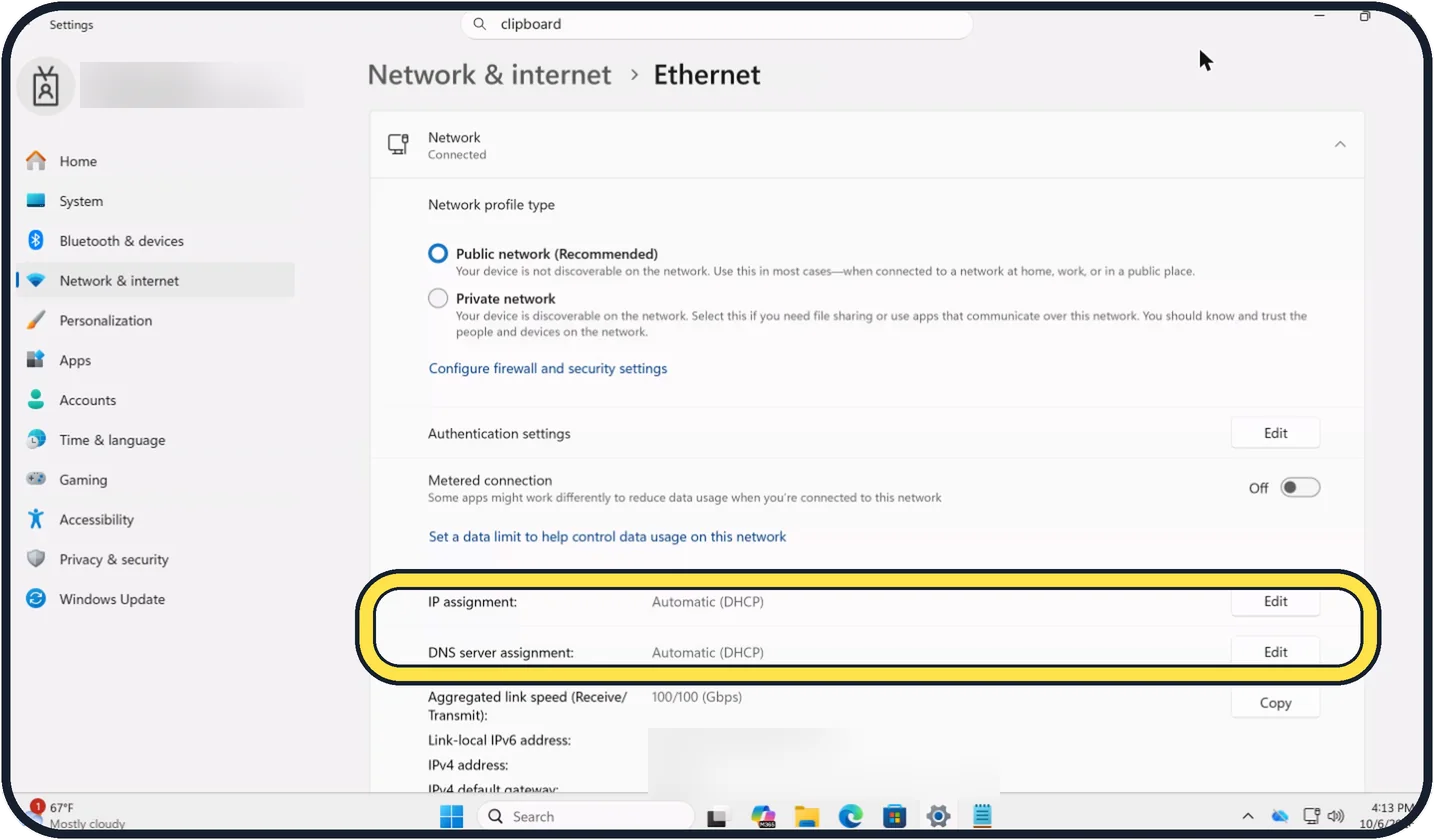
Click Ethernet for the details. IP assignment and DNS server assignment normally say Automatic (DHCP), and further down IPv4 address shows the address the router gave the PC. We blurred ours.
Reset the network commands
Open Command Prompt or Terminal as administrator. Type these commands one after the other, pressing Enter after each: netsh winsock reset, then netsh int ip reset, then ipconfig /release, then ipconfig /renew, then ipconfig /flushdns. Restart the PC.
Zoomed in on the setting. Tap to see the whole screenTap the picture to see it full size Reinstall the network adapter driver
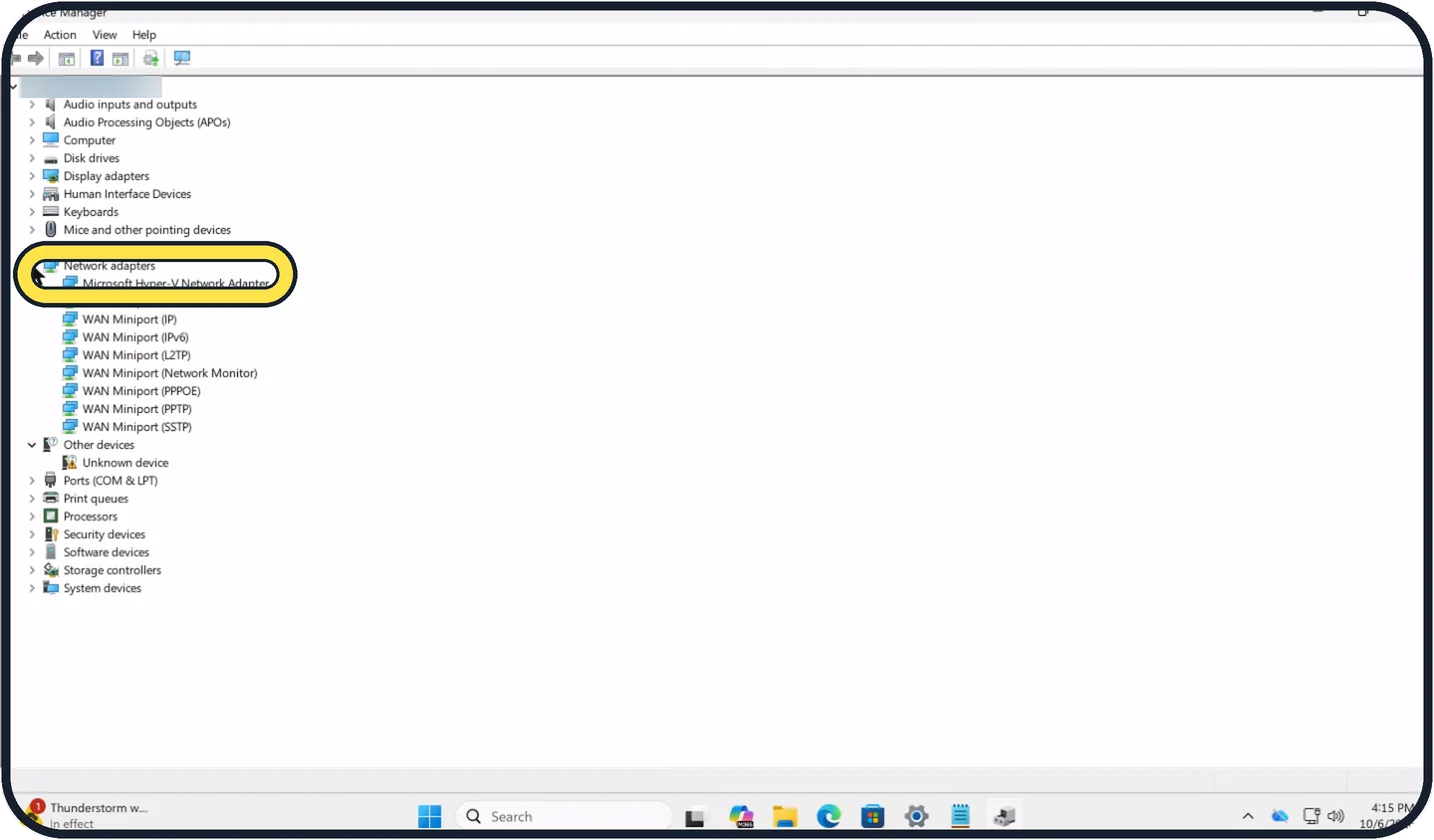
Right-click Start and open Device Manager. Expand Network adapters, right-click the Ethernet adapter and choose Uninstall device, then restart. Windows installs the driver again. Our Cloud PC has a Microsoft Hyper-V Network Adapter; the WAN Miniport entries are not the one to remove. Have a Wi-Fi connection or the driver on a USB stick ready.
Tap the picture to see it full size Last step: network reset
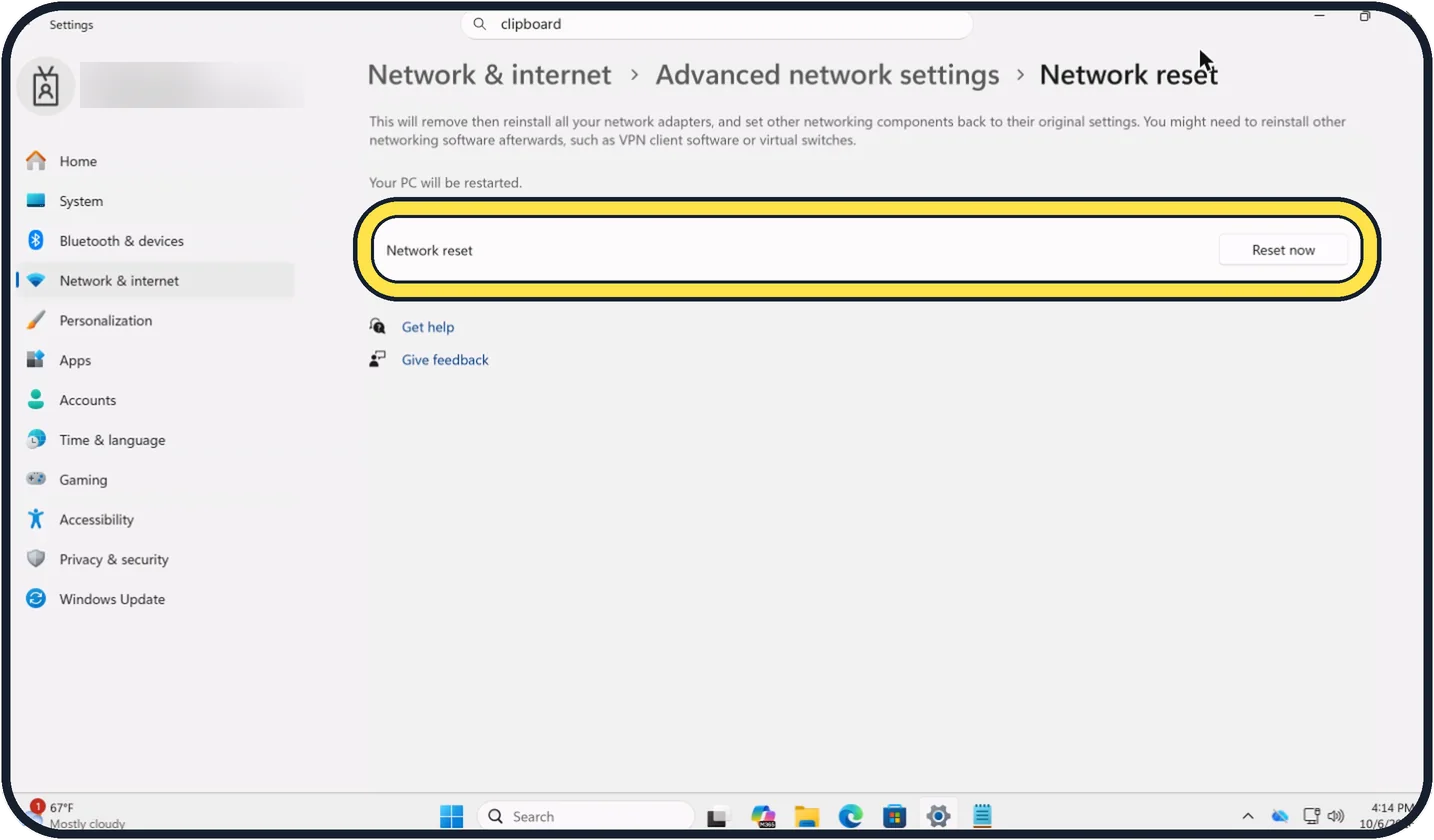
Open Settings, Network & internet, Advanced network settings, Network reset and click Reset now, then Yes. The page warns that it removes and reinstalls all network adapters, and the PC restarts. VPN software may need to be reinstalled.
About this guide
A wired connection has fewer things that can go wrong than Wi-Fi: the cable, the two ports, the router and the network settings of the PC. Microsoft's checklist goes through them in that order.
Good to know
A laptop without a network port needs a USB or USB-C adapter. If that adapter is not recognised, try another USB port and see USB-C not working on Windows 11: what each message means.
For the wireless side: Windows 11 Wi-Fi not working: 8 fixes to try.
In short: Cable seated in a LAN port, other cable, modem then router restart, network commands, reinstall the adapter, Network reset.
Links checked in October 2026. Menus and features can change after software updates. These steps match the version named at the top.
Did this guide work for you?
Sorry about that. What happened?