
howtosimply.com/guides/how-to-turn-on-find-my-device-on-windows-11/ · Checked October 2026 · Windows 11 Enterprise 25H2 (build 26200.9457), Microsoft Cloud PC
In this guide
Open Settings, click Privacy & security and then Find my device, and switch it on. It needs a Microsoft account with administrator rights and location services switched on. If the laptop is lost, sign in at account.microsoft.com/devices, choose the device and click Find or Lock.
3 of 6 steps with real screenshots · 1 official source below
- Device
- Windows
- Shown on
- Windows 11 Enterprise 25H2 (build 26200.9457), Microsoft Cloud PC
- App
- Settings
- Real screenshots
- 3 of 6 steps
- Checked
- October 2026
- Sources
- 1 official, linked below
Step by step
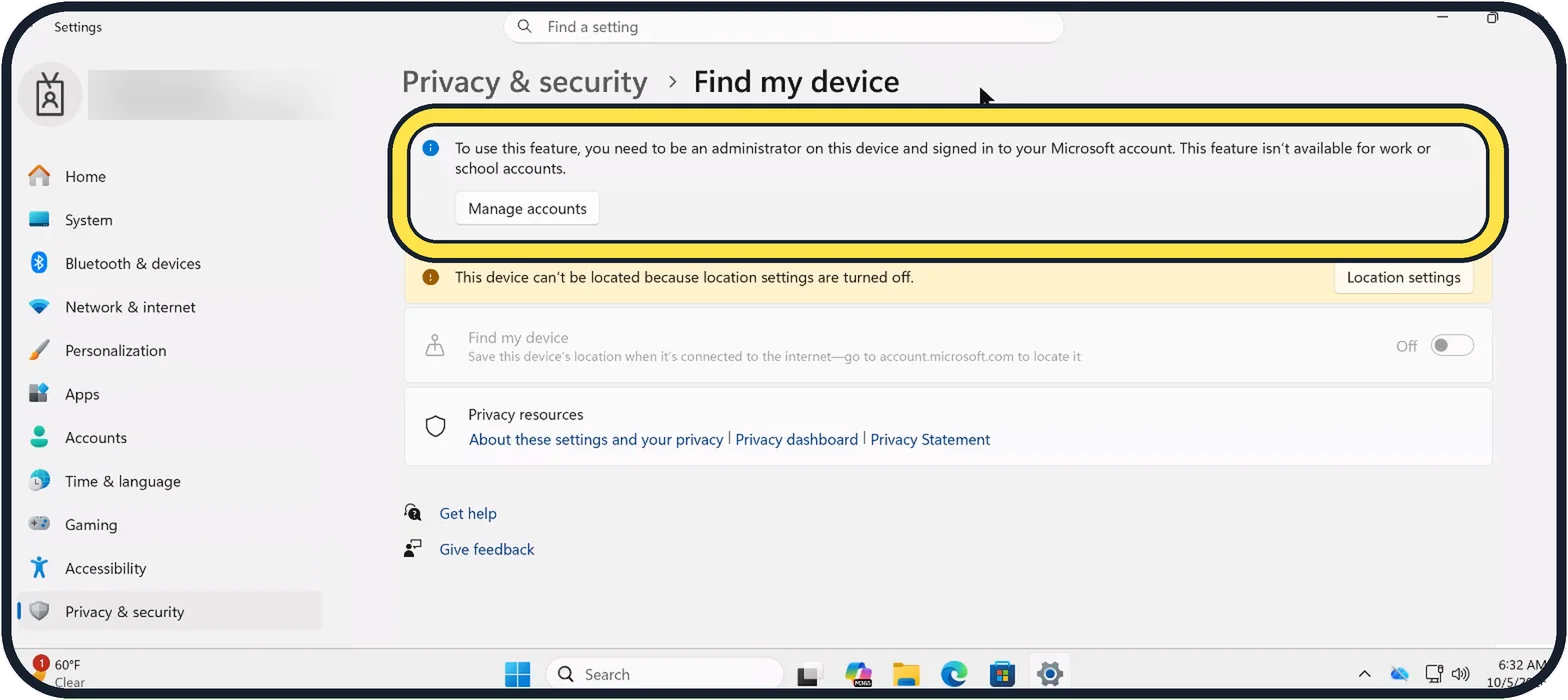
Tap the picture to see it full size Check the account
Open Start, Settings, Privacy & security, Find my device. The note at the top says what it needs: you must be an administrator on the PC and signed in with a Microsoft account. Work and school accounts do not work. On our Cloud PC the switch is greyed out and Off for two reasons: the work account, and location being off (the yellow banner).
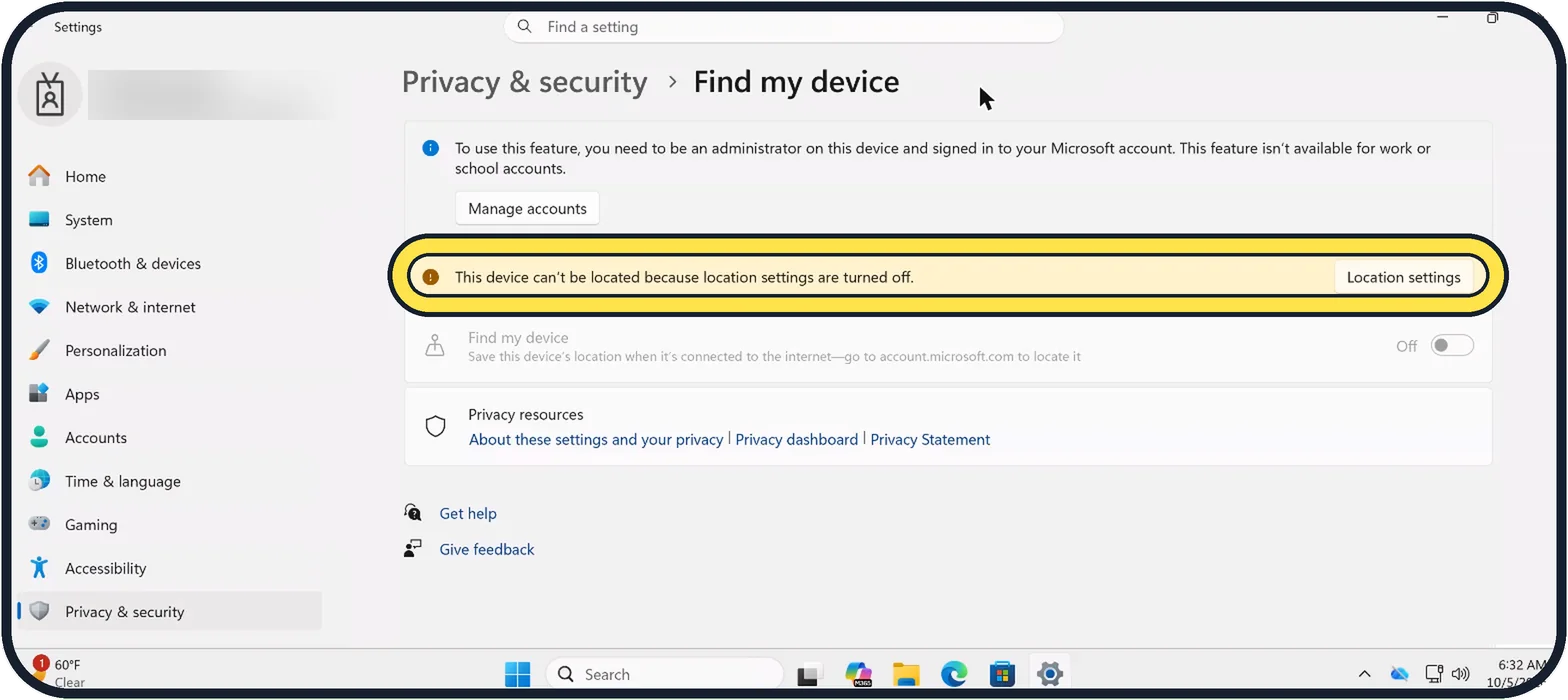
Tap the picture to see it full size Turn on location services
If a yellow note says the device can't be located because location settings are turned off, click Location settings next to it and turn location on.
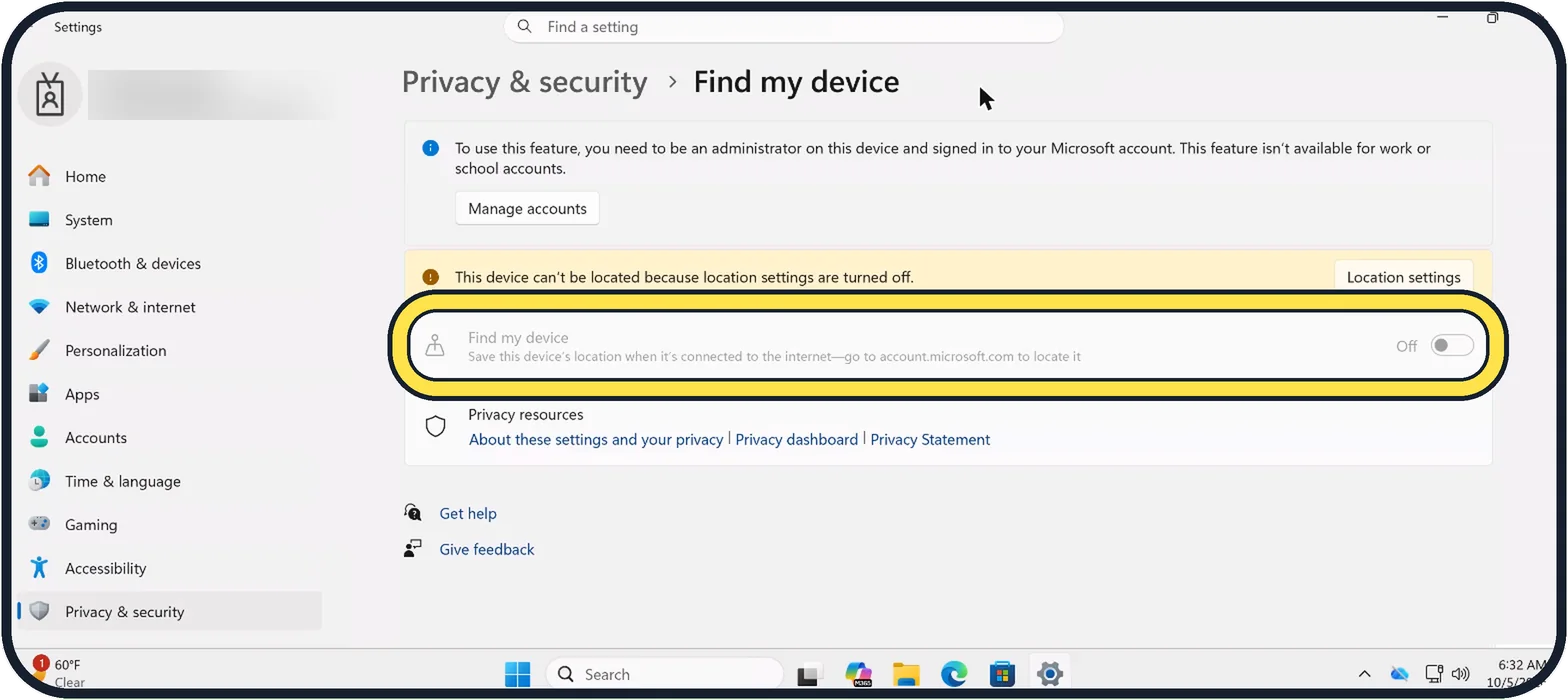
Tap the picture to see it full size Turn on Find my device
Back on the Find my device page, switch it on. It stays greyed out, as here, until both conditions above are met.
If the device is lost: open the devices page
On any phone or computer, go to account.microsoft.com/devices and sign in with the same Microsoft account. Open the Find My Device tab.
Find it on the map
Choose the device and click Find. The map shows its last known place. The device must be switched on and online for a current position.
Lock it
Click Lock and Next. The device is locked and signed out, and you can add a message for the lock screen. Then change the password of your Microsoft account.
About this guide
Find my device stores the last known position of a Windows laptop or tablet in your Microsoft account. It only helps if it was switched on before the device went missing, so it is worth one minute now.
Good to know
Whoever is using the device sees a notification when you try to locate it.
Report a stolen device to the police and to your insurer. The serial number is on the same devices page under Info and support. Do not go to fetch a stolen device yourself.
Find my device does not protect the data. Encryption does: how to turn on device encryption on Windows 11.
The same for phones: how to find a lost iPhone and how to find a lost Android phone.
In short: Microsoft account as administrator, Location services on, Settings, Privacy & security, Find my device on. Later: account.microsoft.com/devices, Find or Lock.
Links checked in October 2026. Menus and features can change after software updates. These steps match the version named at the top.
Did this guide work for you?
Sorry about that. What happened?