
howtosimply.com/guides/how-to-export-a-whatsapp-chat-on-android/ · Checked October 2026 · Google Pixel 10a, Android 17 (build CP3A.261005.005), WhatsApp 2.26.41.77
In this guide
Open the chat, tap the three dots, More, Export chat, then pick where to send the text file in the share sheet. On our Pixel the sheet offered Quick Share, WhatsApp, Gmail, Drive and Bluetooth.
3 of 3 steps with real screenshots · 1 official source below
- Device
- Android
- Shown on
- Google Pixel 10a, Android 17 (build CP3A.261005.005), WhatsApp 2.26.41.77
- App
- Real screenshots
- 3 of 3 steps
- Checked
- October 2026
- Sources
- 1 official, linked below
Step by step
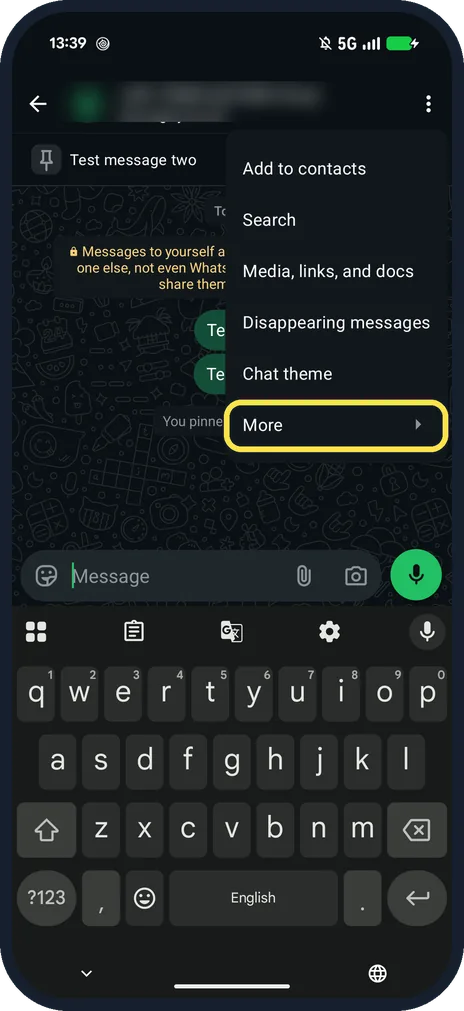
Tap the three dots in the chat, then More
More is at the bottom of the chat menu, under Chat theme.
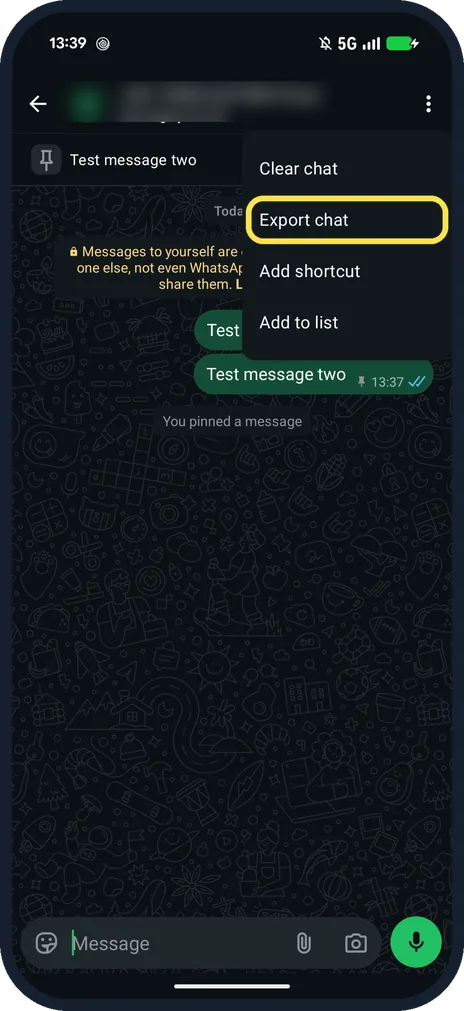
Tap Export chat
More lists Clear chat, Export chat, Add shortcut and Add to list.
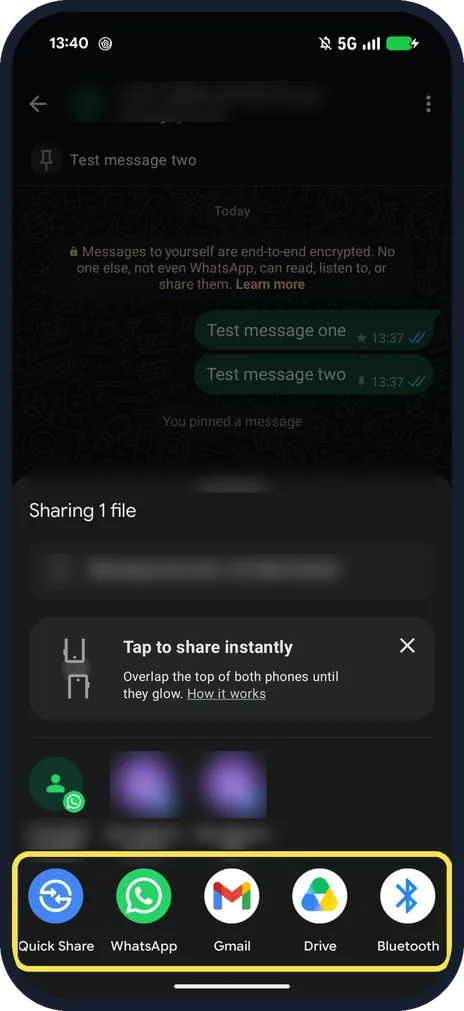
Choose where to send the file
Ours went straight to Sharing 1 file and offered Quick Share, WhatsApp, Gmail, Drive and Bluetooth.
If you do not see this option
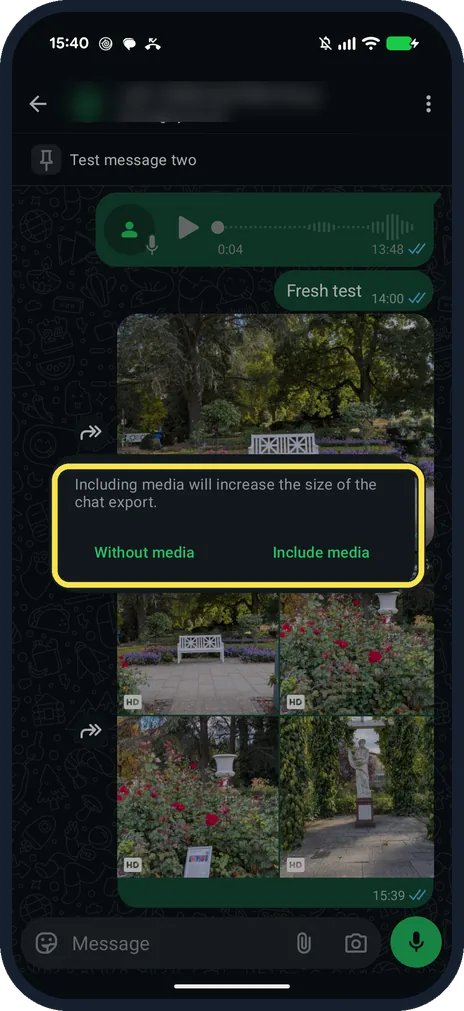
- Asked about media first? Once our chat had test photos in it, Export chat asked first: Including media will increase the size of the chat export, with Without media and Include media. Without photos it went straight to the share sheet. Source: How to export your chat history
- Want a copy you can restore? Use Chat backup instead: WhatsApp says an exported chat is a text file, not a backup. Source: How to export your chat history
If this does not work
- Media missing from the export? WhatsApp says Include media attaches only the most recent media. Source: How to export your chat history
- No Save to Files option? There was none in the first row on our Pixel. Pick Drive, or send it to yourself with Gmail.
About this guide
Export makes a .txt copy of the chat to send or keep. It is not a backup: WhatsApp says it can't be imported again.
The screenshots are from our Google Pixel 10a with Android 17 and WhatsApp 2.26.41.77, in Dark mode, taken on 25 October 2026. We opened the share sheet and did not send the file.
Good to know
To keep a restorable copy, see check and set up WhatsApp chat backup.
In short: Chat, three dots, More, Export chat, pick an app.
Links checked in October 2026. Menus and features can change after software updates. These steps match the version named at the top.
📷 See real photos from the Pixel 10a in our Camera Lab, next to 10 other phones.
Did this guide work for you?
Sorry about that. What happened?