
howtosimply.com/guides/how-to-edit-or-delete-a-whatsapp-message-on-android/ · Checked October 2026 · Google Pixel 10a, Android 17 (build CP3A.261005.005), WhatsApp 2.26.41.77
In this guide
Touch and hold your message and tap Edit, change the text and tap the tick. Edit is only there for 15 minutes after sending. To remove a message, touch and hold it, tap Delete, then Delete for me or Delete for everyone.
4 of 4 steps with real screenshots · 2 official sources below
- Device
- Android
- Shown on
- Google Pixel 10a, Android 17 (build CP3A.261005.005), WhatsApp 2.26.41.77
- App
- Real screenshots
- 4 of 4 steps
- Checked
- October 2026
- Sources
- 2 official, linked below
Step by step
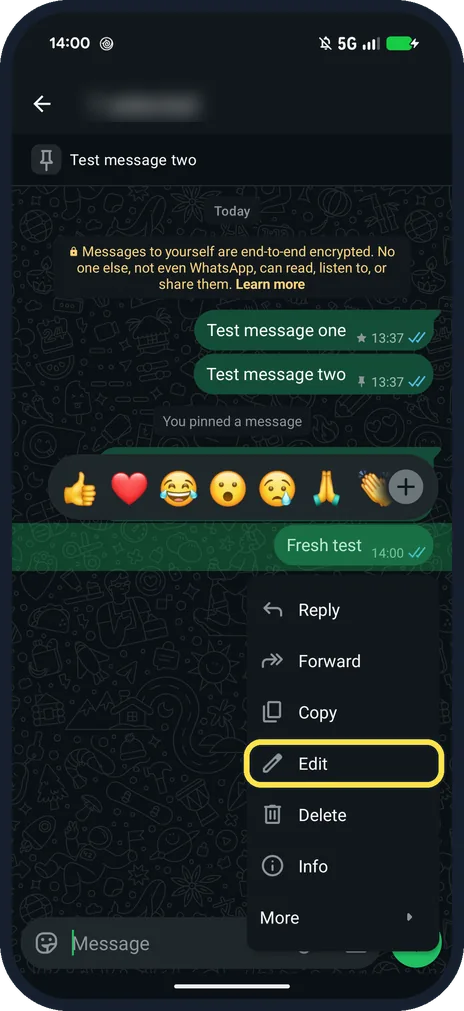
Touch and hold the message and tap Edit
Ours was sent a minute earlier. The menu: Reply, Forward, Copy, Edit, Delete, Info and More.
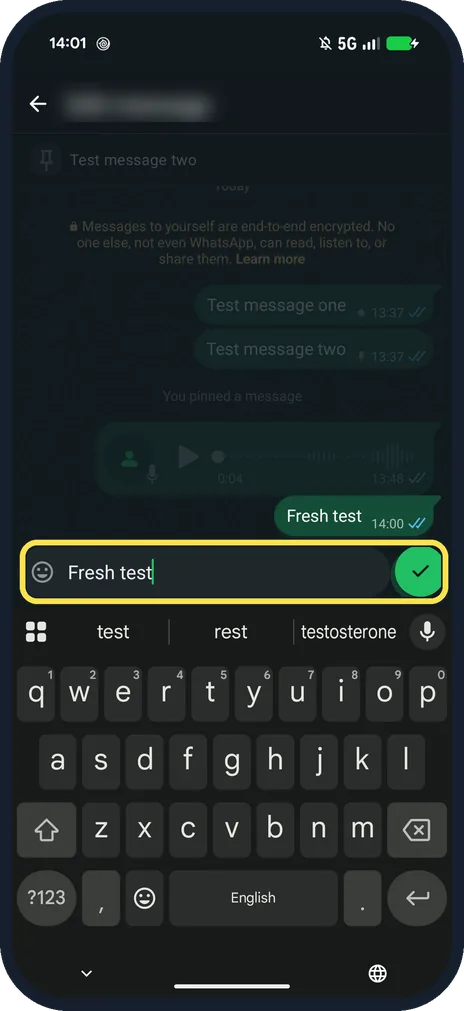
Change the text and tap the tick
Our note, Fresh test, opened in the typing box with a green tick instead of Send.
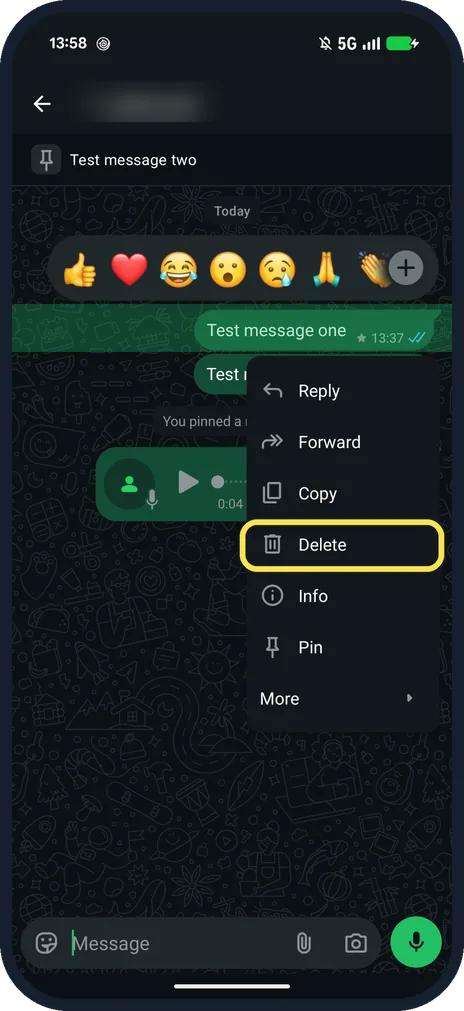
To delete, touch and hold the message and tap Delete
This message was about 20 minutes old, so the menu had no Edit.
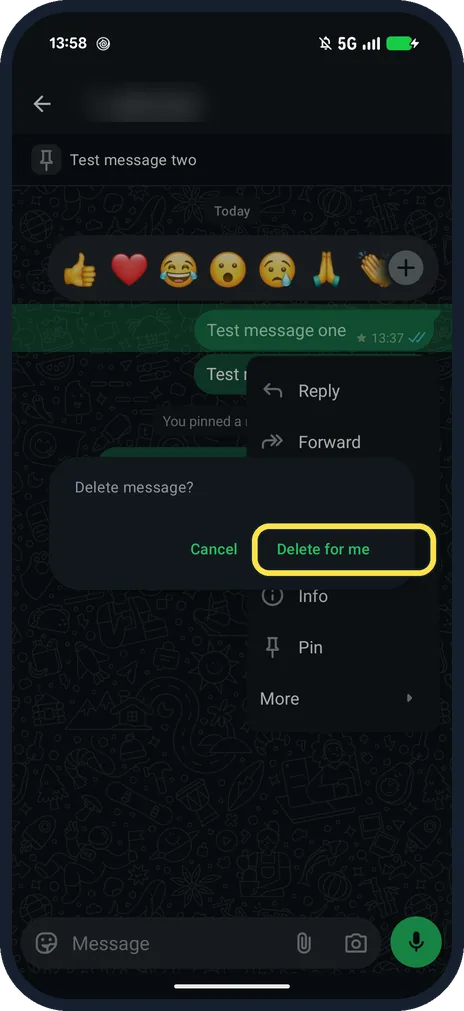
Choose Delete for me or Delete for everyone
In our Message yourself chat the box asked Delete message? with only Cancel and Delete for me. We tapped Cancel.
If you do not see this option
- No Edit in the menu? WhatsApp says there is a 15 minute limit for editing, and photos, videos and other media can't be edited. Our 20-minute-old message had no Edit (step 3). Source: How to edit messages
- No Delete for everyone? WhatsApp says you have two days after sending to delete for everyone, and both of you need the latest WhatsApp. Our self-chat only offered Delete for me. Source: How to delete messages
If this does not work
- They still saw the old text? WhatsApp says people on an older WhatsApp see a note that the message was edited, and editing sends no new notification. Source: How to edit messages
- Deleted for me by mistake? WhatsApp says you have 5 seconds to tap Undo; after that the message is gone unless it is in a backup. Source: How to delete messages
About this guide
WhatsApp says edited messages show the word edited next to the time, and you have two days to delete one for everyone.
The screenshots are from our Google Pixel 10a with Android 17 and WhatsApp 2.26.41.77, in Dark mode, taken on 25 October 2026. We opened Edit and Delete on our own test notes in the Message yourself chat, and saved or deleted nothing.
Good to know
To keep a message at the top of a chat, see pin and star messages on WhatsApp.
In short: Touch and hold, Edit, tick; or Delete, Delete for me or everyone.
Links checked in October 2026. Back up anything you want to keep before you reset or delete. Menus can change after software updates.
📷 See real photos from the Pixel 10a in our Camera Lab, next to 10 other phones.
Did this guide work for you?
Sorry about that. What happened?