
howtosimply.com/guides/how-to-change-a-slow-motion-video-to-normal-speed-on-an-iphone/ · Checked October 2026 · iPhone 17e · iOS 27.2
In this guide
Open the slo-mo video in Photos and tap Edit. Tap the Playback Speed button, the gauge icon at the top right, and pick 100 %. On our 240 fps clip it read 100 % 240 fps. Then tap Done.
4 of 4 steps with real screenshots · 2 official sources below
- Device
- iPhone
- Shown on
- iOS 27.2 (iPhone 17e)
- App
- Photos
- Path
- Photos › Edit › Playback Speed
- Real screenshots
- 4 of 4 steps
- Checked
- October 2026
- Sources
- 2 official, linked below
Step by step
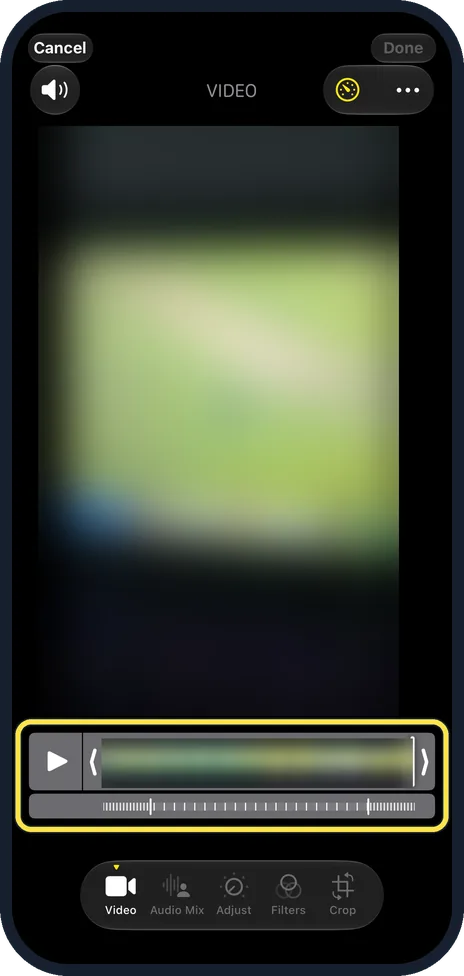
Open the clip and tap Edit
Open the Photos app, open the slo-mo video and tap Edit. The editor opens on Video. Under the timeline, a strip of tick marks shows the slow-motion part.
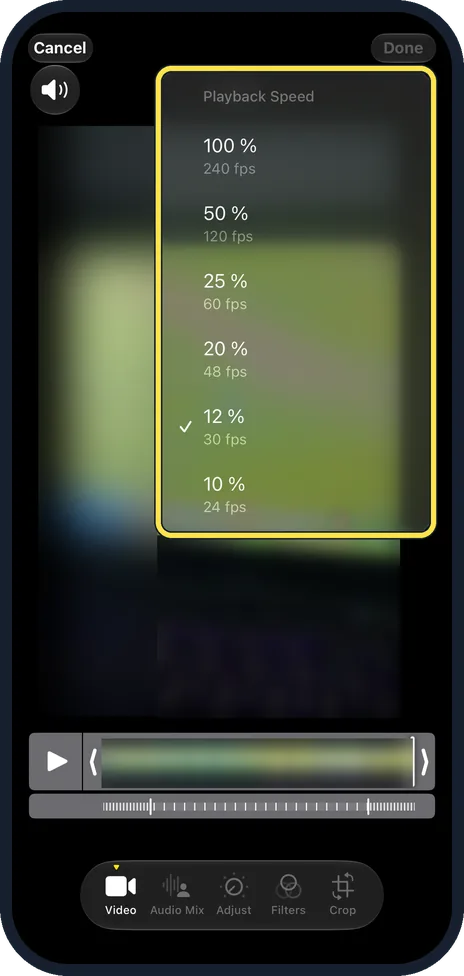
Tap Playback Speed
Tap the gauge icon at the top right, next to the three dots. A Playback Speed menu opens with 100 %, 50 %, 25 %, 20 %, 12 % and 10 %, each with a frame rate. Ours had 12 % (30 fps) ticked.
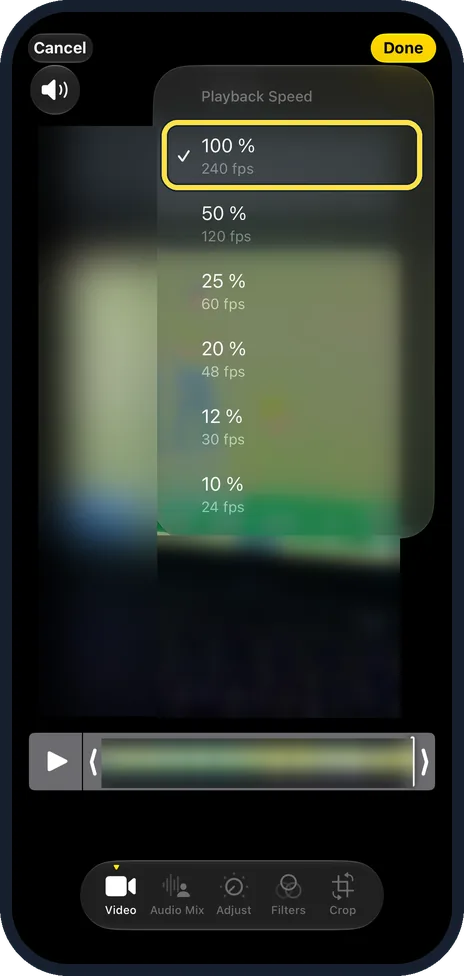
Tap 100 %
Tap 100 % (240 fps on our clip). That is normal speed, and the tick moves to 100 %.
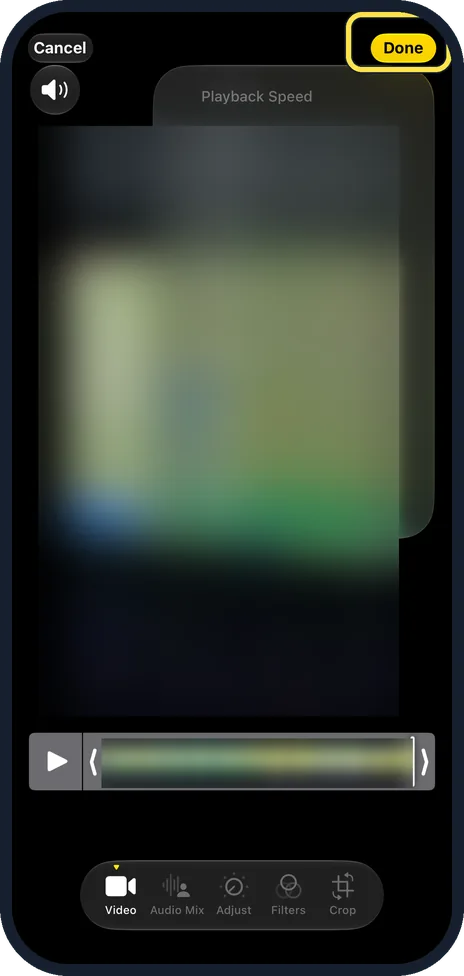
Check the timeline, then tap Done
The strip of tick marks under the timeline is gone and Done turns yellow. Tap Done to keep the change. We tapped Cancel and Discard Changes instead, so our clip stayed in slow motion.
If you do not see this option
- Fewer speeds in the list? Apple says the speeds you get depend on the format of the video you captured: the larger the format, the more options. Our clip was recorded at 240 fps. Source: Trim video length, adjust speed, and edit audio on iPhone
- No speed button? Apple says you can change the playback speed in iOS 18 and later, and slow down only videos captured at more than 30 fps. Source: How to edit videos on your iPhone, iPad, or Mac
If this does not work
- Changed your mind before saving? Tap Cancel at the top left. Ours asked: Are you sure you want to discard your changes? Tap Discard Changes and the clip stays as it was. Source: How to edit videos on your iPhone, iPad, or Mac
- Want the slow motion back later? Apple says to open the video, tap Edit, then tap Revert to undo edits after you save. Source: Trim video length, adjust speed, and edit audio on iPhone
- Only want part of it slow? Keep the slow speed and drag the bars in the timeline to set where slow motion starts and ends, Apple says. Sources: How to edit videos on your iPhone, iPad, or Mac, Trim video length, adjust speed, and edit audio on iPhone
About this guide
The screenshots are from our iPhone 17e with iOS 27.2, in Dark mode, taken on 27 October 2026 with a 13-second slo-mo clip.
The Playback Speed menu lists each speed with a frame rate. Our clip was set to 12 % (30 fps), and 100 % (240 fps) is normal speed.
Good to know
To record slo-mo at 120 fps instead of 240 fps, see how to change the slow-motion frame rate on an iPhone.
In short: Photos, slo-mo video, Edit, Playback Speed, 100 %, Done.
- Apple iPhone User Guide: Trim video length, adjust speed, and edit audio on iPhone
- Apple Support: How to edit videos on your iPhone, iPad, or Mac
Links checked in October 2026. Menus and features can change after software updates. These steps match the version named at the top.
📷 See real photos from the iPhone 17e in our Camera Lab, next to 10 other phones.
Did this guide work for you?
Sorry about that. What happened?