
What changed: the screenshots are now our own iPhone 17e on iOS 27.0.1, dark mode, and the wording is checked against those screens.
howtosimply.com/guides/how-to-change-the-name-of-your-iphone/ · Checked October 2026 · iPhone 17e · iOS 27.0.1
In this guide
Open Settings, tap General, then About, then Name. Type the new name and tap Done. The new name is used for AirDrop, Personal Hotspot, Bluetooth and Find My.
4 of 4 steps with real screenshots · 1 official source below
- Device
- iPhone
- Shown on
- iOS 27.0.1 (iPhone 17e)
- App
- Settings
- Path
- Settings › General › About › Name
- Real screenshots
- 4 of 4 steps
- Checked
- October 2026
- Sources
- 1 official, linked below
Step by step
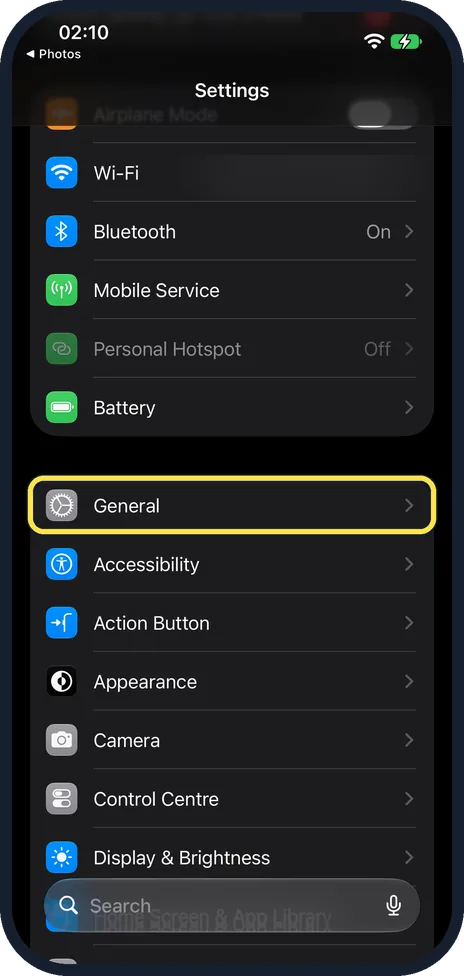
Open Settings and tap General
Open the grey Settings icon and tap General.
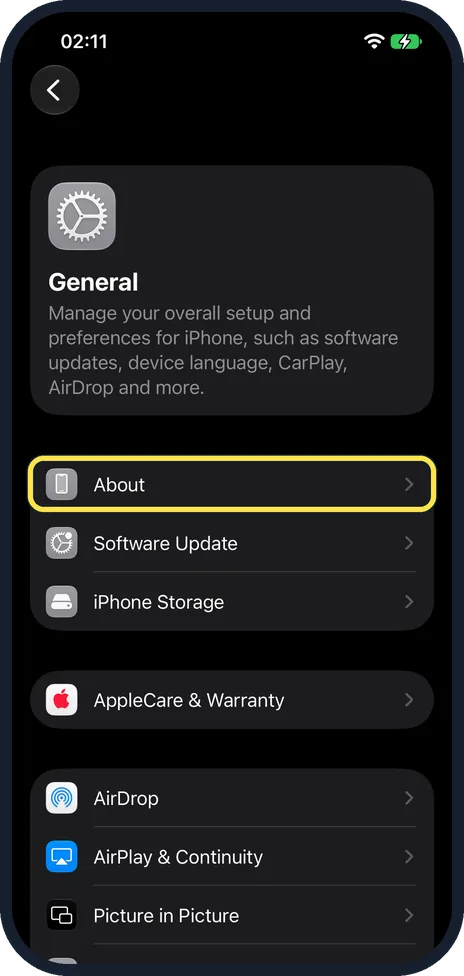
Tap About
It is the first row.
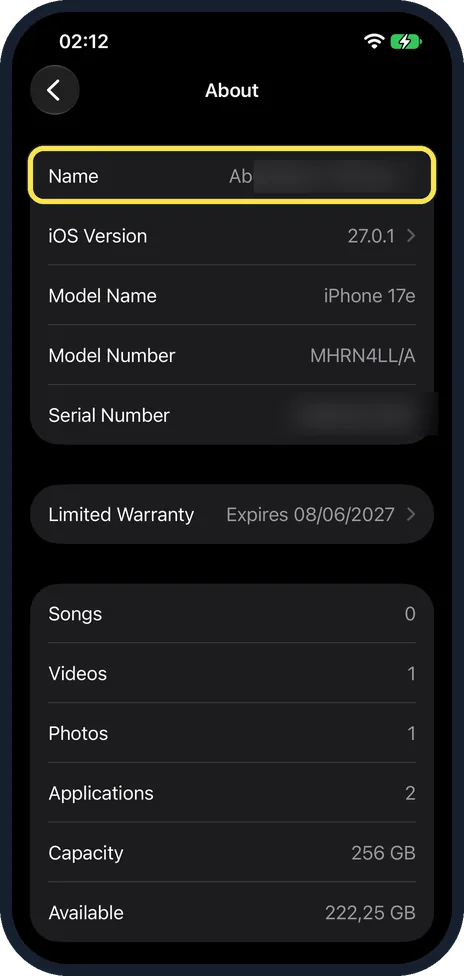
Tap Name
It is the first line on the About page. Below it ours showed iOS Version 27.0.1 and Model Name iPhone 17e.
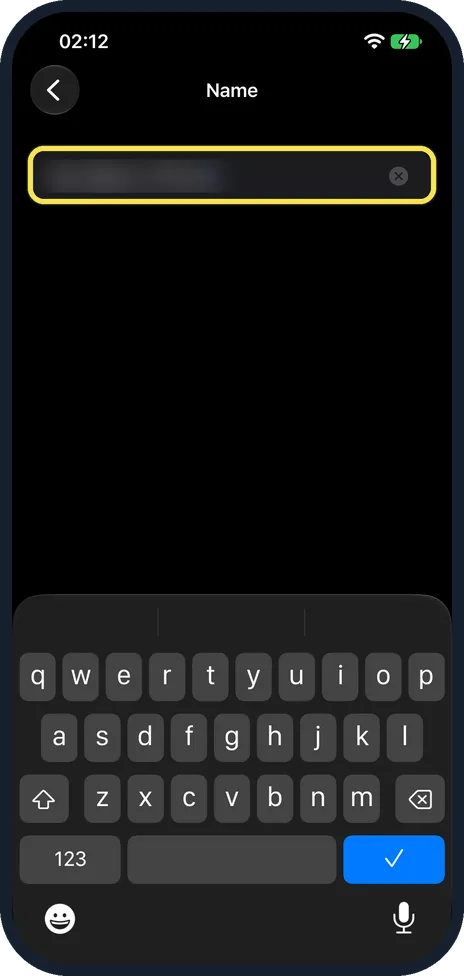
Type the new name and tap Done
Tap the x to clear the old name first. On iOS 27.0.1 the Done key is the blue tick on the keyboard. The change applies straight away.
What changed: the screenshots are now our own iPhone 17e on iOS 27.0.1, dark mode, and the wording is checked against those screens.
If you do not see this option
- The keyboard has no Done key. On iOS 27.0.1 Done is the blue tick at the bottom right of the keyboard, as in the picture.
- Search for it. Open Settings, tap the search field at the bottom and type Name. Apple notes that the sections in Settings depend on the iPhone model. Source: Find settings on iPhone
If this does not work
- Others still see the old hotspot name. Devices that joined your Personal Hotspot before remember the old name. On them, forget the network and join it again under the new name. Source: Forget a Wi-Fi network or prevent your device from automatically joining it
- Strangers can see your name. Apple says the name is used by AirDrop, Bluetooth and your Personal Hotspot, so people nearby can see it. Use a name without your surname. Source: Change the name of your iPhone
About this guide
The iPhone's name is what other people see when you share a hotspot or send something by AirDrop. Out of the box it is usually just "iPhone", which is confusing when several are nearby.
The screenshots are our own, taken on an iPhone 17e running iOS 27.0.1, in dark mode. We blurred our own name.
Good to know
Avoid putting your full name in it if you use a hotspot in public, because everyone nearby can see the name.
To rename AirPods or other Bluetooth accessories, open Settings, Bluetooth, tap the i next to the device and tap Name.
In short: Settings, General, About, Name.
Links checked in October 2026. Menus and features can change after software updates. These steps match the version named at the top.
Did this guide work for you?
Sorry about that. What happened?