
howtosimply.com/guides/how-to-use-the-on-screen-keyboard-on-windows-11/ · Checked October 2026 · Windows 11 Enterprise 25H2 (build 26200.9457), Microsoft Cloud PC
In this guide
Press the Windows logo key + Ctrl + O, or switch on On-screen keyboard under Settings, Accessibility, Keyboard. Click the keys with the mouse or tap them on a touch screen. The same shortcut closes it again.
5 of 5 steps with real screenshots · 2 official sources below
- Device
- Windows
- Shown on
- Windows 11 Enterprise 25H2 (build 26200.9457), Microsoft Cloud PC
- App
- Settings
- Path
- Settings › Accessibility › Keyboard › On-screen keyboard
- Real screenshots
- 5 of 5 steps
- Checked
- October 2026
- Sources
- 2 official, linked below
Step by step
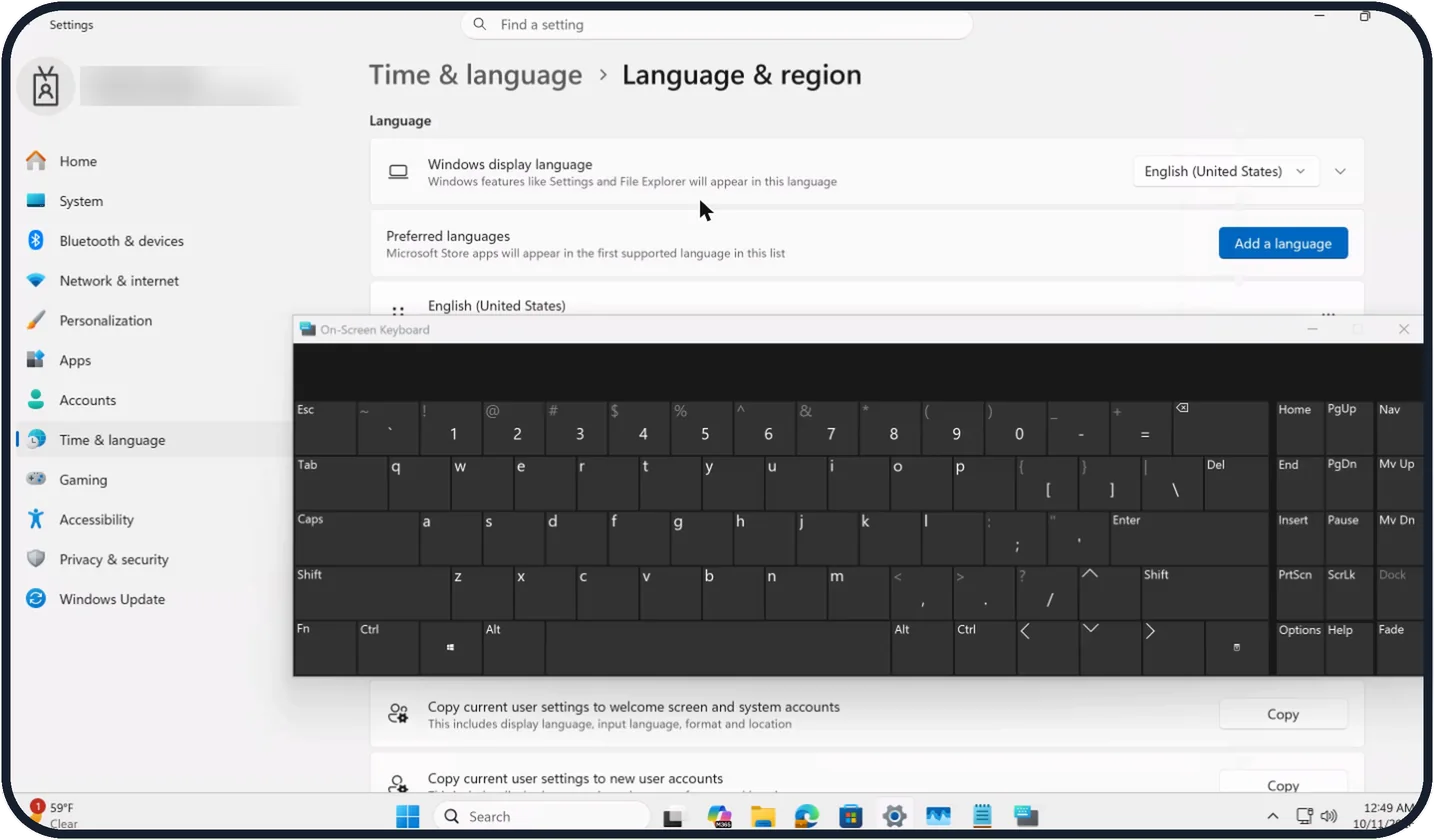
Tap the picture to see it full size Open it with the shortcut or search
Press the Windows logo key + Ctrl + O; Microsoft says the same keys close it again.
On our Cloud PC, used in a web browser, the shortcut did not reach Windows, so we opened On-Screen Keyboard by searching for it from the taskbar.
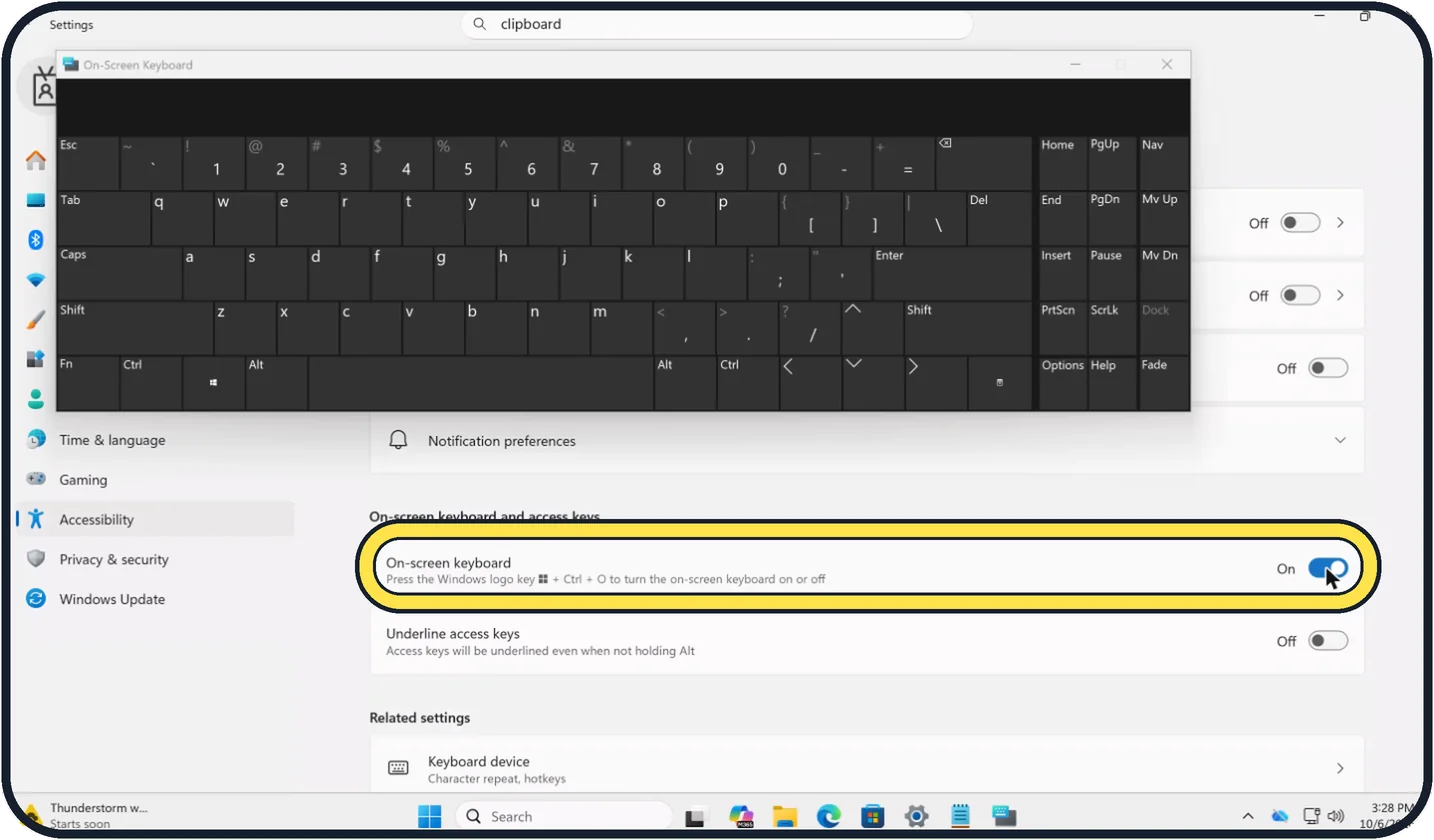
Tap the picture to see it full size Or switch it on in Settings
If no key works, click Start with the mouse and open Settings, Accessibility, Keyboard. Under On-screen keyboard and access keys, switch On-screen keyboard to On; the row repeats the shortcut: Windows logo key + Ctrl + O.
According to Microsoft, on the sign-in screen you can select the Accessibility button and choose On-Screen Keyboard.
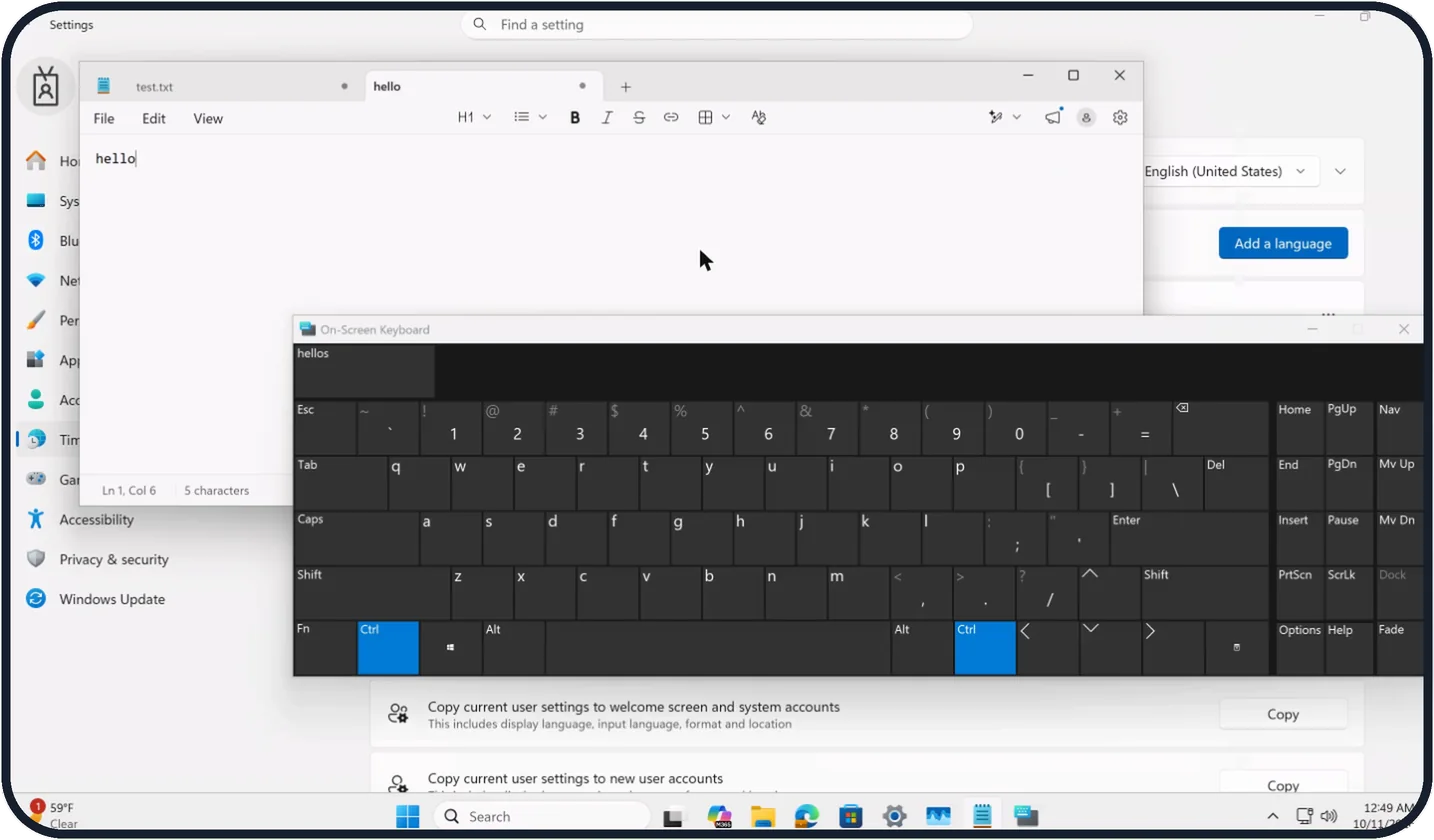
Tap the picture to see it full size Type
Click a key to type it. For combinations such as Ctrl + C, click Ctrl first and then C; on our Cloud PC both Ctrl keys turned blue and stayed lit until the next key.
With text prediction on, suggestions appear above the keys: after typing hello our keyboard offered hellos.
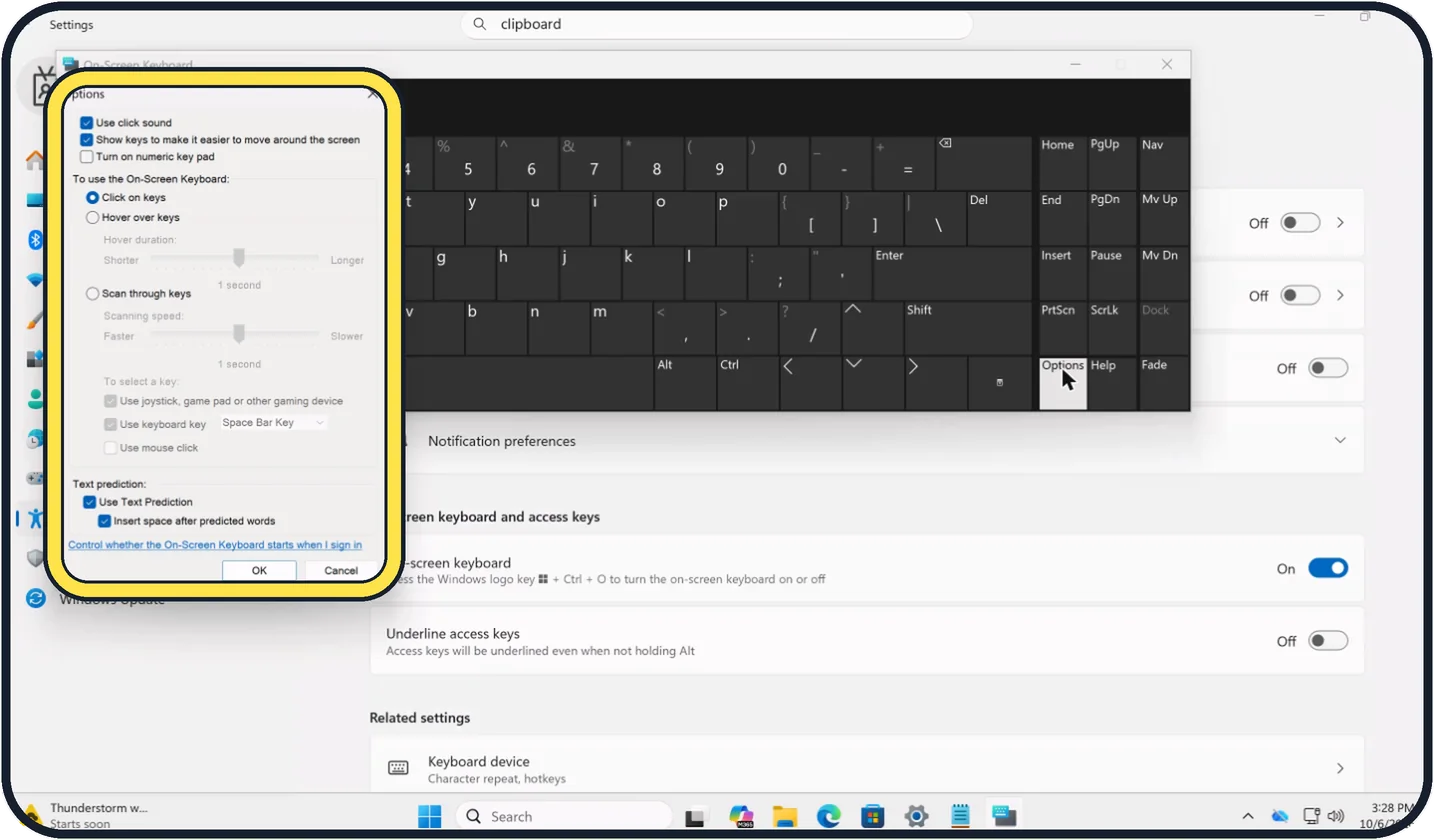
Zoomed in on the setting. Tap to see the whole screenTap the picture to see it full size Change how it works
Click Options at the bottom right of the keyboard. You can tick Turn on numeric key pad, untick Use click sound, choose Hover over keys instead of Click on keys, and switch Use Text Prediction on or off.
On our Cloud PC the Hover duration was set to 1 second. Click OK.
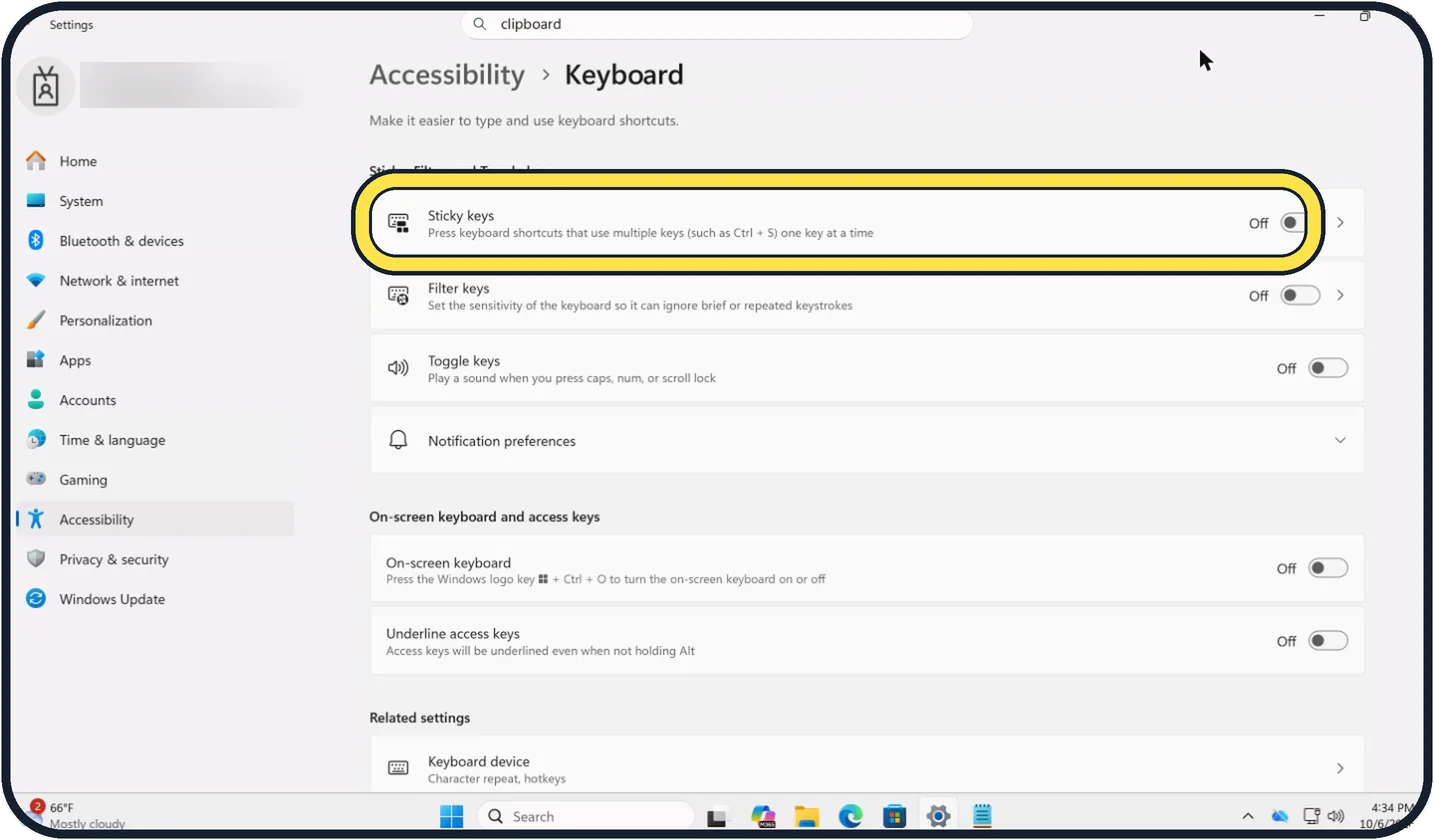
Tap the picture to see it full size Use Sticky keys with a real keyboard
If pressing two keys at once is the difficulty, switch on Sticky keys at the top of the same Accessibility, Keyboard page. You then press shortcuts one key after the other.
On our Cloud PC Sticky keys was Off.
If you do not see this option
- On Windows 10 Microsoft gives the path Start, Settings, Ease of Access, Keyboard, then switch on Use the On-Screen Keyboard. Source: Make your mouse, keyboard, and other input devices easier to use
- The toggle is missing on a work or school PC Organisations can manage settings on their PCs. Search for On-Screen Keyboard from the taskbar instead, or ask your IT department.
- The shortcut does nothing On our Cloud PC in a web browser, Windows logo key + Ctrl + O did not reach Windows. Searching for On-Screen Keyboard opened it straight away.
If this does not work
- A shortcut types single letters Click the modifier key first, then the letter. On our Cloud PC Ctrl turned blue to show it was held until the next key was clicked.
- Hover typing picks keys too fast or too slow In Options, with Hover over keys selected, move the Hover duration slider between Shorter and Longer. Ours was at 1 second.
- You want it ready when you sign in Options has a link, Control whether the On-Screen Keyboard starts when I sign in. Microsoft also says you can open it from the Accessibility button on the sign-in screen. Source: Make your mouse, keyboard, and other input devices easier to use
About this guide
The on-screen keyboard is a full keyboard in a window. It helps when a key or the whole keyboard has stopped working, when you need a key your keyboard does not have, or when typing with a pointer is easier for you than pressing keys.
All pictures in this guide, including the Sticky keys one, are screenshots from our Cloud PC. Facts that go beyond them come from Microsoft's support page Use the On-Screen Keyboard (OSK) to type.
Good to know
The touch keyboard is a different thing: a larger keyboard for tablets that appears when you tap a text field. Its icon can be shown on the taskbar under Settings, Personalization, Taskbar.
Mouse keys, under Accessibility, Mouse, do the reverse: they let you move the pointer with the number pad when the mouse has failed.
For a keyboard or mouse that has stopped: Windows 11 keyboard or mouse not working: 7 fixes to try.
Typing by voice is another way round a broken keyboard: how to use voice typing on Windows 11.
In short: Windows logo key + Ctrl + O, search for On-Screen Keyboard, or Settings, Accessibility, Keyboard, On-screen keyboard. Options covers the numeric key pad, hover typing and text prediction. Sticky keys helps with shortcuts on a real keyboard.
- Microsoft Support: Make your mouse, keyboard, and other input devices easier to use
- Microsoft Support: Use the On-Screen Keyboard (OSK) to type
Links checked in October 2026. Menus and features can change after software updates. These steps match the version named at the top.
Did this guide work for you?
Sorry about that. What happened?