
howtosimply.com/guides/touch-id-not-working-on-a-mac-7-fixes-to-try/ · Checked October 2026 · MacBook Pro · macOS Tahoe 26
In this guide
Clean and dry your finger and the Touch ID button, then restart the Mac and sign in with your password once. If it still fails, open System Settings, Touch ID & Password, delete the fingerprint and add it again.
4 of 7 steps with real screenshots · 1 official source below
- Device
- Mac
- Shown on
- macOS Tahoe 26 (MacBook Pro)
- App
- System Settings
- Real screenshots
- 4 of 7 steps
- Checked
- October 2026
- Sources
- 1 official, linked below
Step by step
Clean and dry finger and sensor
Moisture, hand cream, sweat, oil, cuts and very dry skin all disturb the reading. Wipe the Touch ID button with a clean, dry, lint-free cloth and dry your finger.
Know when the password is required
The Mac always asks for the password after a restart or after you log out, when it has not been unlocked for more than 48 hours, after five failed fingerprint attempts, and when you change the Touch ID settings. Type the password once and Touch ID works again.
Zoomed in on the setting. Tap to see the whole screenTap the picture to see it full size Update macOS
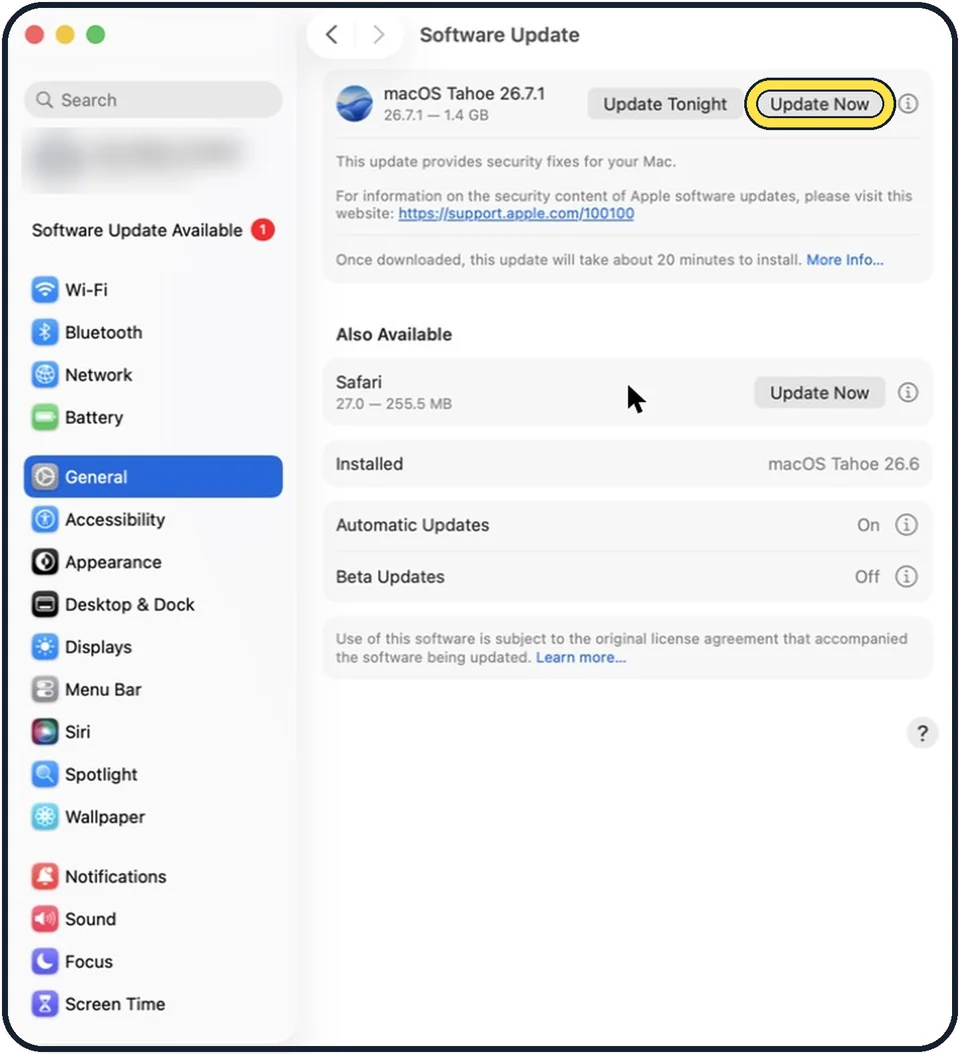
Open System Settings, click General, then Software Update, and install the newest version available for your Mac.
Tap the picture to see it full size Restart the Mac
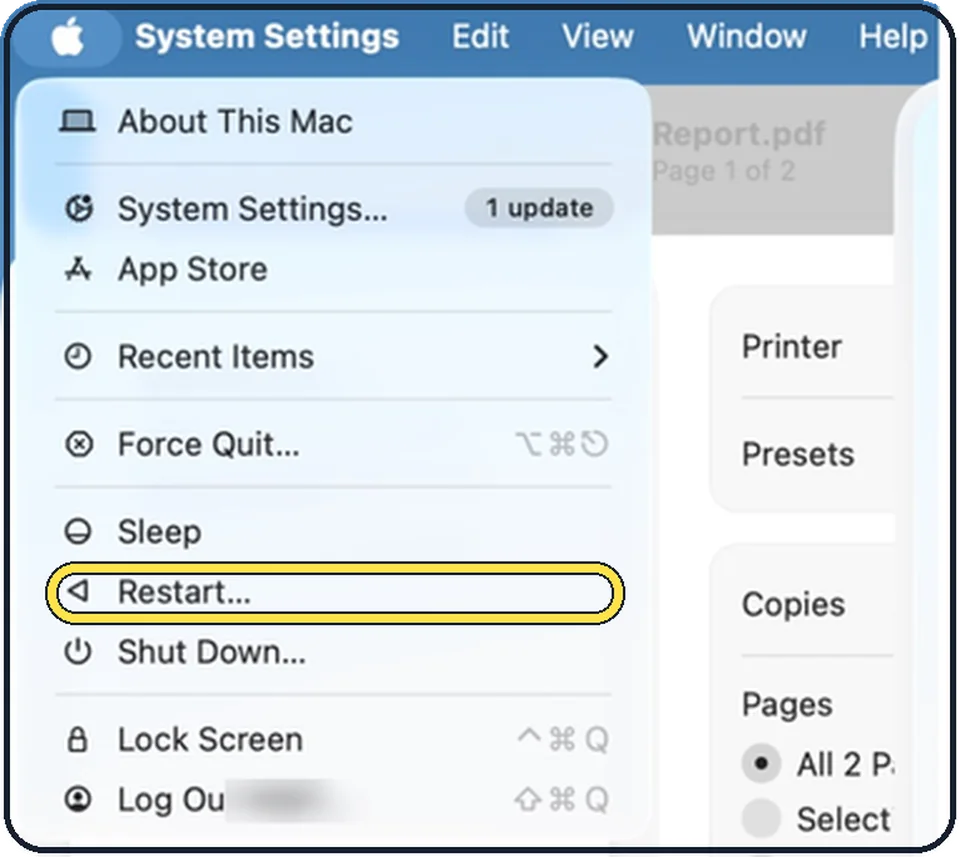
Choose Restart from the Apple menu and sign in with your password.
Tap the picture to see it full size Check what Touch ID is switched on for
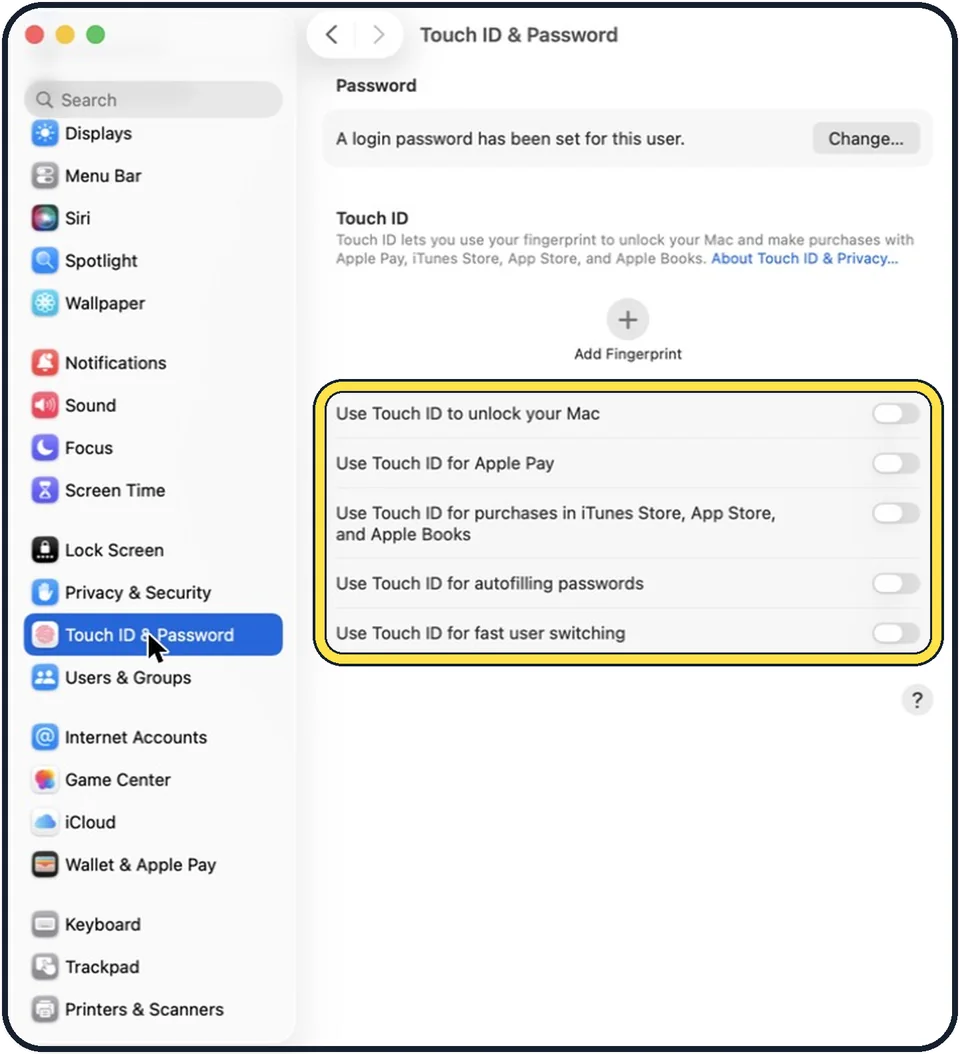
Open System Settings and click Touch ID & Password in the sidebar. The switches below Add Fingerprint decide whether Touch ID unlocks your Mac, pays with Apple Pay, confirms purchases in iTunes Store, App Store and Apple Books, fills in passwords and allows fast user switching. On our Mac no fingerprint was saved and all five switches were off.
Zoomed in on the setting. Tap to see the whole screenTap the picture to see it full size Delete the fingerprint and add it again
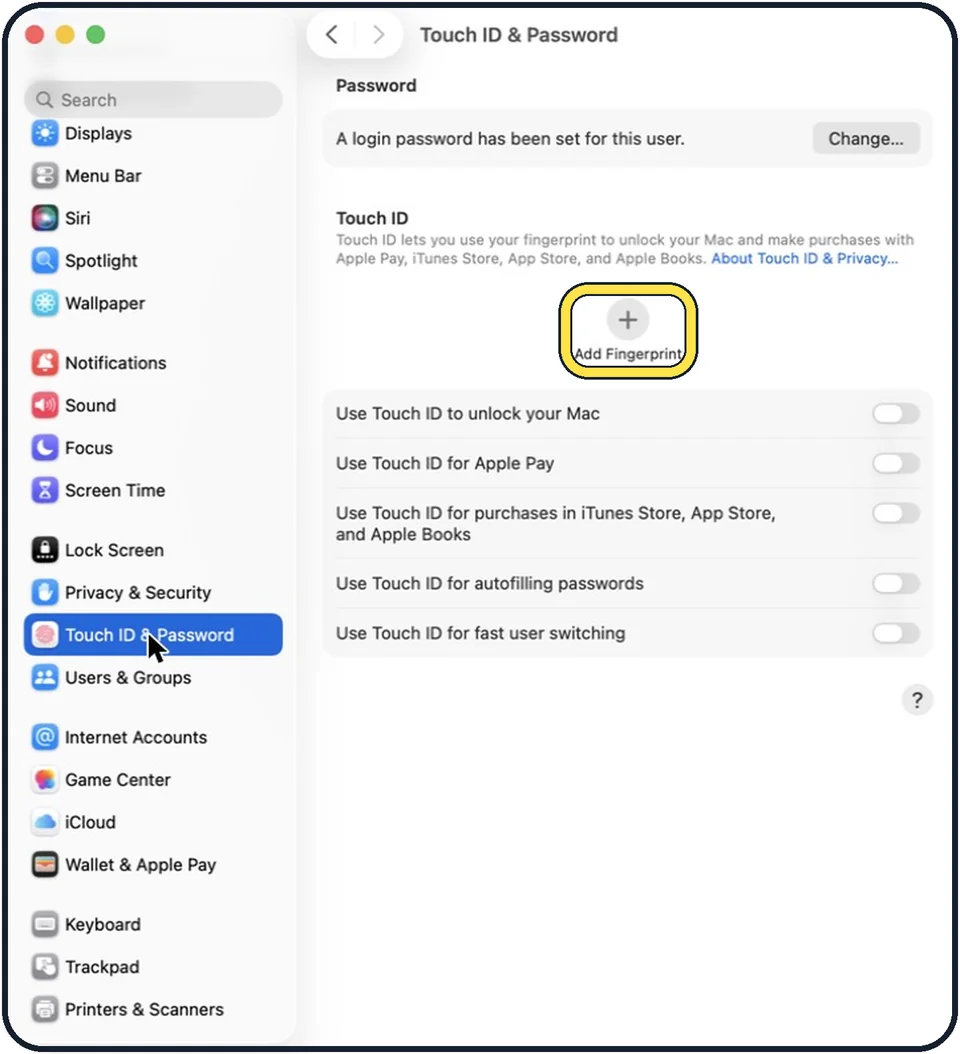
On the same page, delete the saved fingerprint if there is one. Then click Add Fingerprint above the switches and place the finger again. You can also add a second finger.
Magic Keyboard with Touch ID: connect it by cable
Switch the keyboard off, connect it to the Mac with its USB cable and switch it on. Wait at least 10 seconds before you try Touch ID. A Magic Keyboard with Touch ID only works with a Mac with Apple silicon.
About this guide
Touch ID reads the fine lines of your fingertip. Anything that changes the surface of the skin, or a setting that has been switched off, makes it fail. In some situations the Mac asks for the password on purpose, and that is not a fault.
Menu names are from recent versions of macOS, where the settings app is called System Settings. The pictures are our own screenshots from macOS Tahoe 26 on a MacBook Pro.
Good to know
Touch ID does not work on a Mac that is set to log in automatically without a password.
If the fault only appears when the Magic Keyboard is used wirelessly, other radio devices close by may be interfering. Move the keyboard nearer to the Mac.
The full set-up is described in how to set up Touch ID on a Mac.
In short: Clean and dry, type the password once, update, restart, check the switches, add the fingerprint again, cable for a Magic Keyboard.
Links checked in October 2026. Menus and features can change after software updates. These steps match the version named at the top.
Did this guide work for you?
Sorry about that. What happened?