
howtosimply.com/guides/mac-microphone-not-working-5-fixes-to-try/ · Checked October 2026 · MacBook Neo · macOS 27.0.1
In this guide
Quit the app, open System Settings, Privacy & Security, Microphone and switch the app on. Open the app again. Then check under System Settings, Sound, Input that the right microphone is selected and its Input level moves when you speak.
3 of 5 steps with real screenshots · 1 official source below
- Device
- Mac
- Shown on
- macOS 27.0.1 (MacBook Neo)
- App
- System Settings
- Real screenshots
- 3 of 5 steps
- Checked
- October 2026
- Sources
- 1 official, linked below
Step by step
Quit the app
Close the app you use for the call or recording completely. Permission changes only apply when it starts again.
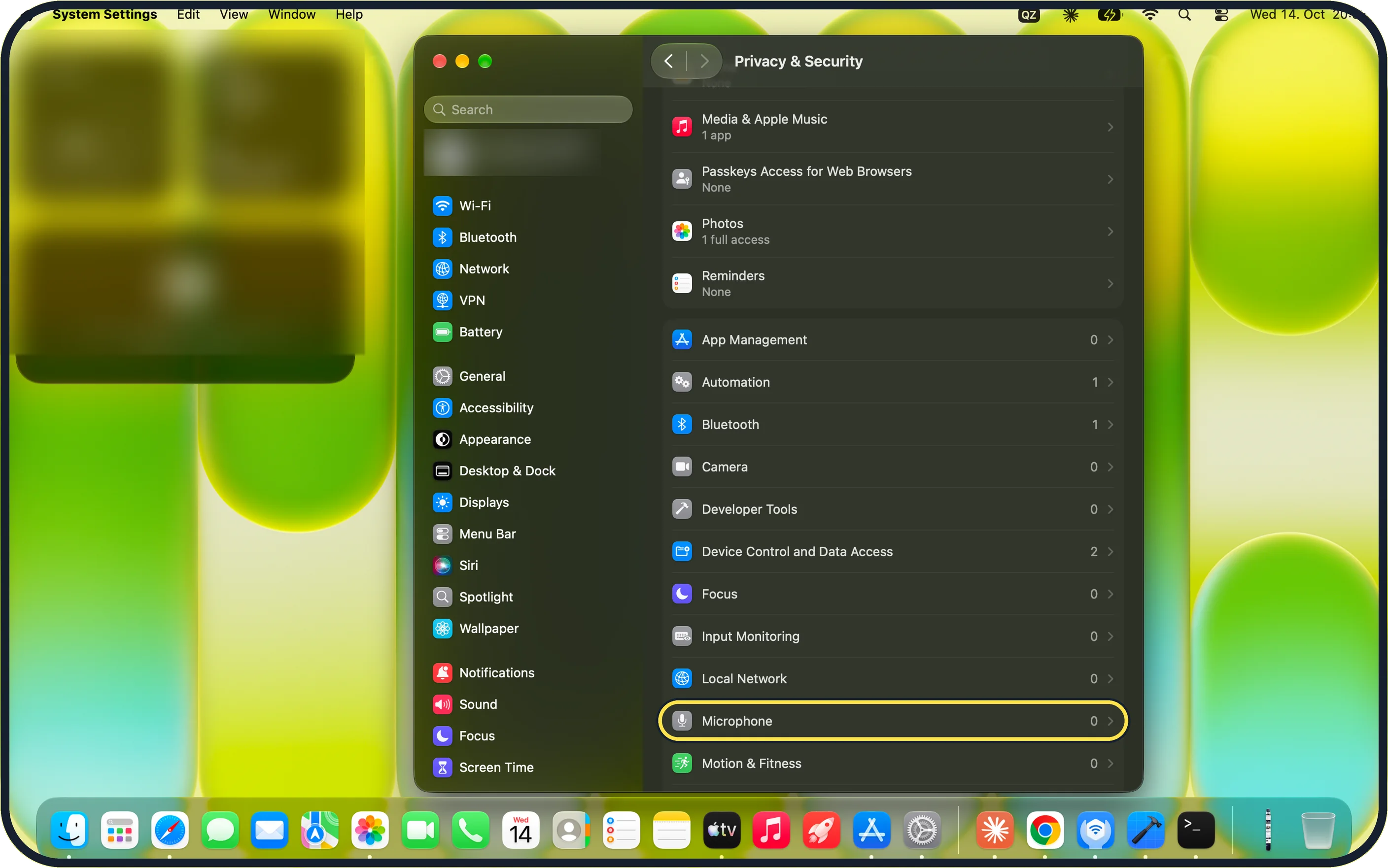
Zoomed in on the setting. Tap to see the whole screenTap the picture to see it full size Open Privacy & Security, then Microphone
Click the Apple menu, System Settings, Privacy & Security, and then Microphone.
On our MacBook Neo, the Microphone row shows 0.
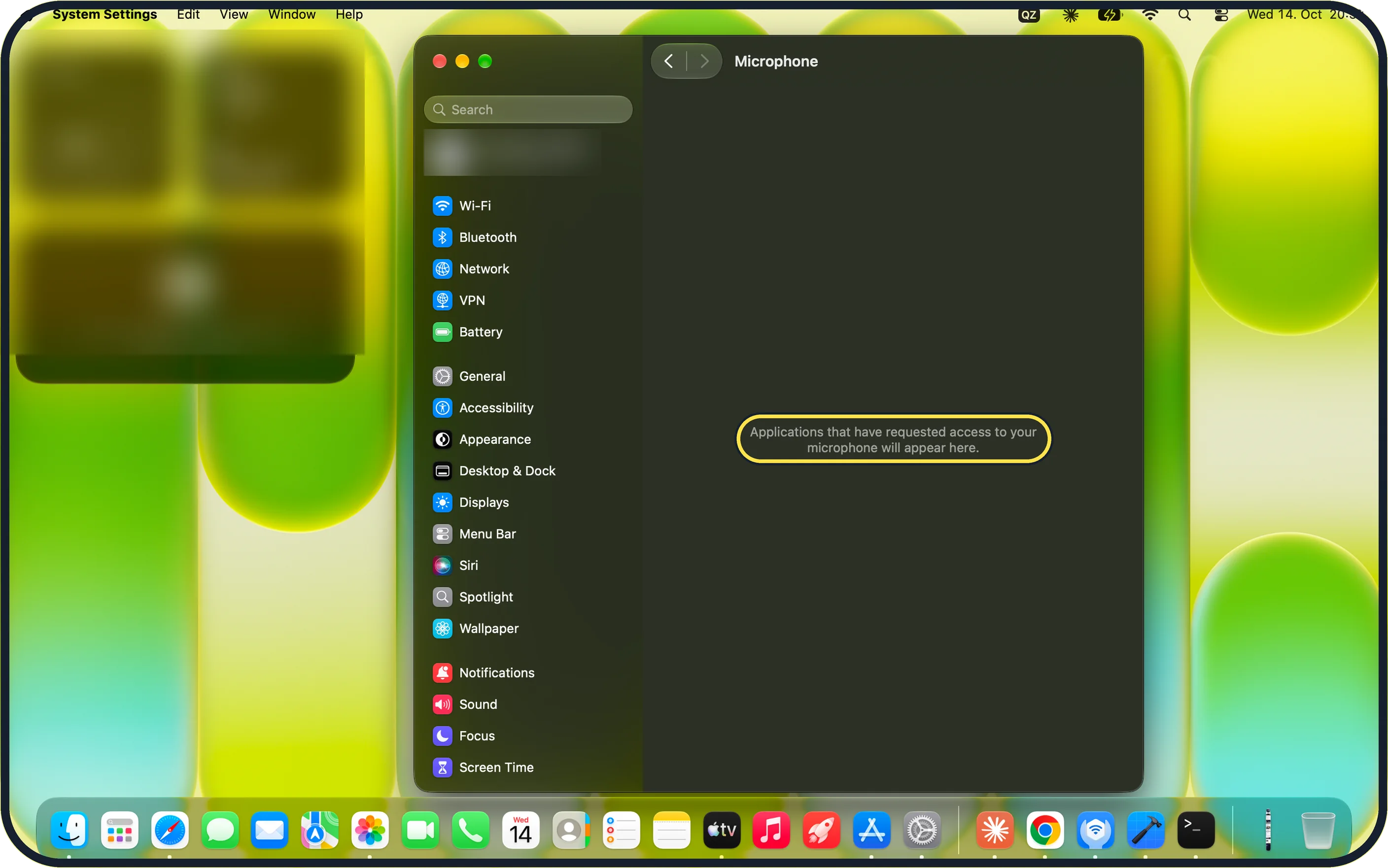
Zoomed in on the setting. Tap to see the whole screenTap the picture to see it full size Check the apps listed
Every app that has asked for the microphone is listed here with a switch. Turn on the switch for each app that should use the built-in microphone, a USB microphone or an audio interface, then open the app again and test.
On our MacBook Neo, no app is listed yet and the page says "Applications that have requested access to your microphone will appear here."
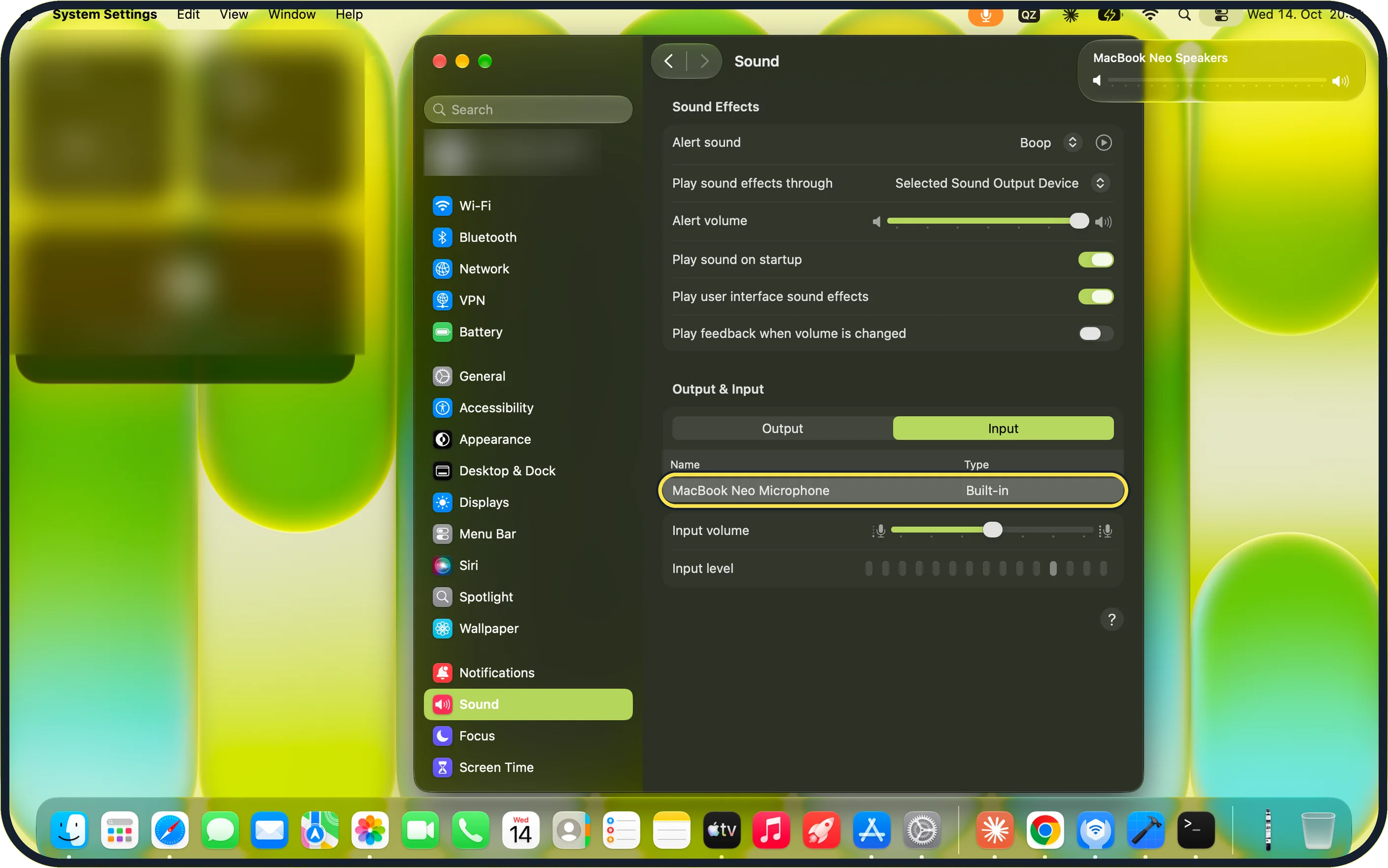
Zoomed in on the setting. Tap to see the whole screenTap the picture to see it full size Choose the right microphone
Open System Settings, Sound and click Input under Output & Input. Select the microphone you want.
Speak and watch the Input level. If the bars do not move, raise the Input volume.
On our MacBook Neo, the list shows MacBook Neo Microphone with the type Built-in.
Check the app and the headset
Many call apps have their own microphone menu and a mute button. Bluetooth headphones take over the microphone when they connect. Disconnect them for a test.
If you do not see this option
- The app is not on the Microphone page Apps only appear after they have asked for the microphone. On our MacBook Neo the empty page says "Applications that have requested access to your microphone will appear here." Open the app, try to use the microphone, then check again.
- Your microphone is not under Input Make sure Input is selected under Output & Input, not Output. On our MacBook Neo only MacBook Neo Microphone (Built-in) is listed, so an external microphone must be connected before it appears.
- You see System Preferences instead On macOS Monterey and earlier, look under System Preferences, Security & Privacy, in the Privacy pane.
If this does not work
- The Input level does not move In Sound, Input, drag the Input volume slider to the right and speak again.
- Others still cannot hear you Check the microphone menu and mute button inside the call app. Many apps choose their own microphone.
- A headset is connected Bluetooth headphones take over the microphone when they connect. Disconnect them and test again.
- Recording still fails Apple's support article "If you can't record audio on a Mac using macOS Mojave or later" describes the same permission check for each app. Source: If you can't record audio on a Mac using macOS Mojave or later
About this guide
If people cannot hear you in a call or a recording stays silent, the app usually has no permission to use the microphone, or the Mac is listening to the wrong device.
Menu names are from recent versions of macOS, where the settings app is called System Settings. The pictures are our own screenshots from macOS 27.0.1 on a MacBook Neo.
Good to know
On macOS Monterey and earlier, the permission is under System Preferences, Security & Privacy, in the Privacy pane.
Websites ask for the microphone separately in the browser. In Safari, look under Safari, Settings, Websites, Microphone.
An orange dot in the menu bar shows that an app is using the microphone right now.
If you hear nothing either: no sound on your Mac: 7 fixes to try.
In short: Quit the app, Privacy & Security > Microphone, switch the app on, check Sound > Input.
Links checked in October 2026. Menus and features can change after software updates. These steps match the version named at the top.
Did this guide work for you?
Sorry about that. What happened?