
howtosimply.com/guides/mac-keyboard-not-working-7-fixes-to-try/ · Checked October 2026 · MacBook Pro · macOS Tahoe 26
In this guide
For a wireless keyboard, check that it is switched on, charged and that Bluetooth is on. For a MacBook, connect the charger. If keys react slowly or type the wrong characters, switch off Slow Keys and Mouse Keys under Accessibility and check the keyboard layout.
4 of 7 steps with real screenshots · 2 official sources below
- Device
- Mac
- Shown on
- macOS Tahoe 26 (MacBook Pro)
- App
- System Settings
- Real screenshots
- 4 of 7 steps
- Checked
- October 2026
- Sources
- 2 official, linked below
Step by step
Wireless keyboard: power and Bluetooth
Make sure the keyboard is switched on and charged, and that Bluetooth is on at the Mac. Switch the keyboard off and on again.
Wired keyboard: plug it in again
Unplug the cable and push it in firmly. Try another USB port and, if you use one, leave out the hub.
MacBook: connect the charger
If the battery is almost empty, the Mac may show a warning you cannot see and stop reacting to keys. Connect the power adapter.
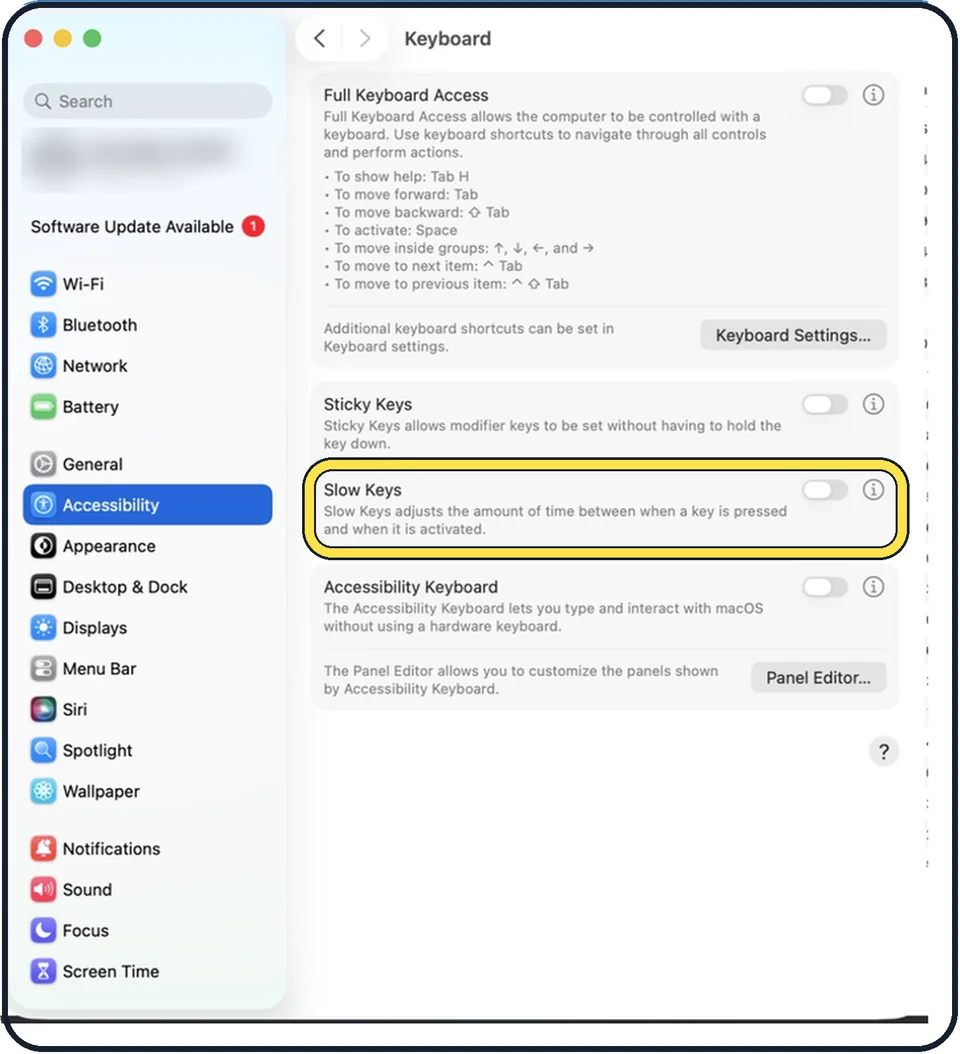
Tap the picture to see it full size Switch off Slow Keys
Open System Settings, Accessibility, Keyboard. If Slow Keys is on, each key must be held down for a moment before it counts. Switch it off.
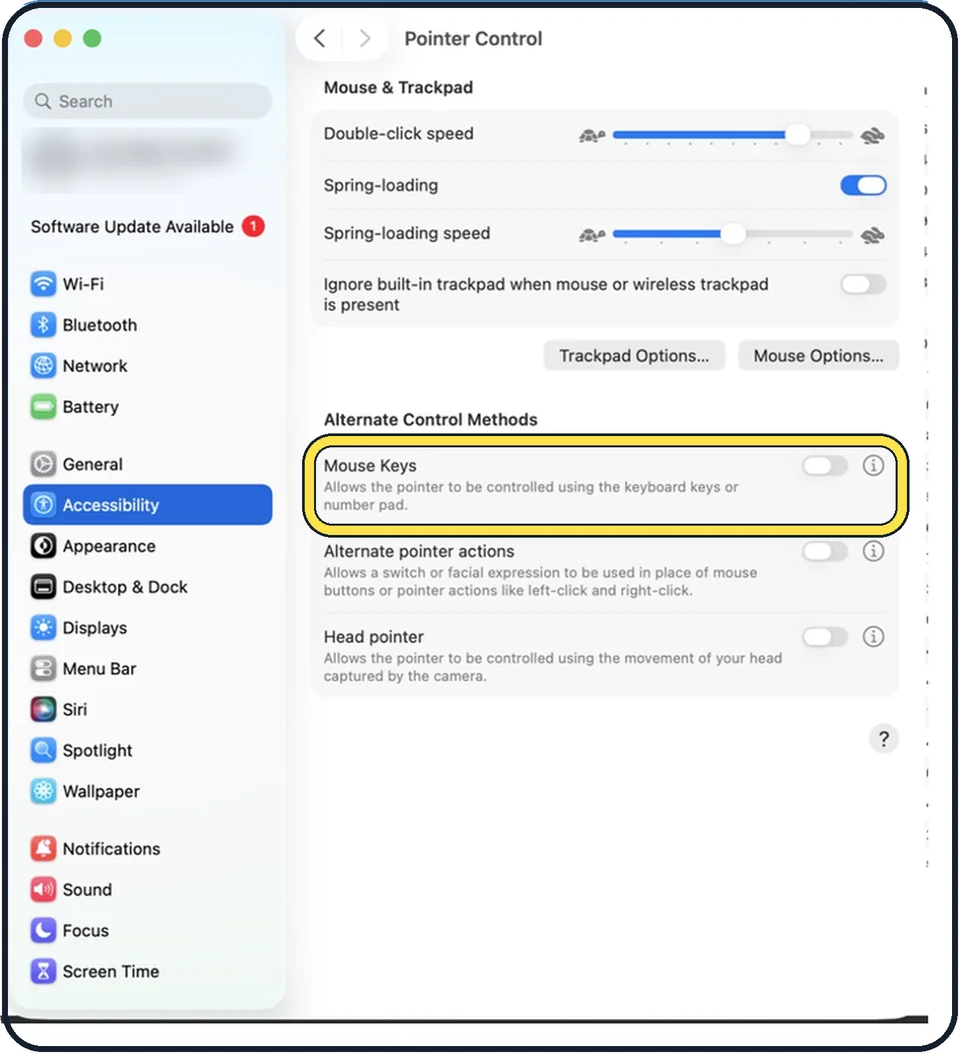
Tap the picture to see it full size Switch off Mouse Keys
Open System Settings, Accessibility, Pointer Control. With Mouse Keys on, some keys move the pointer instead of typing.
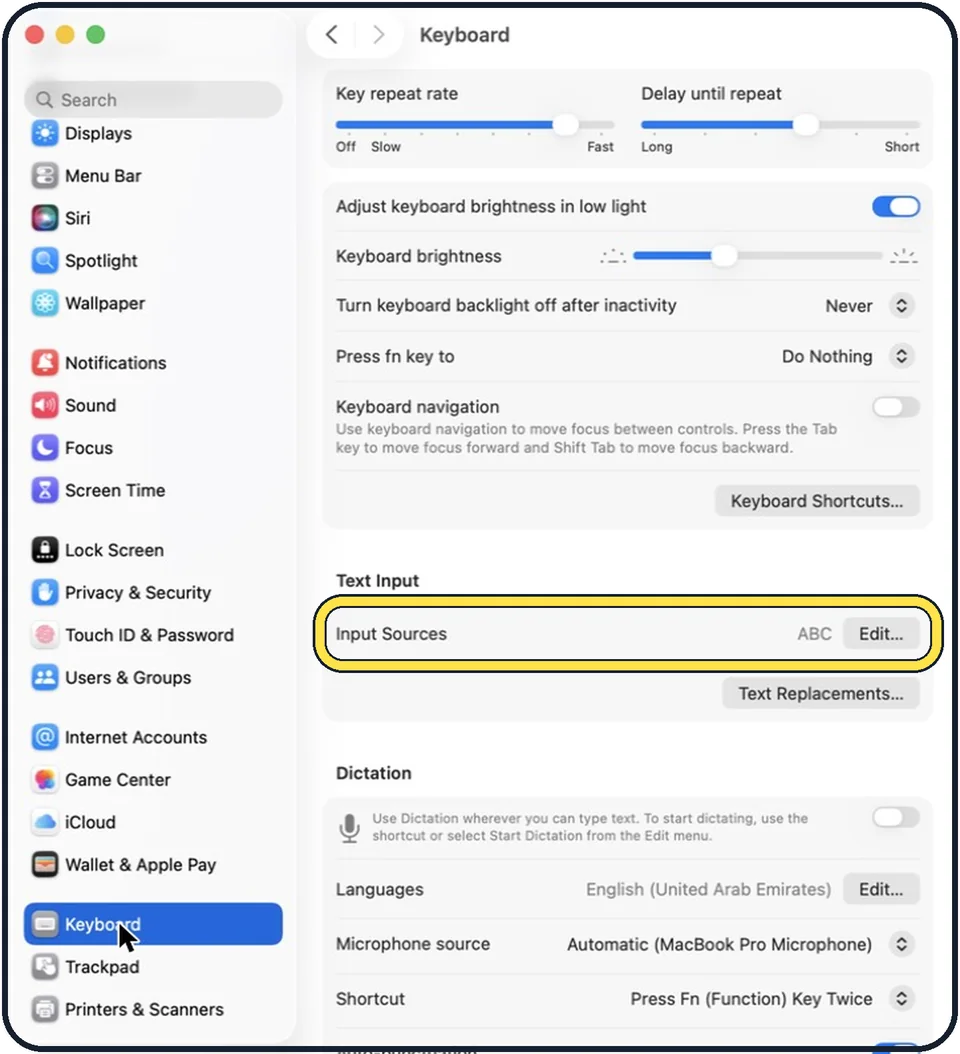
Tap the picture to see it full size Check the keyboard layout
Open System Settings, Keyboard and look at Text Input. If the wrong input source is selected, keys such as Y and Z or the punctuation produce other characters. Choose the right layout from the input menu in the menu bar.
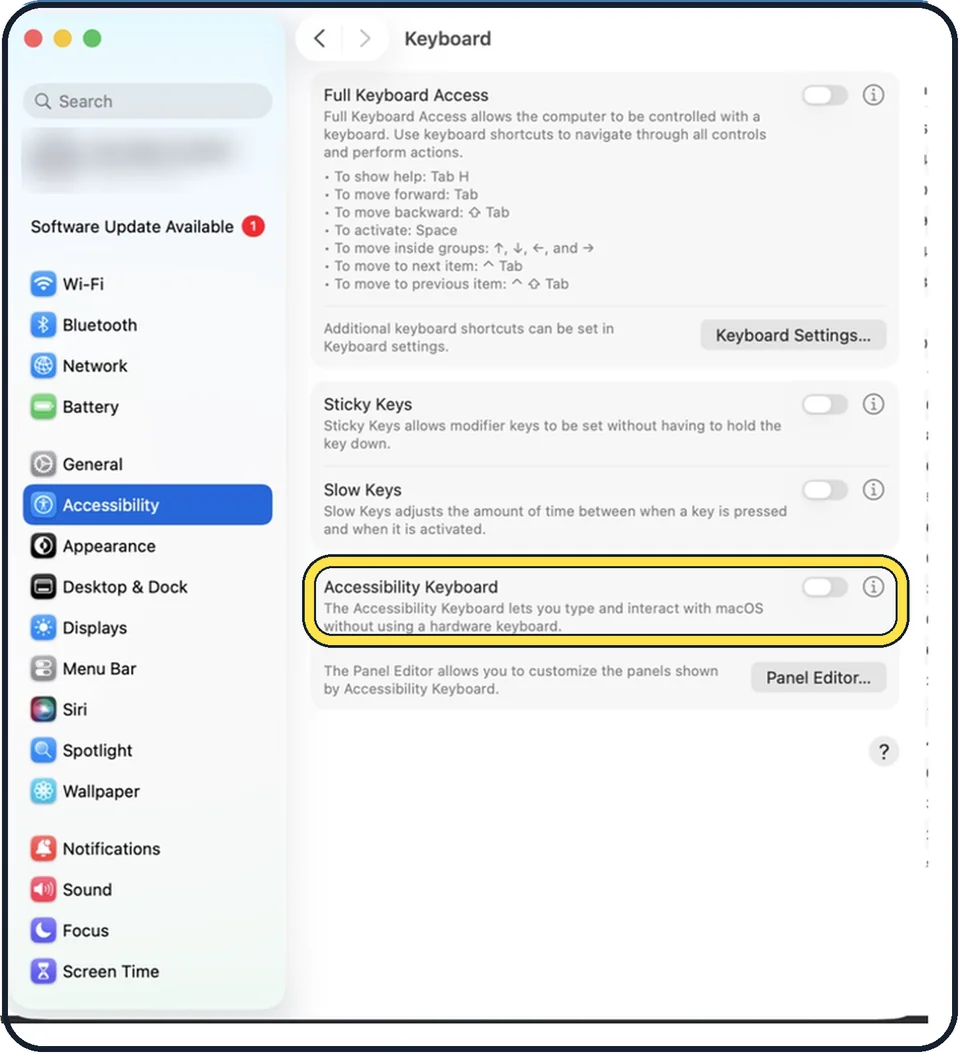
Tap the picture to see it full size Use the on-screen keyboard meanwhile
Open System Settings, click Accessibility, then Keyboard, and switch on Accessibility Keyboard. According to the text on that page, it lets you type and interact with macOS without a hardware keyboard: a keyboard appears on the screen and you click its keys with the trackpad or mouse.
About this guide
A keyboard that types nothing, types slowly or types the wrong characters is often caused by a setting, not a defect. Apple lists the checks below.
Menu names are from recent versions of macOS, where the settings app is called System Settings. The pictures are our own screenshots from macOS Tahoe 26 on a MacBook Pro.
Good to know
The Caps Lock key and the Media Eject key react with a short delay on purpose, so that an accidental touch does nothing. Press them a little longer.
If single keys stick or repeat on a MacBook, crumbs under the key are a common cause. Hold the MacBook at an angle and blow the keyboard out with compressed air. Do not lift the key caps.
After liquid has got into the keyboard, switch the Mac off and take it for service. Do not keep typing.
If the whole Mac is frozen and not just the keyboard: Mac keeps freezing or showing the spinning wheel.
In short: Power and Bluetooth, replug, charger, Slow Keys off, Mouse Keys off, check the layout, Accessibility Keyboard.
- Apple Support: If your Mac doesn't respond to key presses
- Apple Support: Use the Accessibility Keyboard on Mac
Links checked in October 2026. Menus and features can change after software updates. These steps match the version named at the top.
Did this guide work for you?
Sorry about that. What happened?