
You are viewing the macOS 26 version of this guide, recorded on macOS Tahoe 26 (MacBook Pro) on 2 October 2026. It is kept as it was and not updated. See the macOS 27 version.
howtosimply.com/guides/airdrop-not-working-on-a-mac-7-fixes-to-try/ · Checked 2 October 2026 · MacBook Pro · macOS Tahoe 26
In this guide
Bring the two devices within 10 metres, switch on Wi-Fi and Bluetooth on both, and set AirDrop on the receiving device to Everyone. If the other device still does not appear, restart both devices.
1 of 7 steps with real screenshots · 1 official source below
- Device
- Mac
- Shown on
- macOS Tahoe 26 (MacBook Pro)
- App
- System Settings
- Real screenshots
- 1 of 7 steps
- Checked
- 2 October 2026
- Sources
- 1 official, linked below
Step by step
Move the devices closer
Apple gives a range of about 10 metres (30 feet). Walls and other radio devices shorten it. Put the devices next to each other for the test.
Switch on Wi-Fi and Bluetooth on both
AirDrop needs both, on the sender and on the receiver. The devices do not have to be on the same Wi-Fi network.
Turn AirDrop on at the Mac
Click Control Centre in the menu bar and click the AirDrop icon. When it is blue, AirDrop is on.
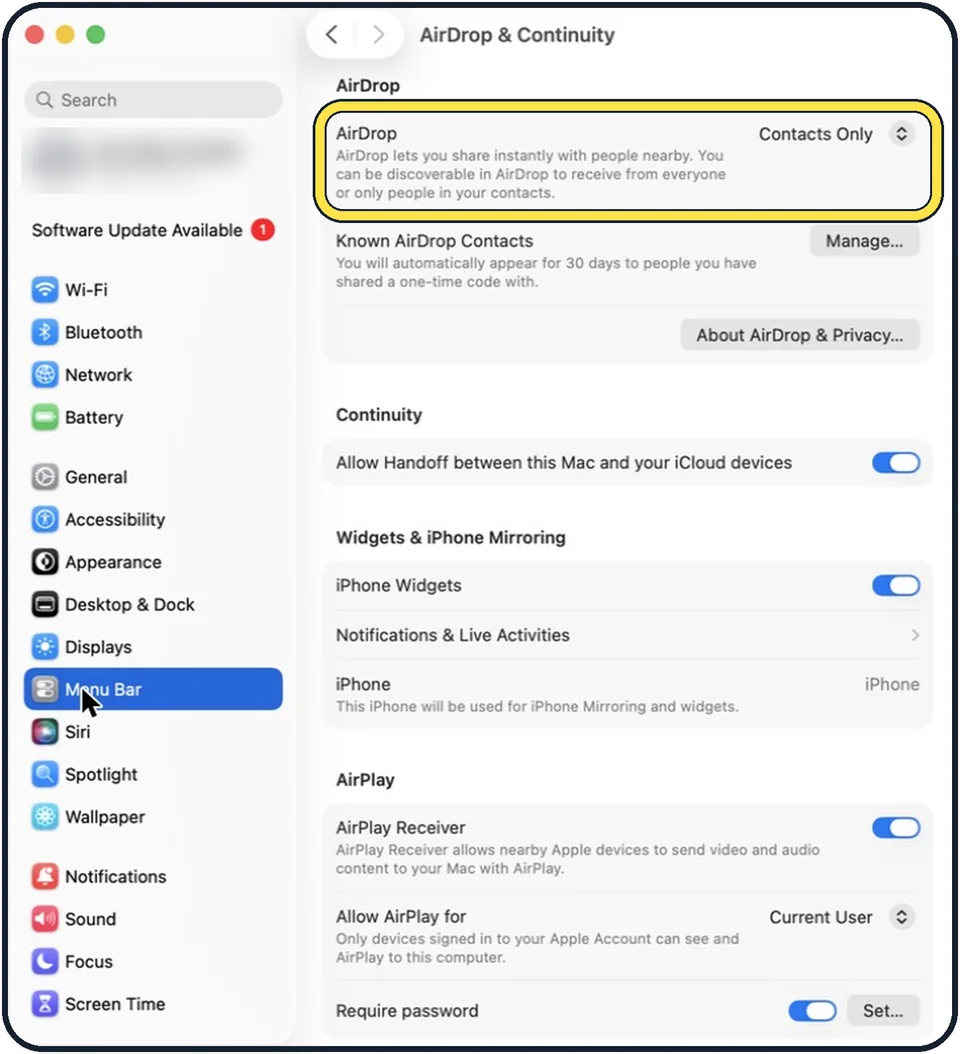
Tap the picture to see it full size Set receiving to Everyone
On the device that should receive the file, set AirDrop to Everyone. On the Mac the setting is also under System Settings, General, AirDrop & Continuity. Our picture shows it set to Contacts Only.
Check the contact card if you use Contacts Only
With Contacts Only, the receiver must have the email address or phone number of your Apple Account in your contact card. If you are not sure, use Everyone for the transfer.
Wake and unlock the other device
An iPhone or iPad has to be awake and unlocked to appear as a recipient.
Restart both devices
Apple's last step: restart your device and try again.
About this guide
AirDrop sends files between Apple devices without cables or the internet. When the other device does not show up, the cause is nearly always a switch in the wrong position on one of the two devices.
Menu names are from recent versions of macOS, where the settings app is called System Settings. The pictures are our own screenshots from macOS Tahoe 26 on a MacBook Pro.
Good to know
On a Mac, received files are saved in the Downloads folder. Some items let you choose where to save them.
After the transfer, set AirDrop back to Contacts Only or No One, so that strangers cannot send you files in public places.
How sending works: how to use AirDrop on a Mac and how to use AirDrop on an iPhone.
If Bluetooth itself is the problem: Mac Bluetooth not working: 7 fixes to try.
In short: Close together, Wi-Fi and Bluetooth on, AirDrop on, receiving set to Contacts Only or Everyone, restart.
Links checked in October 2026. Menus and features can change after software updates. These steps match the version named at the top.
Did this guide work for you?
Sorry about that. What happened?