ANDROID
Nothing Phone battery draining fast? What to check (OS 4.1)
Open Settings, Battery, Battery usage to see which apps use the most. Check Adaptive Battery, limit a heavy app under App info, App battery usage, and check Always-on display and the Glyph settings. Google also suggests Battery Saver, a shorter screen timeout and lower brightness.

8 of 8 steps show a real screenshot from our Phone (4a) Pro. Each step was checked against the maker's own instructions, linked at the end.
Steps
- 1
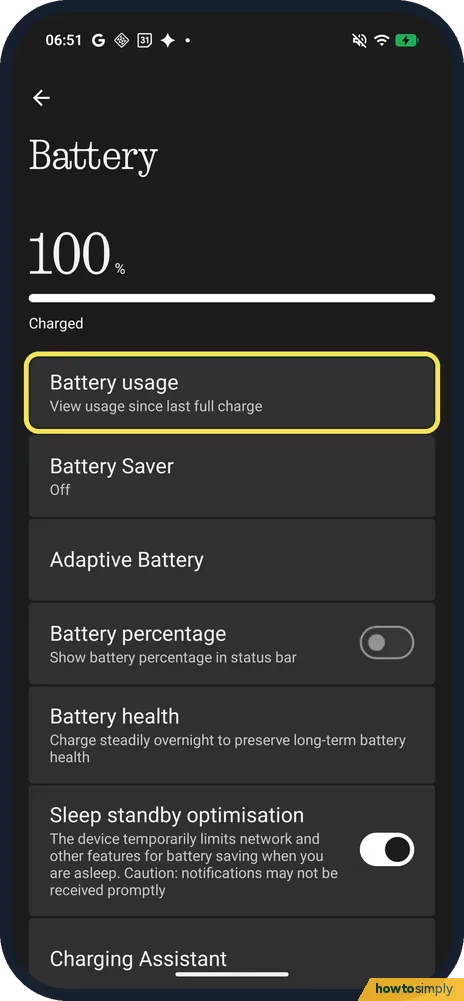
Open Battery and tap Battery usage
Open Settings and tap Battery. Ours said 100 %, Charged. Battery usage, the first row, shows use since the last full charge.
- 2
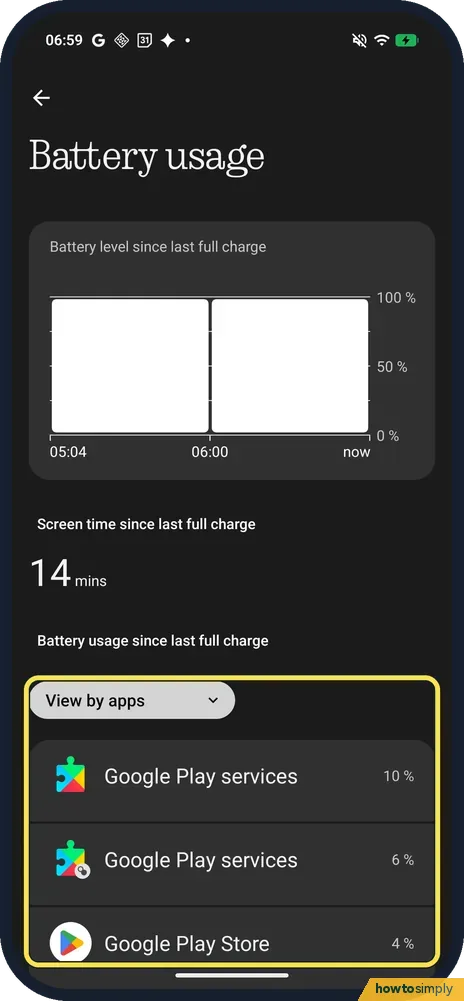
See which apps use the most
Under Battery usage since last full charge, View by apps lists apps by their share. Ours: Google Play services 10 %, Google Play services 6 % and Google Play Store 4 %, with 14 minutes of screen time.
- 3
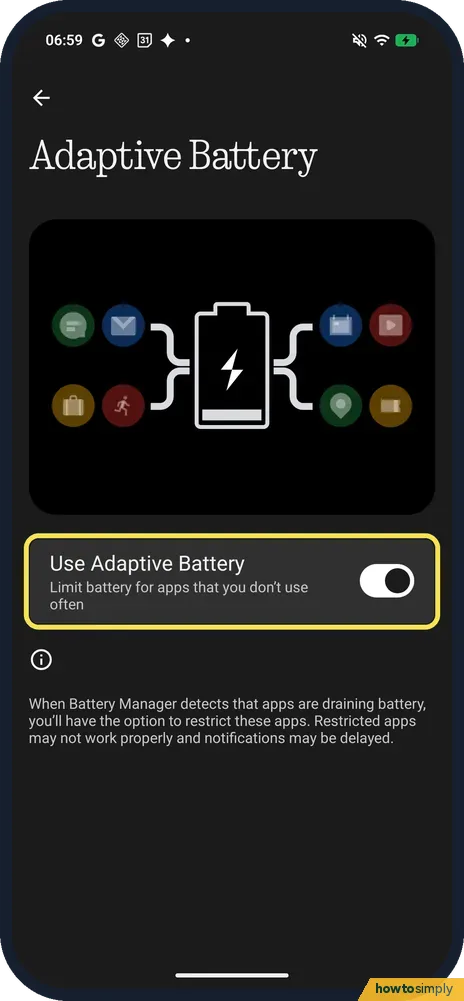
Check Adaptive Battery
Back on Battery, tap Adaptive Battery. Use Adaptive Battery was on on ours: Limit battery for apps that you don't use often. The page warns that restricted apps may not work properly and notifications may be delayed.
- 4
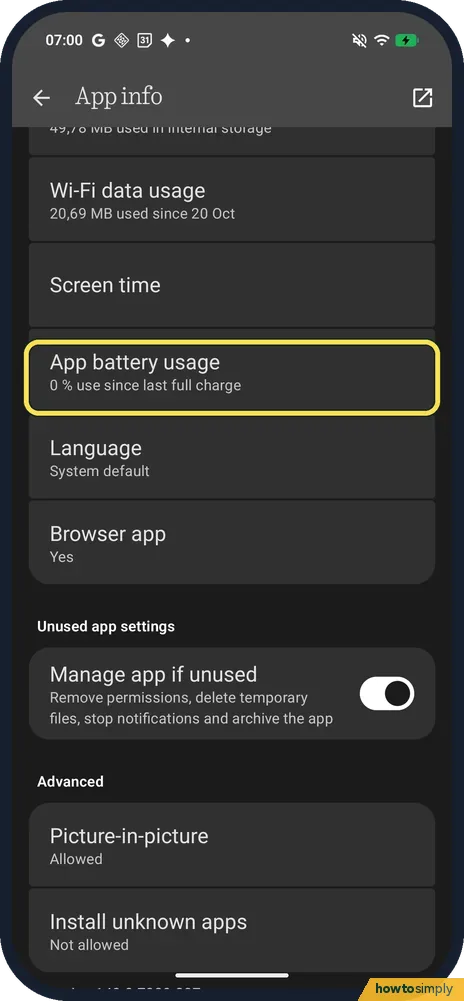
Open the app's App battery usage
Open Settings, Apps and tap the app, or touch and hold its icon and tap App info. Scroll to App battery usage; ours showed 0 % use since last full charge for Chrome.
- 5
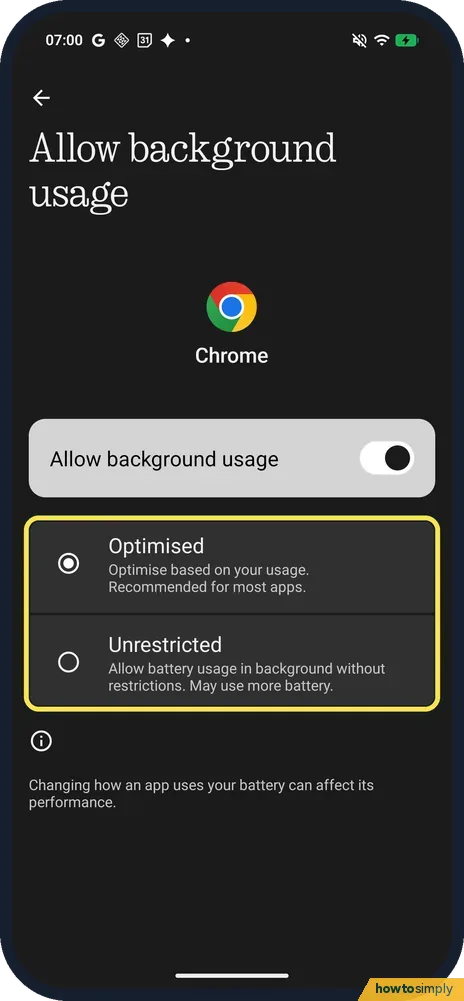
Choose Optimised for a heavy app
Tap Allow background usage. Ours offered Optimised (optimise based on your usage, recommended for most apps) and Unrestricted (may use more battery). Chrome was on Optimised. Keep heavy apps on Optimised; turning the switch off stops background use.
- 6
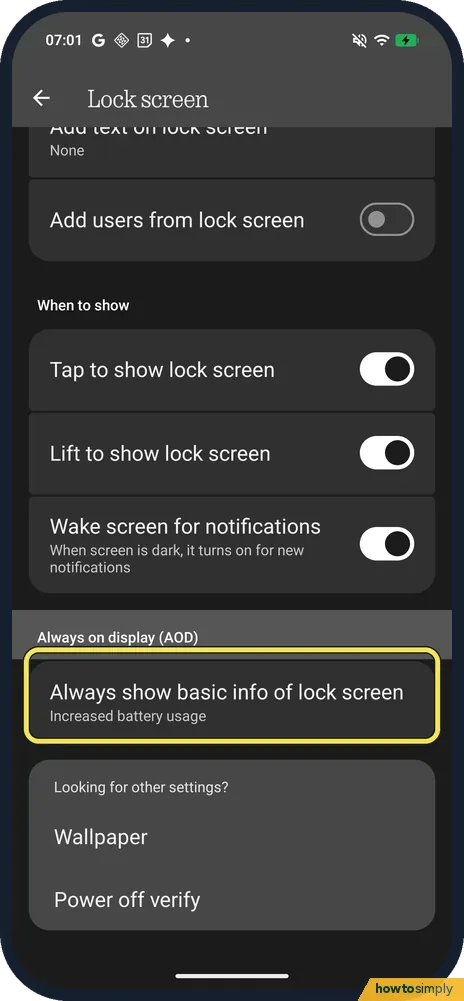
Check Always-on display
Open Settings, Lock screen and scroll to Always on display (AOD). Its row says Always show basic info of lock screen, Increased battery usage. It was off on ours.
- 7
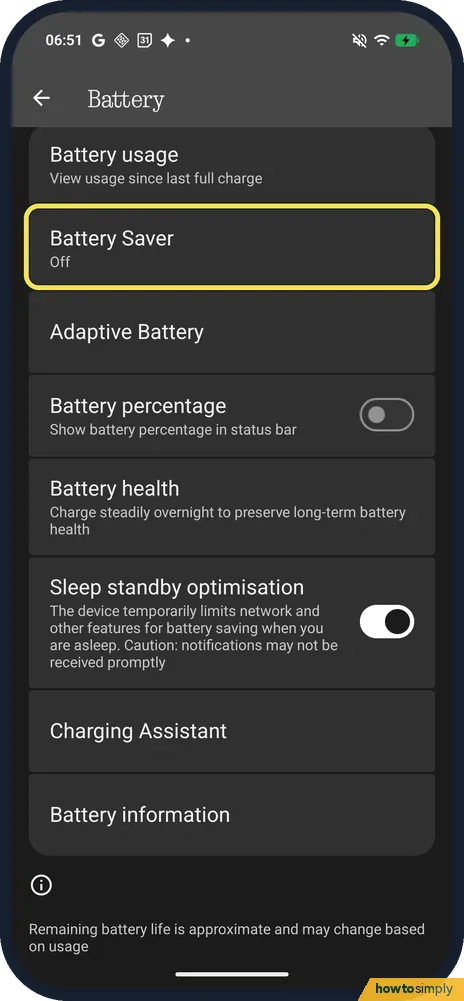
Check Battery Saver
On Battery, Battery Saver was Off on ours. Nothing says you get a prompt to turn it on when the battery goes below 20 %, and that you can add a Battery Saver tile to Quick Settings.
- 8
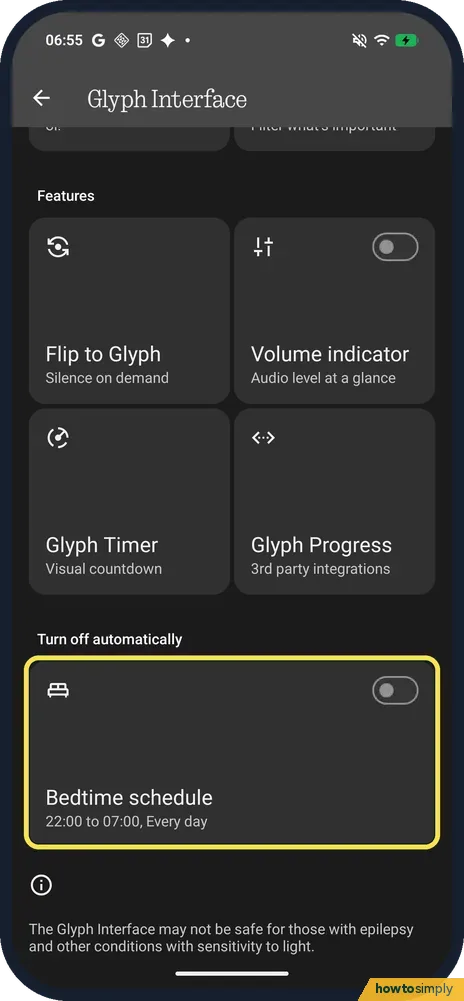
Check the Glyph settings
Open Settings, Glyph Interface and scroll down. Under Turn off automatically, Bedtime schedule switches the lights off at night; ours said 22:00 to 07:00, Every day. The Glyph Interface switch at the top turns the lights off altogether.
If you do not see this option
- No percentage in the status bar? Battery percentage, on the same Battery page, was off on ours. See show battery percentage on a Nothing Phone.
- Want to know if the battery is worn? Battery health is on the Battery page; ours said Charge steadily overnight to preserve long-term battery health. See check battery health on a Nothing Phone.
- Want the phone to save battery while you sleep? Sleep standby optimisation, lower on the Battery page in step 7, was on on ours. The page says the device temporarily limits network and other features for battery saving when you are asleep, and that notifications may not be received promptly.
If this does not work
- An app stops notifying after you limit it? Optimised or a switched-off Allow background usage can delay its messages. Put chat and navigation apps back on Optimised, or Unrestricted if they must stay live; see Nothing Phone not getting notifications.
- Battery drains even when idle? Google advises avoiding situations where the phone can overheat, especially when the battery is fully charged, and suggests turning off Location access when you do not need it. Some apps and features won't work when Location is off.
- Battery lasts less than it used to? Nothing's battery tips: charge regularly instead of running it flat, charge between 15°C and 35°C, use the original charger, avoid using the phone while it charges, and do not leave it charging for more than 12 hours.
Good to know
The percentages are each app's share of the battery used since the last full charge, not a verdict on any app. Ours were read on a charged phone after 14 minutes of screen time, so system services such as Google Play services topped the list. Look again after a normal day of use before you limit anything.
Google's own quick wins: restrict apps with high battery use, turn on adaptive battery, turn on dark theme, and turn on battery saver. Google says that when Battery Saver is on, it turns on Dark theme and limits or turns off background activity. For darker menus, see Extra dark mode on a Nothing Phone.
The Glyph lights on the back are extra lights. Always-on Glyph Toy keeps a toy lit while the phone lies face down; it was off on ours. See use the Always-on Glyph Toy and turn the Glyph Interface on or off.
About this guide
- Device
- Android
- Shown on
- Nothing Phone (4a) Pro (A069P, EEA), Nothing OS 4.1, Android 16 (build FroggerPro-B4.1-260907-1153-EEA)
- App
- Settings
- Path
- Settings › Battery: Battery usage › Adaptive Battery › Battery Saver
- Real screenshots
- 8 of 8 steps
- Checked
- October 2026
- Sources
- 3 official, linked below
Sources
Links checked October 2026. Menus and features can change with updates.Spotted a mistake? Menus change with updates, and we want every step to match your screen. Email us about this page or use the contact form. We read every report, and fixes are listed on What changed.
Liked this guide?
Follow us for new guides and short how-to videos.
Did this guide work for you?
Sorry about that. What happened?