
howtosimply.com/guides/printer-shows-offline-on-windows-11-8-fixes-to-try/ · Checked October 2026 · Windows 11 Enterprise 25H2 (build 26200.9457), Microsoft Cloud PC
In this guide
Switch the printer off, unplug it for 30 seconds and switch it on again, and check that it is on the same network as the PC. Then open Settings, Bluetooth & devices, Printers & scanners, click the printer, open the print queue and cancel all jobs. If it stays offline, remove the printer and add it again.
5 of 8 steps with real screenshots · 1 official source below
- Device
- Windows
- Shown on
- Windows 11 Enterprise 25H2 (build 26200.9457), Microsoft Cloud PC
- App
- Settings
- Real screenshots
- 5 of 8 steps
- Checked
- October 2026
- Sources
- 1 official, linked below
Step by step
Restart the printer properly
Turn the printer off and unplug it. Wait 30 seconds, plug it back in and turn it on. Wait until it has finished starting up.
Check the connection
For a Wi-Fi printer, look in the printer's own network menu or print its network report. It must be connected to the same network as the PC, not to a guest network. For a USB printer, plug the cable straight into the PC, without a hub, and try another port.
Restart the PC
A restart refreshes the services Windows uses to talk to printers. Do it now, before the deeper steps.
Tap the picture to see it full size Find your printer
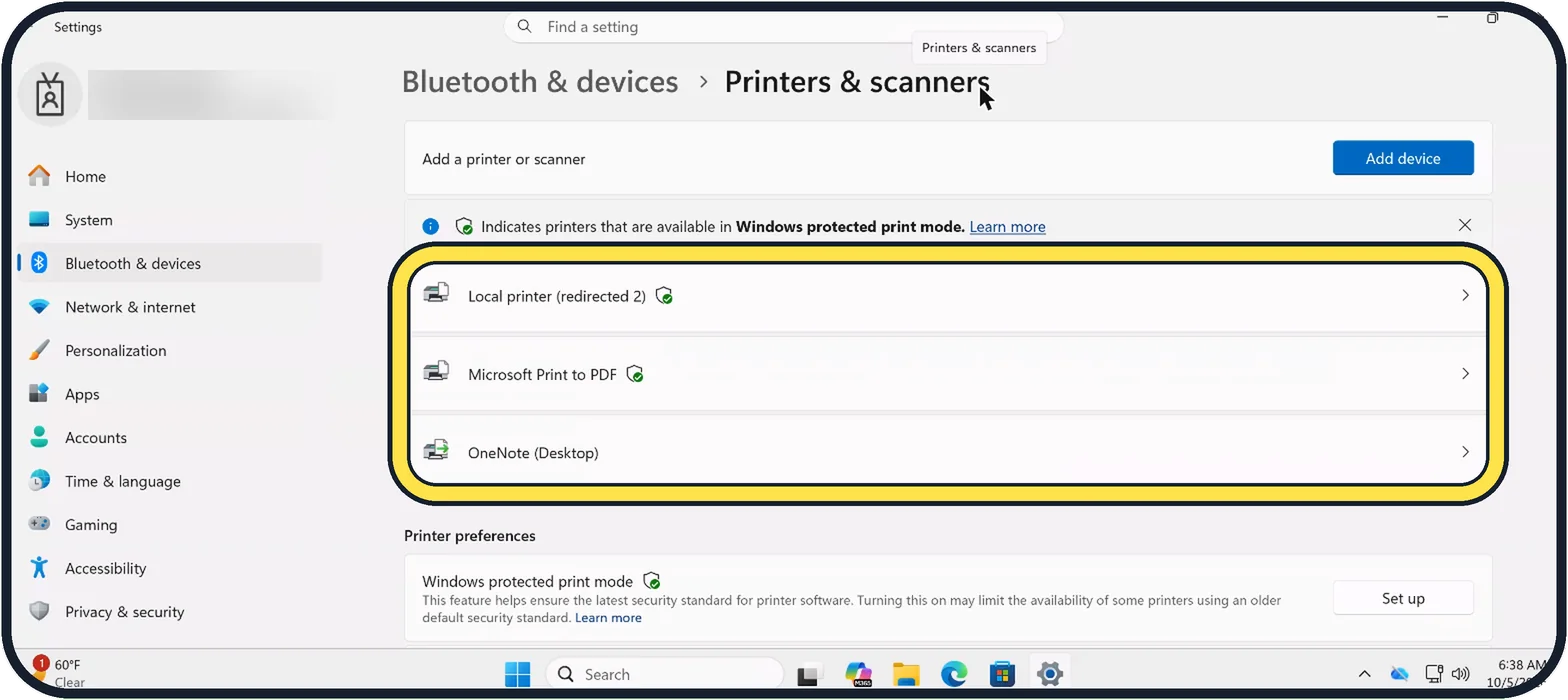
Open Start, Settings, Bluetooth & devices, Printers & scanners. Your printers are listed below Add device. If the same printer appears twice, for example with Copy 1 in its name, you may be printing to an old entry.
Tap the picture to see it full size Clear the print queue
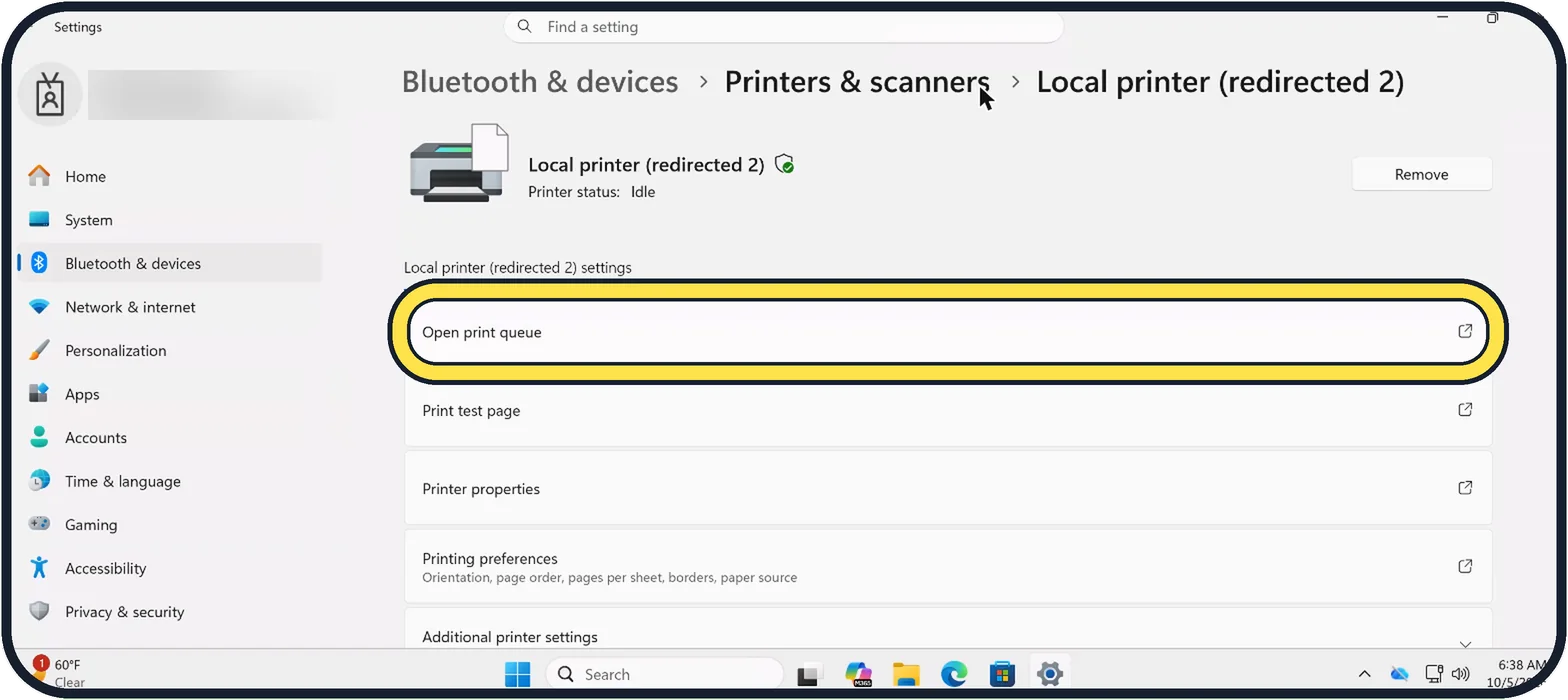
Click your printer. On its page, click Open print queue, then cancel all waiting jobs with the three dots at the top right. The page also shows the Printer status.
Zoomed in on the setting. Tap to see the whole screenTap the picture to see it full size Restart the Print Spooler
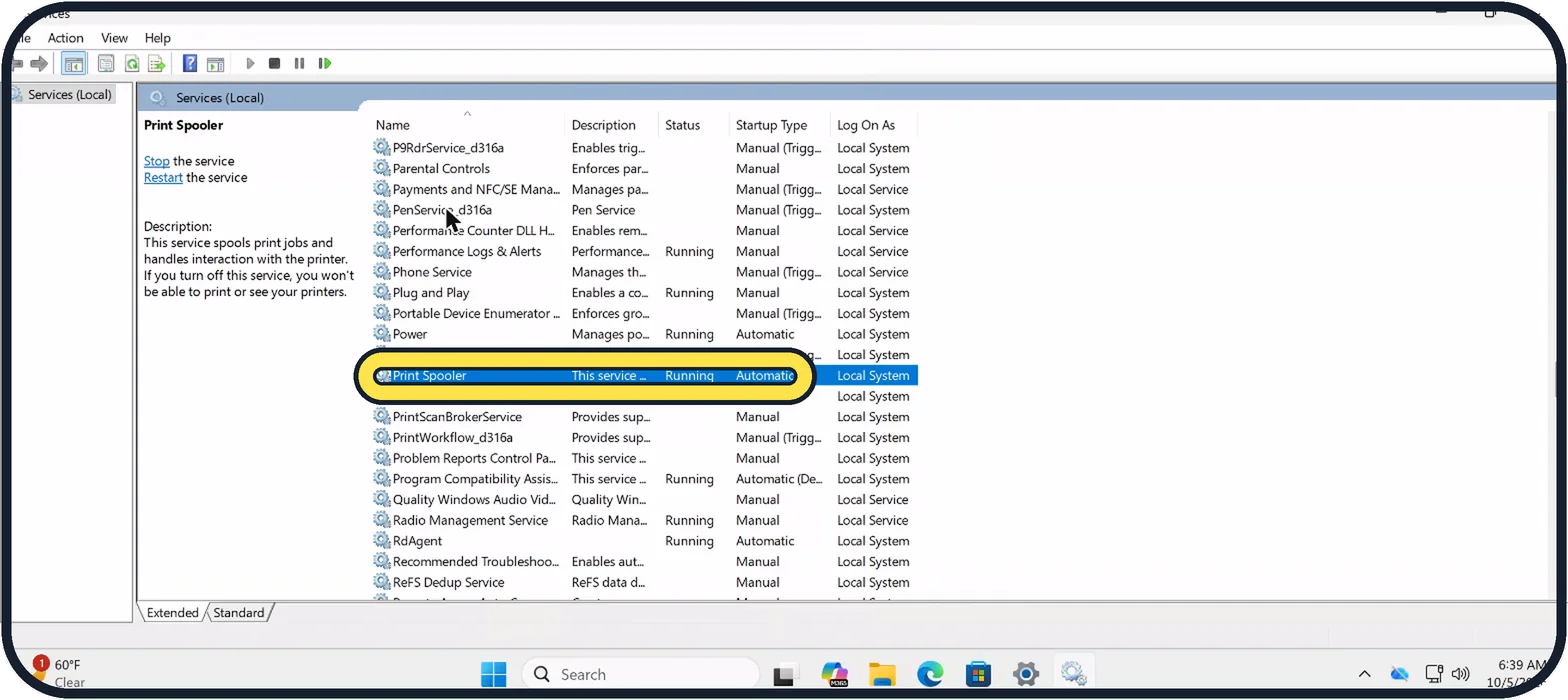
Press Windows + R, type services.msc and press Enter. Select Print Spooler and click Restart the service on the left.
Zoomed in on the setting. Tap to see the whole screenTap the picture to see it full size Remove and add the printer again
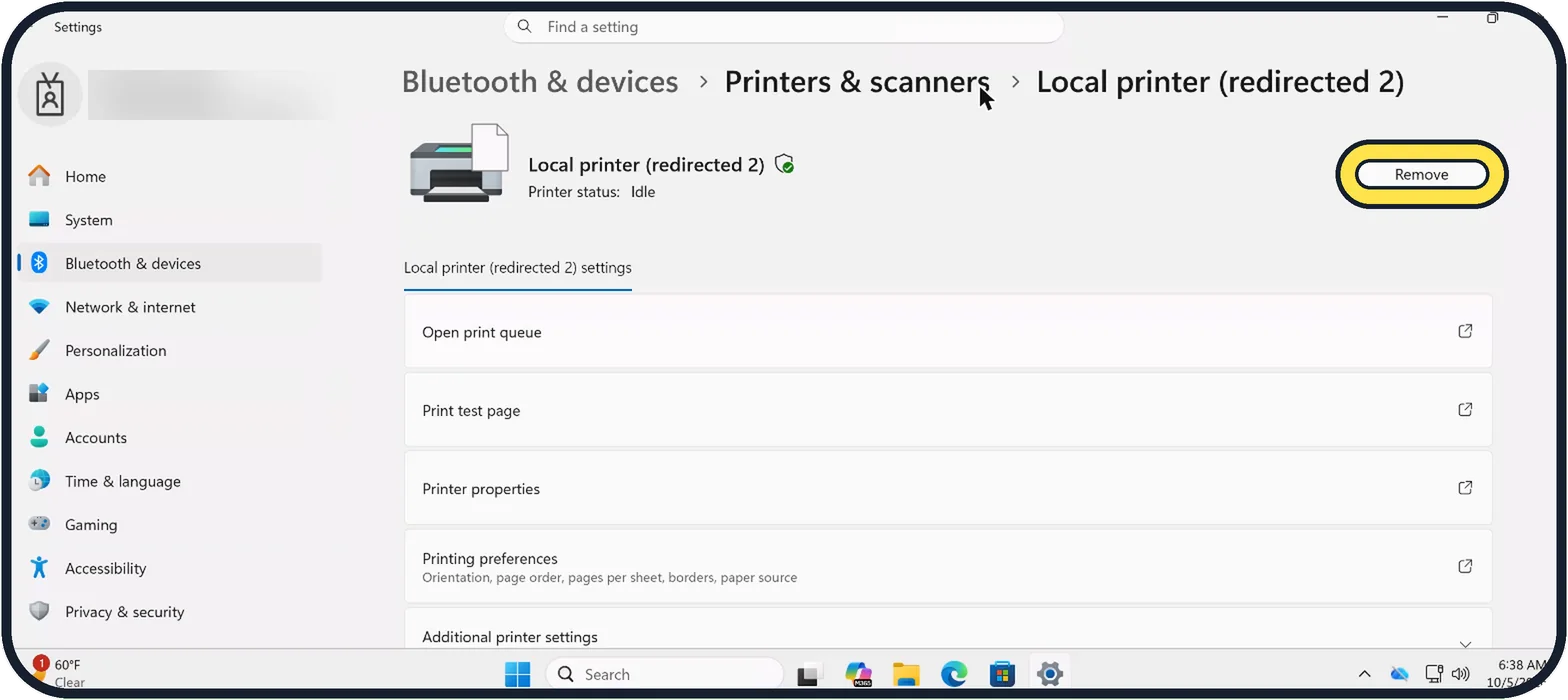
On the printer's page, click Remove. Then go back to Printers & scanners, click Add device, wait for the search and add it again. This also repairs a printer whose address on the network has changed.
Tap the picture to see it full size Run the printer troubleshooter
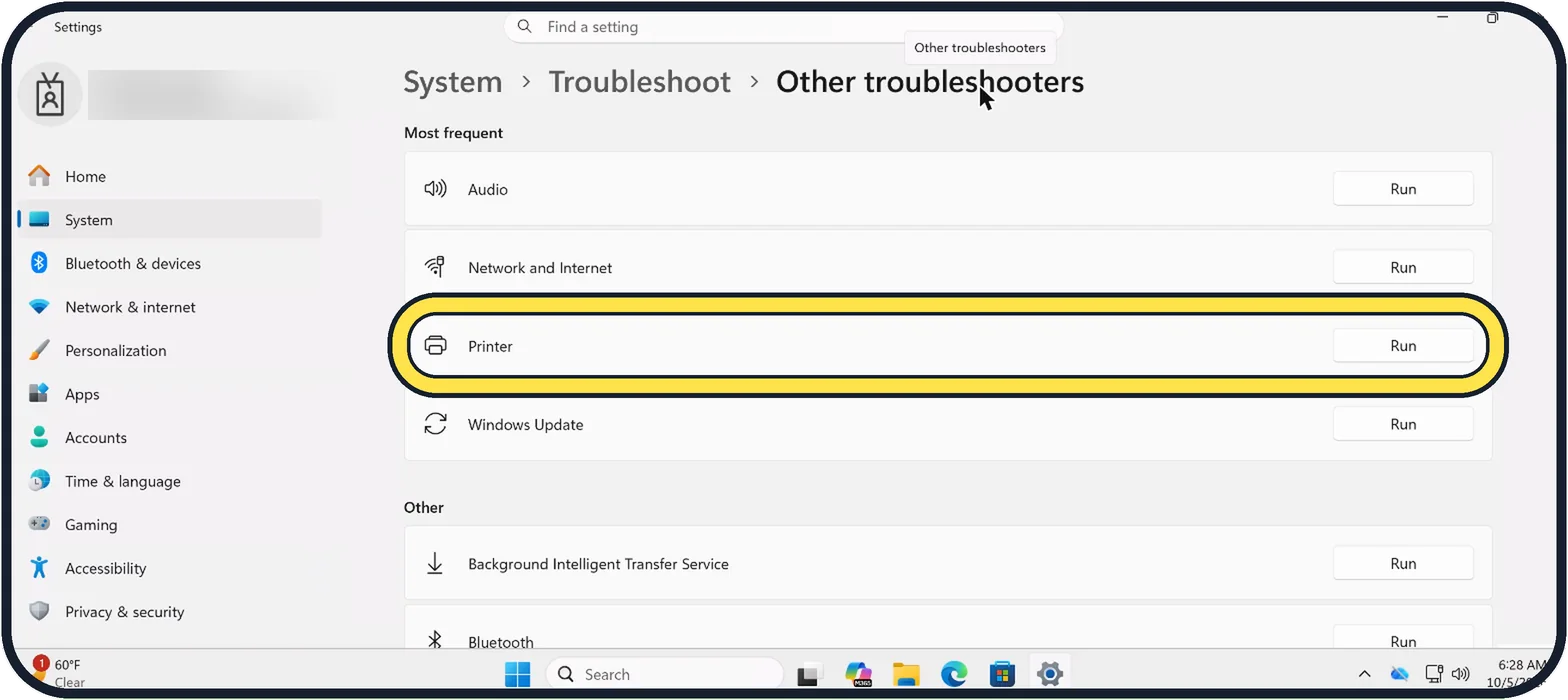
Open Settings, System, Troubleshoot, Other troubleshooters and click Run next to Printer. It opens the Get Help app, which checks the common faults and repairs what it can.
About this guide
Offline means Windows cannot reach the printer, even though the printer may be switched on and look ready. The usual causes are a lost Wi-Fi connection after the router or the printer restarted, a stuck print job, or Windows sending to an old copy of the printer. Work through these in order.
Our Cloud PC prints through a redirected printer, so its status says Idle. Your printer shows its own name and, when it is the problem, Offline.
Good to know
If the printer goes offline again every few days, give it a fixed address: in the router, reserve the printer's current IP address so it does not change.
In the print queue window, the Printer menu has a Use Printer Offline entry on some systems. Make sure it is not ticked.
If jobs hang instead of the printer being offline: print job stuck in the queue on Windows 11.
More general causes: printer not working. Setting up from scratch: how to add a printer on Windows 11.
In short: Power cycle the printer, check its network, restart the PC, cancel all jobs, restart Print Spooler, remove and re-add, run the Get Help troubleshooter.
Links checked in October 2026. Menus and features can change after software updates. These steps match the version named at the top.
Did this guide work for you?
Sorry about that. What happened?