
howtosimply.com/guides/windows-11-microphone-not-working-6-fixes-to-try/ · Checked October 2026 · Windows 11 Enterprise 25H2 (build 26200.9457), Microsoft Cloud PC
In this guide
Open Settings, Privacy & security, Microphone and switch on Microphone access and Let apps access your microphone. Then open Settings, System, Sound, choose your microphone under Input and raise its Volume. If it still fails, click Input devices next to Troubleshoot common sound problems.
4 of 6 steps with real screenshots · 1 official source below
- Device
- Windows
- Shown on
- Windows 11 Enterprise 25H2 (build 26200.9457), Microsoft Cloud PC
- App
- Settings
- Real screenshots
- 4 of 6 steps
- Checked
- October 2026
- Sources
- 1 official, linked below
Step by step
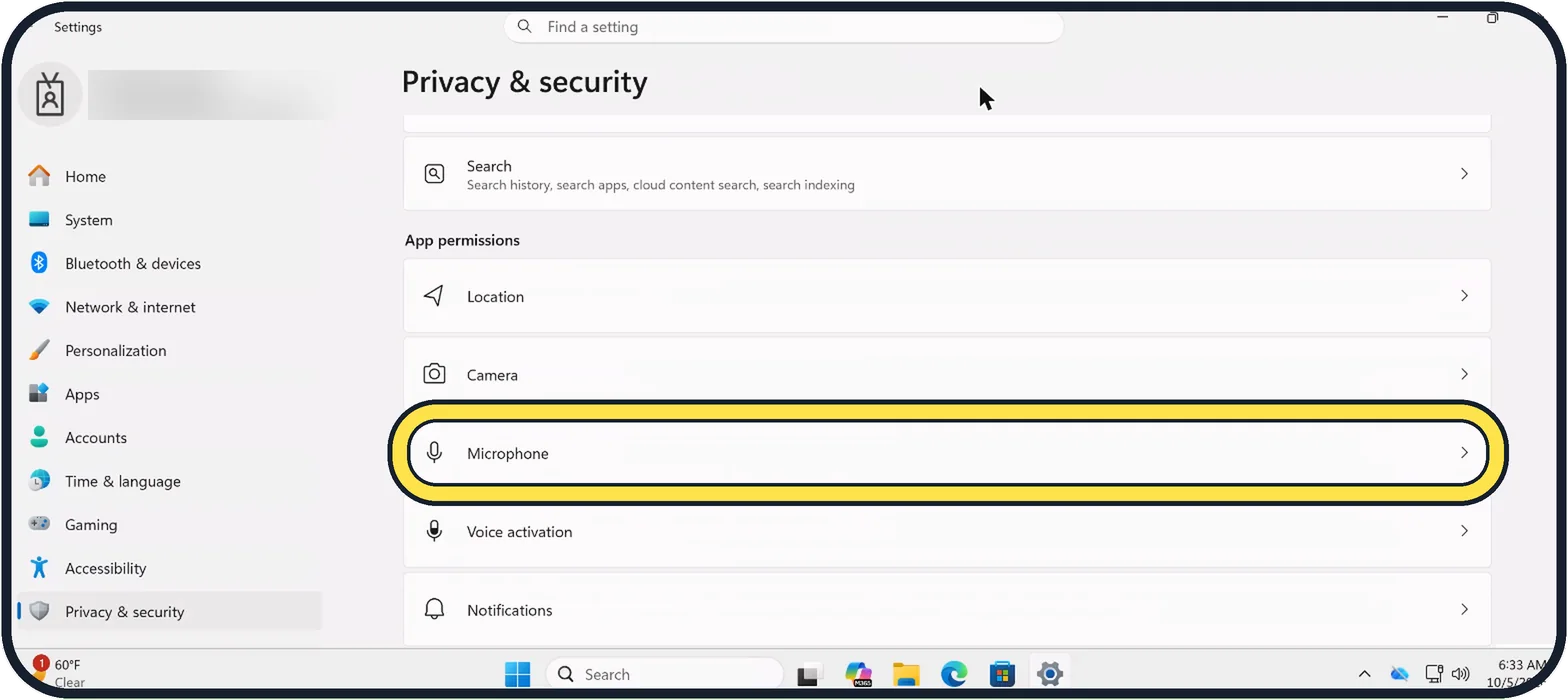
Tap the picture to see it full size Allow apps to use the microphone
Open Settings with Windows + I, click Privacy & security, scroll to App permissions and click Microphone. Switch on Microphone access and Let apps access your microphone, and check the app in the list. For programs from outside the Microsoft Store, switch on Let desktop apps access your microphone.
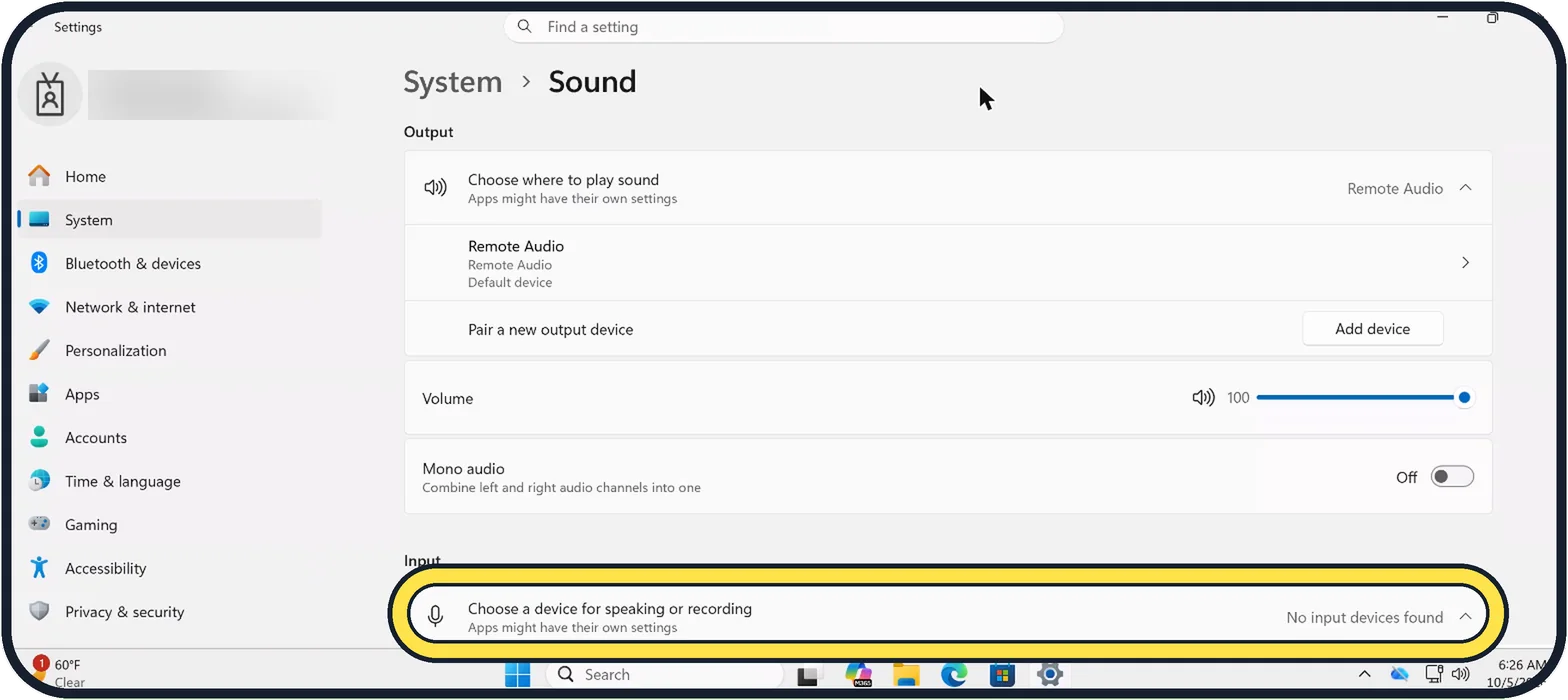
Tap the picture to see it full size Choose the right microphone
Open Settings, System, Sound. Under Input, open Choose a device for speaking or recording and select the microphone or headset you want to use.
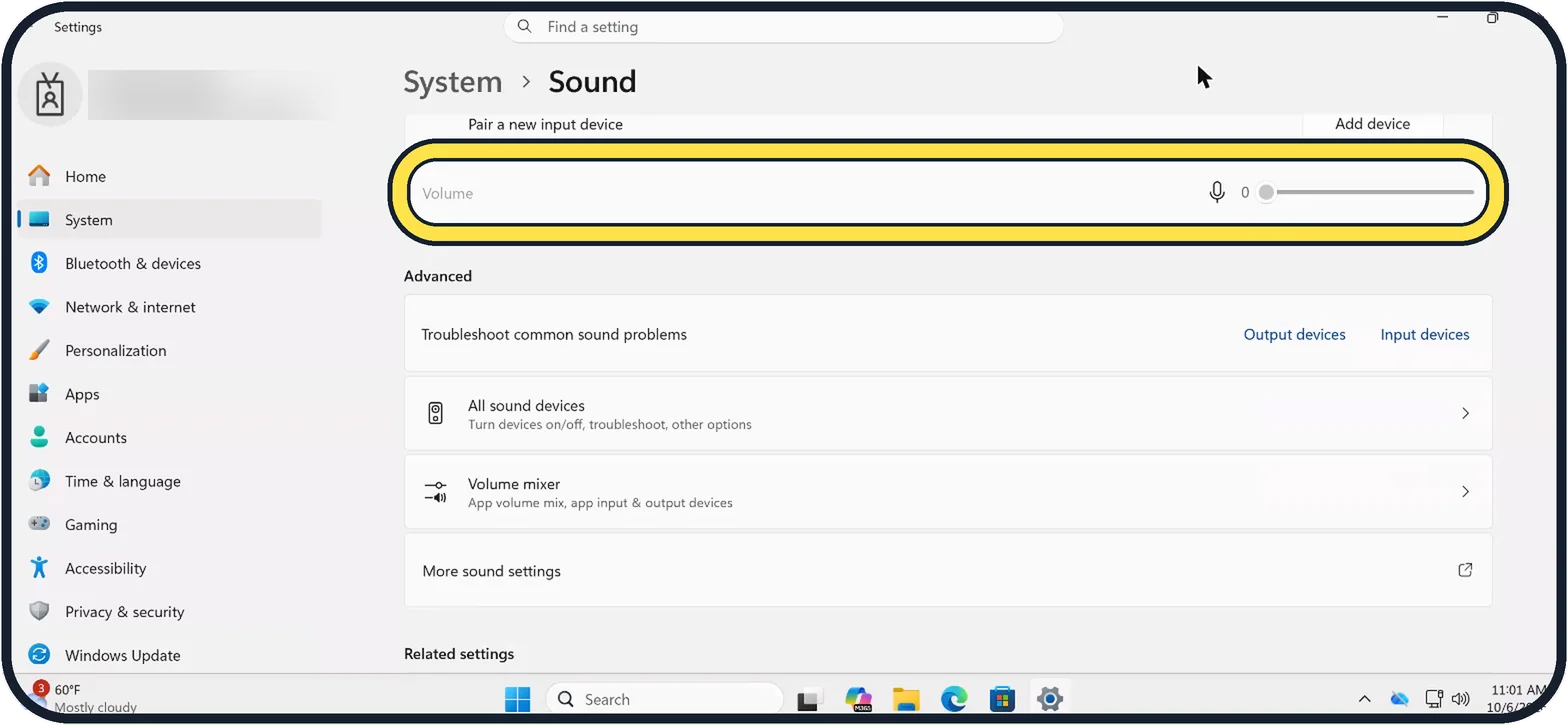
Tap the picture to see it full size Raise the input volume
Below the input device, move the Volume slider up. At 0, as on our Cloud PC without a microphone, nobody hears you.
Test the microphone
Click your microphone in the Input section. On its page, click Start test under Microphone test, speak for a few seconds and click Stop test. If the result moves, Windows hears you and the problem is in the app.
Check the mute button
Many headsets have a mute switch on the cable or the ear cup, and many laptops have a microphone mute key. Also check the microphone button inside the call app.
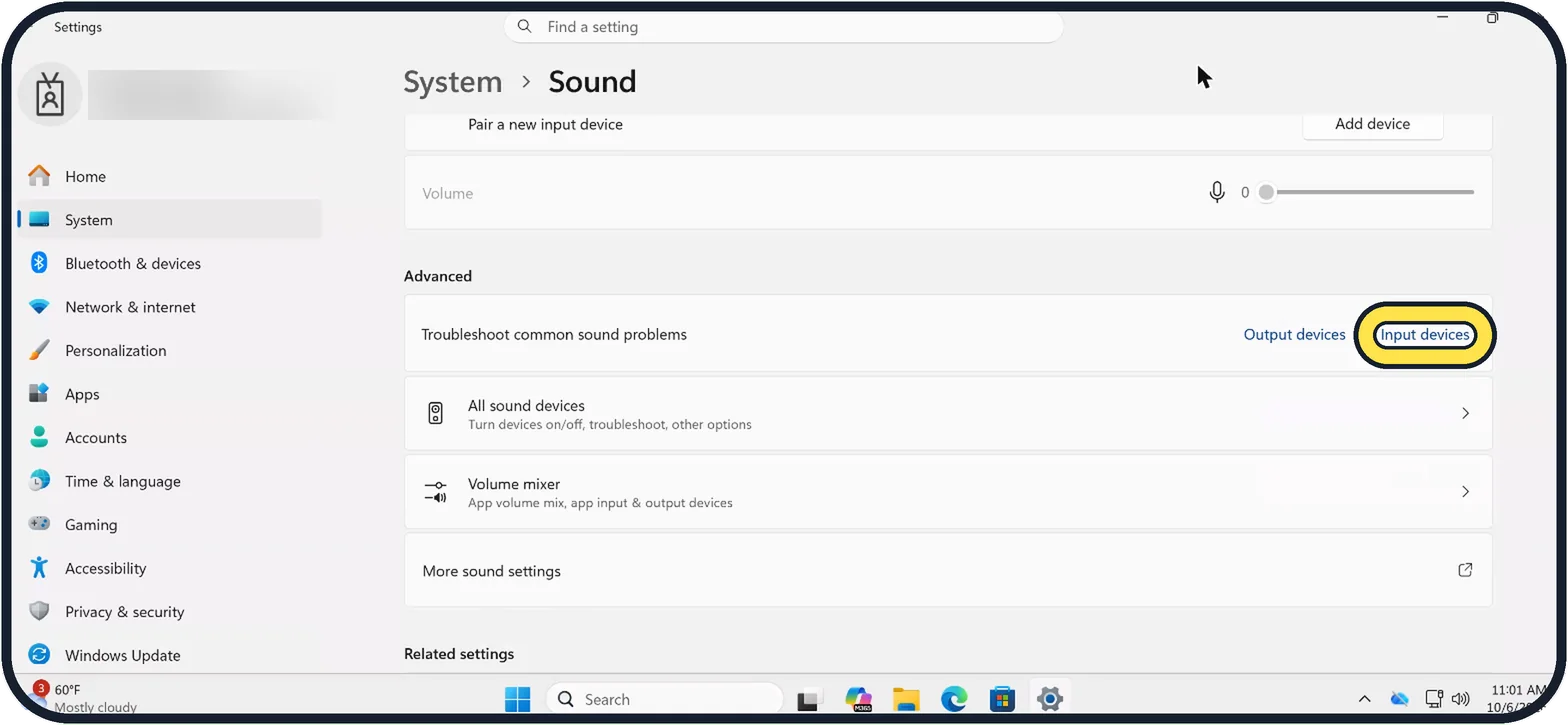
Zoomed in on the setting. Tap to see the whole screenTap the picture to see it full size Run the troubleshooter or reinstall the driver
On the Sound page, scroll to Advanced and click Input devices next to Troubleshoot common sound problems. If that does not help, right-click Start, open Device Manager, open Audio inputs and outputs, right-click the microphone and choose Uninstall device, then restart the PC so Windows installs it again.
About this guide
If people cannot hear you in a call, Windows is usually listening to the wrong microphone, the volume is at zero, or the app is not allowed to use the microphone. All three are set in two places.
Our Cloud PC has no microphone, so its Sound page says No input devices found and the input volume is greyed out at 0. On your PC you see your microphone or headset there.
Good to know
Call apps such as Teams and Zoom have their own microphone menu. The device chosen there overrides the one in Windows.
A Bluetooth headset has to be connected as a headset, not only as headphones, for its microphone to work. See Windows 11 Bluetooth not working: 8 fixes to try.
If you also hear nothing: no sound on Windows 11: 7 fixes to try.
In short: Privacy settings, right input device, input volume, Start test, mute button, troubleshooter or driver.
Links checked in October 2026. Menus and features can change after software updates. These steps match the version named at the top.
Did this guide work for you?
Sorry about that. What happened?