
howtosimply.com/guides/how-to-turn-on-dark-mode-on-windows-11/ · Checked October 2026 · Windows 11 Enterprise 25H2 (build 26200.9457), Microsoft Cloud PC
In this guide
Open Settings, choose Personalization, then Colors, and set Choose your mode to Dark. Settings and apps that follow this setting switch to a dark background. Choose Custom to set Windows and apps separately.
5 of 5 steps with real screenshots · 1 official source below
- Device
- Windows
- Shown on
- Windows 11 Enterprise 25H2 (build 26200.9457), Microsoft Cloud PC
- App
- Settings
- Path
- Settings › Personalization › Colors › Choose your mode › Dark
- Real screenshots
- 5 of 5 steps
- Checked
- October 2026
- Sources
- 1 official, linked below
Step by step
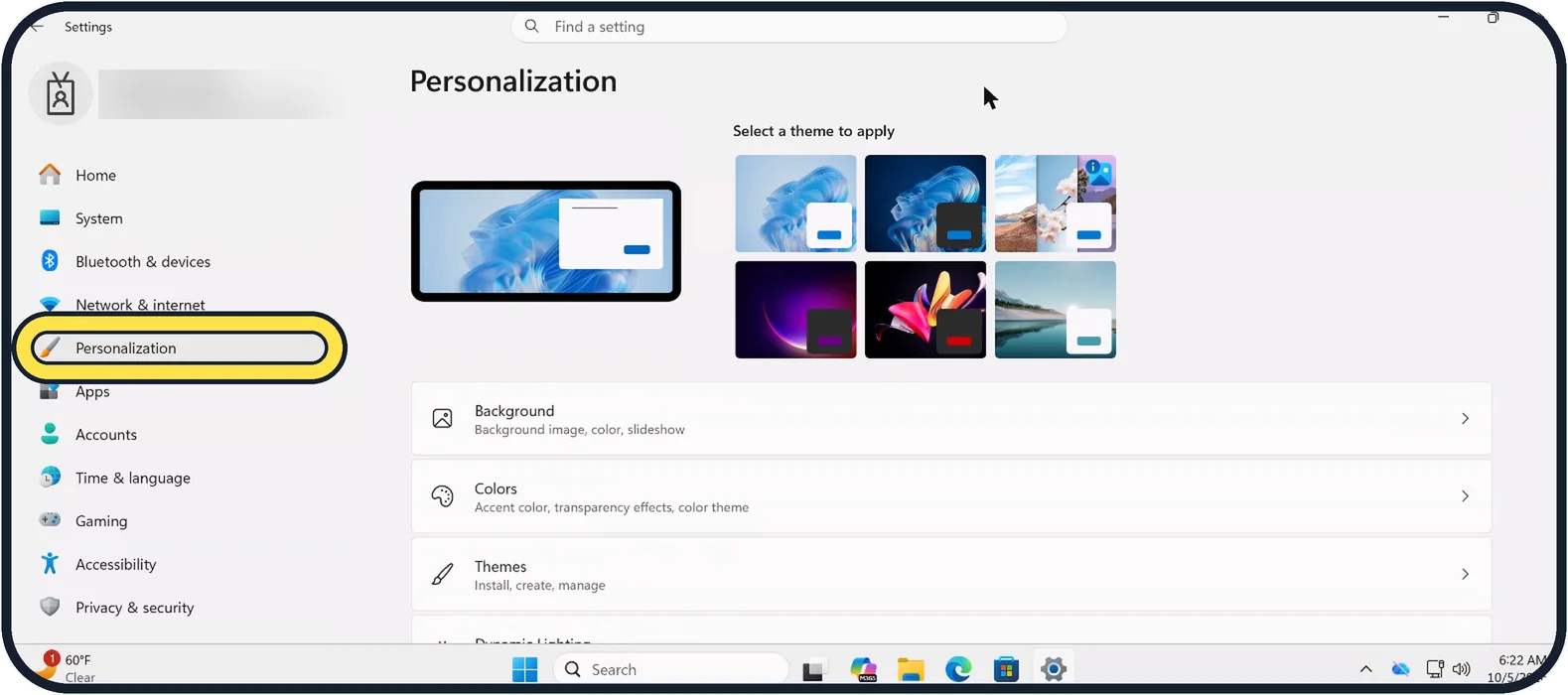
Zoomed in on the setting. Tap to see the whole screenTap the picture to see it full size Open Settings and choose Personalization
Open Start and click Settings, then click Personalization in the list on the left.
On our Cloud PC Personalization sits between Network & internet and Apps.
Watch these steps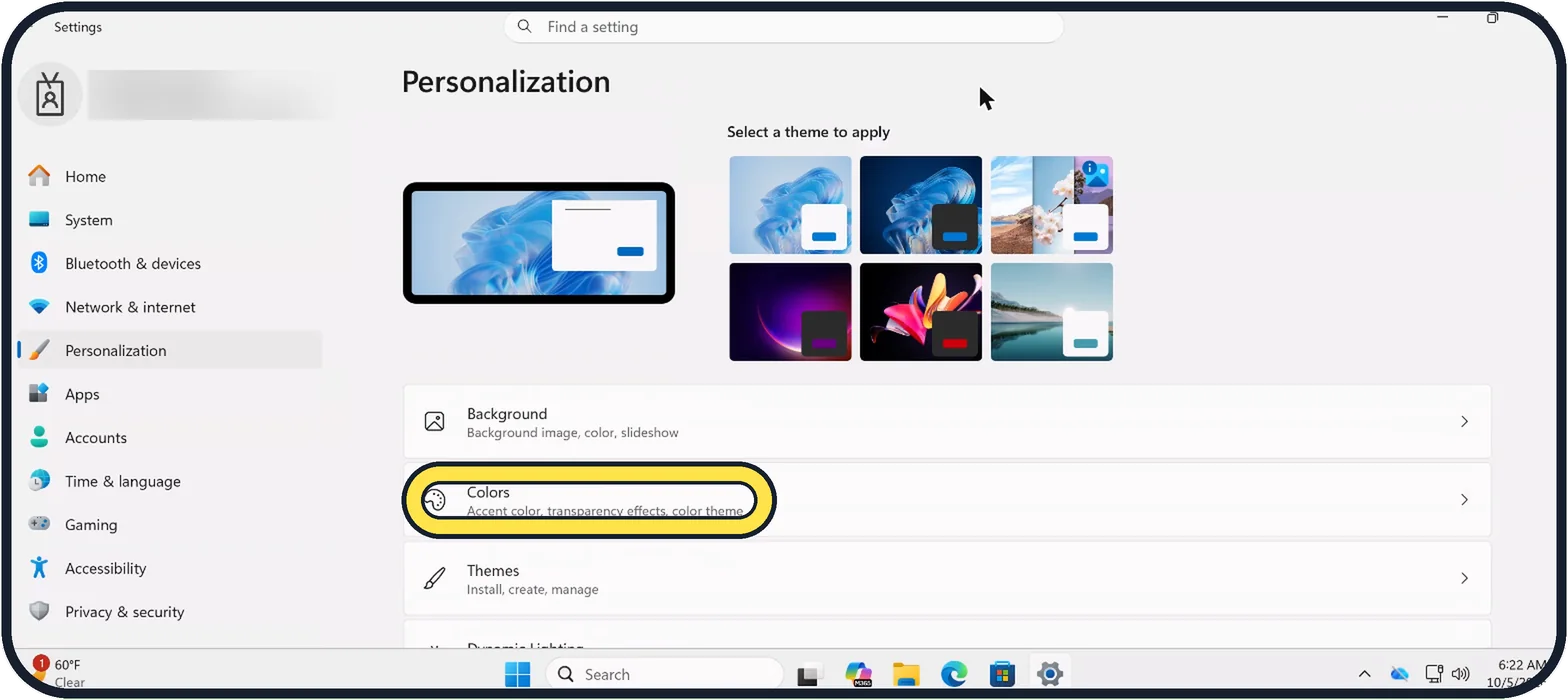
Zoomed in on the setting. Tap to see the whole screenTap the picture to see it full size Click Colors
It is the row under Background, below the theme pictures. Its description reads Accent color, transparency effects, color theme.
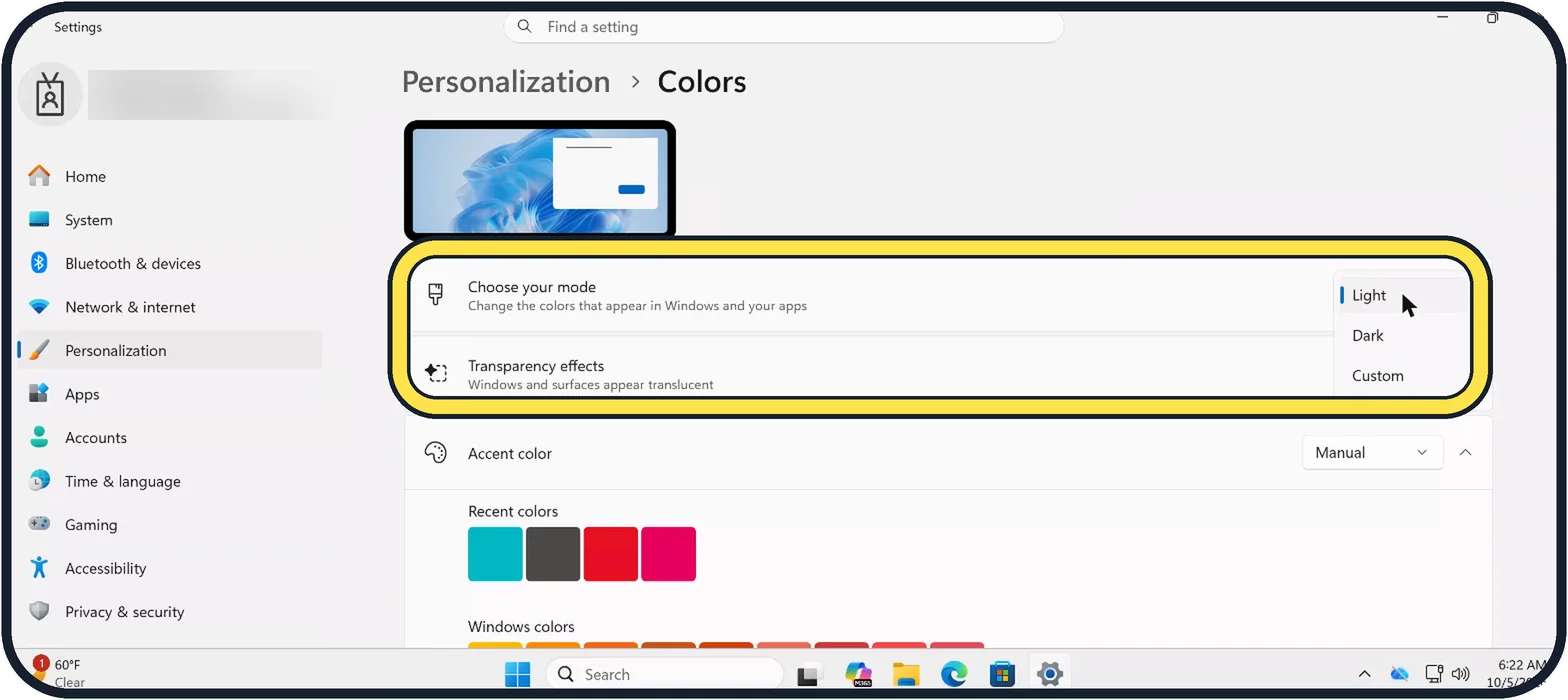
Tap the picture to see it full size Set Choose your mode to Dark
Open the menu on the right of Choose your mode and pick Dark.
On our Cloud PC the menu lists Light, Dark and Custom.
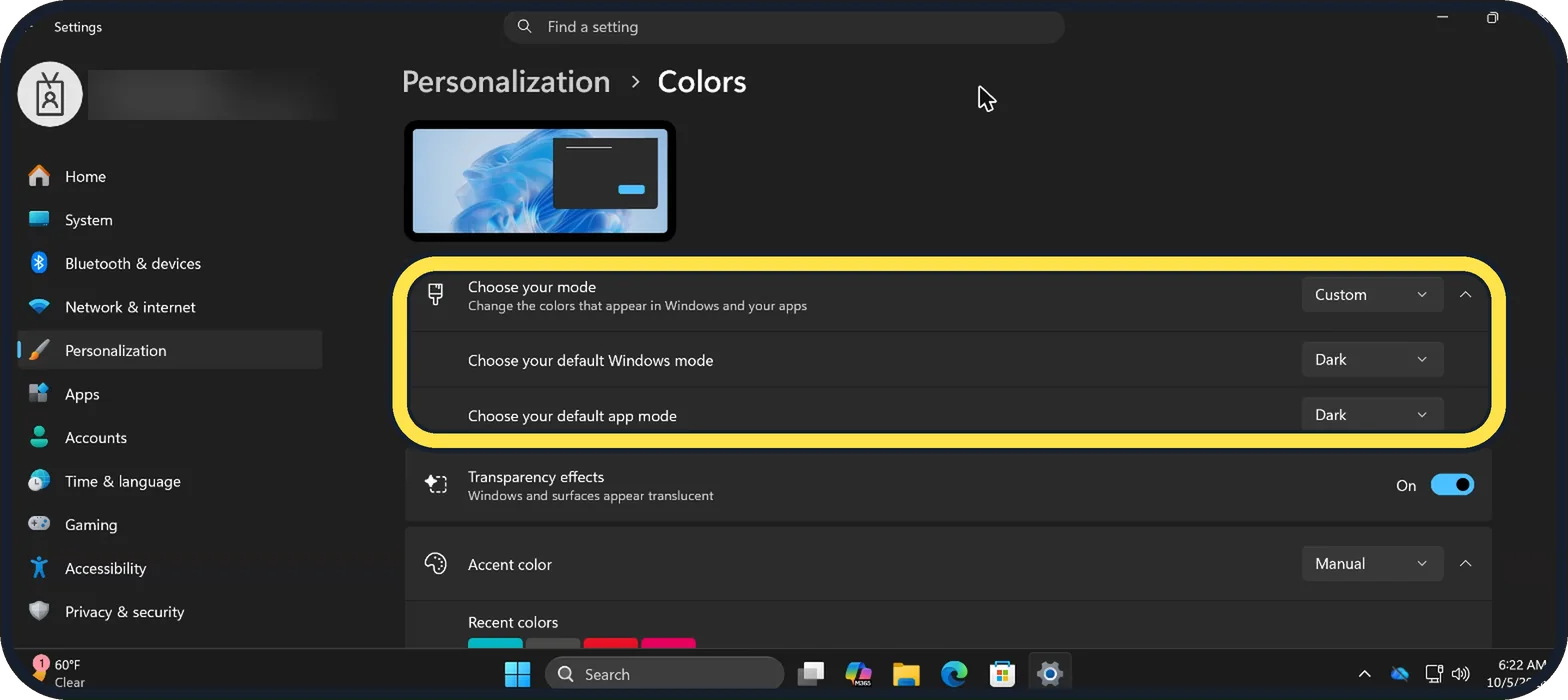
Tap the picture to see it full size Or mix the two with Custom
Choose Custom to set Windows itself and your apps separately with the two menus that appear: Choose your default Windows mode and Choose your default app mode.
On our Cloud PC both are set to Dark, and the Settings window has turned dark.
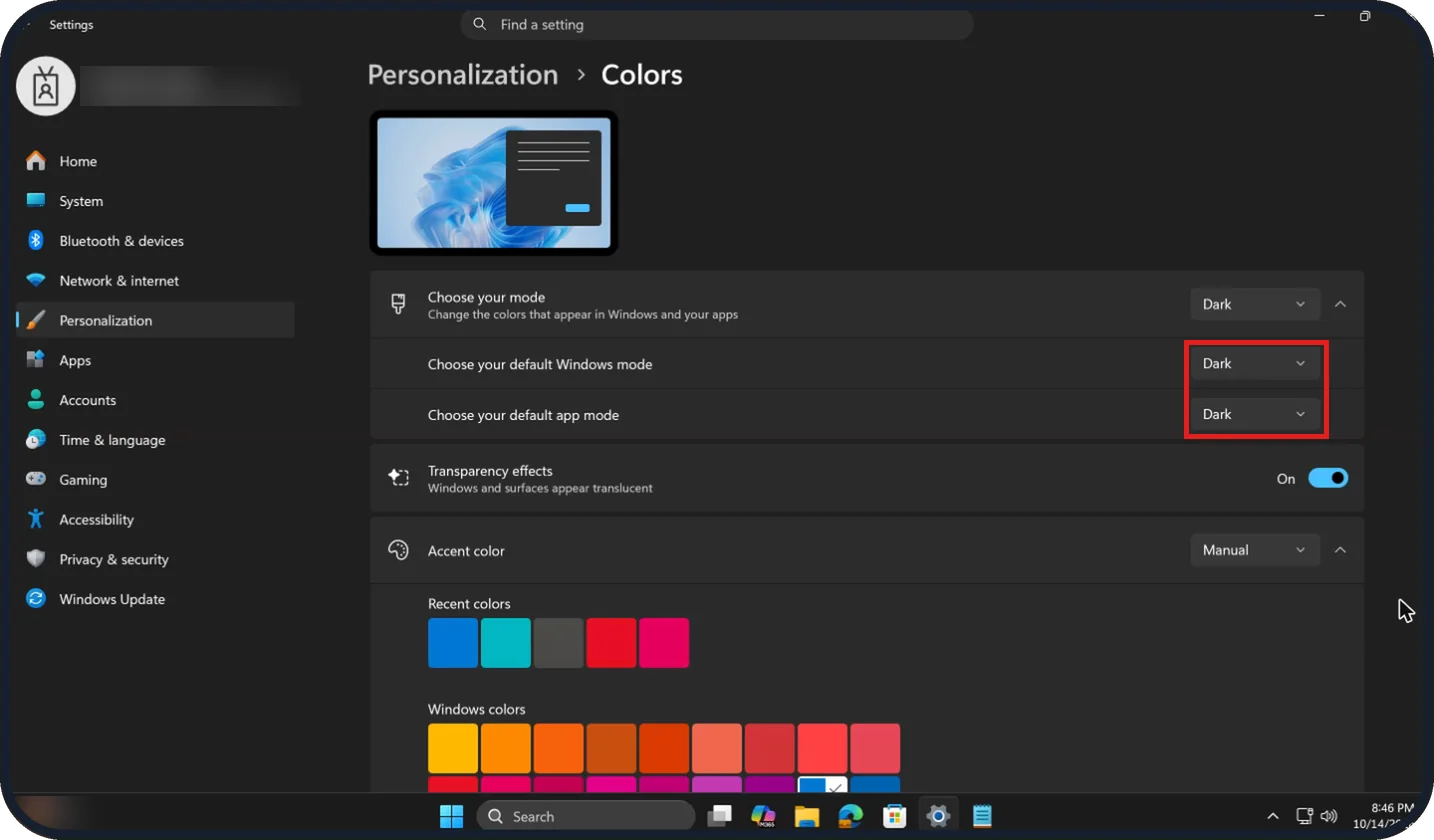
Tap the picture to see it full size Check both menus show Dark
When Choose your default Windows mode and Choose your default app mode are both Dark, Windows changes Choose your mode from Custom to Dark on its own.
On our Cloud PC the Start menu and taskbar also turned dark.
Watch these steps
What we saw on our device
- Open Settings and choose Personalization: On our Cloud PC Personalization sits between Network & internet and Apps.
- Set Choose your mode to Dark: On our Cloud PC the menu lists Light, Dark and Custom.
- Or mix the two with Custom: On our Cloud PC both are set to Dark, and the Settings window has turned dark.
- Check both menus show Dark: On our Cloud PC the Start menu and taskbar also turned dark.
If you do not see this option
- Personalization is not in the list Scroll the list on the left of Settings. On our Cloud PC it sits between Network & internet and Apps.
- The two default menus do not appear They show only when Choose your mode is set to Custom. Pick Custom and they appear underneath.
- Choose your mode says Dark, not Custom That is expected. Once both default menus are set to Dark, Windows switches Choose your mode to Dark on its own.
If this does not work
- The taskbar and Start menu stay light Set Choose your mode to Custom and check that Choose your default Windows mode is Dark. On our Cloud PC the taskbar and Start menu turned dark with it set to Dark.
- Some apps stay light Check that Choose your default app mode is Dark. Office apps use their own setting: File, Account, Office Theme.
- Websites stay light Websites follow this setting only if they support it. Set the appearance to Dark in the browser's own settings as well.
- You want to go back to light Open Colors again and pick Light in the Choose your mode menu.
About this guide
Dark mode shows light text on a dark background. Many people find it more comfortable in the evening.
The screenshots are our own, taken on Windows 11 Enterprise 25H2 running as a Microsoft Cloud PC, a Windows PC that runs in the cloud.
Good to know
Websites follow this setting only if they support it. In Edge or Chrome you can set the appearance to Dark in the browser's own settings as well.
Office apps have their own setting: File, Account, Office Theme.
Dark mode does not reduce blue light. For that, use Night light: how to turn on Night light.
In short: Settings, Personalization, Colors, Choose your mode, Dark.
Links checked in October 2026. Menus and features can change after software updates. These steps match the version named at the top.
Did this guide work for you?
Sorry about that. What happened?