
You are viewing the macOS 26 version of this guide, recorded on macOS Tahoe 26 (MacBook Pro) on 4 October 2026. It is kept as it was and not updated. See the macOS 27 version.
howtosimply.com/guides/messages-not-working-on-a-mac-8-things-to-check/ · Checked 4 October 2026 · MacBook Pro · macOS Tahoe 26
In this guide
Check that the Mac is online, restart it and install the latest macOS update. Then make sure the date and time are set automatically. If green text messages do not go out, switch on Text Message Forwarding for this Mac on your iPhone and keep the iPhone switched on.
3 of 8 steps with real screenshots · 1 official source below
- Device
- Mac
- Shown on
- macOS Tahoe 26 (MacBook Pro)
- App
- Messages
- Real screenshots
- 3 of 8 steps
- Checked
- 4 October 2026
- Sources
- 1 official, linked below
Step by step
Check Apple's System Status page
Search for Apple System Status and look at the entry for iMessage. If there is an outage, waiting is the only fix.
Check the internet connection
Open a website in Safari. If it does not load, fix the connection first: Mac won't connect to Wi-Fi: 8 fixes that work.
Tap the picture to see it full size Restart the Mac
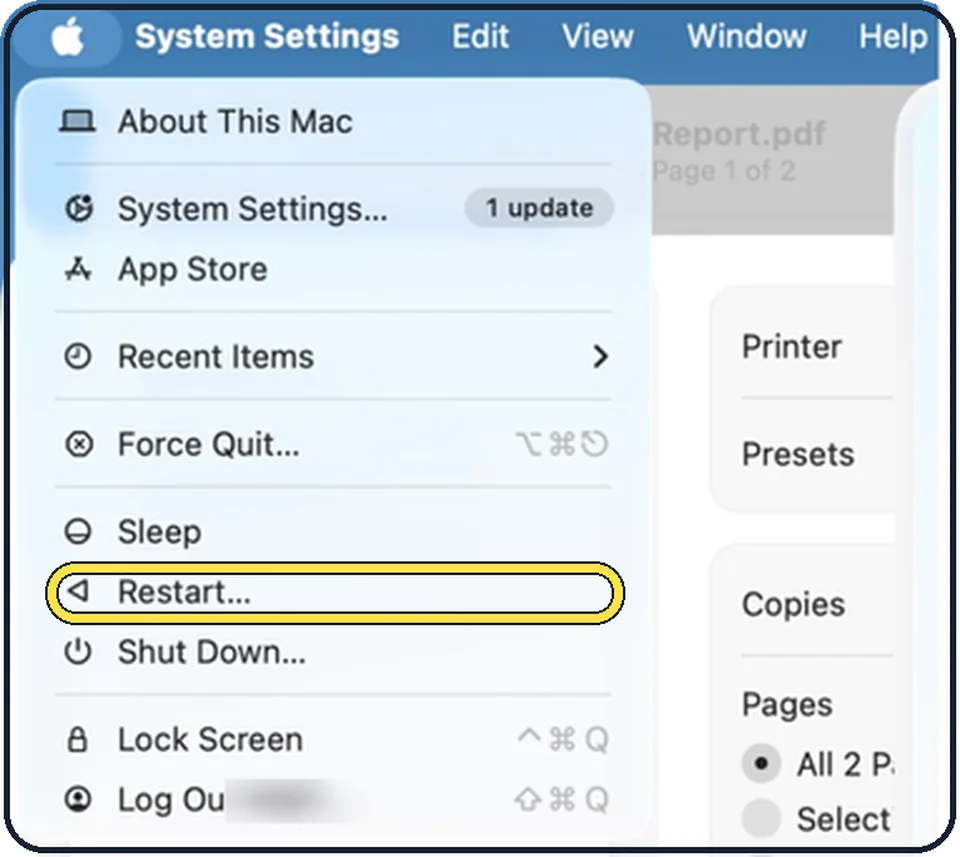
Choose Apple menu, Restart.
Tap the picture to see it full size Install macOS updates
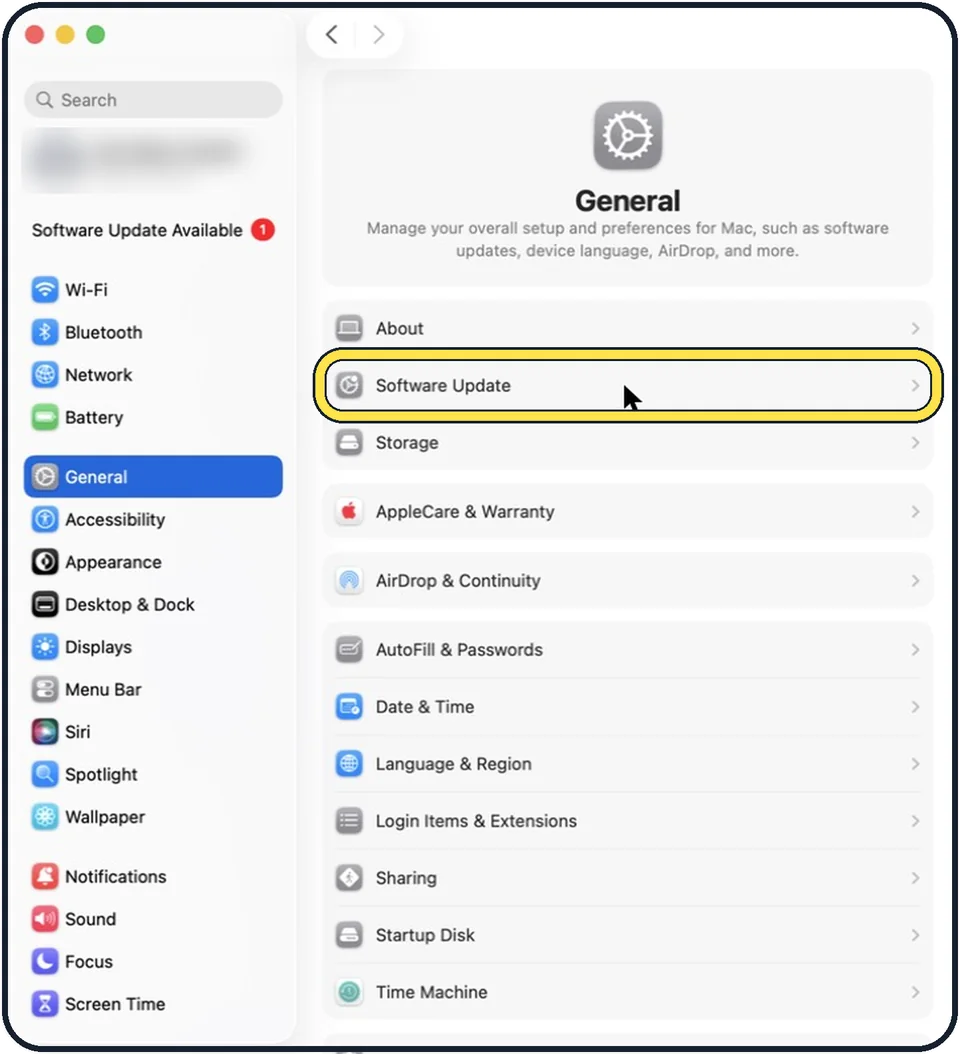
Open System Settings, General, Software Update. The steps are in how to update macOS on your Mac.
Tap the picture to see it full size Check the date and time
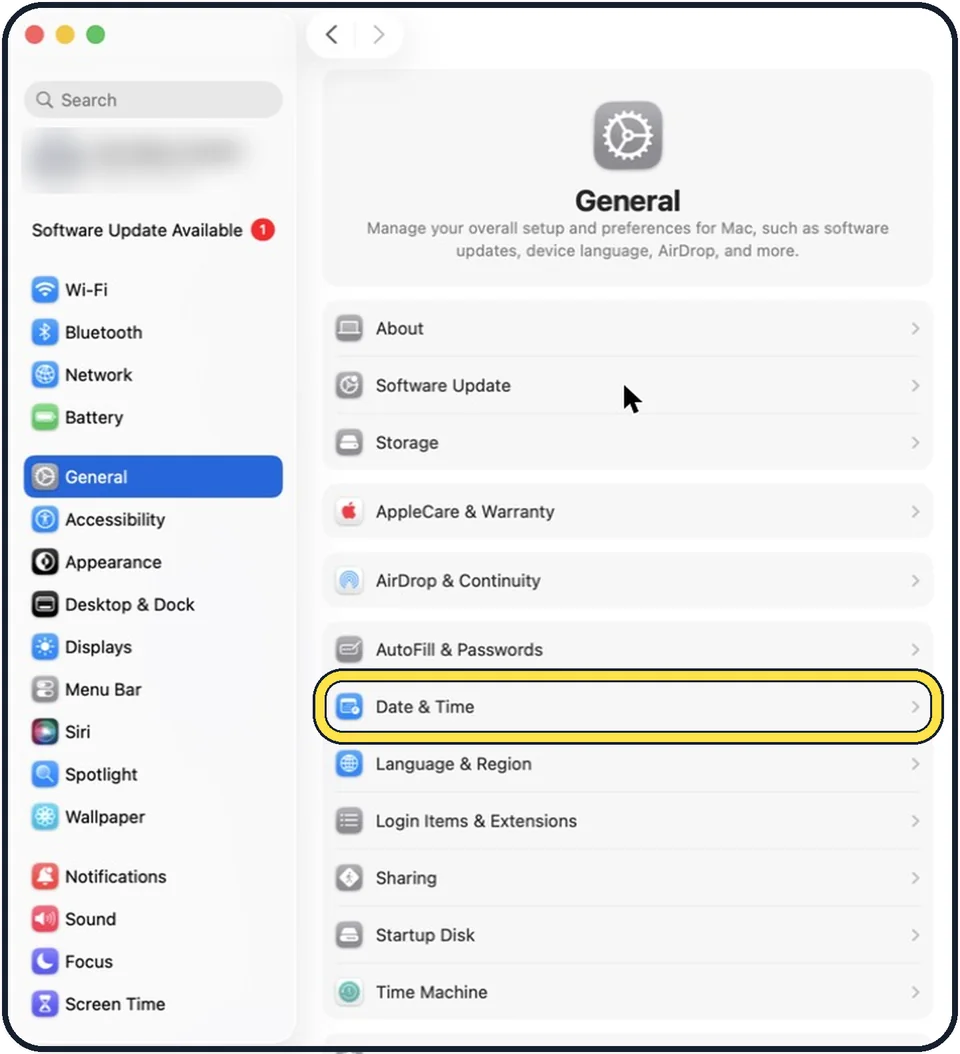
iMessage refuses to sign in when the clock is wrong. Open System Settings, General, Date & Time and switch on Set time and date automatically.
Check the address
Make sure the message goes to the right phone number or email address. A number saved without the country code can fail when you or the other person is abroad.
Switch on Text Message Forwarding
For text messages to people without iMessage: on the iPhone, open Settings, Apps, Messages, Text Message Forwarding and switch on your Mac. The iPhone must be switched on and online.
Sign out and in again
In Messages, choose Messages, Settings, click iMessage and check that you are signed in with the same Apple Account as on the iPhone, and that your number is ticked under "You can be reached for messages at". If sign-in fails, click Sign Out and sign in again.
What we saw on our device
- Check that you are signed in to iMessage: On our MacBook Neo the iMessage tab shows an Apple Account with Sign Out and Sync Now buttons, and Enable Messages in iCloud is ticked.
- Restart the Mac: On our MacBook Neo, Restart… sits between Sleep and Shut Down….
About this guide
The Messages app on a Mac sends blue iMessages on its own, over the internet. Green text messages (SMS and RCS) always travel through your iPhone. That difference explains most problems.
Menu names are from recent versions of macOS, where the settings app is called System Settings. The picture is our own screenshot from macOS Tahoe 26 on a MacBook Pro.
Good to know
Messages missing on the Mac but present on the iPhone? Switch on Messages in iCloud on both: on the Mac under Messages, Settings, iMessage.
If the iPhone itself cannot activate iMessage: iPhone iMessage waiting for activation: 8 fixes to try.
A wrong clock on the phone: iPhone showing the wrong time: how to fix the date and time.
In short: System Status, internet, restart, update, date and time, right address, Text Message Forwarding, sign out and in.
Links checked in October 2026. Menus and features can change after software updates. These steps match the version named at the top.
Did this guide work for you?
Sorry about that. What happened?