
howtosimply.com/guides/how-to-change-the-keyboard-backlight-on-a-macbook/ · Checked October 2026 · MacBook Pro · macOS Tahoe 26
In this guide
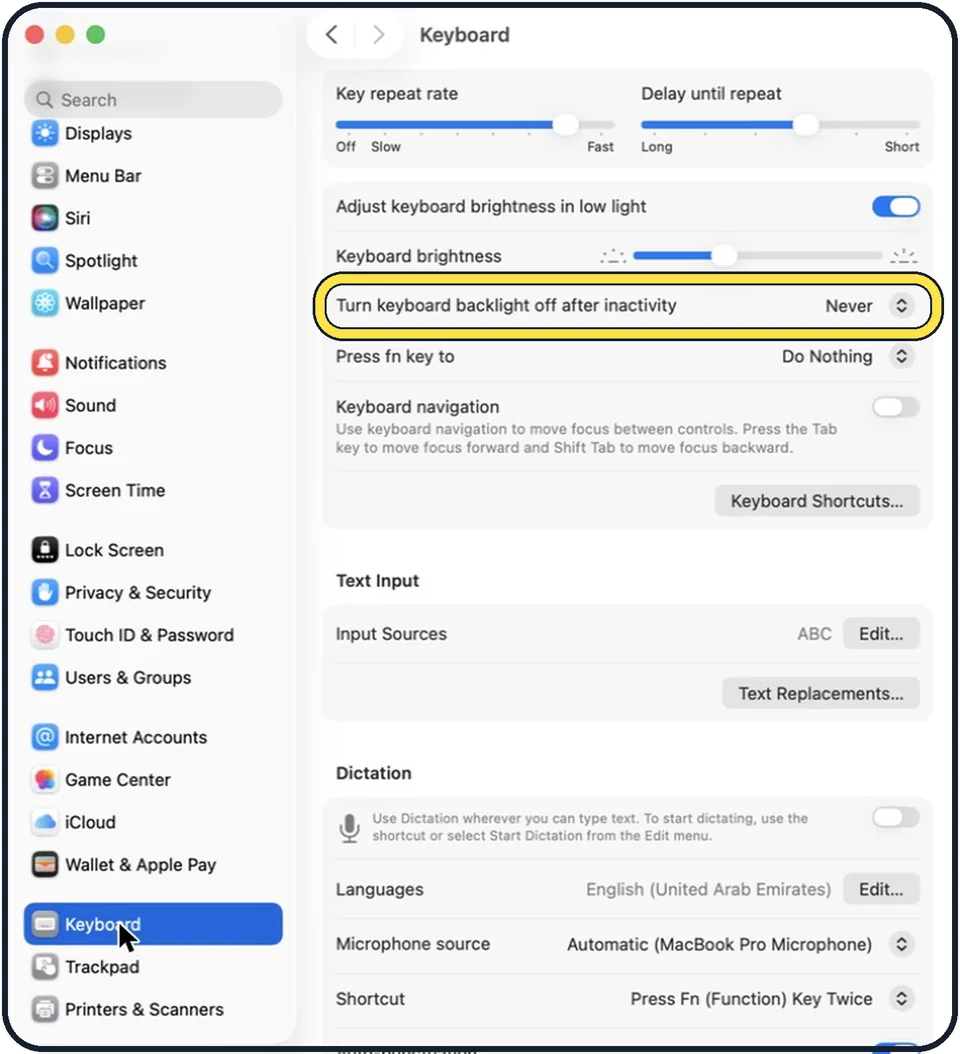
Open System Settings, click Keyboard, and drag the Keyboard brightness slider. Adjust keyboard brightness in low light lets the Mac set the level by itself. Turn keyboard backlight off after inactivity chooses how long the Mac is idle before the light goes out.
5 of 5 steps with real screenshots · 3 official sources below
- Device
- Mac
- Shown on
- macOS Tahoe 26 (MacBook Pro)
- App
- System Settings
- Path
- System Settings › Keyboard › Keyboard brightness
- Real screenshots
- 5 of 5 steps
- Checked
- October 2026
- Sources
- 3 official, linked below
Step by step
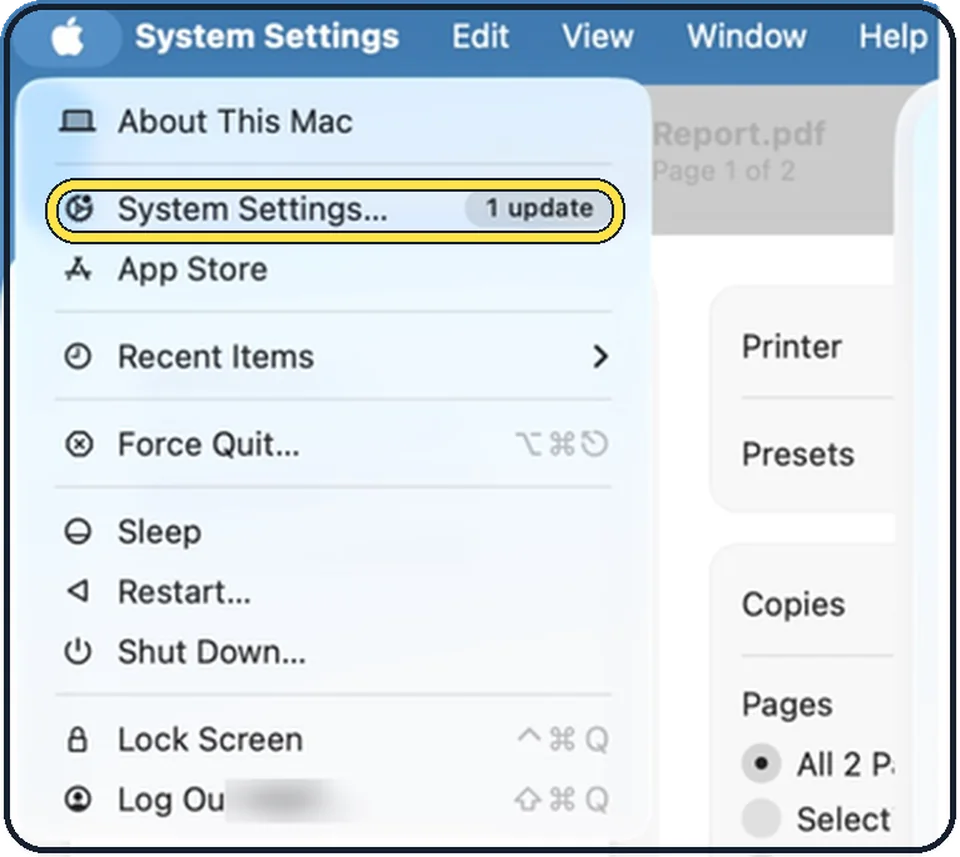
Tap the picture to see it full size Open System Settings
Click the Apple menu in the top left corner of the screen and choose System Settings.
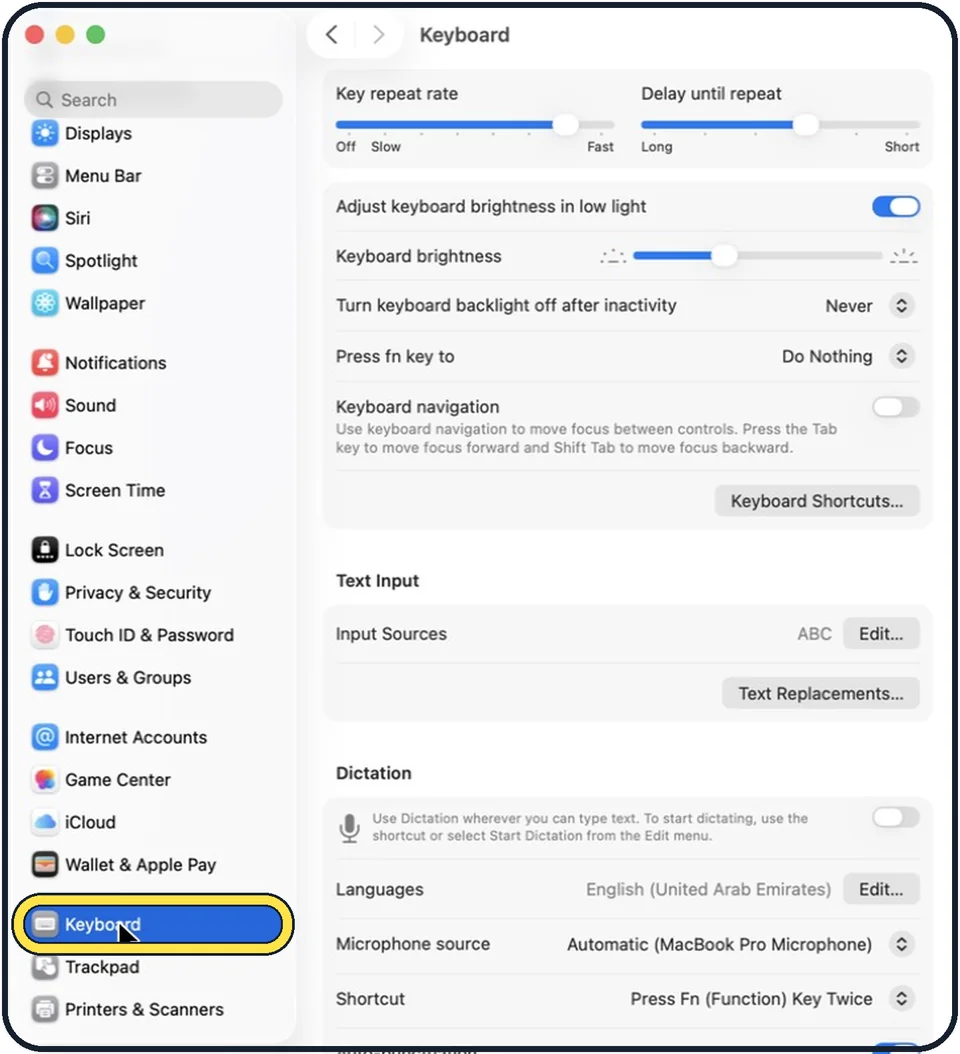
Zoomed in on the setting. Tap to see the whole screenTap the picture to see it full size Click Keyboard in the sidebar
Keyboard is near the bottom of the sidebar. Scroll down to find it.
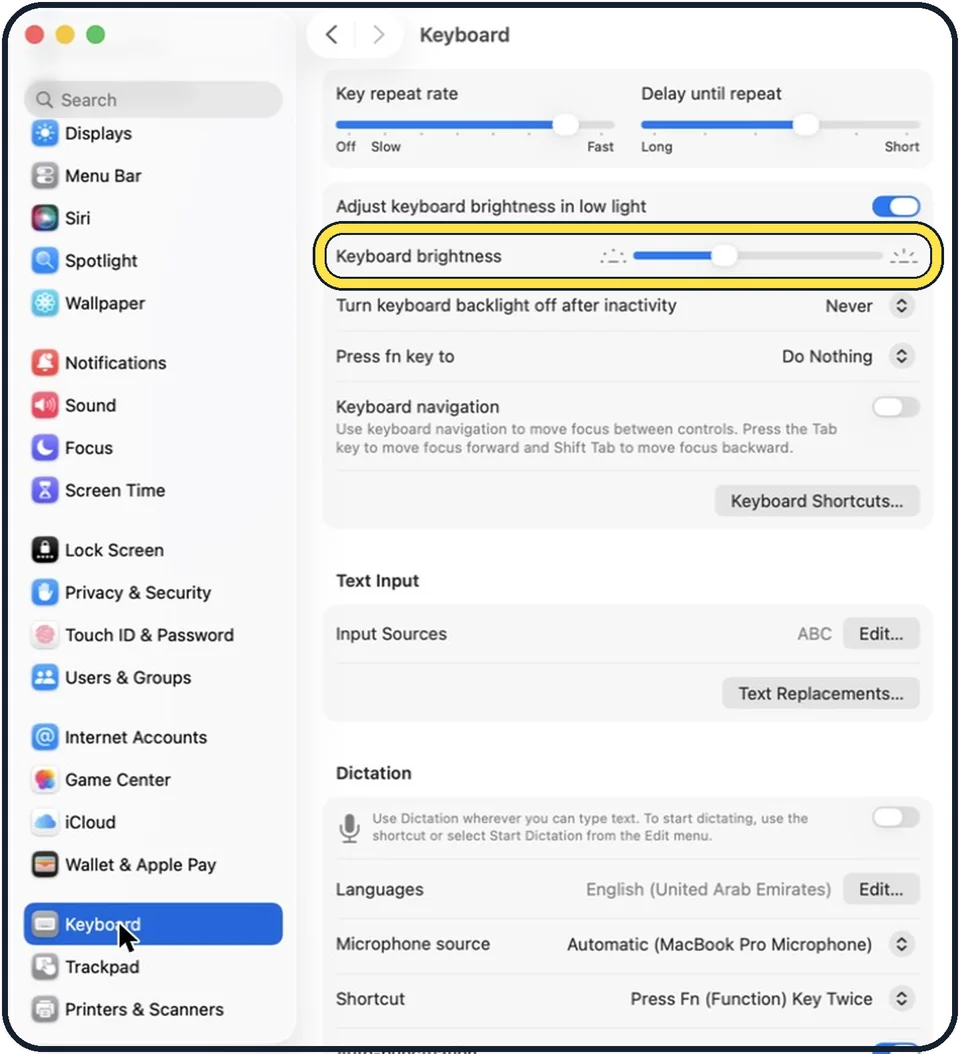
Tap the picture to see it full size Set the brightness
Drag the Keyboard brightness slider to adjust the level of backlighting. Apple says dragging it all the way to the left turns the backlighting off.
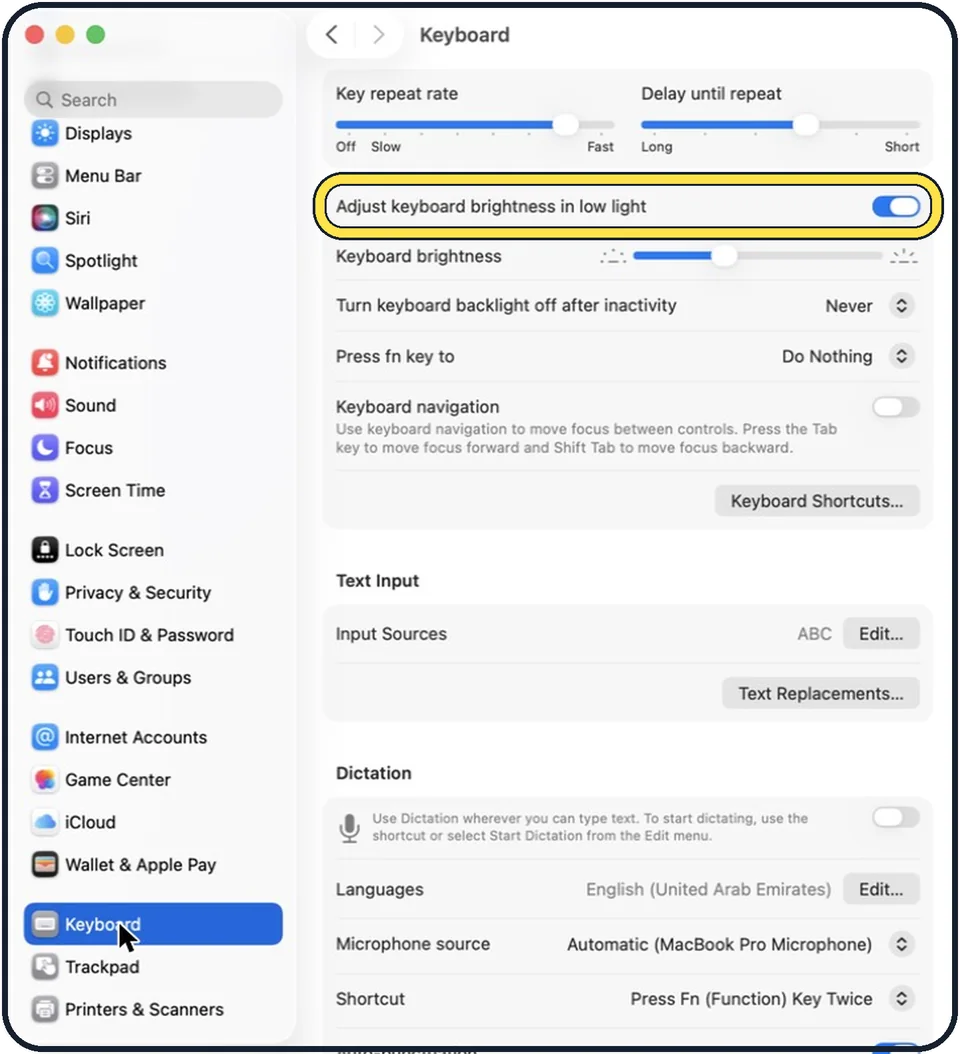
Tap the picture to see it full size Decide about the automatic mode
Adjust keyboard brightness in low light is on in the picture. With it on, the Mac adjusts the backlighting automatically in low-light conditions.
Tap the picture to see it full size Set a timer
Turn keyboard backlight off after inactivity is set to Never in the picture. Click the menu to choose how long the Mac is idle before the backlighting turns off automatically.
If you do not see this option
- There are no keyboard brightness settings. Apple says these options are only for a Mac with a backlit keyboard. Source: Keyboard settings on Mac
- Your Mac has System Preferences, not System Settings. Apple says that on macOS Monterey you choose System Preferences, Keyboard, then Keyboard. The timer there is a tick box, Turn keyboard backlight off after a set time of inactivity. Source: Change Keyboard preferences on Mac
- You want a quicker control. Apple says that if your Mac has keyboard brightness keys, you can use them. You can also add keyboard brightness to the menu bar or Control Centre. Source: Turn your Mac keyboard's backlighting on or off
If this does not work
- The keys do not light up in a dark room. Apple says the light sensor is at the top of the Mac near the camera. Make sure nothing covers it, or switch off the automatic mode and drag the slider yourself. Source: Turn your Mac keyboard's backlighting on or off
- The light goes off while you are reading. That is the inactivity timer. Choose a longer time in the Turn keyboard backlight off after inactivity menu, or Never, as in the picture. Source: Turn your Mac keyboard's backlighting on or off
About this guide
A MacBook with a backlit keyboard lights its keys in the dark. Three settings control it: an automatic mode, a brightness slider and a timer.
The screenshots show System Settings on macOS Tahoe 26.
Good to know
These options are for Mac computers with a backlit keyboard.
In short: System Settings, Keyboard, Keyboard brightness.
- Mac User Guide: Keyboard settings on Mac
- Apple Support: Turn your Mac keyboard's backlighting on or off
- Apple Support: Change Keyboard preferences on Mac
Links checked in October 2026. Menus and features can change after software updates. These steps match the version named at the top.
Did this guide work for you?
Sorry about that. What happened?