
howtosimply.com/guides/how-to-create-your-own-keyboard-shortcuts-on-a-mac/ · Checked October 2026 · MacBook Pro · macOS Tahoe 26
In this guide
Open System Settings, Keyboard, and click Keyboard Shortcuts. Choose App Shortcuts, click the add button, pick the app, type the menu command exactly as it is written in the menu, press the keys you want and click Done.
3 of 6 steps with real screenshots · 1 official source below
- Device
- Mac
- Shown on
- macOS Tahoe 26 (MacBook Pro)
- App
- System Settings
- Real screenshots
- 3 of 6 steps
- Checked
- October 2026
- Sources
- 1 official, linked below
Step by step
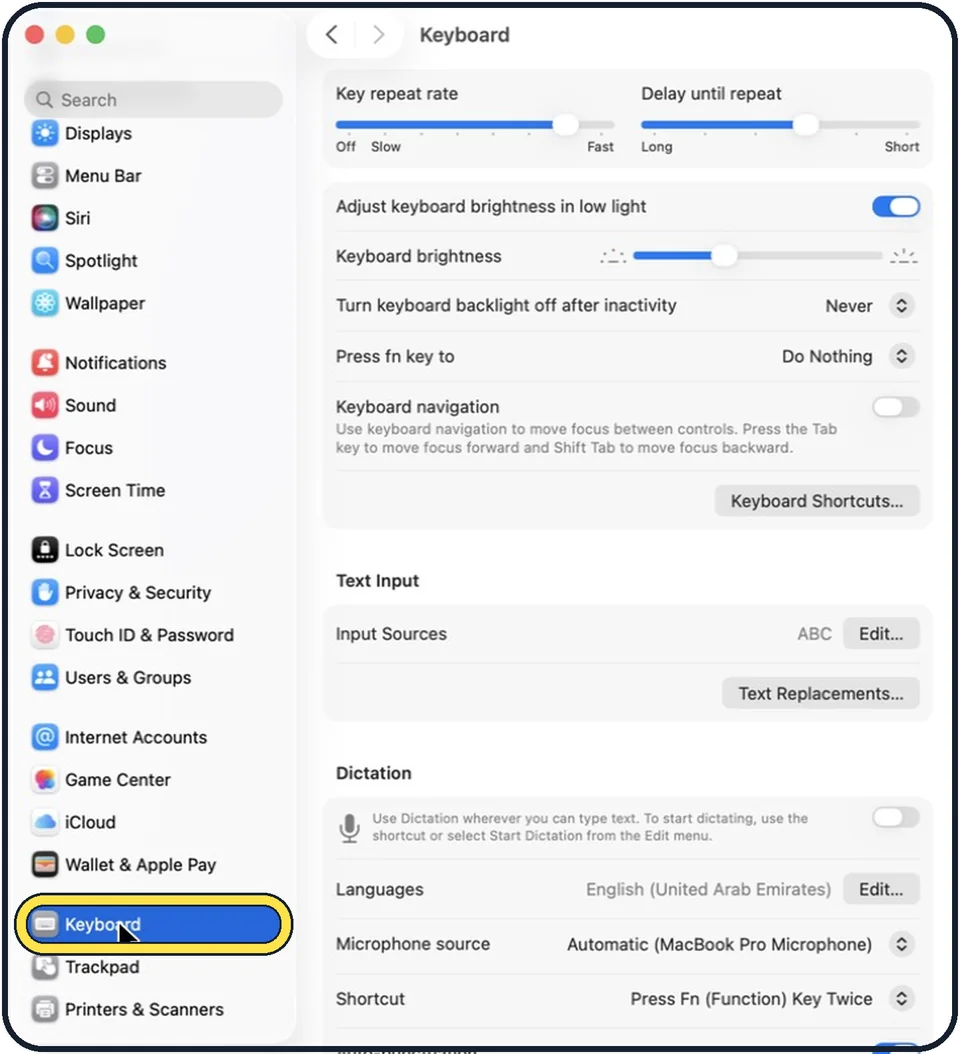
Zoomed in on the setting. Tap to see the whole screenTap the picture to see it full size Open System Settings and click Keyboard
Click the Apple menu, then System Settings. Keyboard is near the bottom of the sidebar.
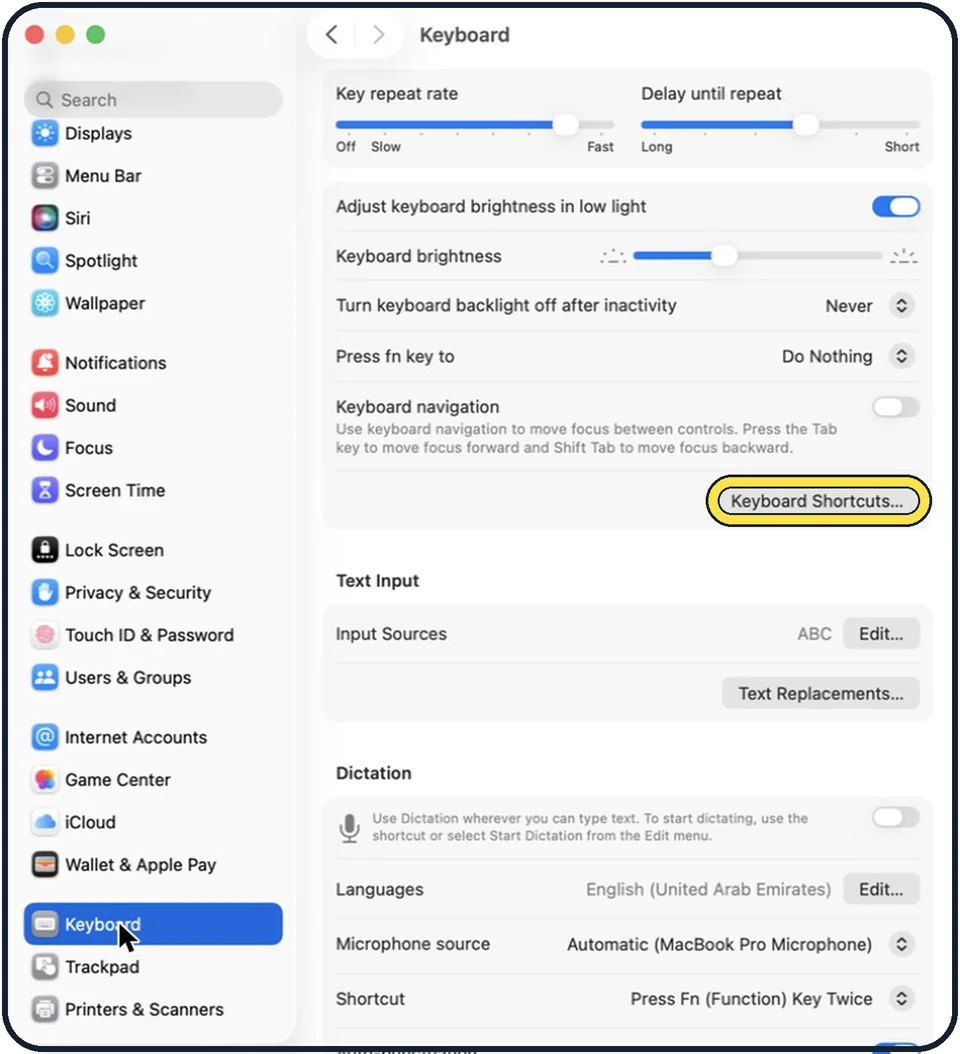
Zoomed in on the setting. Tap to see the whole screenTap the picture to see it full size Click Keyboard Shortcuts
The button is on the right of the Keyboard page.
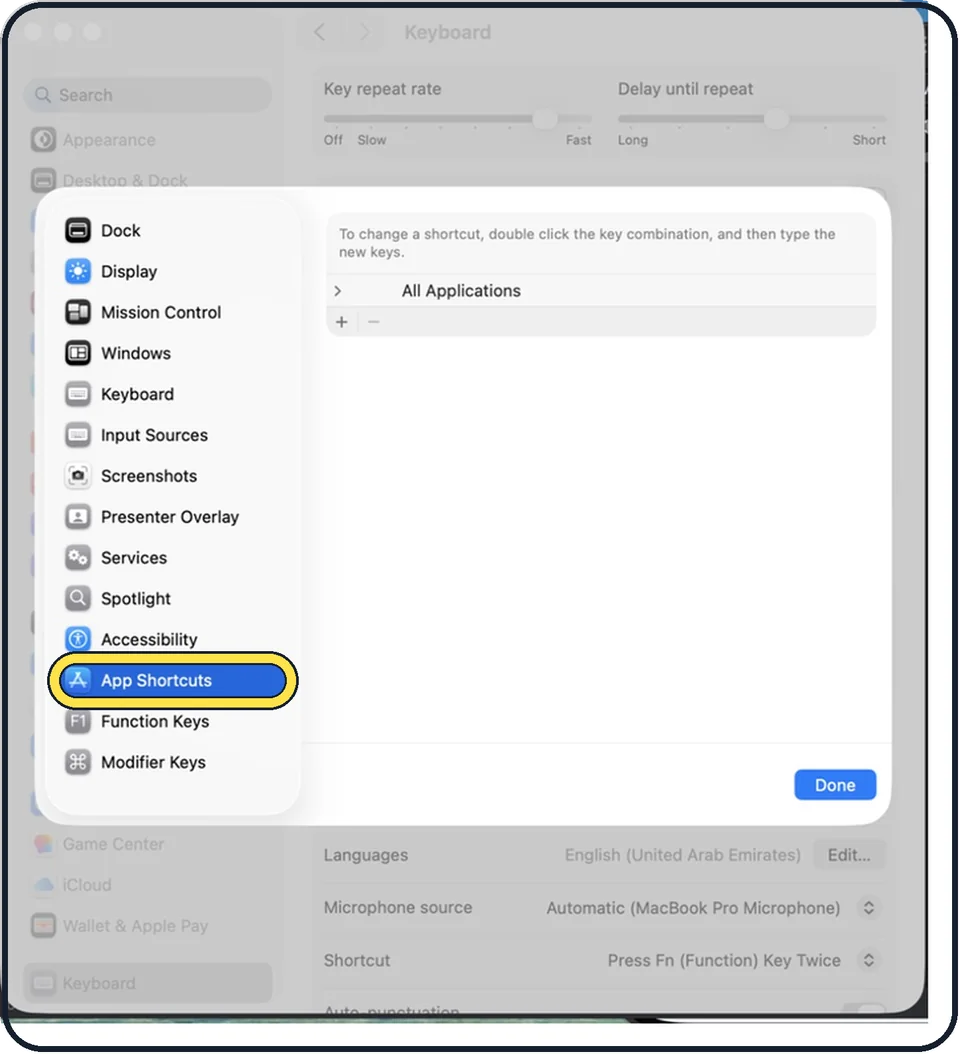
Zoomed in on the setting. Tap to see the whole screenTap the picture to see it full size Click App Shortcuts, then the add button
App Shortcuts is in the list on the left of the window that opens. The add button is the plus.
Choose the app
Use the Application menu to pick one app. Choose All Applications if the command exists in many apps.
Type the menu command exactly
In the Menu title field, type the command exactly as it appears in the menu, with the same capital letters and punctuation. If the command ends with an ellipsis (…), type that one character with Option and Semicolon: three full stops may not match the menu.
Press the key combination and click Done
Click in the Keyboard shortcut field and press the keys you want. Then click Done and try it in the app.
About this guide
Any command that is in an app's menu can get its own key combination. That is useful for commands you use many times a day that have no shortcut, such as Export as PDF.
These steps are for recent versions of macOS, where the settings app is called System Settings. The pictures are our own screenshots from macOS Tahoe 26 on a MacBook Pro.
Good to know
A shortcut does not work if another command in the app already uses the same keys. Choose a different combination.
For a command inside a submenu, Apple's example is Format->Font->Ligatures->Use Default. The arrow is typed as a hyphen followed by the greater-than sign.
To remove a shortcut you created, select it in the list and click the remove button, which is the minus.
Shortcuts that are already built in: how to take a screenshot on a Mac and how to copy and paste on a Mac.
In short: Keyboard, Keyboard Shortcuts, App Shortcuts, plus, app, exact menu name, keys, Done.
Links checked in October 2026. Menus and features can change after software updates. These steps match the version named at the top.
Did this guide work for you?
Sorry about that. What happened?