
howtosimply.com/guides/how-to-turn-off-autocorrect-on-a-mac/ · Checked October 2026 · MacBook Pro · macOS Tahoe 26
In this guide
Open System Settings, click Keyboard, and click Edit in the Text Input section. Switch off Correct spelling automatically and click Done.
3 of 5 steps with real screenshots · 1 official source below
- Device
- Mac
- Shown on
- macOS Tahoe 26 (MacBook Pro)
- App
- System Settings
- Path
- System Settings › Keyboard › Text Input › Edit
- Real screenshots
- 3 of 5 steps
- Checked
- October 2026
- Sources
- 1 official, linked below
Step by step
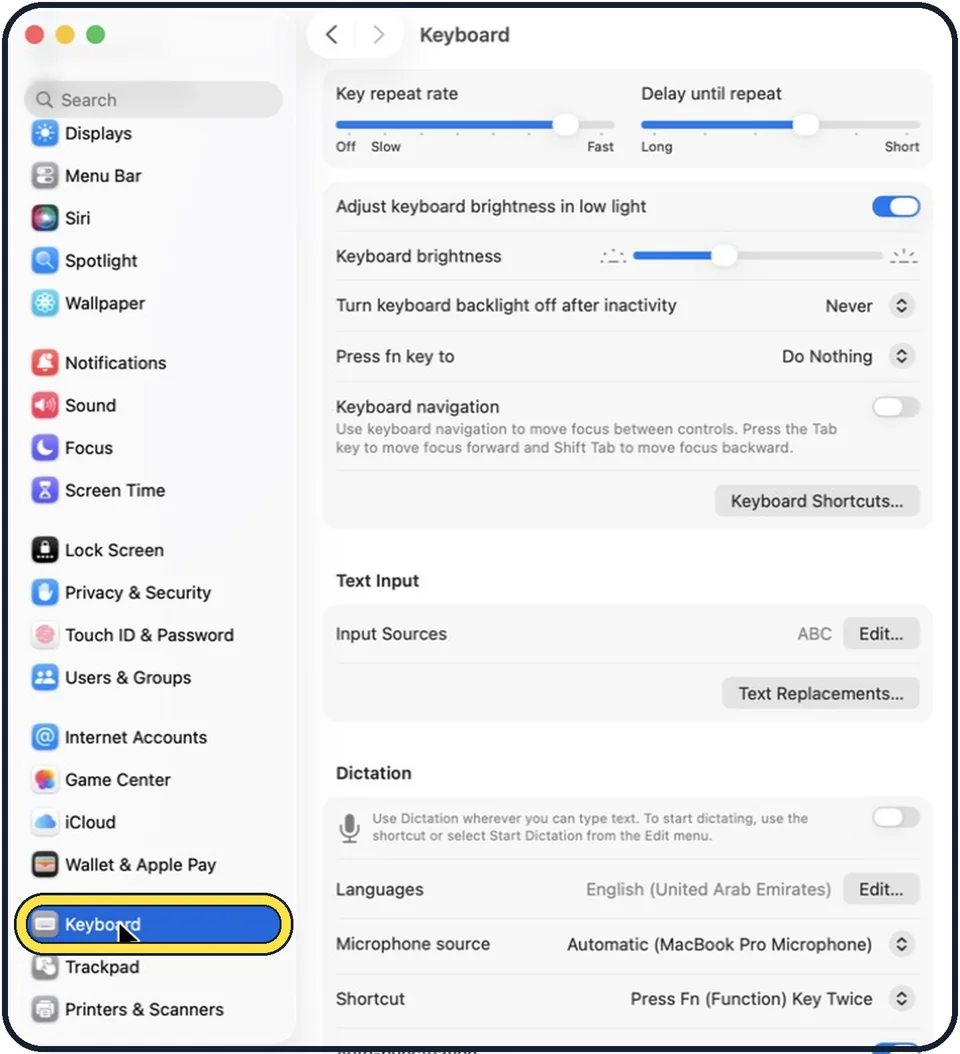
Zoomed in on the setting. Tap to see the whole screenTap the picture to see it full size Open System Settings and click Keyboard
Click the Apple menu, then System Settings. Keyboard is near the bottom of the sidebar, so scroll down.
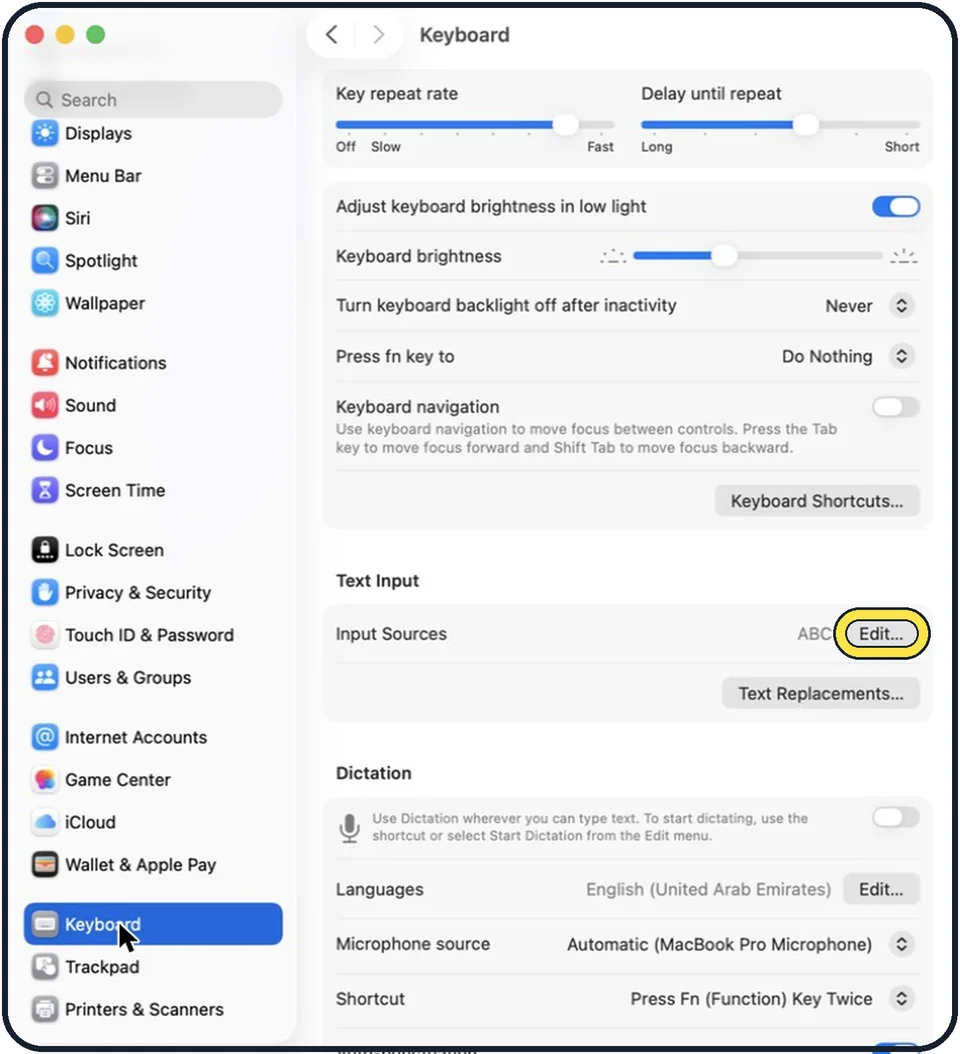
Zoomed in on the setting. Tap to see the whole screenTap the picture to see it full size Click Edit in the Text Input section
It is the Edit button next to Input Sources.
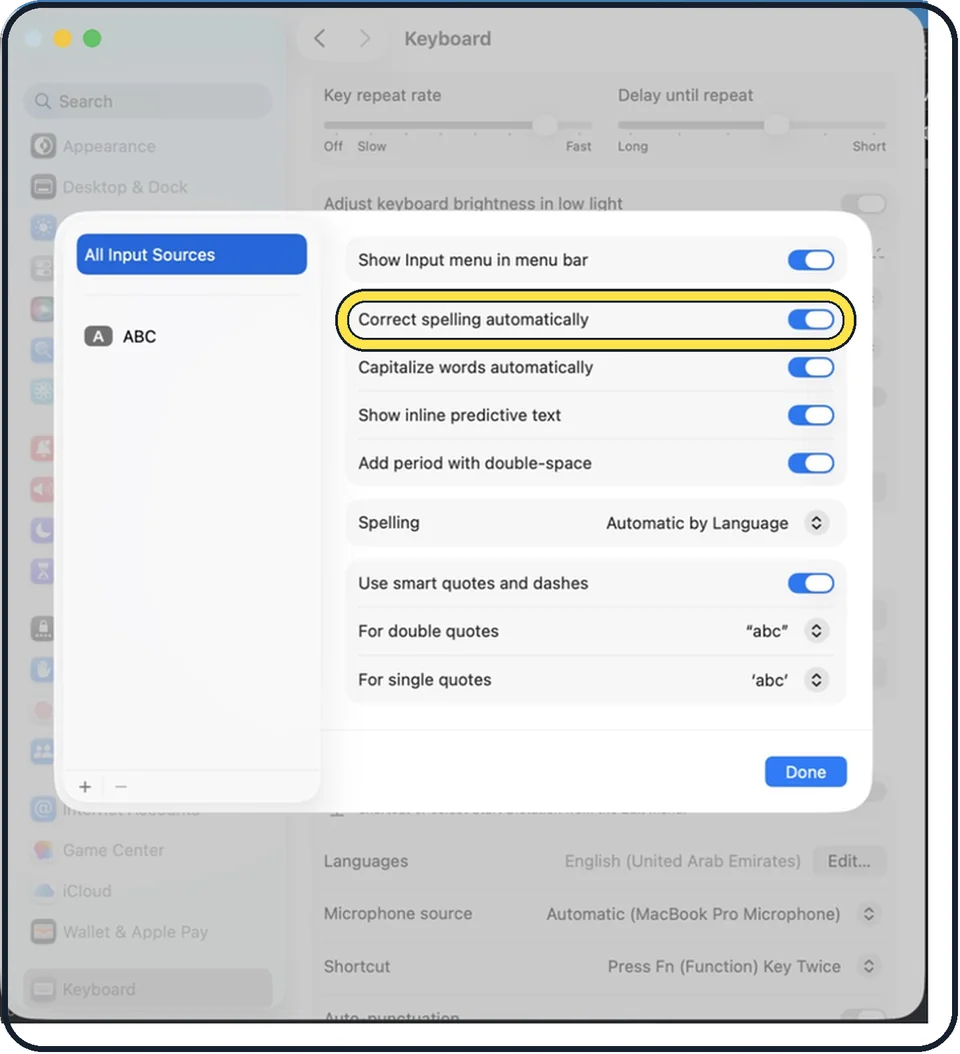
Zoomed in on the setting. Tap to see the whole screenTap the picture to see it full size Switch off Correct spelling automatically
The Mac stops replacing words by itself.
Decide about the other switches
In the same window, Capitalise words automatically controls capital letters at the start of a sentence, and Show inline predictive text controls the grey word suggestions that appear as you type.
Click Done
The change applies at once.
About this guide
Autocorrect changes words while you type. That helps with typing mistakes, but it gets in the way with names, technical terms or a second language.
These steps are for recent versions of macOS, where the settings app is called System Settings. The pictures are our own screenshots from macOS Tahoe 26 on a MacBook Pro.
Good to know
To switch it off in one app only, open that app and choose Edit, Spelling and Grammar, Correct Spelling Automatically. No tick means off.
To undo a single correction, Control-click the word and choose Change Back. A corrected word is briefly marked with an underline.
If you only want certain words left alone, a text replacement can also help.
In short: System Settings, Keyboard, Text Input, Edit, Correct spelling automatically off.
Links checked in October 2026. Menus and features can change after software updates. These steps match the version named at the top.
Did this guide work for you?
Sorry about that. What happened?