
What changed: the screenshots are now our own iPhone 17e on iOS 27.0.1, dark mode, and the wording is checked against those screens and Apple's iOS 27 guide.
howtosimply.com/guides/how-to-turn-on-screen-distance-on-iphone/ · Checked October 2026 · iPhone 17e · iOS 27.0.1
In this guide
Open Settings, tap Screen Time, then Content & Privacy Restrictions. Screen Distance is under Feature Restrictions: tap it and turn it on. The iPhone then asks you to move it farther than 12 inches (about 30 cm) away when you hold it too close.
3 of 3 steps with real screenshots · 1 official source below
- Device
- iPhone
- Shown on
- iOS 27.0.1 (iPhone 17e)
- App
- Settings
- Path
- Settings › Screen Time › Content & Privacy Restrictions › Screen Distance
- Real screenshots
- 3 of 3 steps
- Checked
- October 2026
- Sources
- 1 official, linked below
Step by step
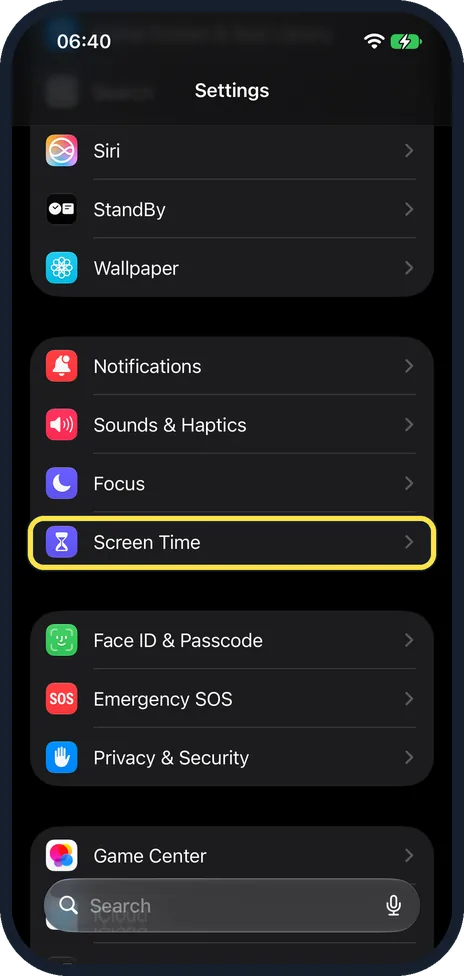
Open Settings and tap Screen Time
Scroll down the Settings list to the purple hourglass. On our iPhone 17e Screen Time is the last row in the group with Notifications, Sounds & Haptics and Focus, just above Face ID & Passcode.
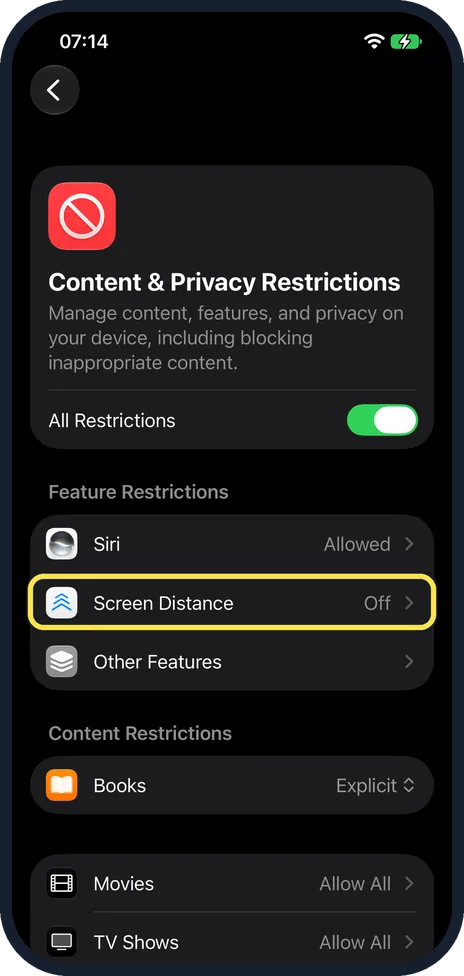
Tap Content & Privacy Restrictions, then Screen Distance
On our iPhone 17e the Content & Privacy Restrictions row is lower down the Screen Time page, below Time Allowances, and showed Explicit. Inside, All Restrictions was on. Screen Distance was the second row under Feature Restrictions, between Siri and Other Features, and showed Off. This is the path Apple's Screen Distance article gives.
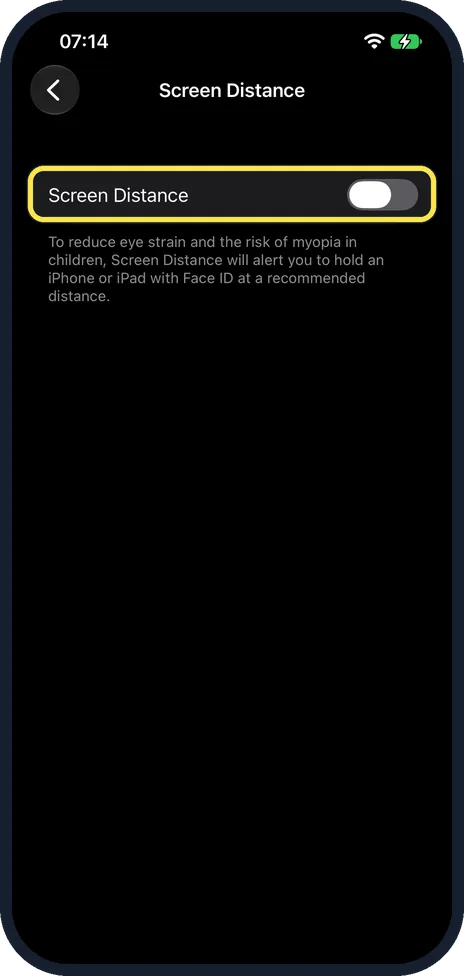
Turn on the Screen Distance switch
The page has one switch, Screen Distance. On our iPhone 17e it was off, and the note below it said: To reduce eye strain and the risk of myopia in children, Screen Distance will alert you to hold an iPhone or iPad with Face ID at a recommended distance. Turn the switch on. You might be asked to enter a Screen Time passcode. Apple says that from then on, when you hold the iPhone too close, an alert asks you to move it farther than 12 inches (about 30 cm) away, or you can tap Continue. We did not turn it on, so we have not seen the screens that follow.
What changed: the screenshots are now our own iPhone 17e on iOS 27.0.1, dark mode, and the wording is checked against those screens and Apple's iOS 27 guide.
What we saw on our device
- Open Settings and tap Screen Time: On our iPhone 17e Screen Time is the last row in the group with Notifications, Sounds & Haptics and Focus, just above Face ID & Passcode.
- Tap Content & Privacy Restrictions, then Screen Distance: On our iPhone 17e the Content & Privacy Restrictions row is lower down the Screen Time page, below Time Allowances, and showed Explicit.
- Turn on the Screen Distance switch: On our iPhone 17e it was off, and the note below it said: To reduce eye strain and the risk of myopia in children, Screen Distance will alert you to hold an iPhone or iPad with Face ID at a recommended distance.
If you do not see this option
- Not on the Screen Time page On our iPhone 17e with iOS 27.0.1 there was no Screen Distance row on the Screen Time page, with App & Website Activity off or on. It is inside Content & Privacy Restrictions. Source: What is Screen Distance?
- No Face ID, or iOS 16 or earlier Apple says Screen Distance needs a device with a TrueDepth camera, updated to iOS 17 or iPadOS 17 or later. Source: What is Screen Distance?
If this does not work
- It asks for a passcode Apple says you might be asked to enter a Screen Time passcode. Enter it to carry on. Source: What is Screen Distance?
- A child's setting does not change For Family Sharing, Apple says to update all of the devices in your Family Sharing group to the latest software version before changing your settings. Source: What is Screen Distance?
About this guide
Screen Distance uses the Face ID camera to notice when the phone is very close to your eyes for a long time. It then covers the screen with a message until you move the phone further away or tap Continue. Apple built it mainly for children, because holding screens close is linked to short-sightedness, but it works for adults too.
Apple says it needs a device with a TrueDepth camera (an iPhone or iPad with Face ID) updated to iOS 17 or iPadOS 17 or later.
Screenshots: iPhone 17e, iOS 27.0.1, dark mode.
Good to know
To turn it off, Apple's article gives Settings, Screen Time, Content & Privacy Restrictions, Screen Distance. Switch it off there.
On a child's device in Family Sharing, Screen Distance is on by default for children under 13. Apple notes that age varies by state, country, or region. Apple also says that each time your child updates a device signed in with their Apple Account, Screen Distance is turned back on for all their devices.
In short: Settings, Screen Time, Content & Privacy Restrictions, Screen Distance, turn it on.
Links checked in October 2026. Menus and features can change after software updates. These steps match the version named at the top.
Did this guide work for you?
Sorry about that. What happened?