
howtosimply.com/guides/how-to-use-do-not-disturb-and-focus-on-windows-11/ · Checked October 2026 · Windows 11 Enterprise 25H2 (build 26200.9457), Microsoft Cloud PC
In this guide
Click the clock on the taskbar or press Windows + N to open the notification center, then click the bell icon next to Clear all to turn on Do not disturb. For a timed session, set the minutes at the bottom of the same panel and click Focus. Notifications stay silent until you switch it off or the time ends.
5 of 6 steps with real screenshots · 2 official sources below
- Device
- Windows
- Shown on
- Windows 11 Enterprise 25H2 (build 26200.9457), Microsoft Cloud PC
- App
- Settings
- Real screenshots
- 5 of 6 steps
- Checked
- October 2026
- Sources
- 2 official, linked below
Step by step
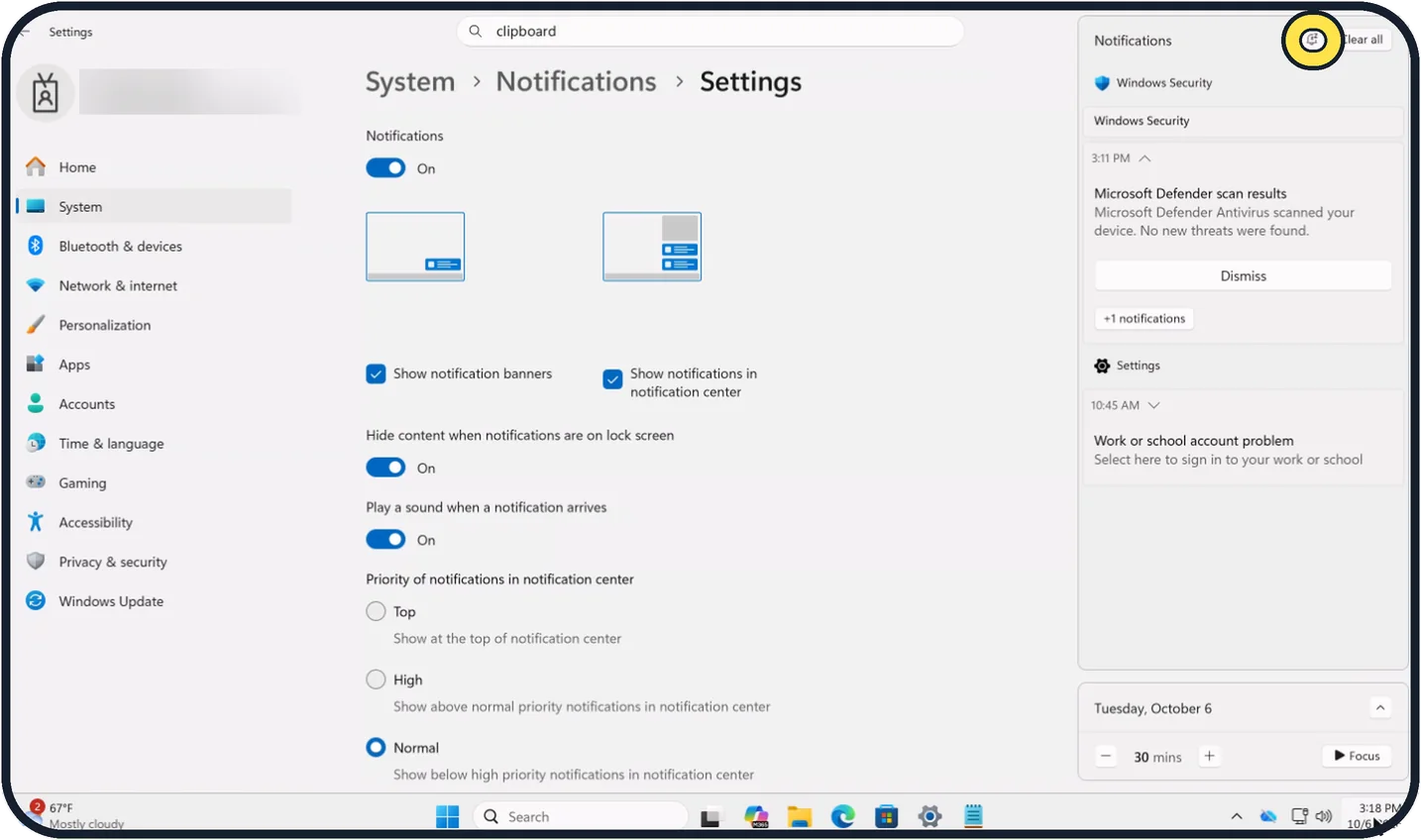
Zoomed in on the setting. Tap to see the whole screenTap the picture to see it full size Turn on Do not disturb
Open the notification center with a click on the clock or with Windows + N. Click the bell icon at the top, next to Clear all. Click it again to switch it off.
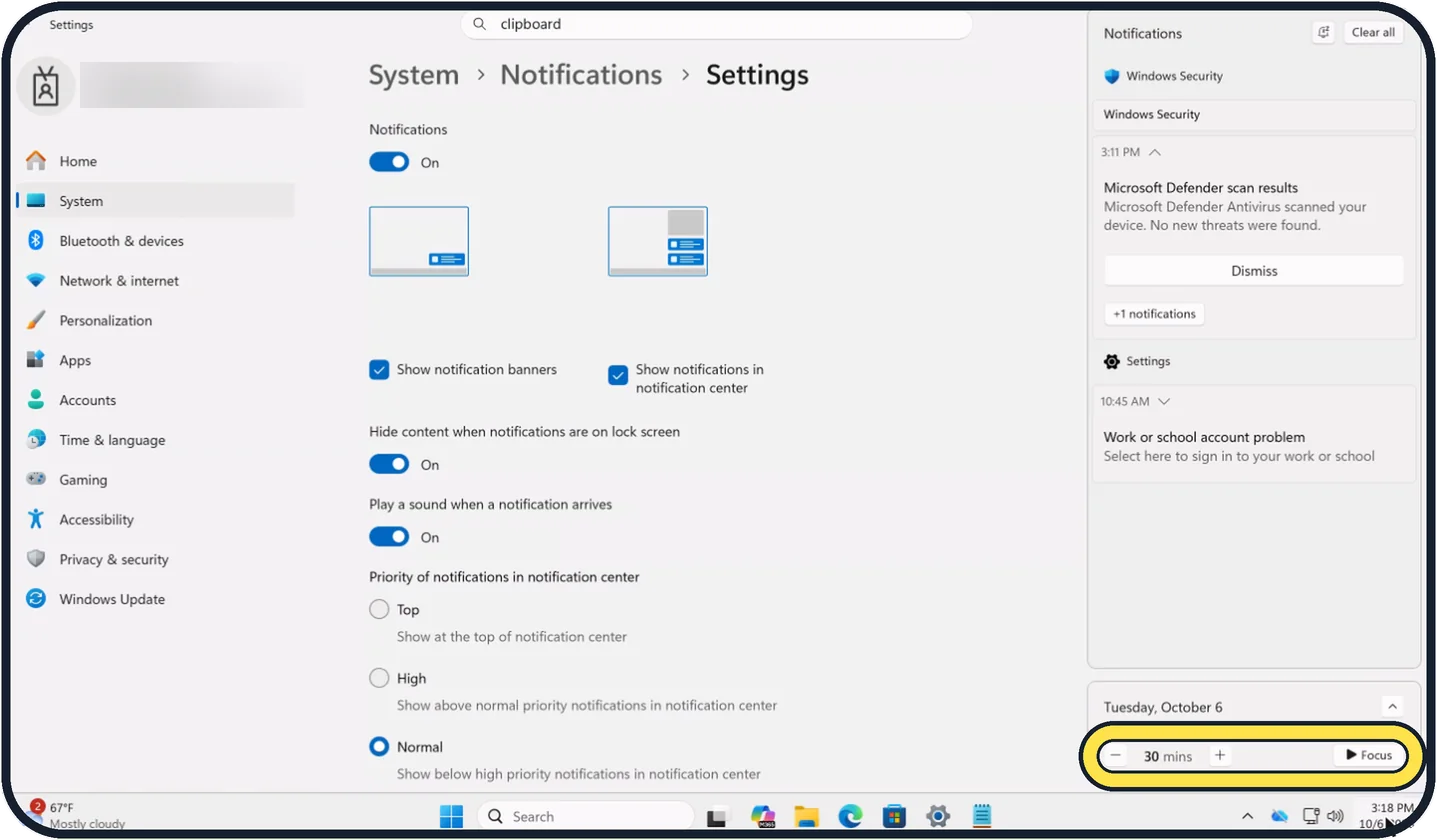
Zoomed in on the setting. Tap to see the whole screenTap the picture to see it full size Start a focus session
At the bottom of the same panel, set the number of minutes with the minus and plus buttons, here 30 mins, and click Focus. You can also start one in the Clock app under Focus sessions.
Know what a session changes
A timer appears on the screen, Do not disturb switches on, and the flashing and the badges of apps on the taskbar are turned off. When the time is up, Windows tells you. You can end the session early.
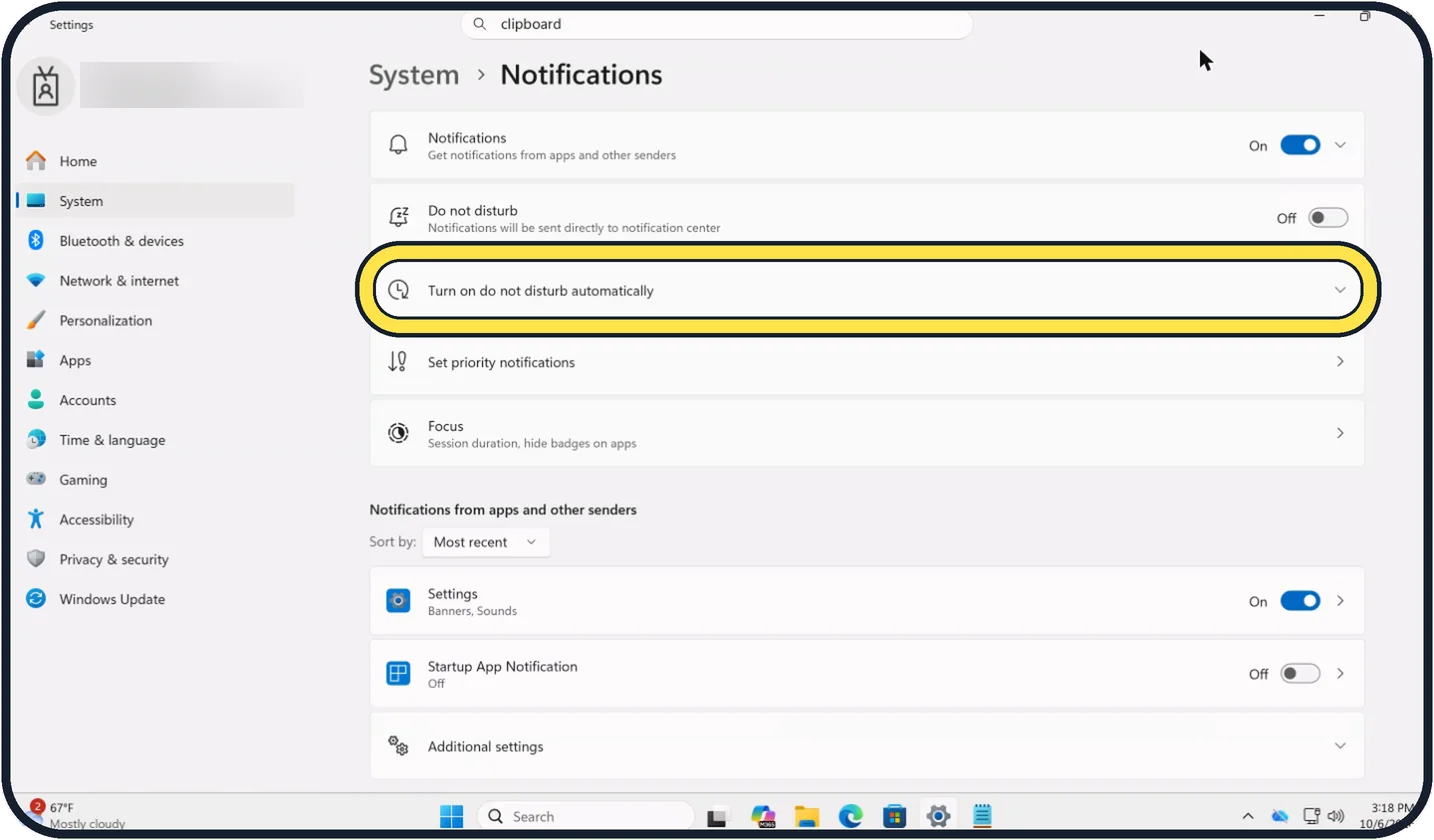
Tap the picture to see it full size Let Windows switch it on by itself
Open Settings, System, Notifications and expand Turn on do not disturb automatically. On our Cloud PC it is the third row, below Do not disturb (switched Off) and above Set priority notifications. Tick the situations in which Windows should turn it on.
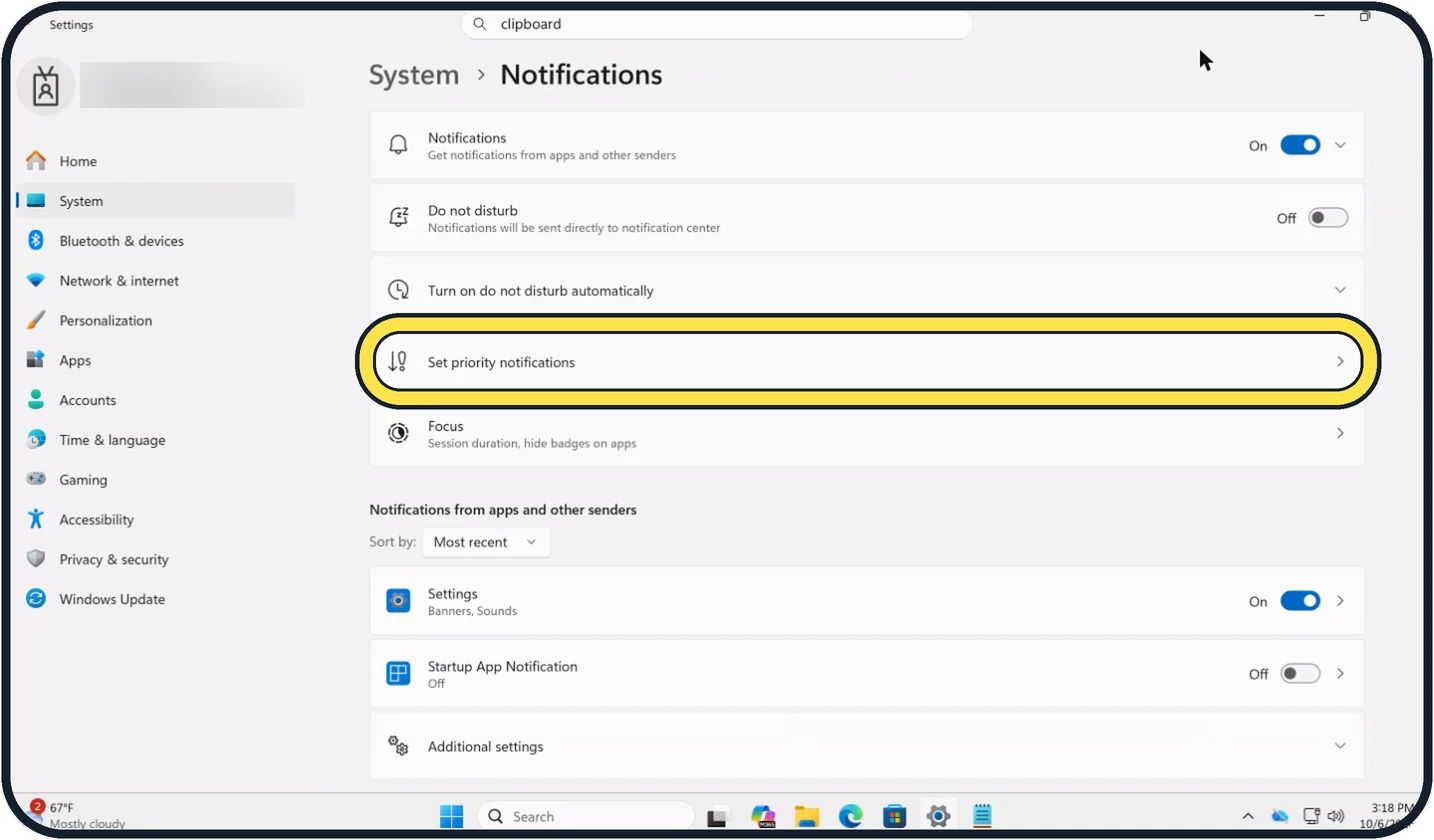
Tap the picture to see it full size Let important things through
On the same page, open Set priority notifications, the row below Turn on do not disturb automatically. There, choose which notifications may still come through.
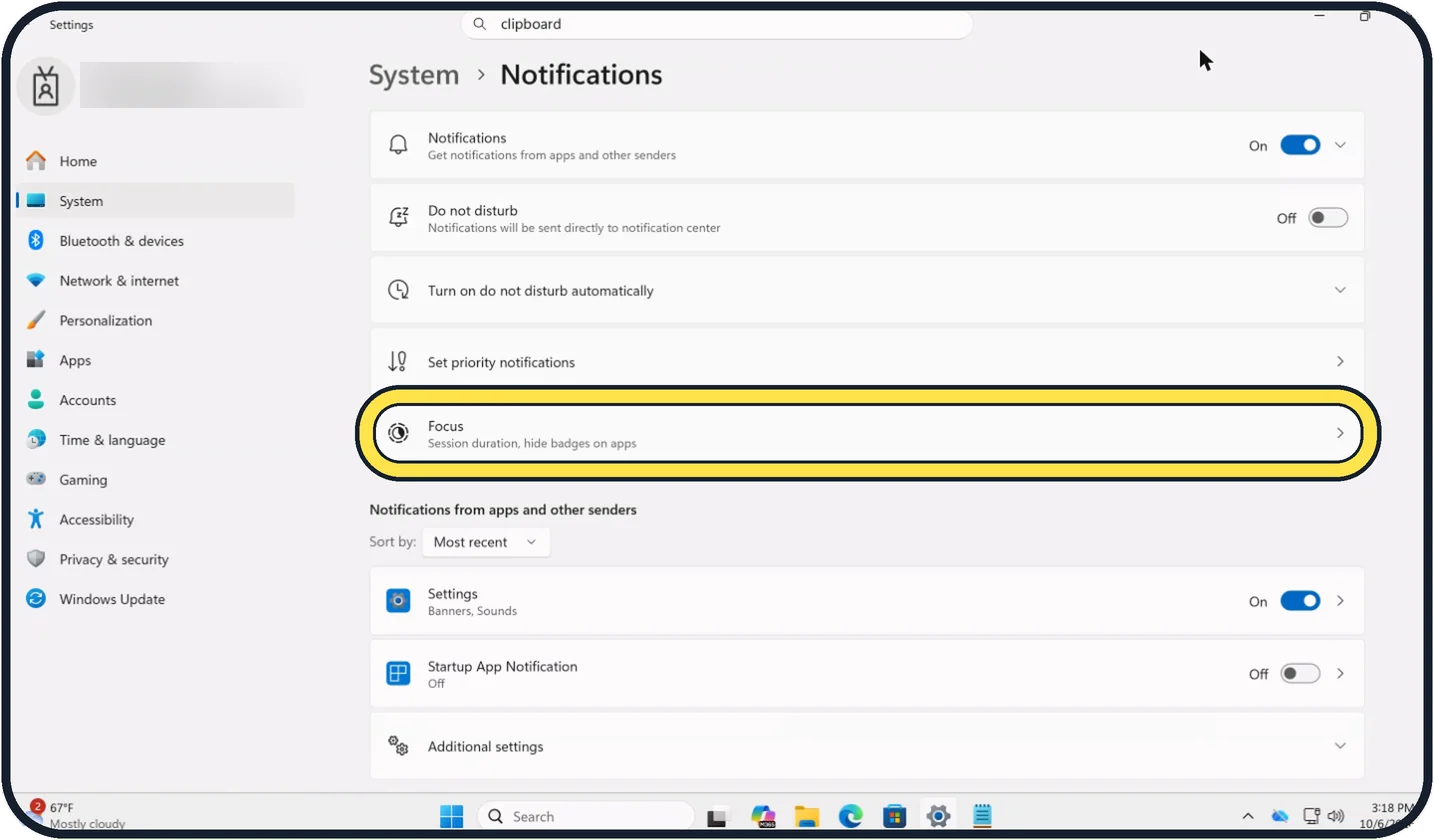
Tap the picture to see it full size Adjust what a session does
Click Focus on the same page, below Set priority notifications. Its subtitle reads Session duration, hide badges on apps. That is where you set these options for a session.
About this guide
Do not disturb holds back notification banners and sounds, so they collect quietly in the notification center. A focus session adds a timer and also stops taskbar icons from flashing. Both are meant for work that needs concentration, presentations and games.
Good to know
Notifications are not lost. They wait in the notification center.
To silence one noisy app for good, use the app list under Settings, System, Notifications: how to turn off notifications on Windows 11.
The Clock app can link a focus session to a task list in Microsoft To Do and to music.
The same idea on a Mac: how to use Focus and Do Not Disturb on a Mac.
In short: Windows + N, bell icon with zZ for Do not disturb, minutes and Focus for a session. Automatic rules and priority apps under Settings, System, Notifications.
- Microsoft Support: Notifications and Do Not Disturb in Windows
- Microsoft Support: Focus: Stay on Task Without Distractions in Windows
Links checked in October 2026. Menus and features can change after software updates. These steps match the version named at the top.
Did this guide work for you?
Sorry about that. What happened?