No sound on Windows 11? 8 fixes, including two known bugs
By Saadat Rafiq · 2 min read · 8 steps · Published 6 October 2026
Open Settings, System, Sound and check that the right device is chosen under Choose where to play sound and the volume is not at 0. Then click Output devices next to Troubleshoot common sound problems. After the September 2026 updates, Microsoft lists two known audio bugs, so also install the latest updates.
- Device
- Windows
- Shown on
- Windows 11 Enterprise 25H2 (build 26200.9457), Microsoft Cloud PC
- App
- Settings
- Path
- Settings › System
- Real screenshots
- 5 of 8 steps
- Checked
- October 2026
- Sources
- 2 official, linked below
Step by step
Check where Windows plays sound
Open Start, Settings, System, Sound. Open Choose where to play sound and pick your speakers or headphones. Headphones, a monitor or a TV over HDMI can take the sound without you noticing.

Check the volume
On the same page, the Volume slider must not be at 0. Also check the volume on the speakers themselves and the mute button on the keyboard.

Run the sound troubleshooter
Scroll down to Advanced. Next to Troubleshoot common sound problems, click Output devices. The Get Help app opens and runs automated checks.
Or run it from Troubleshoot
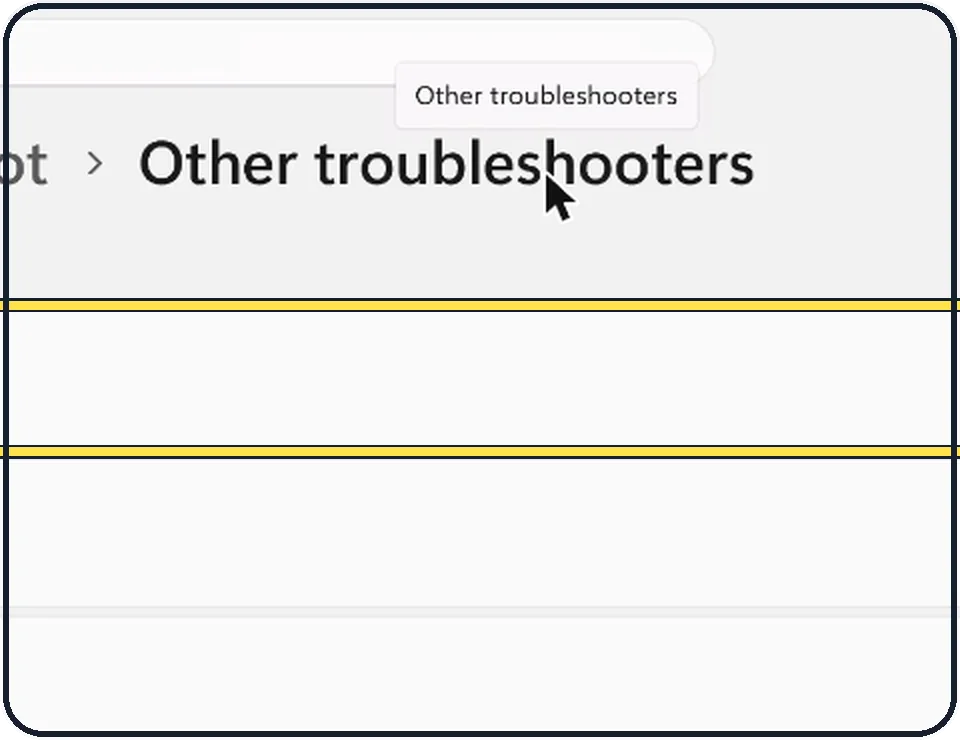
The same check is under Settings, System, Troubleshoot, Other troubleshooters: click Run next to Audio.

Check that the device is allowed
Back in Sound, open All sound devices. Click your speakers or headphones and check that the device is allowed, not switched off.
USB speakers or headset silent after the September update
Microsoft lists this known issue: after update KB5124008 (8 September 2026), USB audio devices might not start, play no sound or show "This device cannot start (Code 10)" in Device Manager. Microsoft marks it as mitigated, and update KB5129195 fixes part of it. Install the latest updates under Settings, Windows Update.
An app closes when it plays sound
Microsoft confirms that after update KB5124010 (22 September 2026), apps that use Windows to decode AC-3 (Dolby Digital) audio might close or not start, mostly older apps. There is no workaround yet; Microsoft says a future update fixes it. Until then, try another player for that file.
Restart the audio service
Type Services into the taskbar search and open it. Right-click Windows Audio and choose Restart. Then restart the PC if there is still no sound.
About this guide
Most sound problems come from Windows playing to the wrong device, a muted volume, or a stuck audio service. In September 2026 two Windows updates also caused audio faults that Microsoft has confirmed on its release health page. Work through the checks in order.
The screenshots are our own, taken on Windows 11 Enterprise 25H2 (build 26200.9457) running as a Microsoft Cloud PC, a Windows PC that runs in the cloud. The Settings app is the same on Home and Pro PCs; where the Cloud PC shows something different, the step says so.
Our Cloud PC plays sound through Remote Audio, a virtual device. On a normal PC you see your speakers, headphones or monitor here.
Good to know
If only the microphone does not work, that is a separate set of checks in Settings, Privacy & security, Microphone.
Bluetooth headphones: how to connect Bluetooth headphones to a Windows 11 PC. Installing updates: how to check for updates on Windows 11.
In short: Settings, System, Sound: pick the right output and check the volume, then Troubleshoot common sound problems, Output devices. Install updates for the September 2026 audio bugs, and restart Windows Audio.
- Microsoft Support: Fix sound or audio problems in Windows
- Microsoft: Windows 11, version 25H2 known issues
Links checked on 4 October 2026. Rules and prices change. Check the official source before you act.