
macOS 27 compared with macOS 26: We rewrote this guide on macOS 27.0.1 (MacBook Neo): it now has 5 steps instead of 6. The macOS 26 page keeps the steps and screenshots as they were.
howtosimply.com/guides/how-to-use-focus-and-do-not-disturb-on-a-mac/ · Checked October 2026 · MacBook Neo · macOS 27.0.1
In this guide
Apple says you turn Do Not Disturb on or off by clicking Control Centre in the menu bar, clicking Focus and clicking Do Not Disturb. To choose who may still reach you, open System Settings, click Focus, then Do Not Disturb, and set Allowed People and Allowed Apps.
3 of 5 steps with real screenshots · 2 official sources below
- Device
- Mac
- Shown on
- macOS 27.0.1 (MacBook Neo)
- Starts in
- Control Centre
- Real screenshots
- 3 of 5 steps
- Checked
- October 2026
- Sources
- 2 official, linked below
Step by step
Turn on Do Not Disturb
Apple says to click Control Centre in the menu bar, click the Focus section and click Do Not Disturb.
Apple adds that you can pick how long it stays on, such as For 1 hour, or Until the end of this event during a calendar event.
Turn it off
Apple says to open the same list and click Do Not Disturb again.
Zoomed in on the setting. Tap to see the whole screenTap the picture to see it full size Open System Settings and click Focus
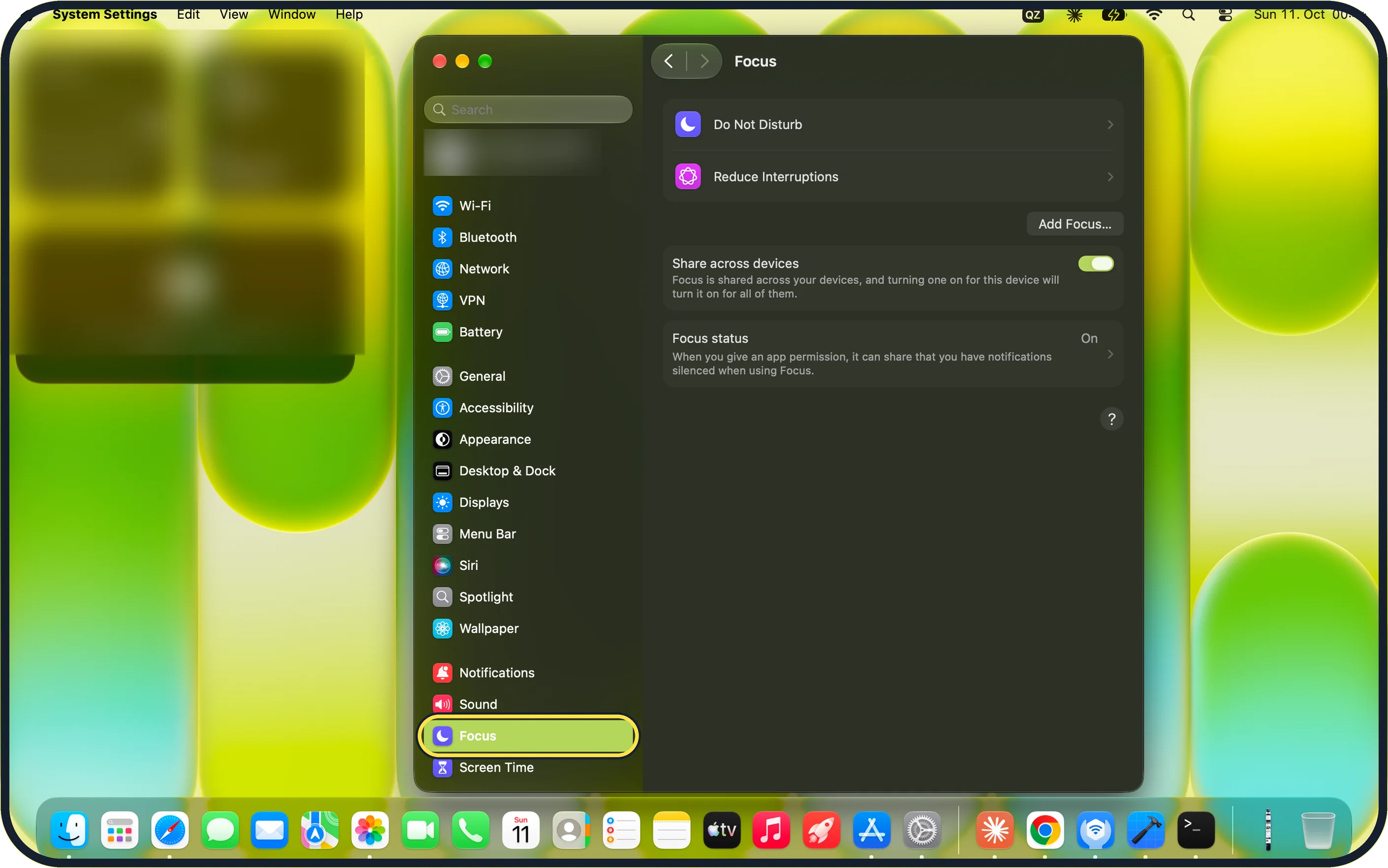
Click Focus in the sidebar. This is where you set up each Focus.
On our MacBook Neo, the Focus page lists Do Not Disturb and Reduce Interruptions, with Share across devices switched on and Focus status set to On.
Zoomed in on the setting. Tap to see the whole screenTap the picture to see it full size Choose who may still reach you
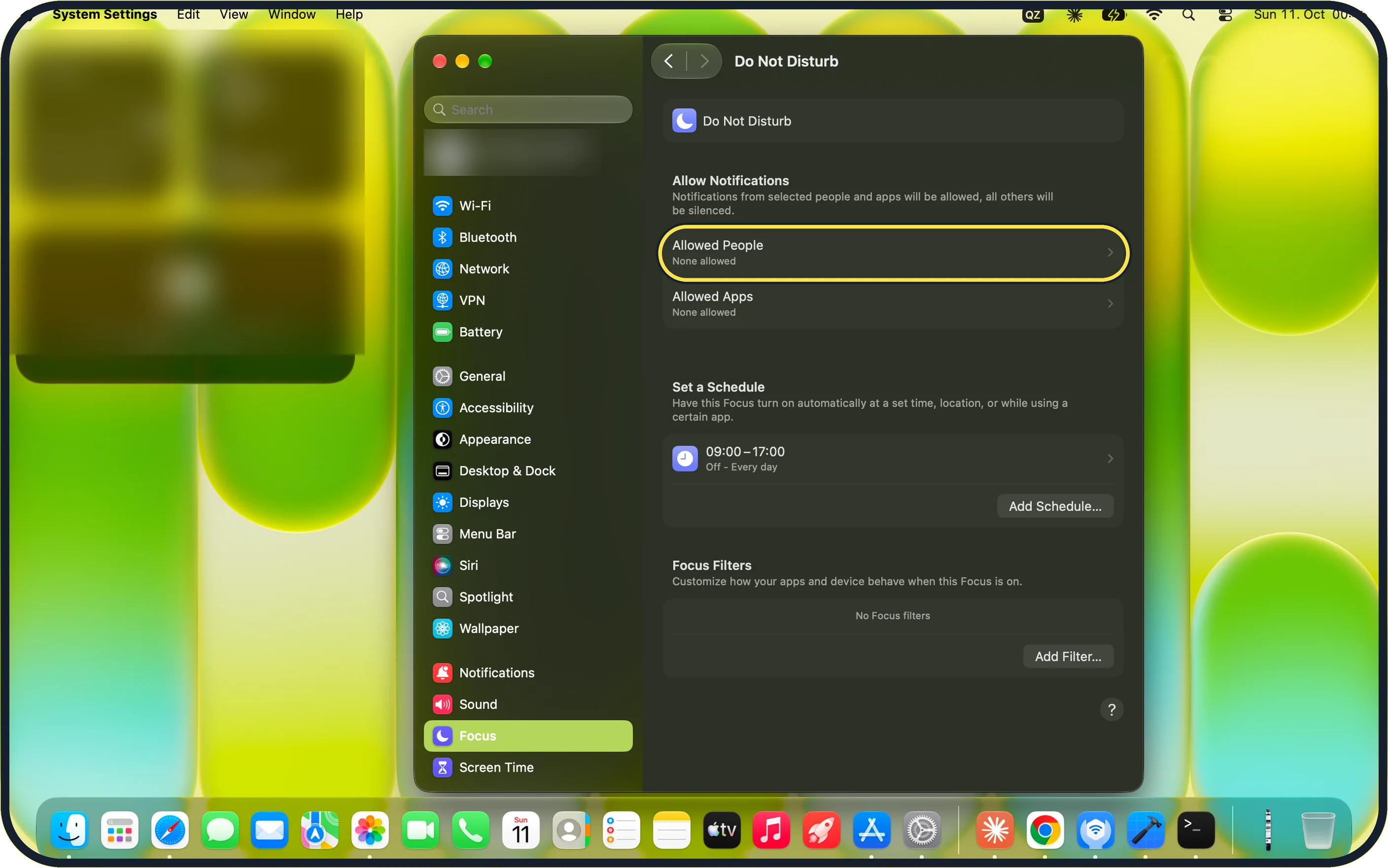
Click Do Not Disturb, then click Allowed People or Allowed Apps under Allow Notifications and add the people or apps that may get through.
On our MacBook Neo, both rows read None allowed, so every notification is silenced.
Zoomed in on the setting. Tap to see the whole screenTap the picture to see it full size Set a schedule
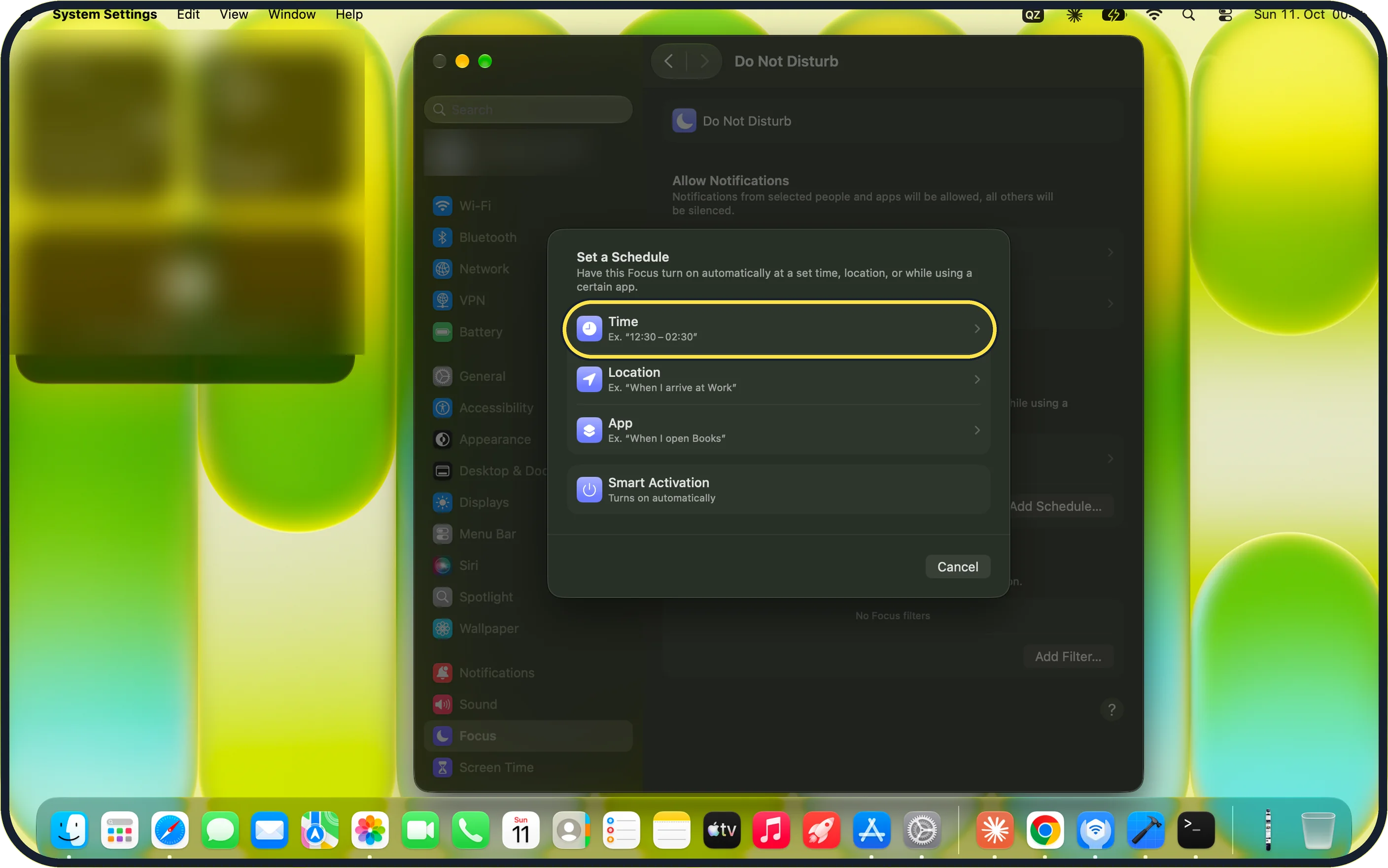
Under Set a Schedule, click Add Schedule… and choose Time, Location, App or Smart Activation.
On our MacBook Neo, a 09:00–17:00 schedule was already listed, set to Off, Every day.
If you do not see this option
- Focus is not in the sidebar Type Focus in the Search field at the top of the System Settings sidebar.
- The Focus you want is not listed On our MacBook Neo only Do Not Disturb and Reduce Interruptions were listed. Click Add Focus… to add another.
- No Focus filters The Focus Filters section reads No Focus filters until you click Add Filter….
If this does not work
- Do Not Disturb turns on by itself Check Set a Schedule on the Do Not Disturb page. A schedule such as 09:00–17:00 turns it on automatically unless it is set to Off.
- It turns on when you use your iPhone Share across devices is switched on. Switch it off on the Focus page to keep the Mac separate.
- Apps say your notifications are silenced Focus status is On. Click Focus status on the Focus page to change it.
- Someone still gets through Open Allowed People and Allowed Apps on the Do Not Disturb page and remove them.
About this guide
A Focus holds back notifications for a while: Do Not Disturb silences almost everything except the people and apps you allow.
Screenshots: MacBook Neo, macOS 27.0.1, dark mode.
Good to know
To add another Focus, click Add Focus… on the Focus page. Apple says it provides ready-made ones such as Work and Gaming, and you can create up to ten of your own.
With Share across devices switched on, a Focus you turn on at the Mac also turns on at your iPhone and iPad, and the other way round.
Focus filters customise how your apps and device behave while a Focus is on. Click Add Filter… under Focus Filters.
Only want to mute one kind of alert? How to turn off notifications on a Mac.
Hide what notifications say on the lock screen: how to hide notification previews on a Mac.
In short: Control Centre > Focus > Do Not Disturb; set it up in System Settings > Focus > Do Not Disturb.
Links checked in October 2026. Menus and features can change after software updates. These steps match the version named at the top.
Did this guide work for you?
Sorry about that. What happened?