
howtosimply.com/guides/how-to-show-or-hide-the-keyboard-button-on-the-samsung-navigation-bar/ · Checked October 2026 · SM-A576B), One UI 9, Android 17 (build A576BXXU6BZIE · Samsung Galaxy A57
In this guide
Open Settings, General management, Keyboard and turn off Show input method button on navigation bar. The extra button at the left of the navigation bar disappears while you type. Turn the switch back on to bring it back.
5 of 5 steps with real screenshots · 2 official sources below
- Device
- Android
- Shown on
- Samsung Galaxy A57 (SM-A576B), One UI 9, Android 17 (build A576BXXU6BZIE)
- App
- Settings
- Path
- Settings › General management › Keyboard
- Real screenshots
- 5 of 5 steps
- Checked
- October 2026
- Sources
- 2 official, linked below
Step by step
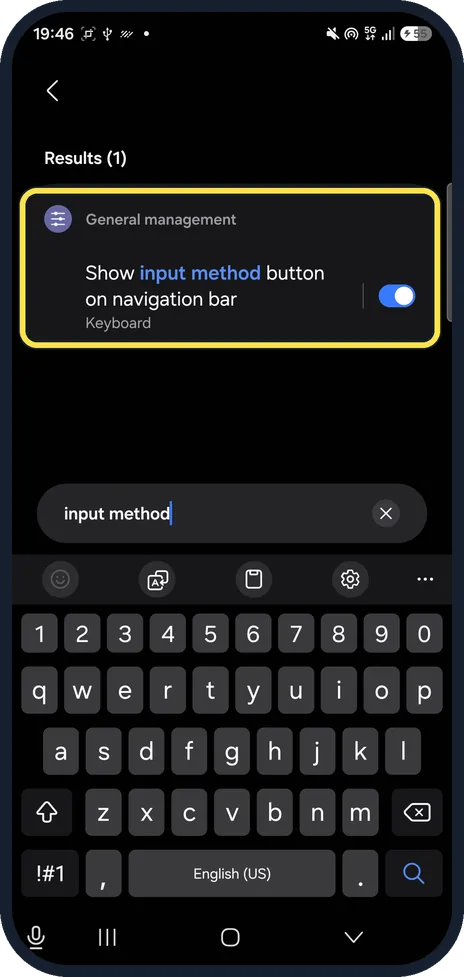
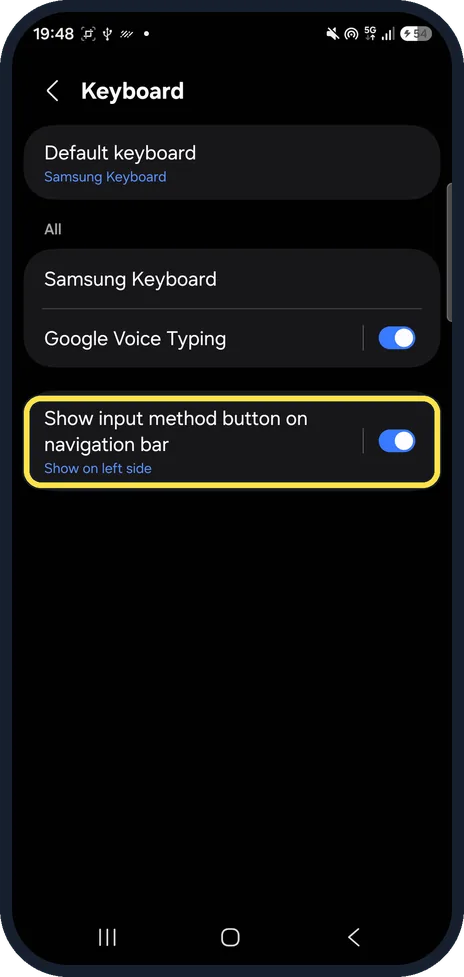
Search Settings for input method
Open Settings, tap the search and type input method. The one result is Show input method button on navigation bar, under General management, Keyboard. The button is at the bottom left, under the keyboard.
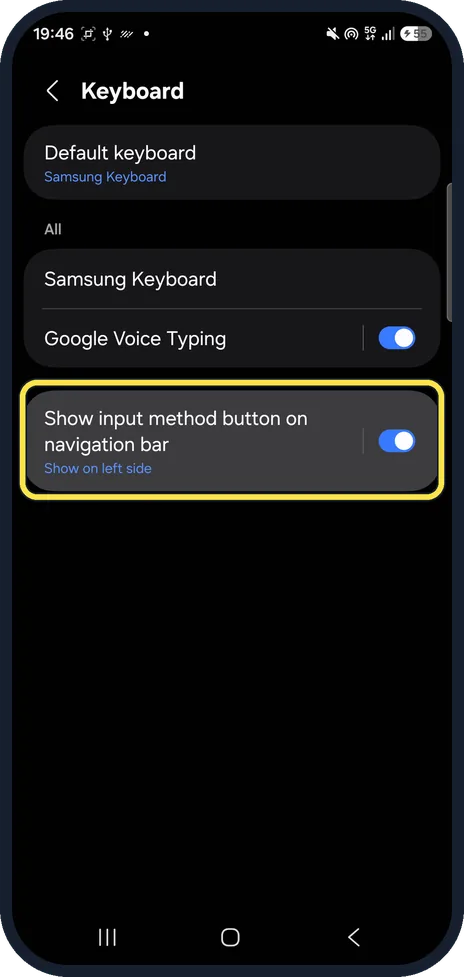
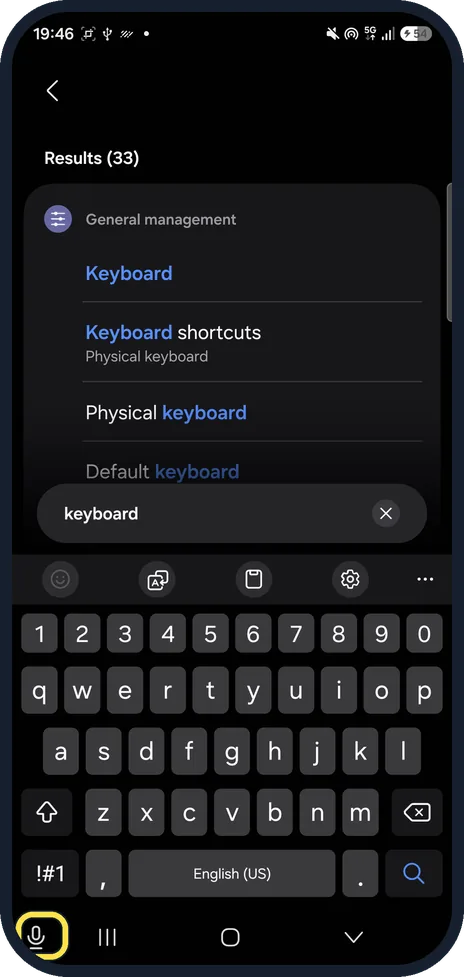
Open General management, Keyboard
Or go there by hand: Settings, General management, Keyboard. The switch is the last row; ours was on and said Show on left side.
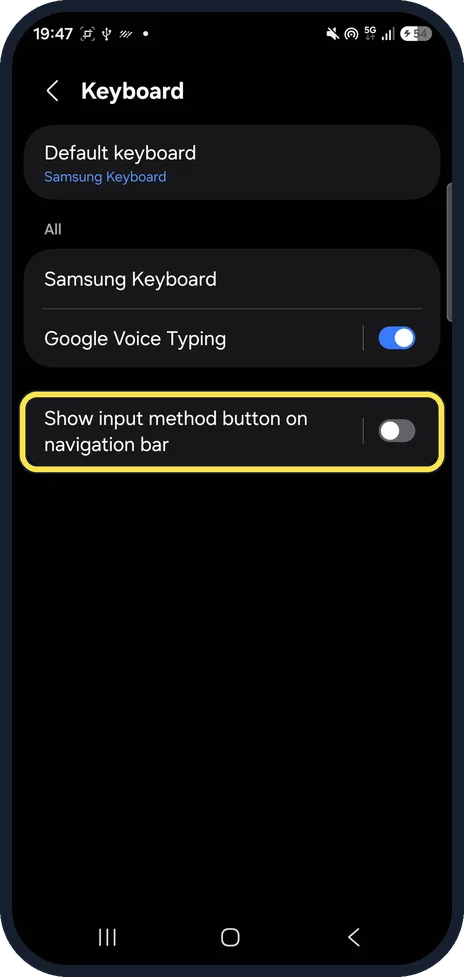
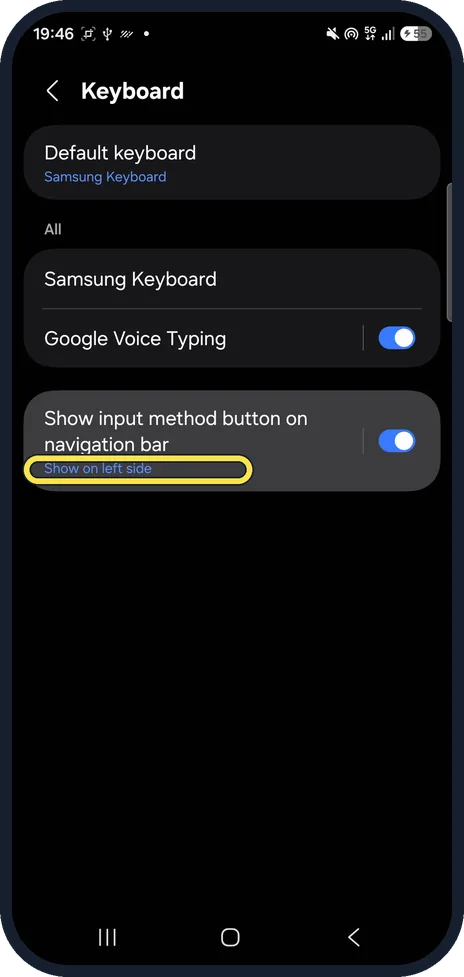
Turn the switch off
Tap the switch next to Show input method button on navigation bar. The Show on left side line goes away.
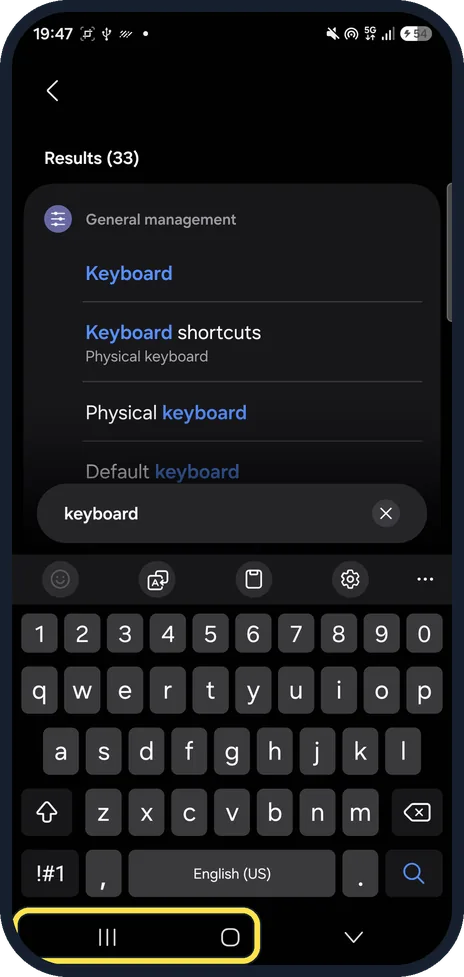
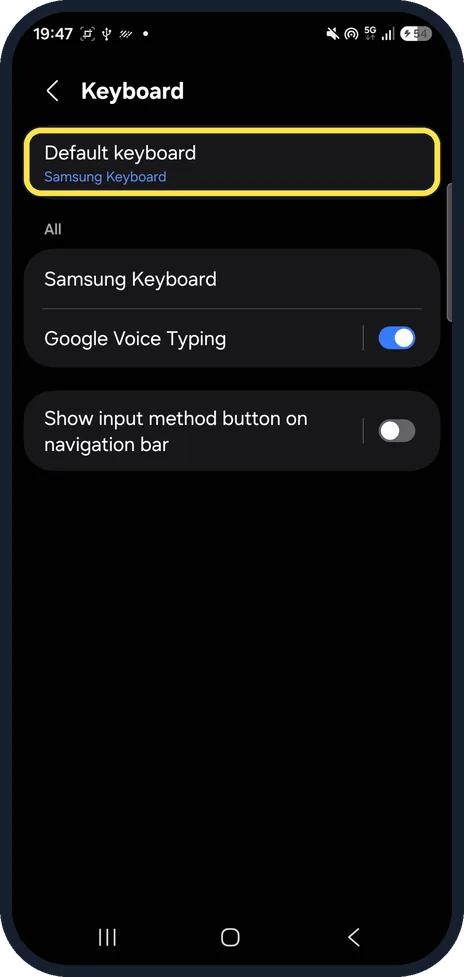
Check the navigation bar
Open a keyboard again. The navigation bar under it now has only the three keys; the button at the bottom left is gone.
Turn it back on if you miss it
Tap the switch again. Show on left side comes back below the row, and so does the button.
If you do not see this option
- Not sure which button it is? With the switch on, a microphone sat at the left of the navigation bar, under the keyboard. Ours had Google Voice Typing on.
- Following older steps? Samsung's keyboard page calls it Keyboard button on navigation bar, under General management, Keyboard list and default. On One UI 9 the page is Keyboard and the switch is Show input method button on navigation bar. Source: Adjust keyboard settings on your Galaxy phone or tablet
If this does not work
- Want to move it to the right? Show on left side is shown below the switch. We did not tap it, so we cannot say which sides it offers.
- Using Swipe gestures? Samsung says the Swipe gestures options under Settings, Display, Navigation bar have Show button to hide keyboard. That is a different button from this one. Source: Customize the Navigation bar on your Galaxy phone or tablet
- Want a different keyboard instead? Default keyboard, at the top of the same page, picks the keyboard; Samsung Keyboard on ours. Source: Adjust keyboard settings on your Galaxy phone or tablet
About this guide
When a keyboard is open, One UI 9 can put an input method button at the left of the navigation bar, next to the three keys. On our phone it showed as a microphone because Google Voice Typing was on.
The screenshots are from our Samsung Galaxy A57 (SM-A576B) with One UI 9.0 and Android 17 (build CP2A.260605.016.A576BXXU6BZIE), in Dark mode, taken on 26 October 2026. We used Samsung Keyboard, the default on our phone, and turned the switch off and back on.
Good to know
To change the voice input of Samsung Keyboard, see change voice input on the Samsung Keyboard.
In short: Settings, General management, Keyboard, Show input method button on navigation bar: off to hide the button, on to show it.
- Samsung US: Adjust keyboard settings on your Galaxy phone or tablet
- Samsung US: Customize the Navigation bar on your Galaxy phone or tablet
Links checked in October 2026. Menus and features can change after software updates. These steps match the version named at the top.
📷 See real photos from the Galaxy A57 in our Camera Lab, next to 10 other phones.
Did this guide work for you?
Sorry about that. What happened?