
howtosimply.com/guides/how-to-close-a-frozen-program-on-windows-11/ · Checked October 2026 · Windows 11 Enterprise 25H2 (build 26200.9457), Microsoft Cloud PC
In this guide
Press Ctrl + Shift + Esc to open Task Manager, click the program that is not responding and click End task. If the whole PC is frozen, hold the power button for about ten seconds until it turns off.
3 of 5 steps with real screenshots · 2 official sources below
- Device
- Windows
- Shown on
- Windows 11 Enterprise 25H2 (build 26200.9457), Microsoft Cloud PC
- Real screenshots
- 3 of 5 steps
- Checked
- October 2026
- Sources
- 2 official, linked below
Step by step
Try Alt + F4 first
Click the frozen window and press Alt + F4. This asks the program to close normally.
Watch these steps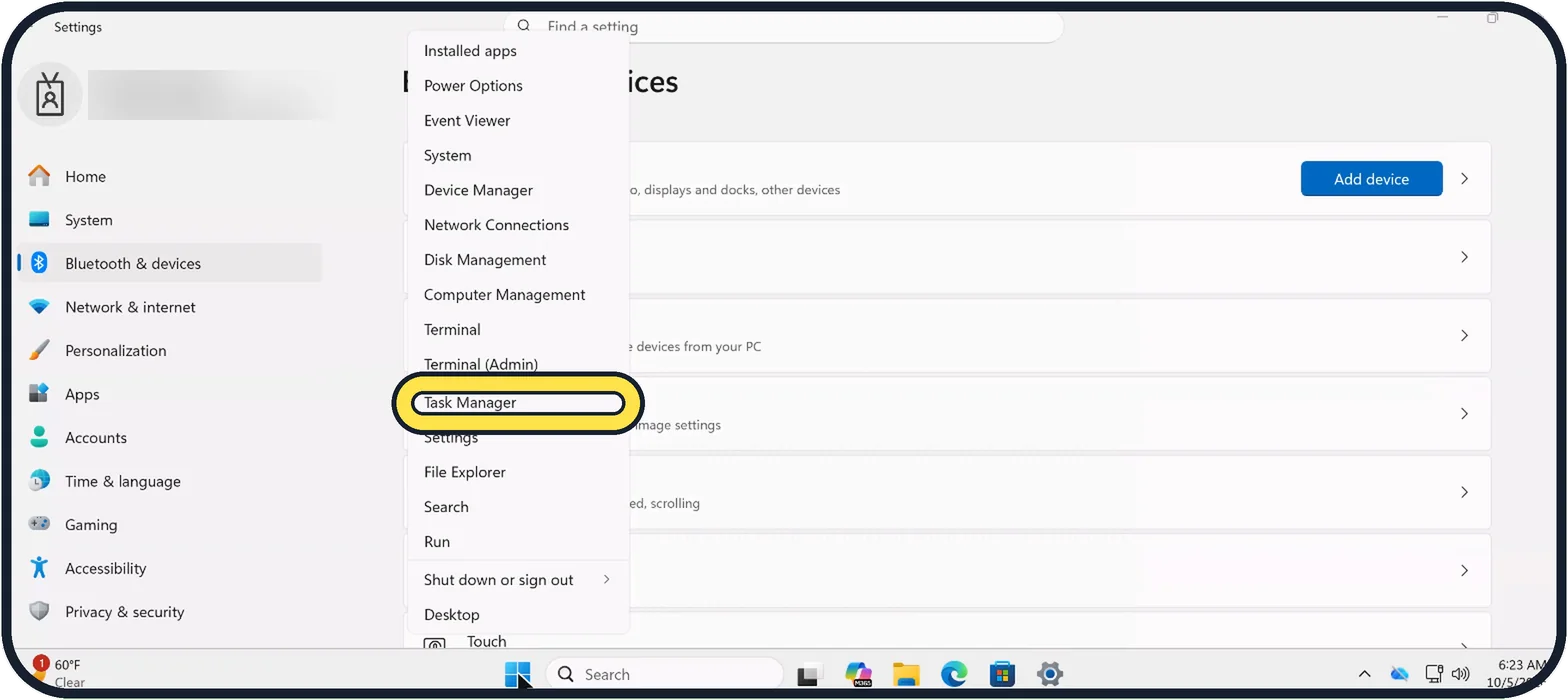
Zoomed in on the setting. Tap to see the whole screenTap the picture to see it full size Open Task Manager
Press Ctrl + Shift + Esc. You can also right-click the Start button and choose Task Manager, or press Ctrl + Alt + Delete and choose it there.
Zoomed in on the setting. Tap to see the whole screenTap the picture to see it full size Select the program
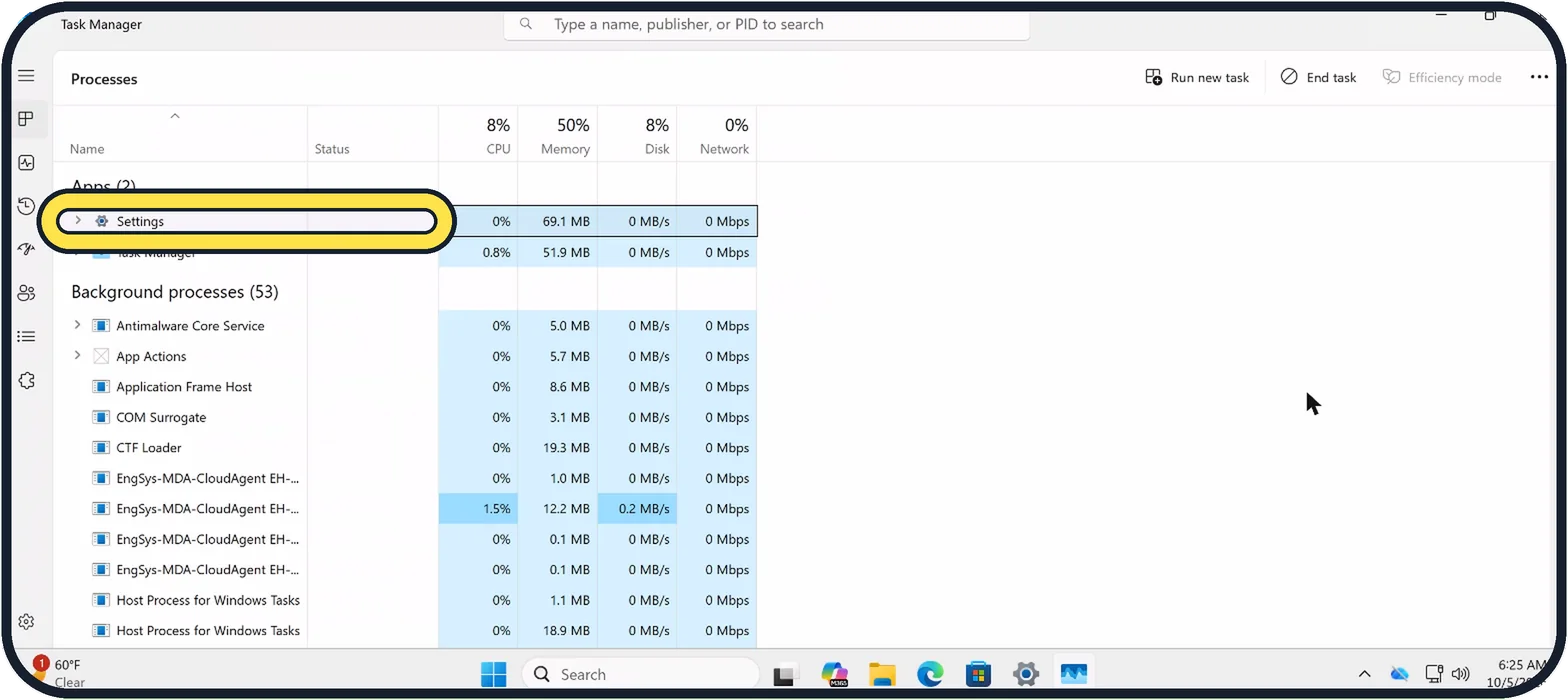
On the Processes page, frozen programs are marked "Not responding" in the Status column. Click the one you want to close.
Zoomed in on the setting. Tap to see the whole screenTap the picture to see it full size Click End task
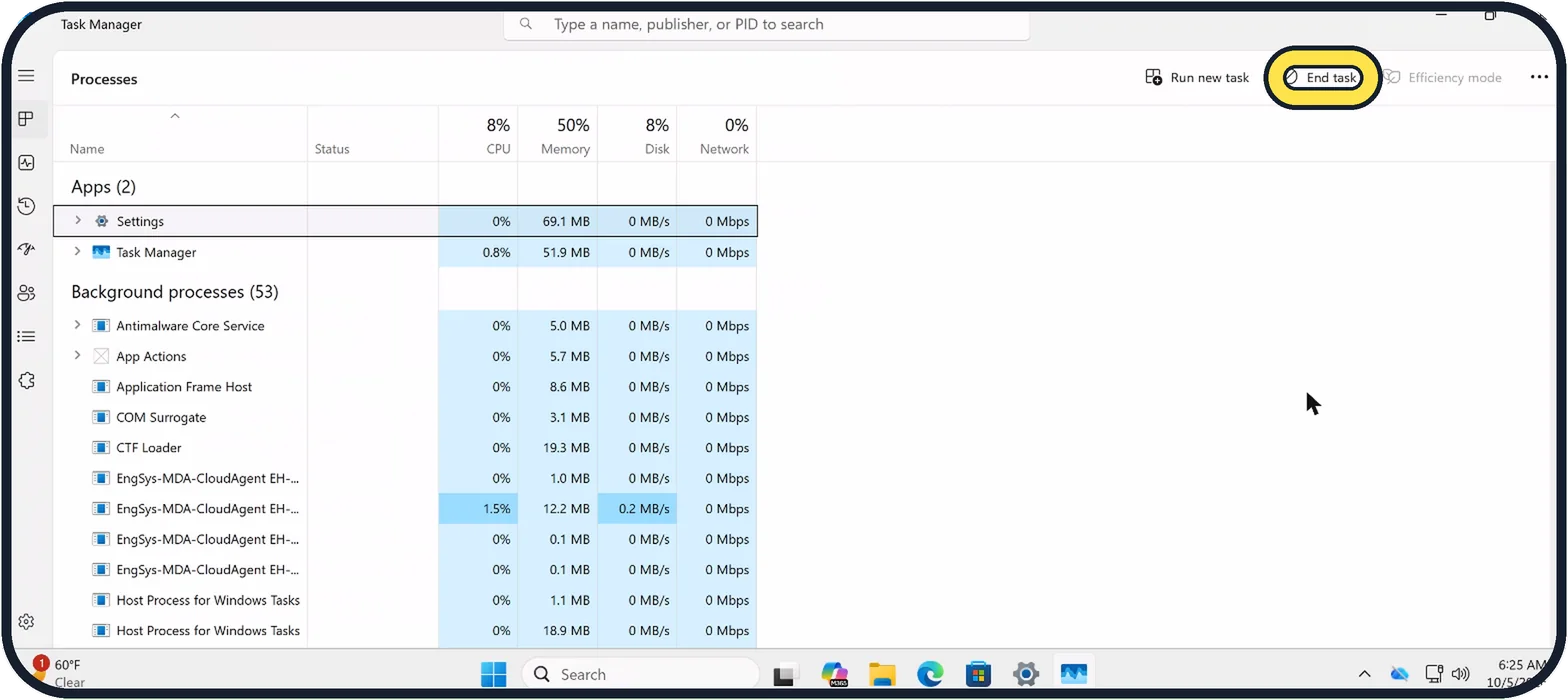
The button is at the top right and becomes active once a program is selected. The program closes immediately.
Open the program again
Word, Excel and most browsers offer to restore what you were working on.
Watch these steps
About this guide
When a program stops reacting and its window turns pale with "Not responding" in the title, you can close just that program without restarting the PC. Unsaved work in it is usually lost, so give it a minute first.
No program was frozen when we took the screenshots, so they show Settings selected as an example.
Step 1 shows a diagram of the keys to press.
Good to know
If the screen is completely frozen and the keyboard does nothing, hold the power button for about ten seconds until the PC turns off. Wait a moment and turn it on again.
A program that freezes often needs an update, or the PC is short of memory. Task Manager's Memory column shows which programs use the most.
More help for a sluggish computer: seven free fixes for a slow laptop.
In short: Ctrl + Shift + Esc, select the program, End task.
- Microsoft Support: How to close a pop-up window if Microsoft Edge isn't responding
- Microsoft Support: Keyboard shortcuts in Windows
Links checked in October 2026. Menus and features can change after software updates. These steps match the version named at the top.
Did this guide work for you?
Sorry about that. What happened?