
howtosimply.com/guides/windows-11-blue-screen-7-fixes-for-stop-code-errors/ · Checked October 2026 · Windows 11 Enterprise 25H2 (build 26200.9457), Microsoft Cloud PC
In this guide
Shut the PC down and unplug any hardware you added recently, then start it again. If the blue screen returns, look up the crash in Reliability Monitor, start Windows in safe mode, update drivers marked with a yellow warning sign in Device Manager, and install all Windows updates.
4 of 7 steps with real screenshots · 3 official sources below
- Device
- Windows
- Shown on
- Windows 11 Enterprise 25H2 (build 26200.9457), Microsoft Cloud PC
- App
- Settings
- Real screenshots
- 4 of 7 steps
- Checked
- October 2026
- Sources
- 3 official, linked below
Step by step
Write down the stop code
The blue screen shows a code in capital letters, for example CRITICAL_PROCESS_DIED or MEMORY_MANAGEMENT. Take a photo. The code helps when you search for the cause or ask for support.
Tap the picture to see it full size Look up the crash in Reliability Monitor
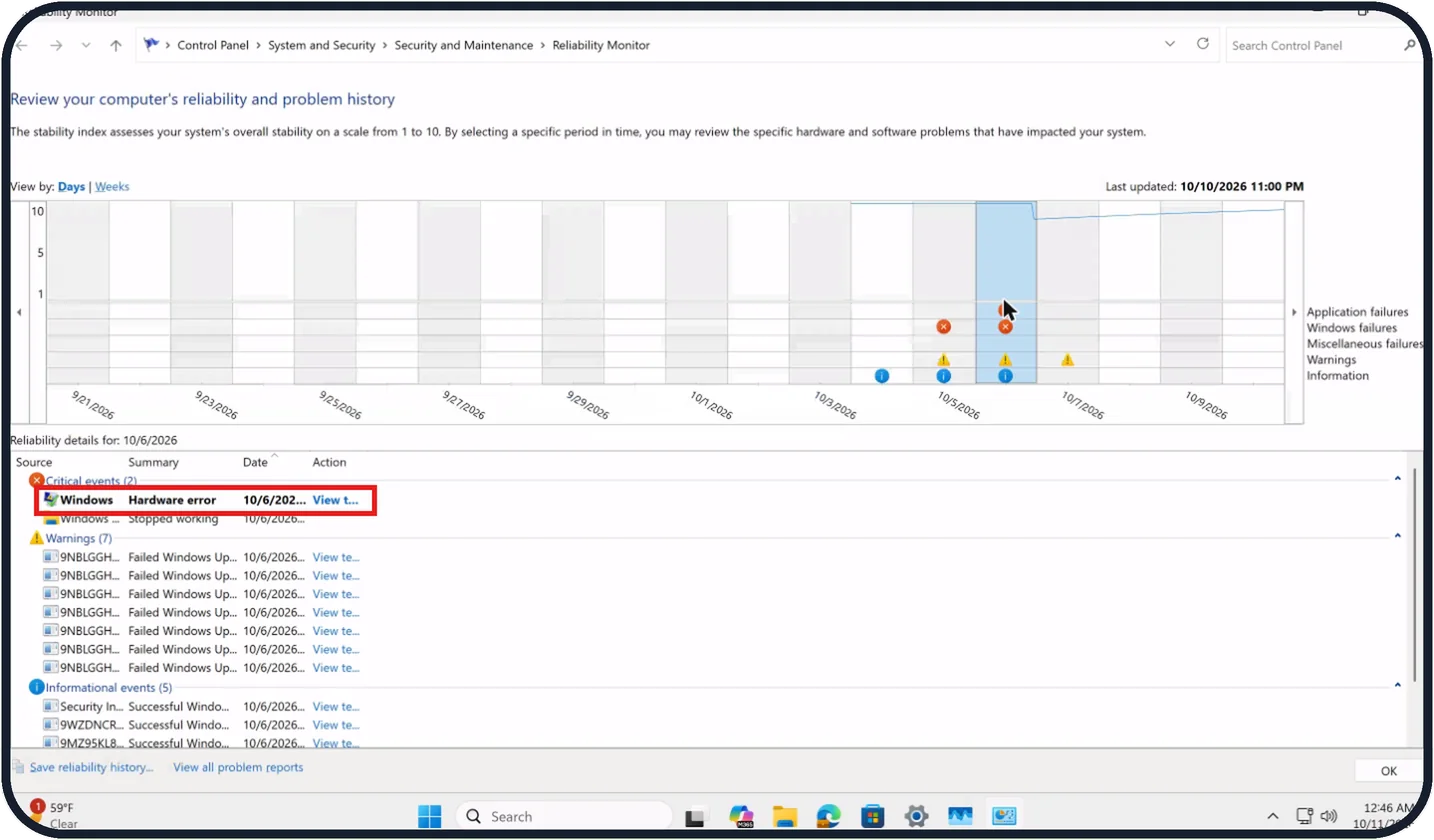
Open Control Panel and go to System and Security, Security and Maintenance, Reliability Monitor. A red cross in the chart marks a day with a failure; click that day and look under Critical events.
On our Cloud PC, 10/6/2026 showed Windows, Hardware error. The link in the Action column opens the details.
Remove new hardware
Shut the PC down. Unplug anything you connected shortly before the problem started: USB devices, docks, a new memory module or card. Start the PC again.
Start in safe mode
If Windows crashes before you can do anything, start it in safe mode and carry out the next steps there. Microsoft's steps: hold Shift while you click Start, Power, Restart, then Troubleshoot, Advanced options, Startup Settings, Restart, and press 4.
Zoomed in on the setting. Tap to see the whole screenTap the picture to see it full size Check Device Manager
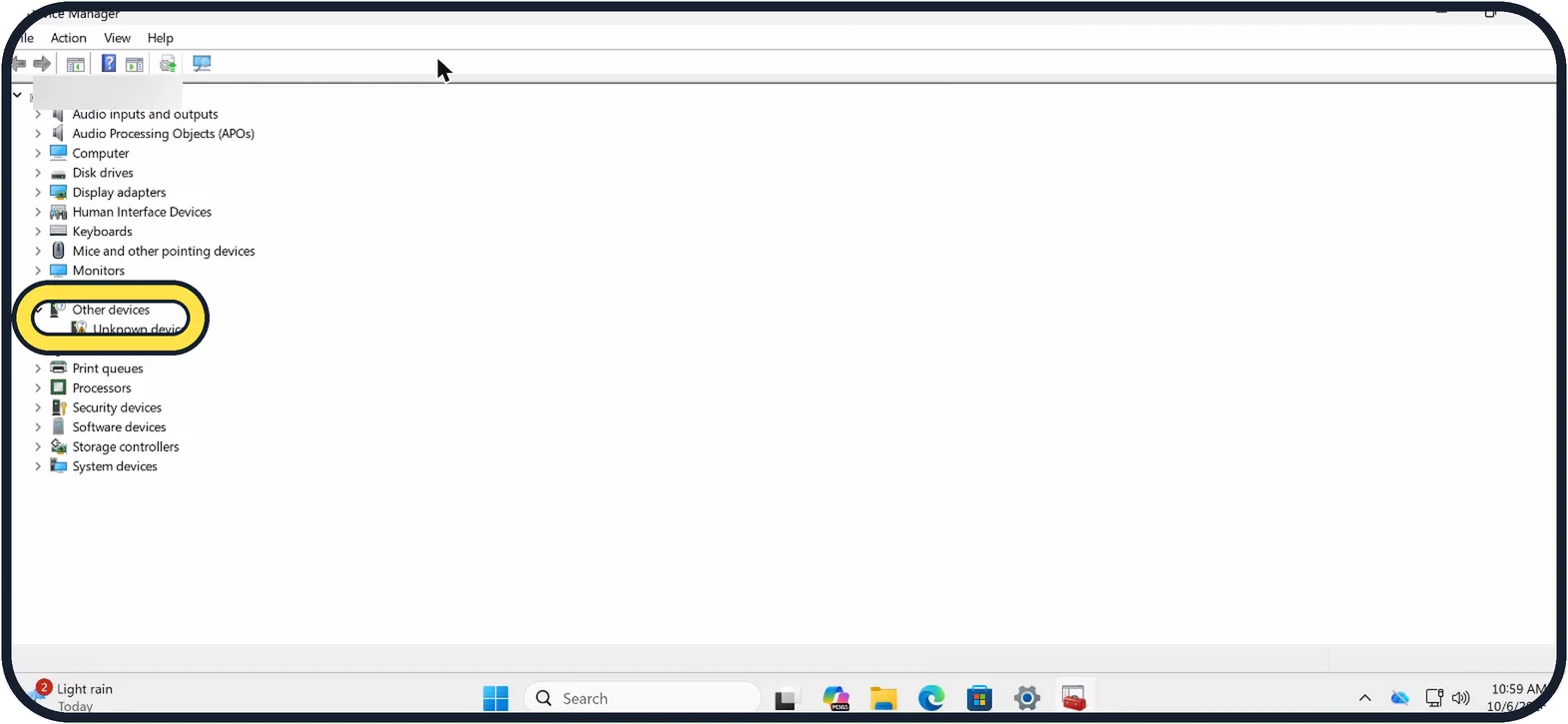
Right-click the Start button and choose Device Manager. Look for a device with a yellow warning sign; on our Cloud PC it was Unknown device under Other devices.
Right-click it and choose Update driver. If that does not help, choose Disable device or Uninstall device for a test.
Tap the picture to see it full size Check the free space
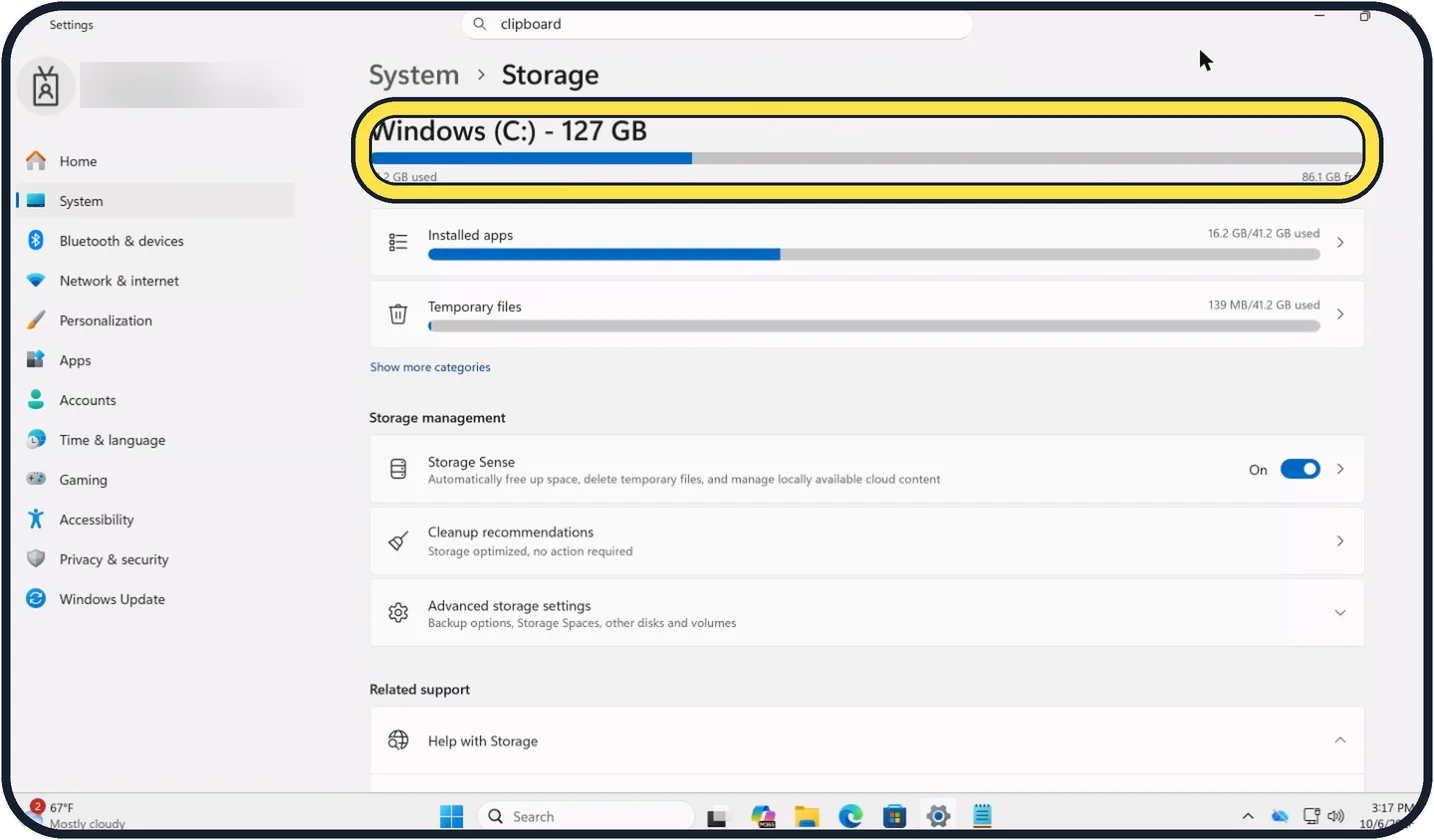
Open Settings, System, Storage. The bar at the top shows used and free space on the system drive; on our Cloud PC it read Windows (C:) - 127 GB with 86.1 GB free.
Windows needs 10 to 15 percent of the drive free for its swap file and temporary files. To make room: how to free up disk space on Windows 11.
Zoomed in on the setting. Tap to see the whole screenTap the picture to see it full size Install all updates
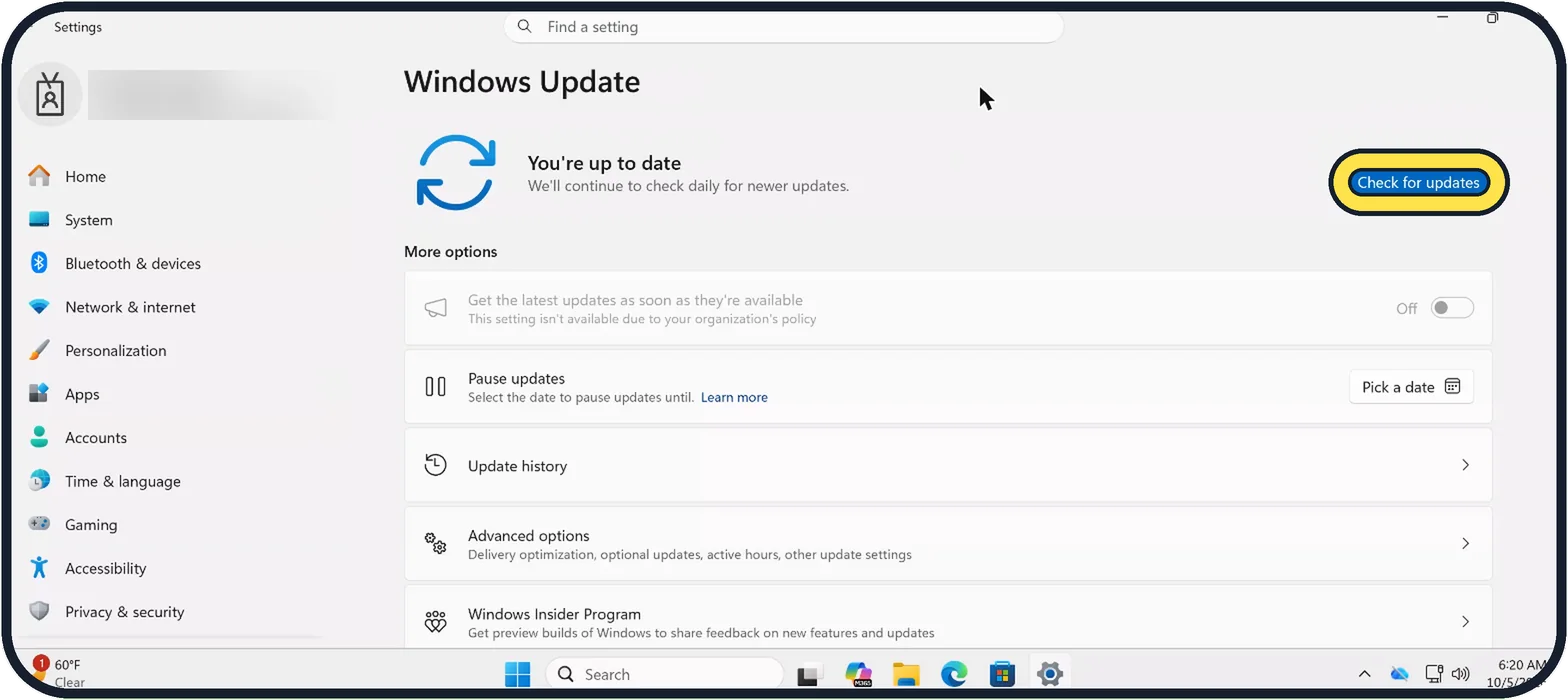
Open Start, Settings, Windows Update and click Check for updates. Install what is offered and restart; updates often contain newer drivers.
On our Cloud PC the page said You're up to date.
If you do not see this option
- No crash in Reliability Monitor The chart opens in View by: Days. Click Weeks to see a longer period, or use the arrows at the sides of the chart to go further back.
- No yellow warning sign in Device Manager Expand the categories with the arrows. On our Cloud PC the warning sign sat on Unknown device inside Other devices.
- Update settings greyed out On our Cloud PC Get the latest updates as soon as they're available was Off and greyed out, with the note This setting isn't available due to your organization's policy. On a work PC, ask your IT department.
If this does not work
- Blue screens keep coming Test the memory: search Start for Windows Memory Diagnostic. Save your work first, as the PC restarts.
- Reliability Monitor reports a hardware error On our Cloud PC Reliability Monitor listed Windows, Hardware error under Critical events. Remove new hardware, test the memory and ask the maker of the PC about the warranty.
- Update driver changes nothing Choose Disable device or Uninstall device in Device Manager for a test, then restart and see whether the blue screens stop.
- What the stop code tells you: VIDEO_TDR_TIMEOUT_DETECTED or VIDEO_ENGINE_TIMEOUT_DETECTED. Microsoft points to the display driver. Get an update for it from the maker of the graphics card or the PC. Source: Stop code error or bug check troubleshooting
- What the stop code tells you: PAGE_FAULT_IN_NONPAGED_AREA. If the blue screen names a driver, Microsoft says to get an update from its maker, or disable it if there is none. It also suggests checking the disk with chkdsk /f /r and reinstalling an app you installed or updated just before the crashes began. Source: Stop code error or bug check troubleshooting
- What the stop code tells you: KMODE_EXCEPTION_NOT_HANDLED or DPC_WATCHDOG_VIOLATION. Microsoft says both usually point to a faulty driver. Disable or remove the driver named on the screen, or the drivers you added most recently, and check that any new hardware works with your version of Windows. Source: Stop code error or bug check troubleshooting
- What the stop code tells you: SYSTEM_SERVICE_EXCEPTION. Microsoft suggests the System File Checker, which scans the Windows system files and repairs damaged ones. Source: Stop code error or bug check troubleshooting
- What the stop code tells you: NTFS_FILE_SYSTEM. Microsoft says this is commonly caused by a damaged file system or bad sectors on the drive. Scan the drive for errors and run the drive maker's own test. Source: Stop code error or bug check troubleshooting
- The code is not listed here. Microsoft says many stop codes share the same fixes, so the steps above still apply. By its count, about 70% of crashes come from drivers made by other companies and 10% from hardware, so drivers and new hardware are the places to start. It also advises keeping the BIOS and firmware up to date. Source: Stop code error or bug check troubleshooting
About this guide
A blue screen with a stop code means Windows hit an error it could not recover from and restarted to protect your data. Microsoft says most of these restarts are one-off events that need no action. If it happens again and again, a driver, new hardware or a full drive is the usual cause.
Good to know
If the blue screens began after an update, a driver or a new program, System Restore can take Windows back to a restore point from before that day: search Start for Create a restore point and click System Restore. Our Cloud PC does not offer it, so we cannot show it here.
Blue screens that continue on a freshly reset Windows point to hardware, most often memory or the drive. Search the Start menu for Windows Memory Diagnostic to test the memory, and ask the maker of the PC about the warranty.
A PC that gets very hot before it crashes needs its vents cleaned. Dust is a common cause in older laptops.
A screen that stays black without any code is a different problem: Windows 11 black screen: 8 fixes to try.
In short: Note the stop code, check Reliability Monitor, remove new hardware, safe mode, Device Manager, free space, Windows Update.
- Microsoft Support: Troubleshooting Windows unexpected restarts and stop code errors
- Microsoft Support: Windows Startup Settings
- Microsoft: Stop code error or bug check troubleshooting
Links checked in October 2026. Menus and features can change after software updates. These steps match the version named at the top.
Did this guide work for you?
Sorry about that. What happened?