
howtosimply.com/guides/how-to-make-the-mouse-pointer-bigger-on-windows-11/ · Checked October 2026 · Windows 11 Enterprise 25H2 (build 26200.9457), Microsoft Cloud PC
In this guide
Press Windows + U to open the Accessibility settings and click Mouse pointer and touch. Drag the Size slider to the right to make the pointer larger. Under Mouse pointer style you can also choose black, inverted or a bright colour of your own.
5 of 6 steps with real screenshots · 1 official source below
- Device
- Windows
- Shown on
- Windows 11 Enterprise 25H2 (build 26200.9457), Microsoft Cloud PC
- App
- Settings
- Real screenshots
- 5 of 6 steps
- Checked
- October 2026
- Sources
- 1 official, linked below
Step by step
Open the Accessibility settings
Press Windows + U, or open Settings and click Accessibility.
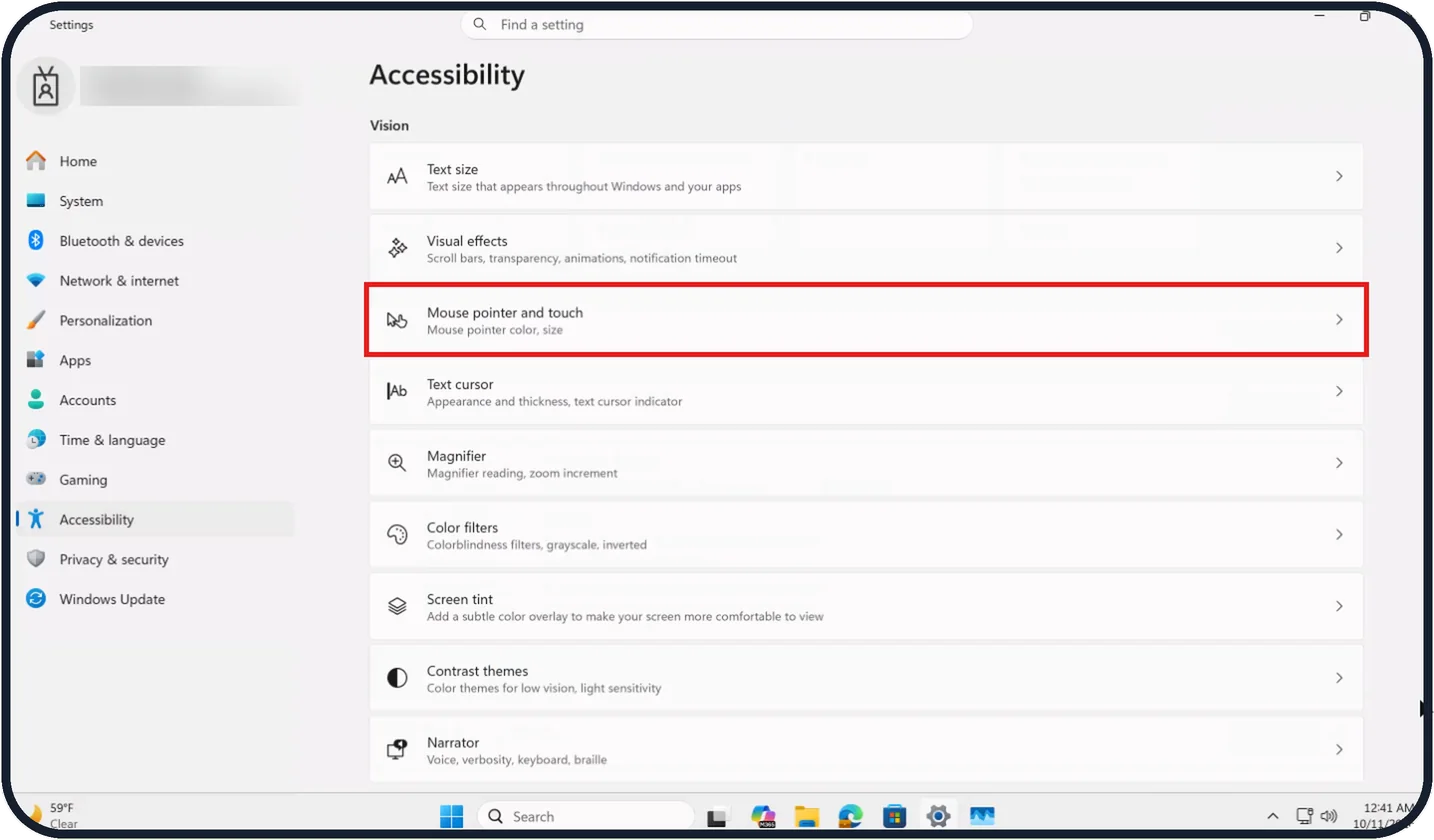
Tap the picture to see it full size Click Mouse pointer and touch
It is in the Vision section of Accessibility.
On our Cloud PC it is the third row under Vision, with the description Mouse pointer color, size.
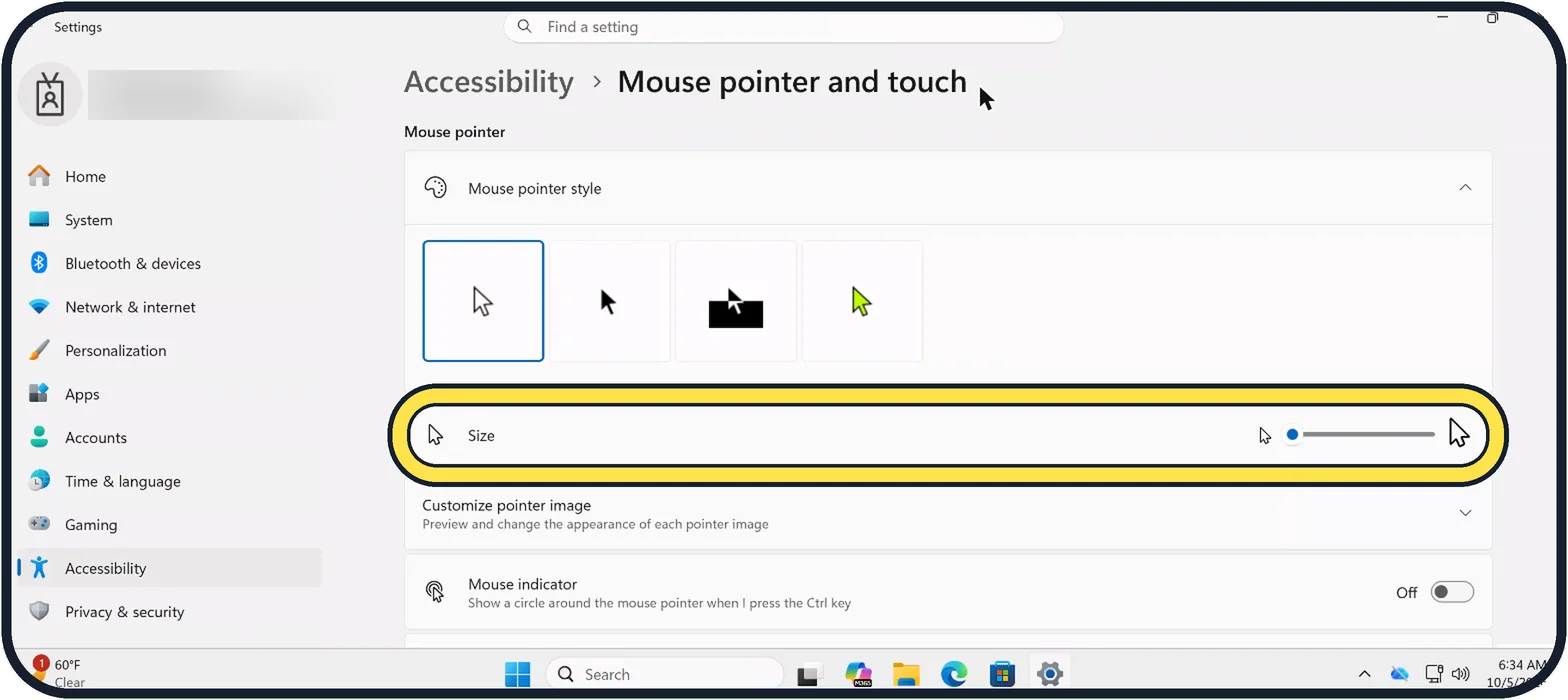
Tap the picture to see it full size Drag the Size slider
Drag it to the right.
On our Cloud PC the Size slider sits below Mouse pointer style, at the far left, its smallest setting.
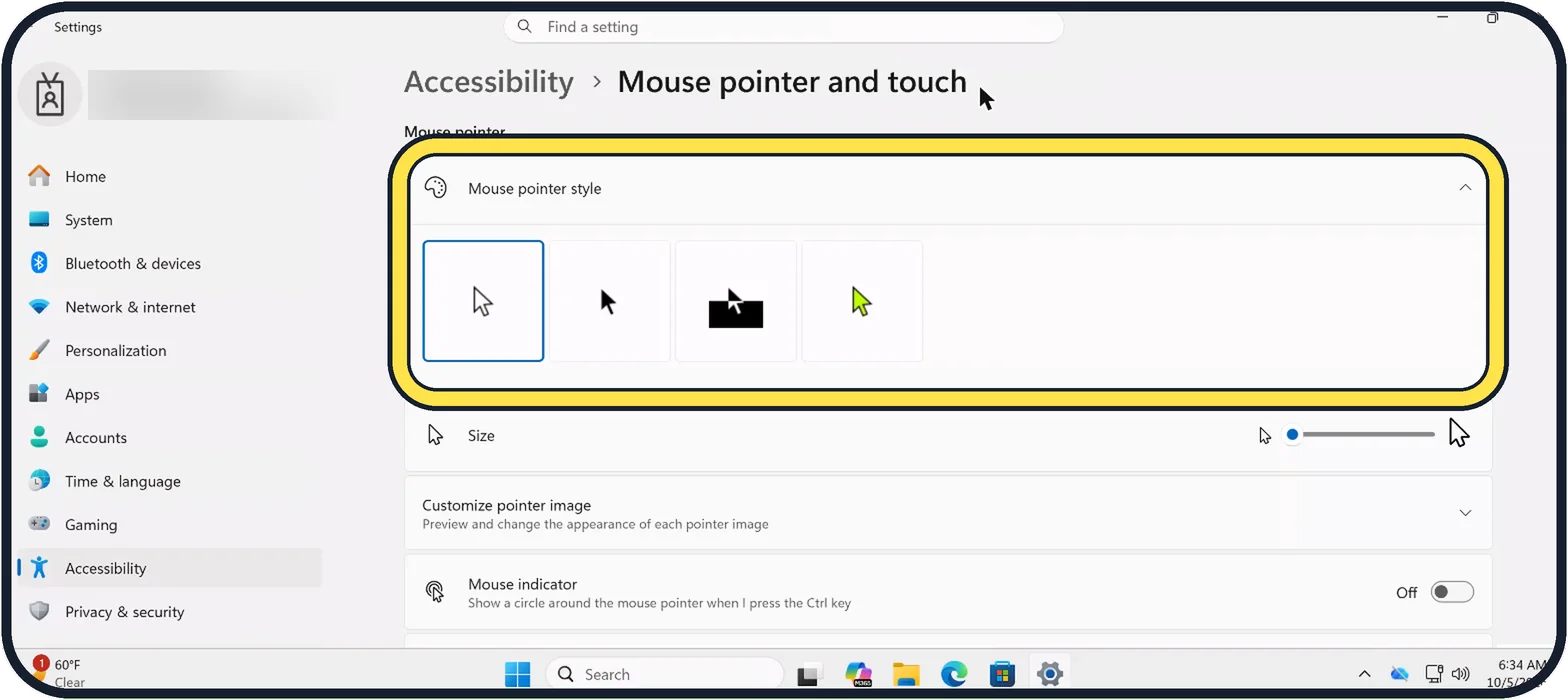
Tap the picture to see it full size Choose a style
Under Mouse pointer style, pick white, black, inverted (which changes with the background) or custom.
With custom, Recommended colors appears. On our Cloud PC the four styles sit in a row, with the first, white, selected.
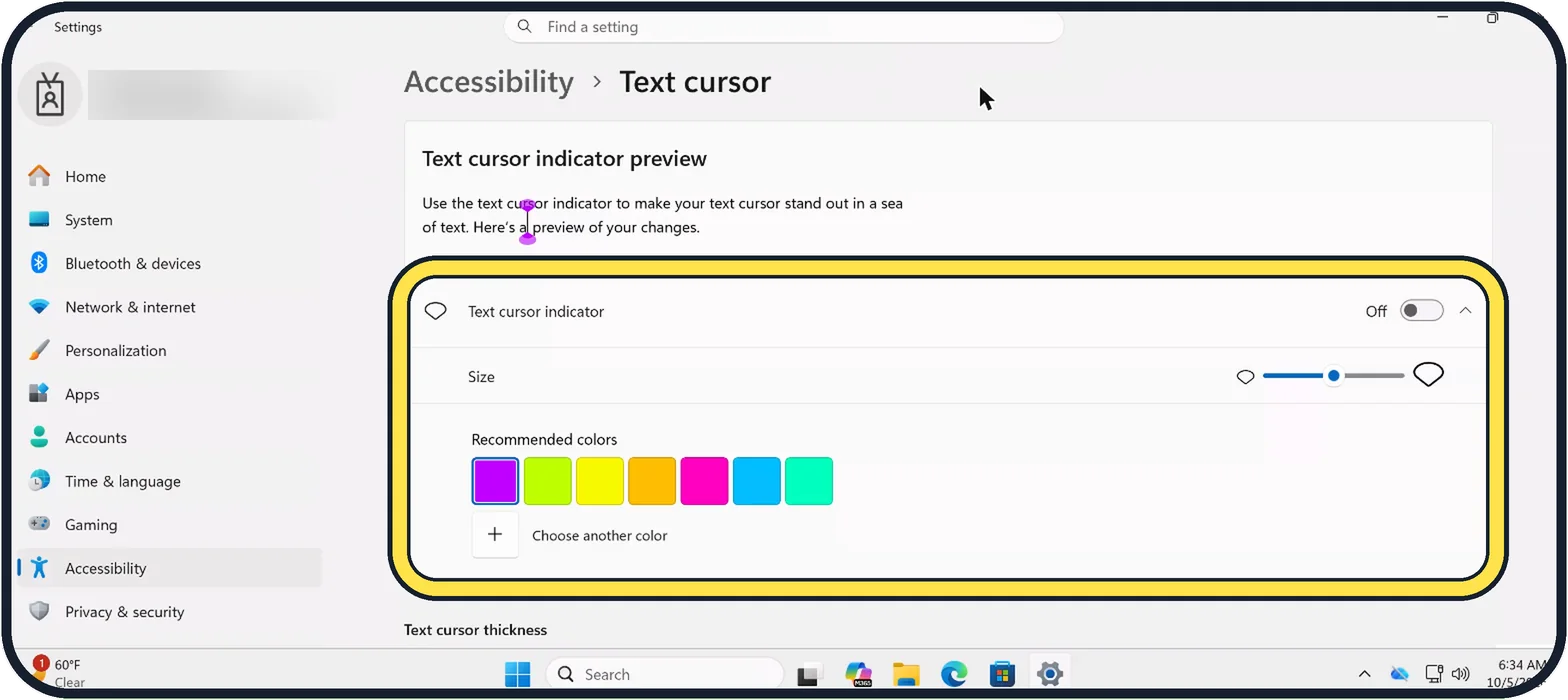
Tap the picture to see it full size Make the text cursor visible too
Go back to Accessibility and click Text cursor. Switch on Text cursor indicator, which adds coloured marks above and below the cursor, and set its Size and colour.
Further down, Text cursor thickness makes the cursor itself thicker.
Tap the picture to see it full size Try the touch indicator
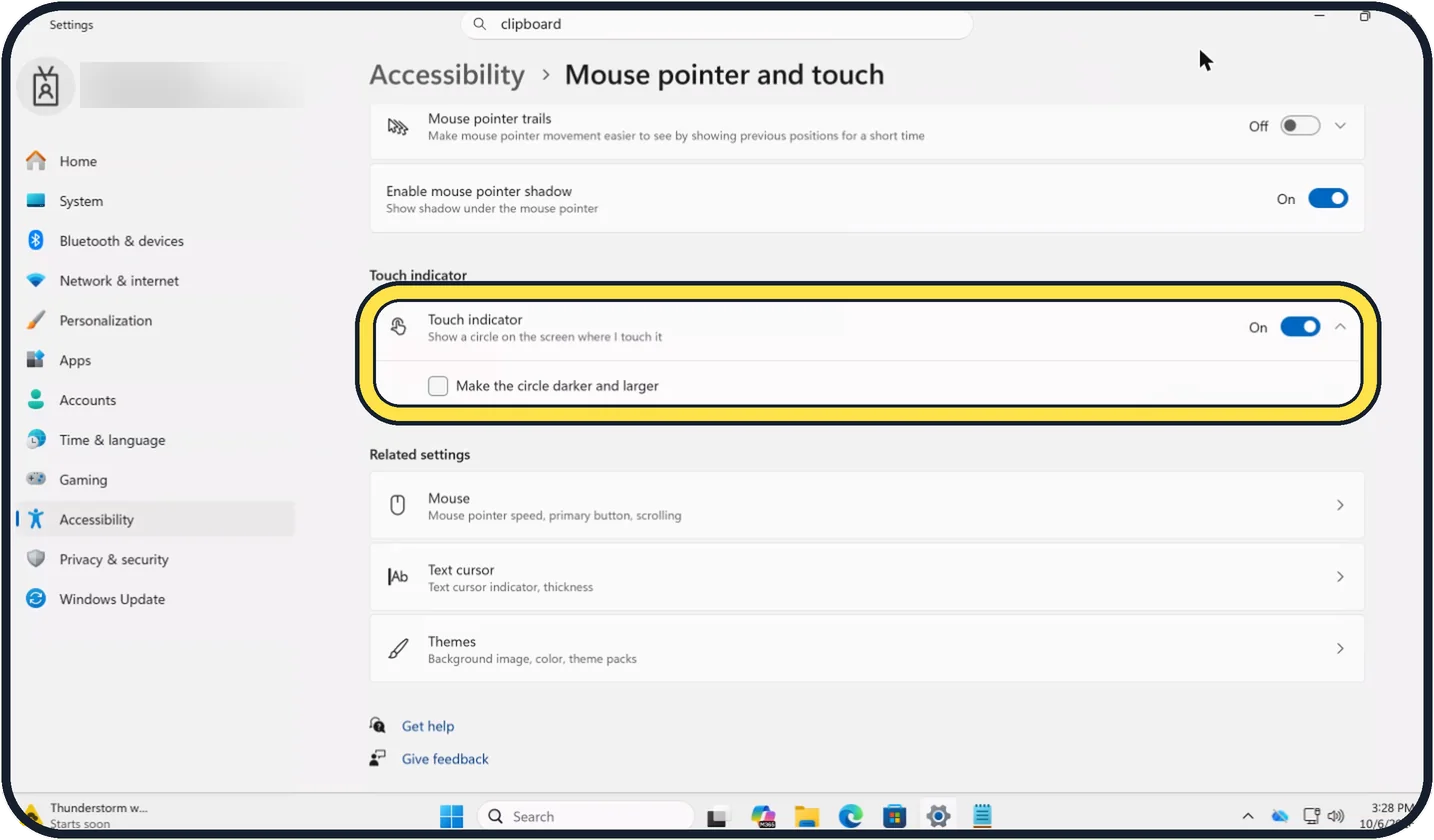
On a touch screen, the Touch indicator switch under Mouse pointer and touch shows a circle wherever you touch. Make the circle darker and larger makes it easier to see.
On our Cloud PC Touch indicator was already On, with Make the circle darker and larger unticked.
If you do not see this option
- No Mouse pointer and touch row Scroll to the top of the Accessibility page. On our Cloud PC it sits under Vision, below Text size and Visual effects.
- No colour swatches Recommended colors only appears once you select the fourth, custom style under Mouse pointer style.
- No Touch indicator switch Scroll further down the Mouse pointer and touch page. On our Cloud PC it has its own Touch indicator heading below Enable mouse pointer shadow.
- No Text cursor in the list At the bottom of the Mouse pointer and touch page, Related settings also has a Text cursor row.
If this does not work
- Still hard to find the pointer Switch on Mouse indicator on the same page, which shows a circle around the mouse pointer when you press the Ctrl key. It was Off on our Cloud PC.
- Hard to follow when it moves Switch on Mouse pointer trails, which shows previous positions for a short time. On our Cloud PC it was Off, while Enable mouse pointer shadow was On.
- Pointer vanishes on some backgrounds Choose the inverted style, which changes with the background, or a custom style with one of the Recommended colors.
- No marks around the text cursor Check that the Text cursor indicator switch is on. It was Off on our Cloud PC.
About this guide
On a large or high-resolution screen the standard pointer is easy to lose. Windows 11 lets you enlarge it and give it a colour that stands out, and it can do the same for the thin text cursor.
The key picture is a diagram; the other pictures are screenshots.
Good to know
Our Cloud PC also has Mouse indicator on the same page, which shows a circle around the pointer when you press the Ctrl key.
If everything is too small, not only the pointer: how to change the screen resolution and text size on Windows 11.
More from the same menu: how to turn on live captions on Windows 11.
In short: Windows + U, Mouse pointer and touch, Size slider, pointer style and colour. Text cursor indicator under Text cursor.
Links checked in October 2026. Menus and features can change after software updates. These steps match the version named at the top.
Did this guide work for you?
Sorry about that. What happened?