
howtosimply.com/guides/how-to-take-a-screenshot-on-a-mac/ · Checked October 2026 · MacBook Neo · macOS 27.0.1
In this guide
Press Shift + Command + 3 for the whole screen, Shift + Command + 4 to drag over part of it (then Space for one window), or Shift + Command + 5 for a toolbar with capture, recording and Options. Screenshots are saved to the desktop.
7 of 7 steps with real screenshots · 1 official source below
- Device
- Mac
- Shown on
- macOS 27.0.1 (MacBook Neo)
- App
- Preview
- Real screenshots
- 7 of 7 steps
- Checked
- October 2026
- Sources
- 1 official, linked below
Step by step
Zoomed in on the setting. Tap to see the whole screenTap the picture to see it full size Capture the whole screen
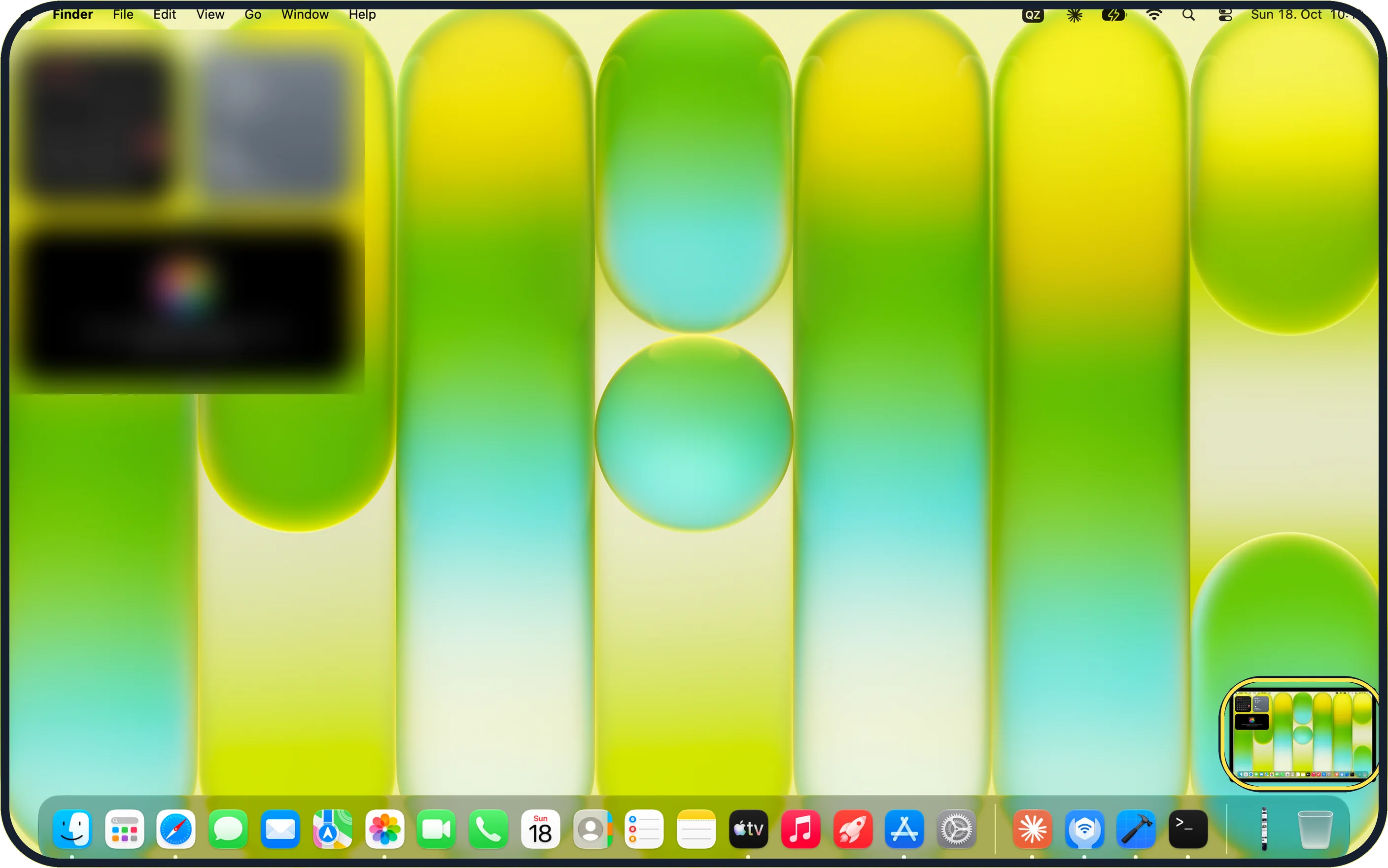
Press Shift + Command + 3.
A small floating thumbnail of the screenshot appears in the bottom-right corner.
Zoomed in on the setting. Tap to see the whole screenTap the picture to see it full size Capture part of the screen
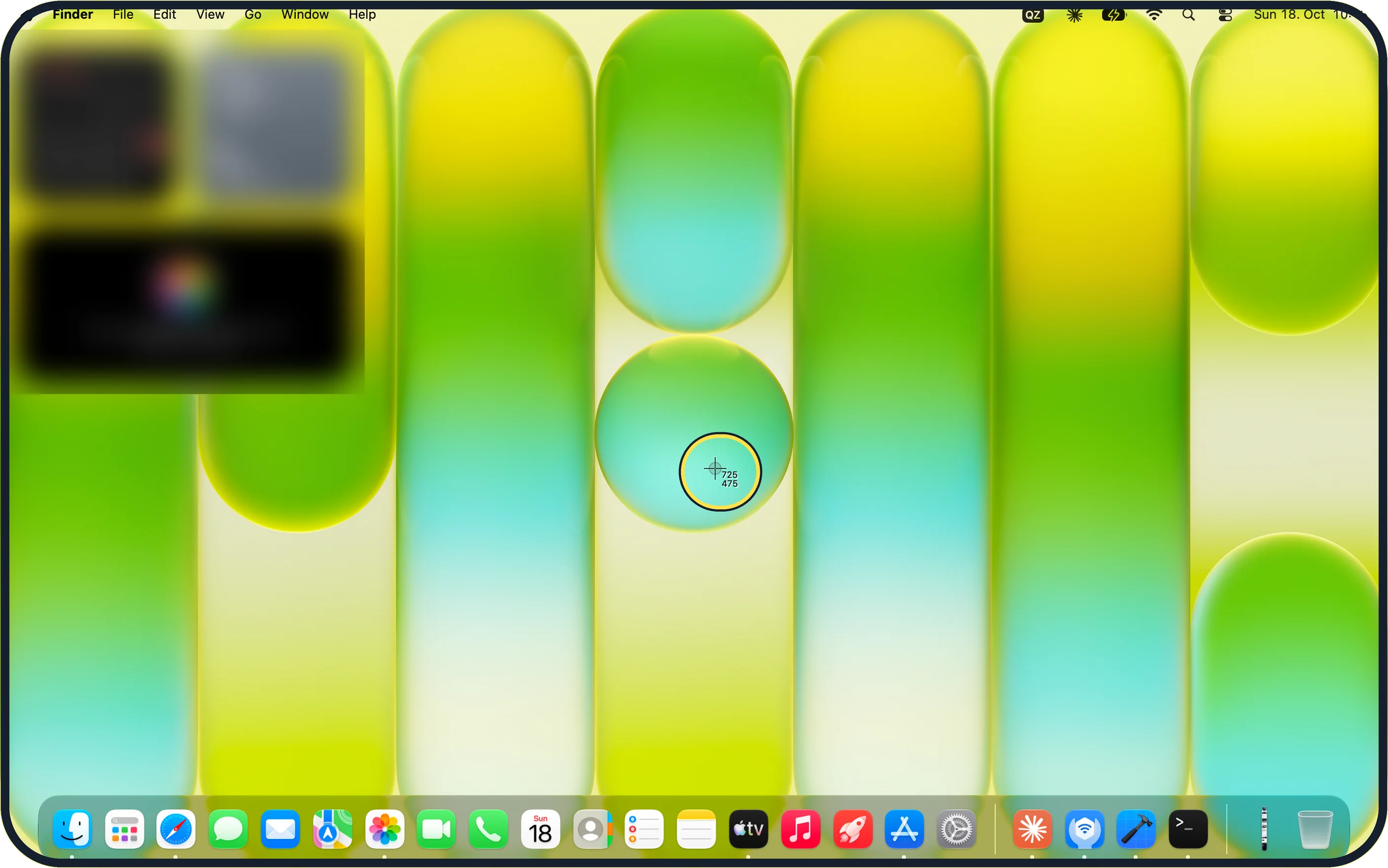
Press Shift + Command + 4. The pointer becomes a crosshair; drag over the area you want and let go.
On our MacBook Neo the crosshair showed its position as numbers (725 / 475), which turn into width × height once you drag.
Zoomed in on the setting. Tap to see the whole screenTap the picture to see it full size Capture one window
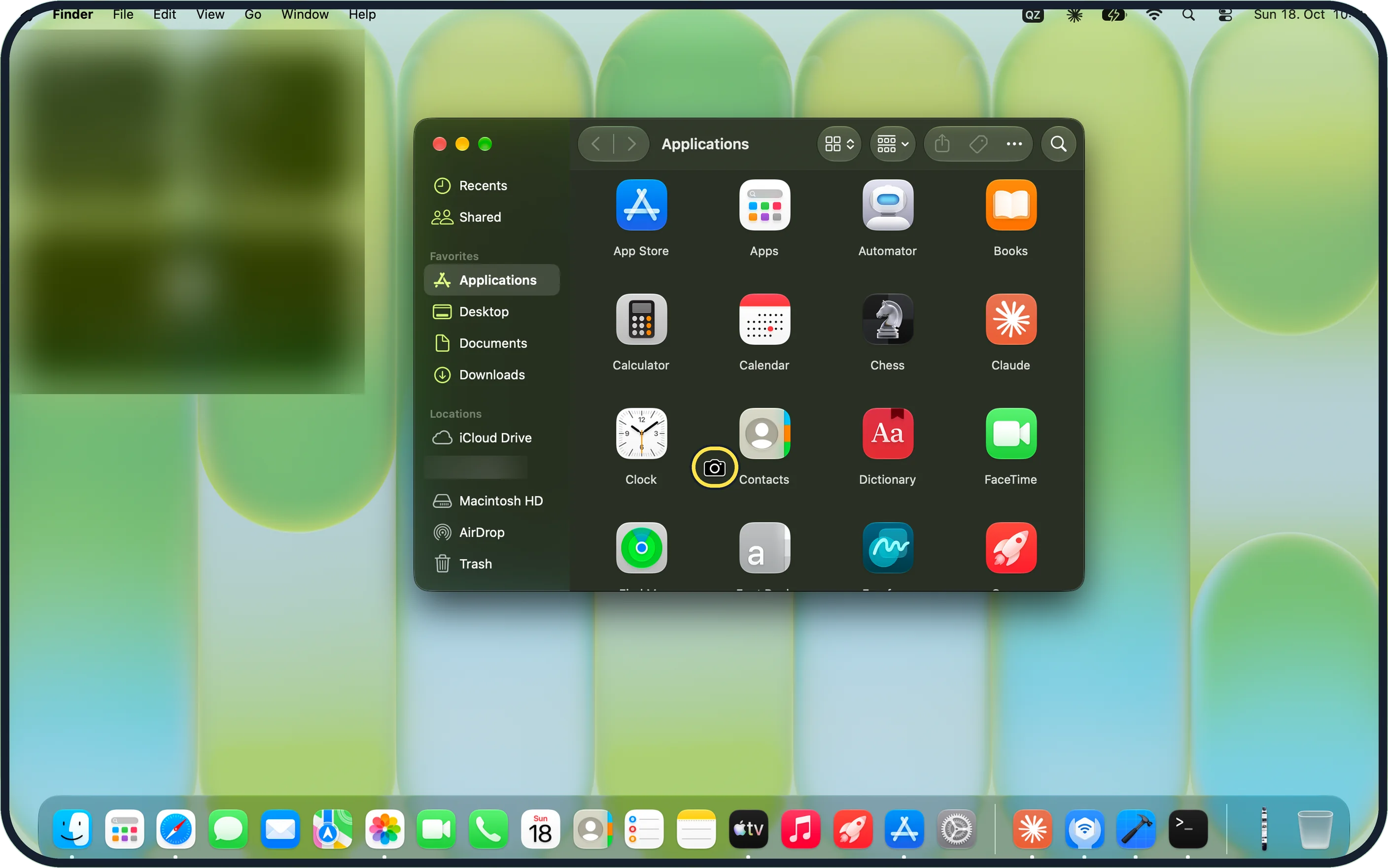
Press Shift + Command + 4, then press the Space bar. The pointer becomes a camera and the window under it is highlighted.
Click the window you want to capture just that window.
Zoomed in on the setting. Tap to see the whole screenTap the picture to see it full size Open the screenshot toolbar
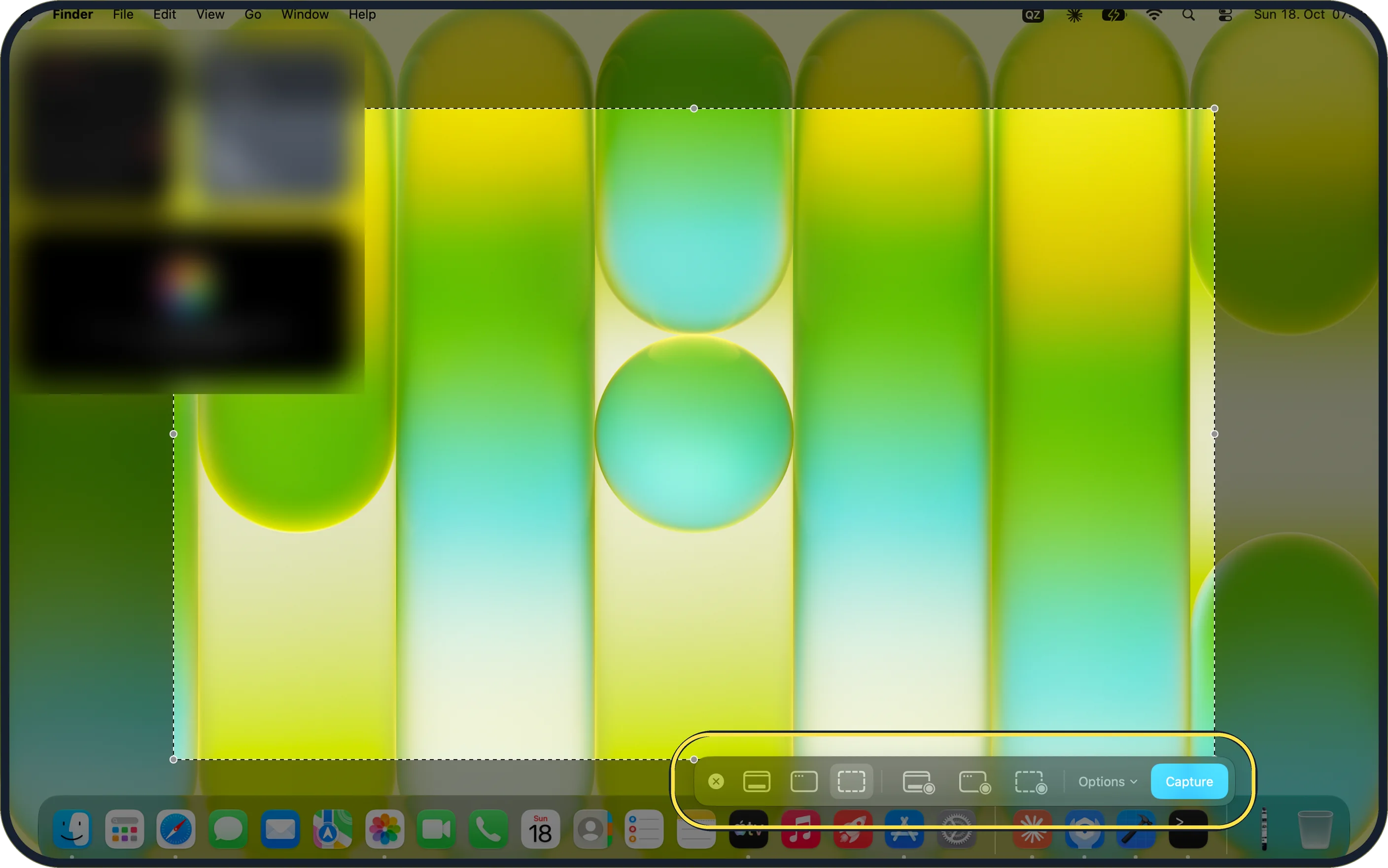
Press Shift + Command + 5. A bar near the bottom offers every capture type, Options and a Capture button.
On our MacBook Neo the toolbar has three record buttons: Record Entire Screen, Record Selected Portion and the new Record Selected Window.
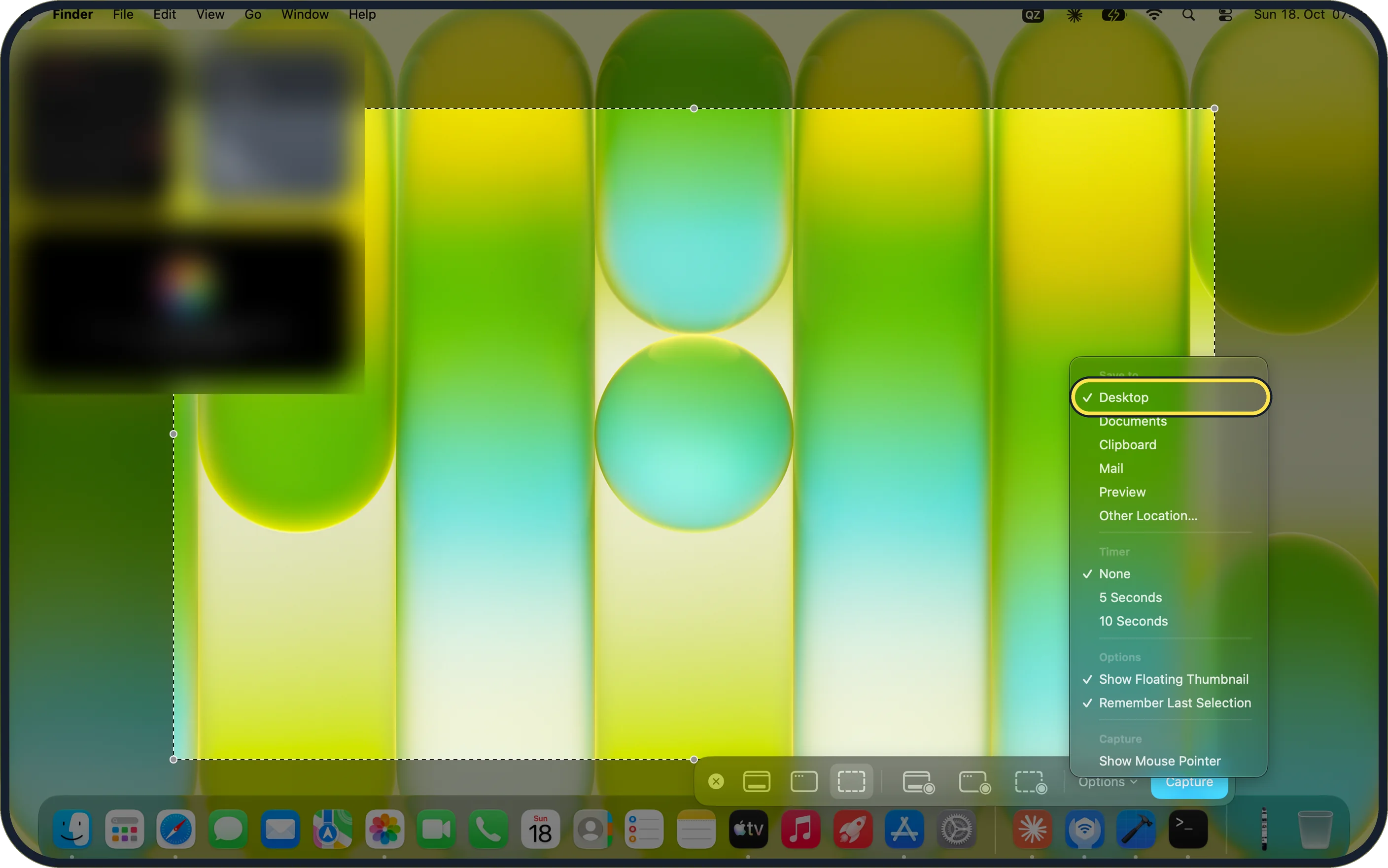
Zoomed in on the setting. Tap to see the whole screenTap the picture to see it full size Choose where to save and set a timer
Click Options in the toolbar. Under Save to, pick Desktop, Documents, Clipboard, Mail, Preview or Other Location…; under Timer, pick None, 5 Seconds or 10 Seconds.
On our MacBook Neo Desktop, None and Show Floating Thumbnail were ticked.
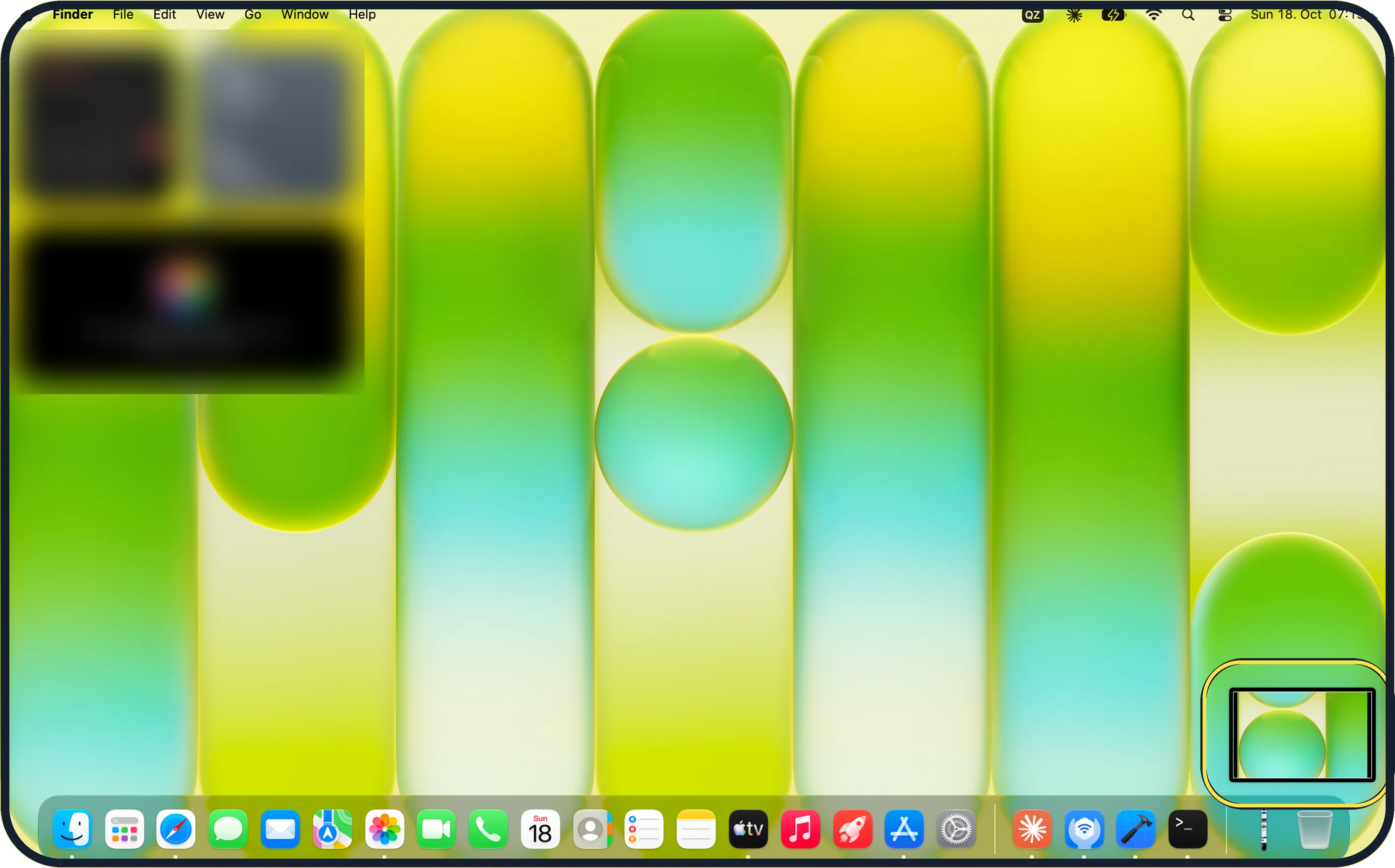
Zoomed in on the setting. Tap to see the whole screenTap the picture to see it full size Edit the screenshot
Click the floating thumbnail in the bottom-right corner before it disappears. Apple says this opens the screenshot for editing.
Apple says you can hold the pointer over the thumbnail to keep it on screen.
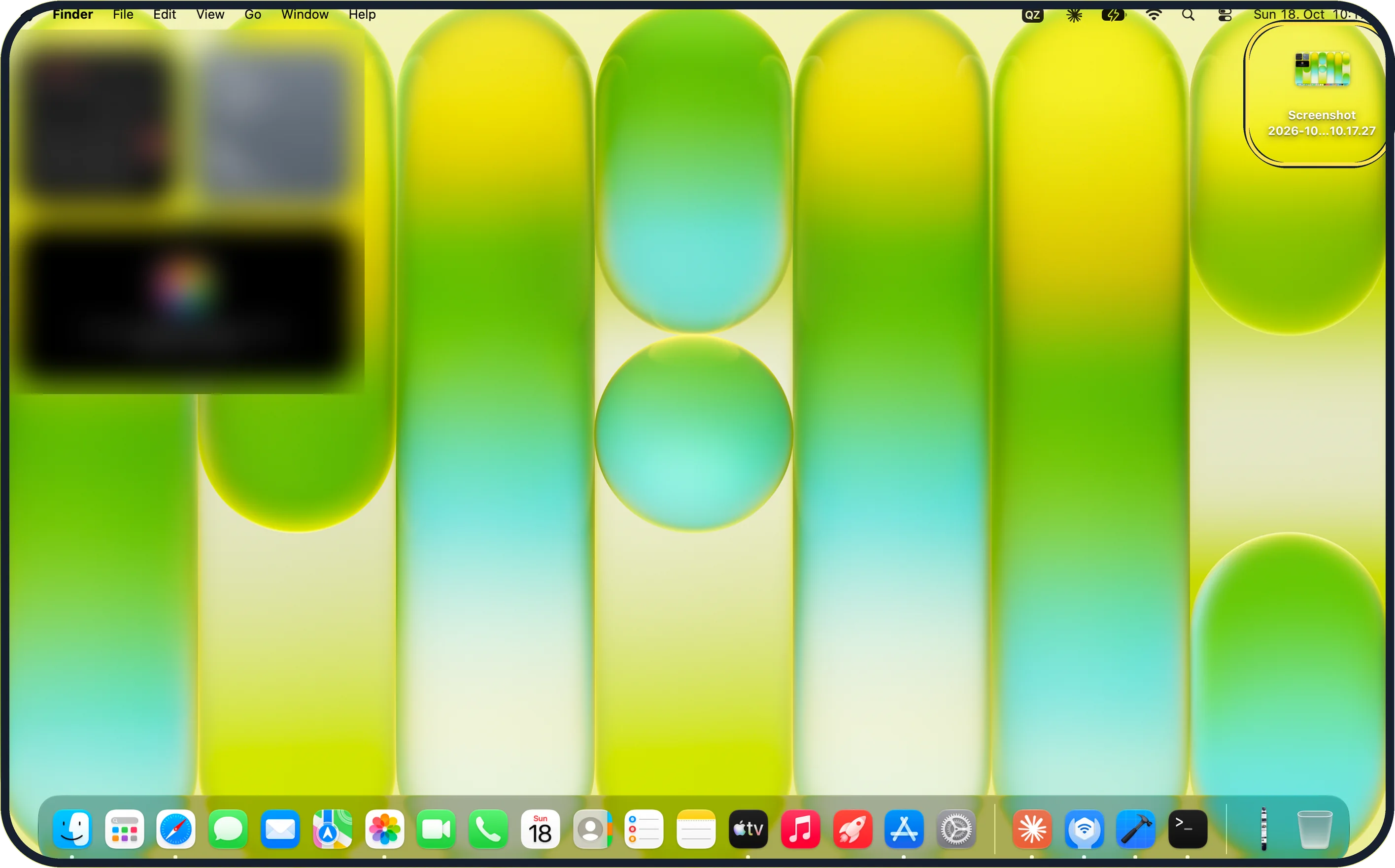
Zoomed in on the setting. Tap to see the whole screenTap the picture to see it full size Find the saved file
If you do nothing, the screenshot is saved to the desktop with a name that starts with "Screenshot" and the date and time.
On our MacBook Neo it appeared at the top right of the desktop as "Screenshot 2026-10…10.17.27".
What we saw on our device
- Capture part of the screen: On our MacBook Neo the crosshair showed its position as numbers (725 / 475), which turn into width × height once you drag.
- Open the screenshot toolbar: On our MacBook Neo the toolbar has three record buttons: Record Entire Screen, Record Selected Portion and the new Record Selected Window.
- Choose where to save and set a timer: On our MacBook Neo Desktop, None and Show Floating Thumbnail were ticked.
- Find the saved file: On our MacBook Neo it appeared at the top right of the desktop as "Screenshot 2026-10…10.17.27".
If you do not see this option
- No floating thumbnail Press Shift + Command + 5, click Options and make sure Show Floating Thumbnail is ticked.
- The screenshot is not on the desktop Press Shift + Command + 5, click Options and check which place is ticked under Save to, for example Documents or Clipboard.
- Only two record buttons Record Selected Window is new in macOS 27; older versions such as macOS 26 show two record buttons.
If this does not work
- Nothing happens straight away Press Shift + Command + 5, click Options and set Timer to None instead of 5 Seconds or 10 Seconds.
- You pressed the shortcut by mistake Press Esc to leave the crosshair or camera pointer without taking a screenshot.
- The toolbar keeps the old selection Remember Last Selection is ticked in Options by default; untick it or drag a new area.
- An app's window comes out blank Apple says some apps, such as the Apple TV app, might not let you take screenshots of their windows. Source: Take a screenshot on Mac
About this guide
macOS has screenshots built in. Three keyboard shortcuts cover everything, and you do not need any extra app.
Screenshots: MacBook Neo, macOS 27.0.1, dark mode.
Good to know
To copy a screenshot instead of saving it, add the Control key to any of the shortcuts, then paste with Command + V.
To change the save location, press Shift + Command + 5, click Options and choose another folder.
In short: Shift + Command + 3 (whole screen), 4 (area, add Space for a window), 5 (toolbar > Options).
Links checked in October 2026. Menus and features can change after software updates. These steps match the version named at the top.
Did this guide work for you?
Sorry about that. What happened?