
howtosimply.com/guides/how-to-use-screen-time-on-a-mac/ · Checked October 2026 · MacBook Neo · macOS 27.2
In this guide
Open System Settings and click Screen Time. Apps & Websites lets you allow or block apps. Screen Time Schedule first asks you to turn on Screen Time Activity. Content & Privacy Restrictions has an All Restrictions switch.
5 of 5 steps with real screenshots · 1 official source below
- Device
- Mac
- Shown on
- macOS 27.2 (MacBook Neo)
- App
- System Settings
- Path
- System Settings › Screen Time
- Real screenshots
- 5 of 5 steps
- Checked
- October 2026
- Sources
- 1 official, linked below
Step by step
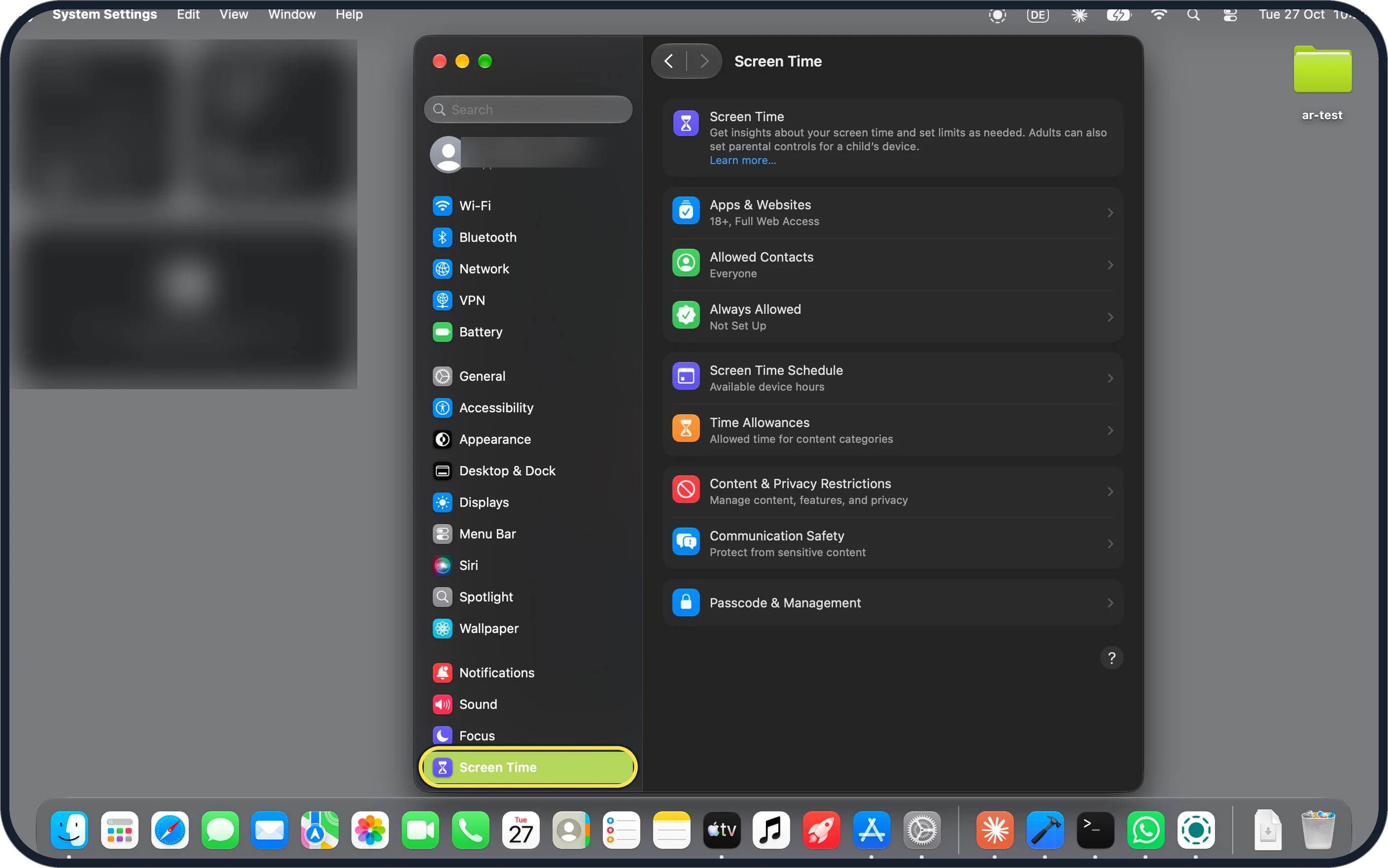
Zoomed in on the setting. Tap to see the whole screenTap the picture to see it full size Open System Settings and click Screen Time
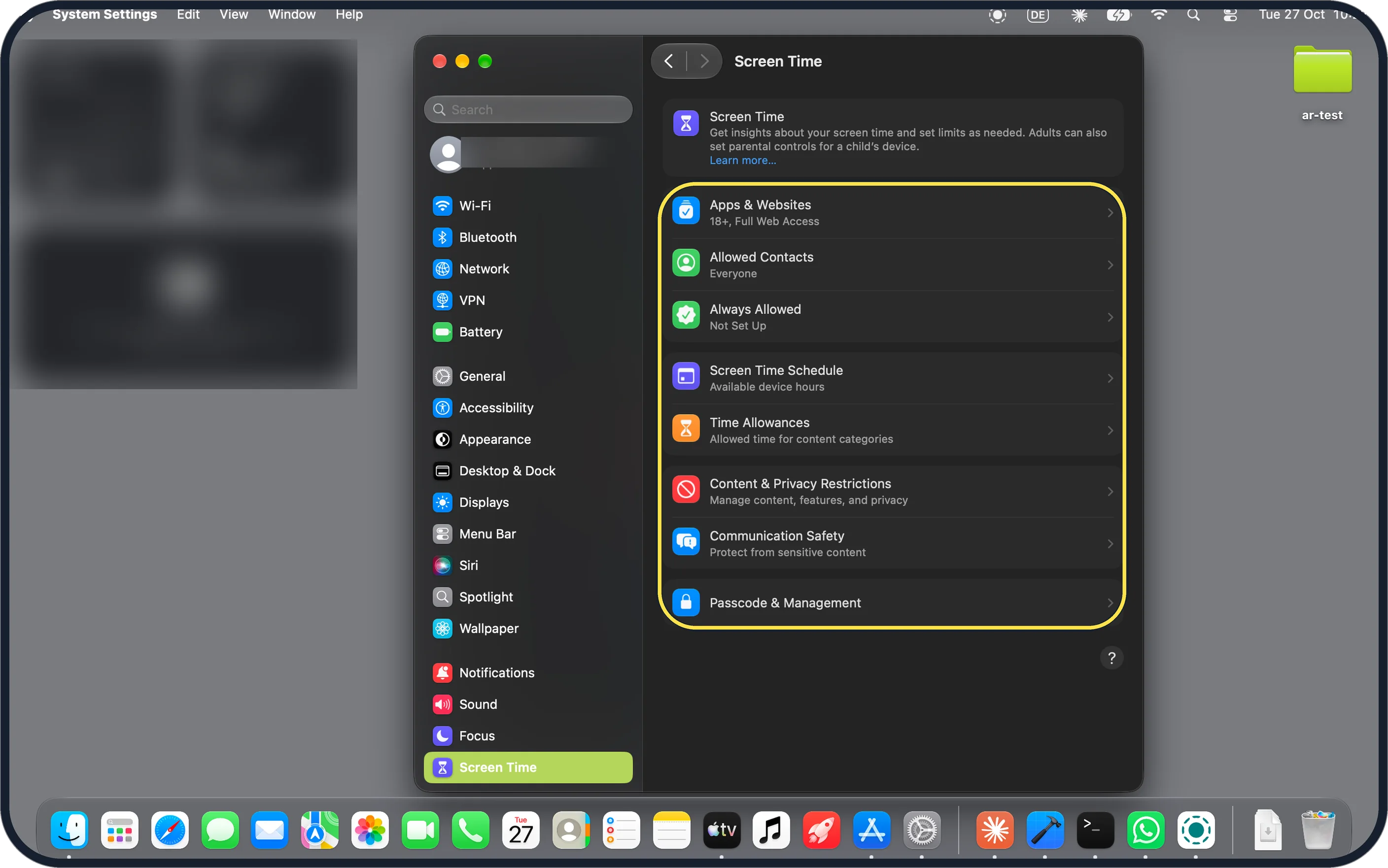
Screen Time is in the sidebar, below Focus. Ours listed Apps & Websites (18+, Full Web Access), Allowed Contacts (Everyone), Always Allowed (Not Set Up), Screen Time Schedule, Time Allowances, Content & Privacy Restrictions, Communication Safety and Passcode & Management.
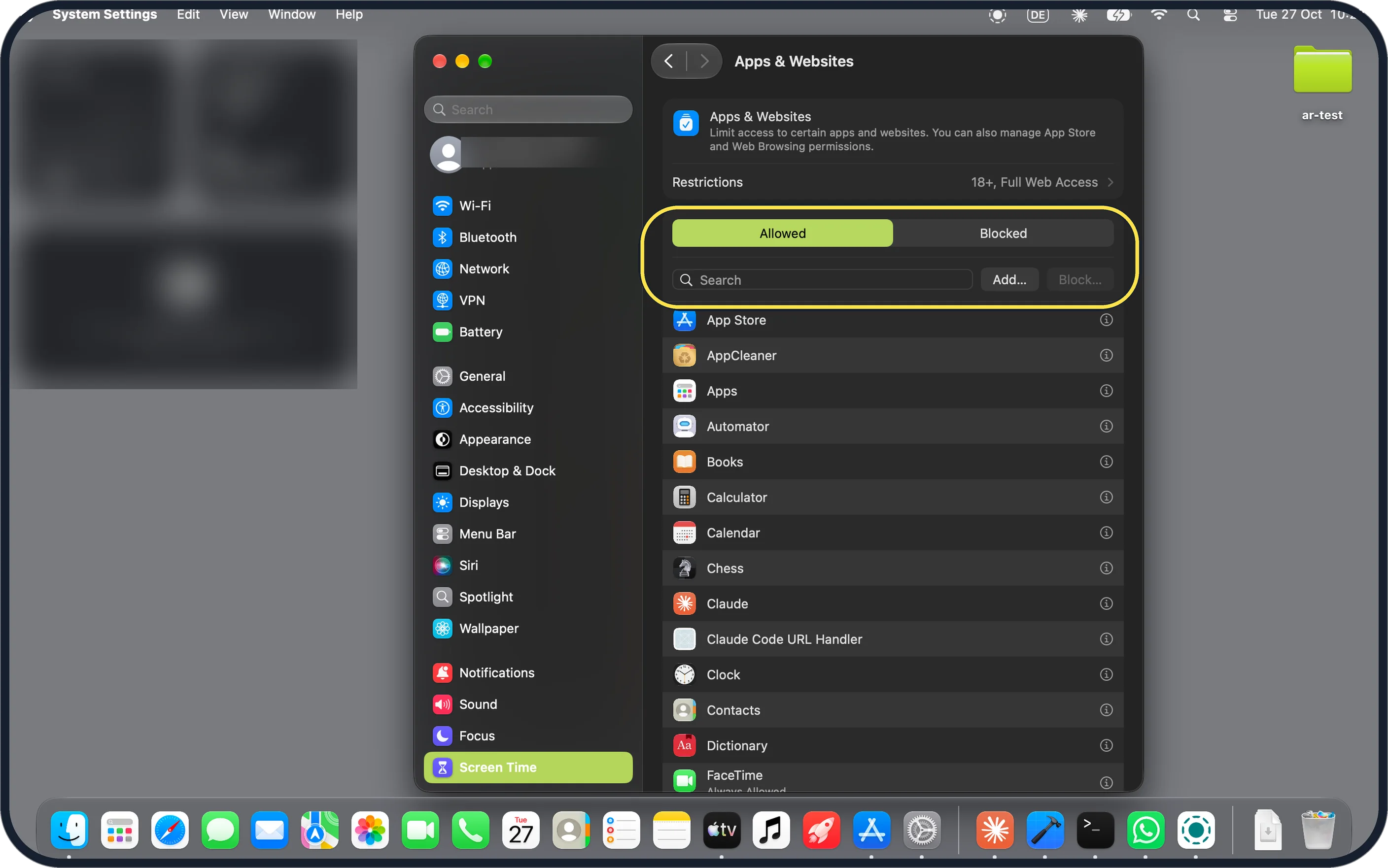
Zoomed in on the setting. Tap to see the whole screenTap the picture to see it full size Allow or block apps in Apps & Websites
Click Apps & Websites. Choose Allowed or Blocked at the top; Add… and Block… sit next to the search field. Below is a list of apps, A to Z. Restrictions at the top said 18+, Full Web Access on ours.
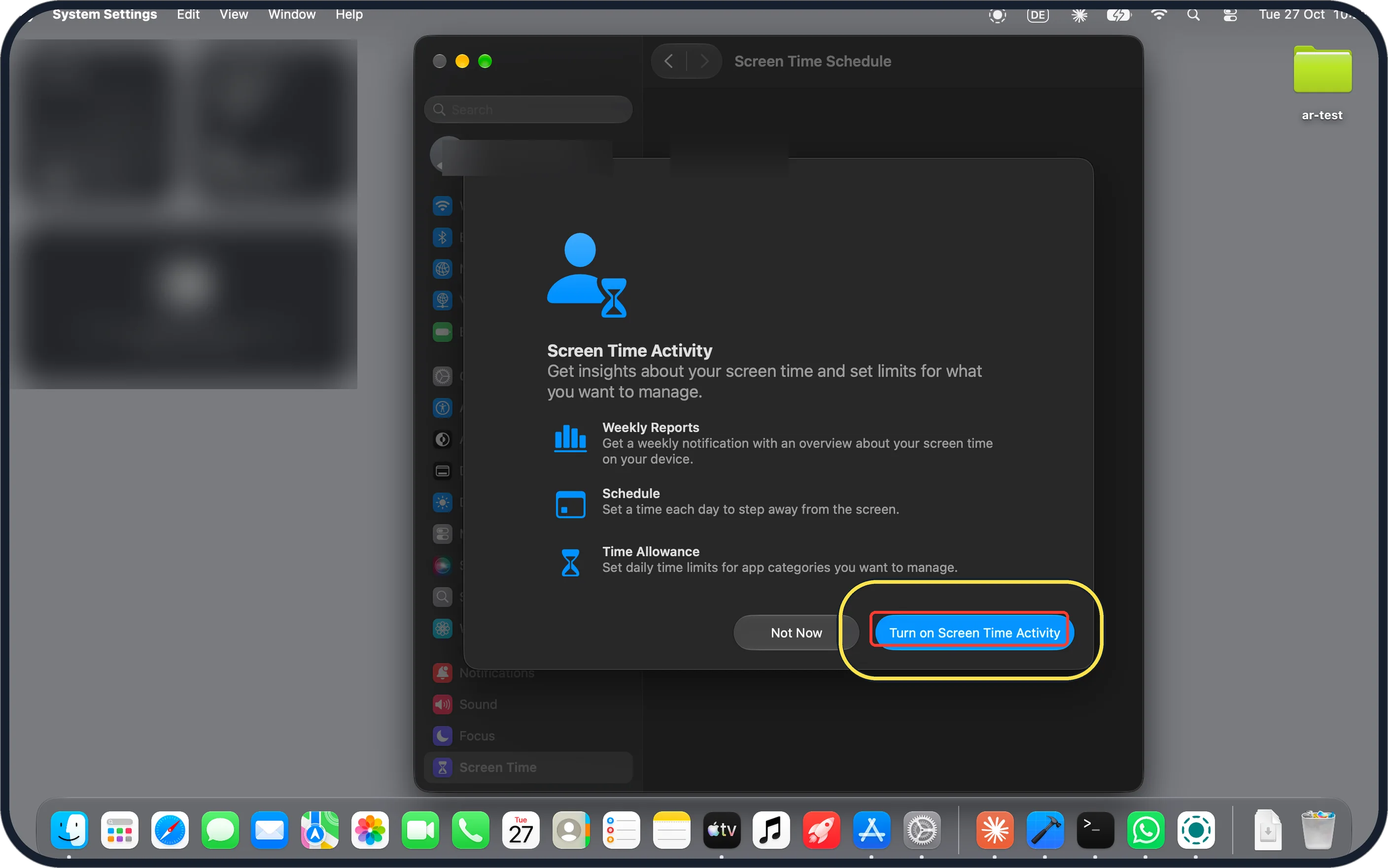
Zoomed in on the setting. Tap to see the whole screenTap the picture to see it full size Turn on Screen Time Activity for a schedule
Click Screen Time Schedule. Ours first showed Screen Time Activity: Weekly Reports, Schedule (a time each day to step away from the screen) and Time Allowance (daily time limits for app categories). Click Turn on Screen Time Activity to use them. We clicked Not Now.
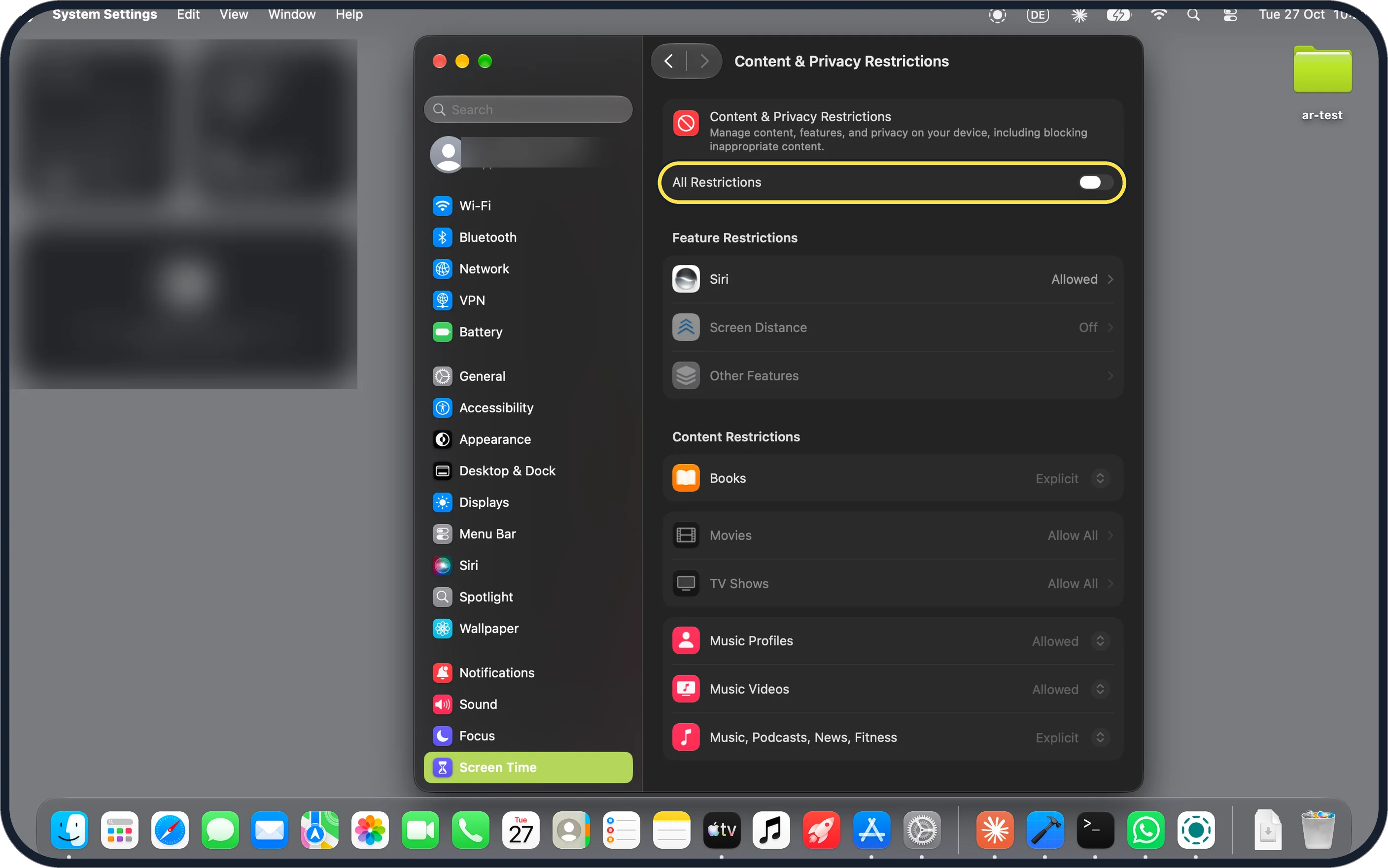
Zoomed in on the setting. Tap to see the whole screenTap the picture to see it full size Block content with Content & Privacy Restrictions
Go back and click Content & Privacy Restrictions. The page manages content, features and privacy, including blocking inappropriate content. It starts with an All Restrictions switch (off on ours), then Feature Restrictions (Siri, Screen Distance, Other Features) and Content Restrictions. Ours had Books set to Explicit and Movies and TV Shows to Allow All.
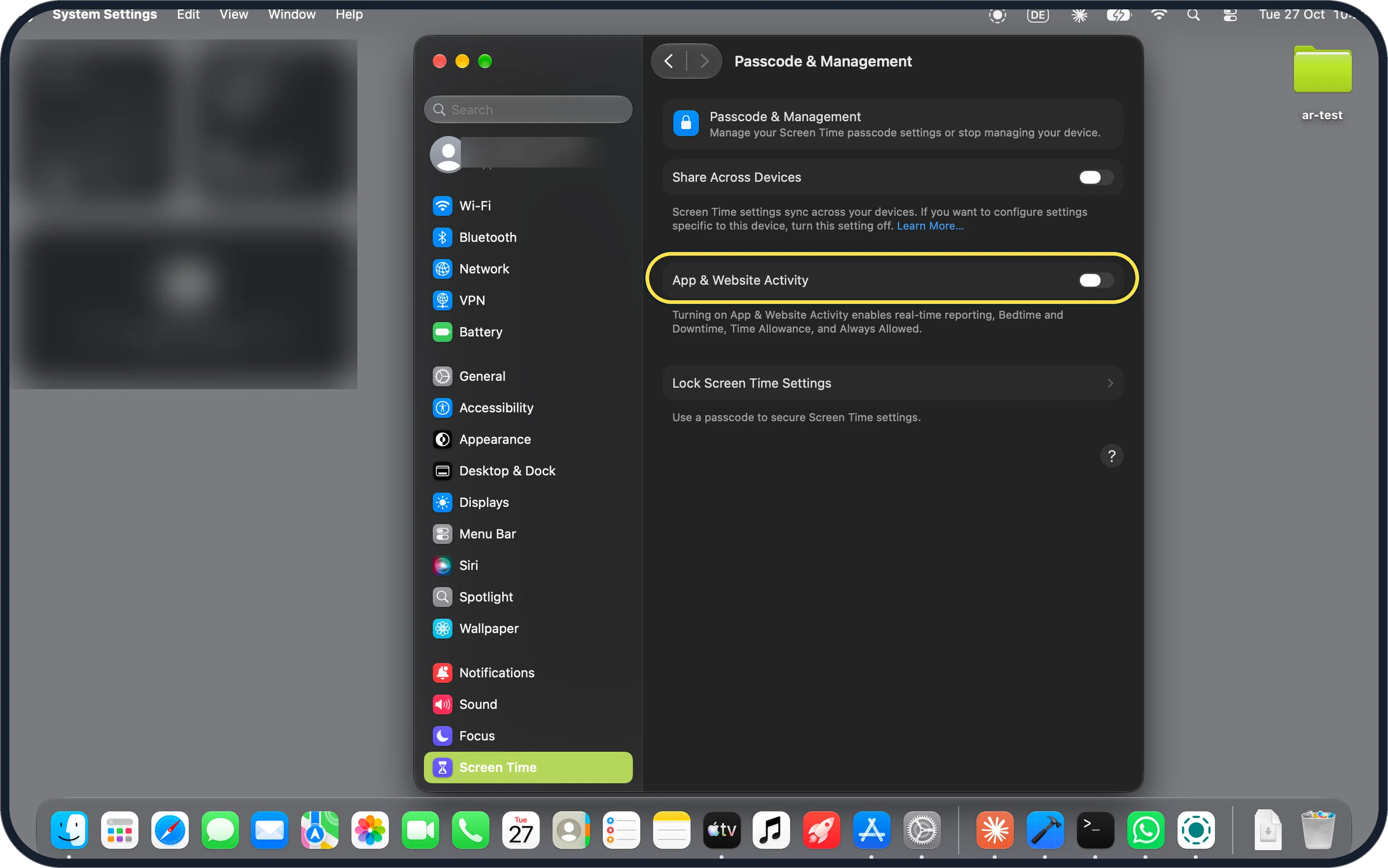
Zoomed in on the setting. Tap to see the whole screenTap the picture to see it full size Switch on App & Website Activity for reports
Go back and click Passcode & Management. The page says turning on App & Website Activity enables real-time reporting, Bedtime and Downtime, Time Allowance, and Always Allowed. It was off on ours.
If you do not see this option
- No Manage Screen Time button? Apple's guide says to click Manage Screen Time, then turn on App & Website Activity. Our Mac on macOS 27.2 showed no such button: the Screen Time page opened straight to its settings, and App & Website Activity was under Passcode & Management. Source: Get started with Screen Time on your Mac
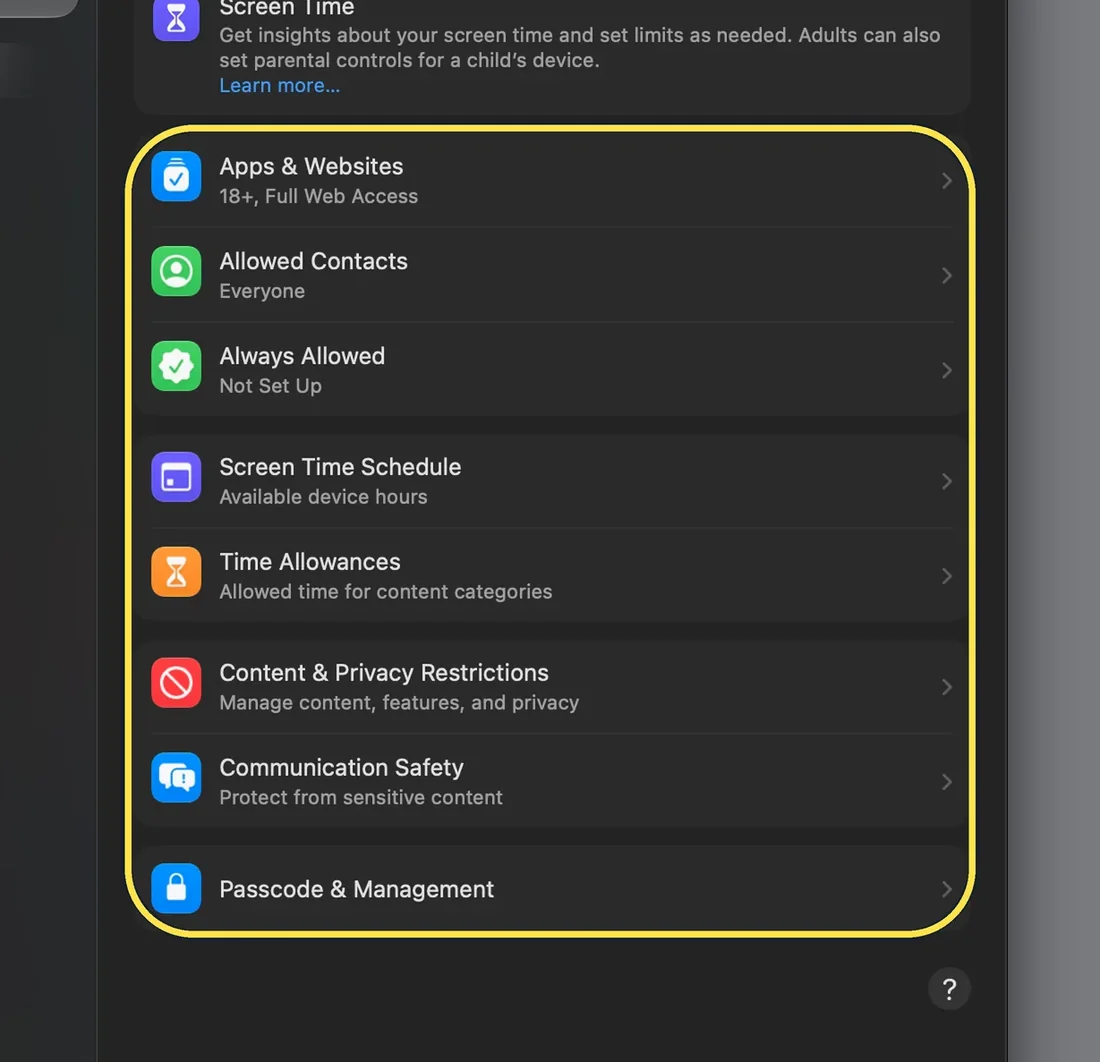
Zoomed in on the setting. Tap to see the whole screen - No Screen Time in the sidebar? Apple says you may need to scroll down the System Settings sidebar to find it. On our Neo it sat right below Focus. Source: Get started with Screen Time on your Mac
If this does not work
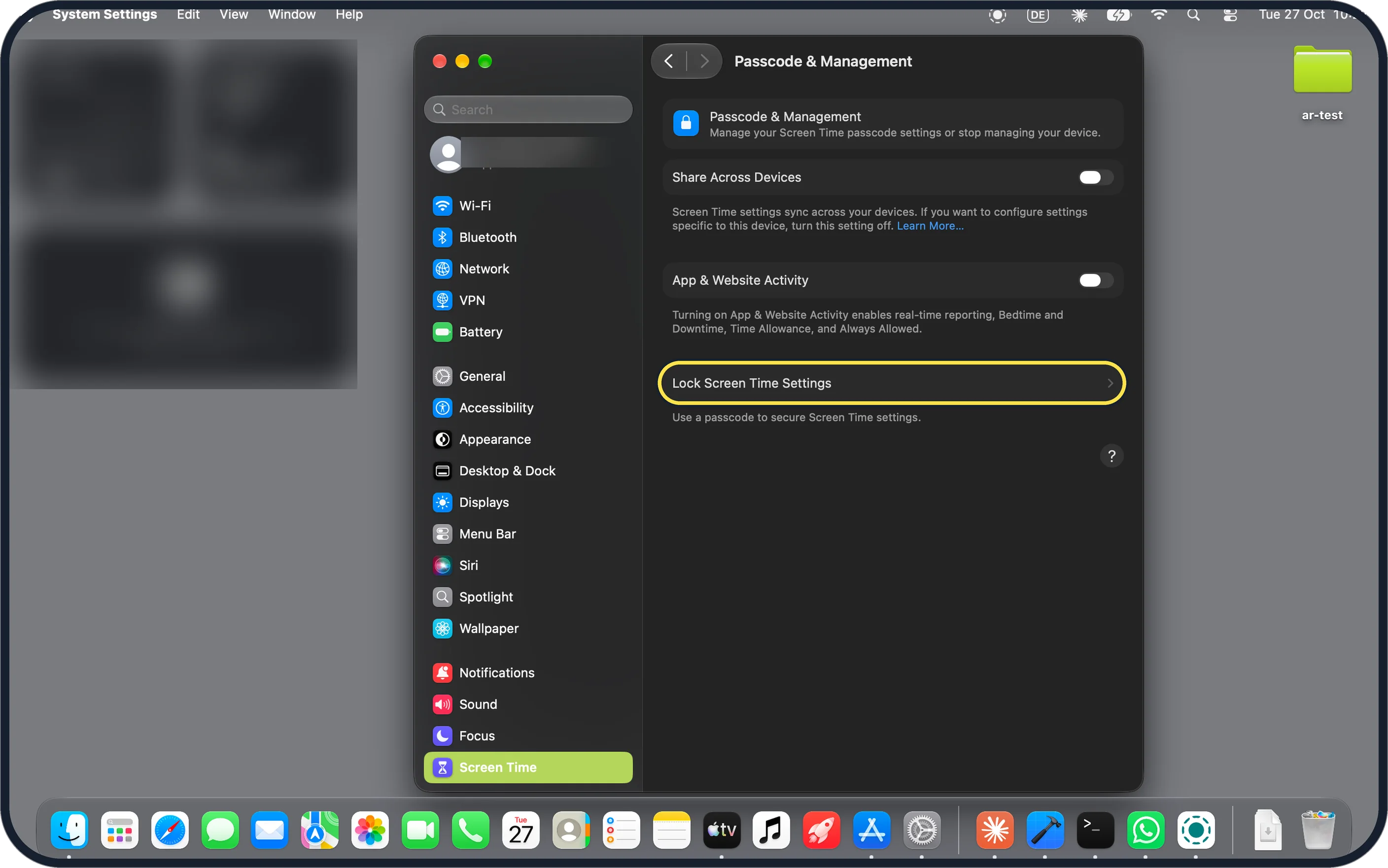
- Anyone can change the limits? Passcode & Management has Lock Screen Time Settings: the page says it uses a passcode to secure Screen Time settings. We did not set one, so we cannot show the next screens.
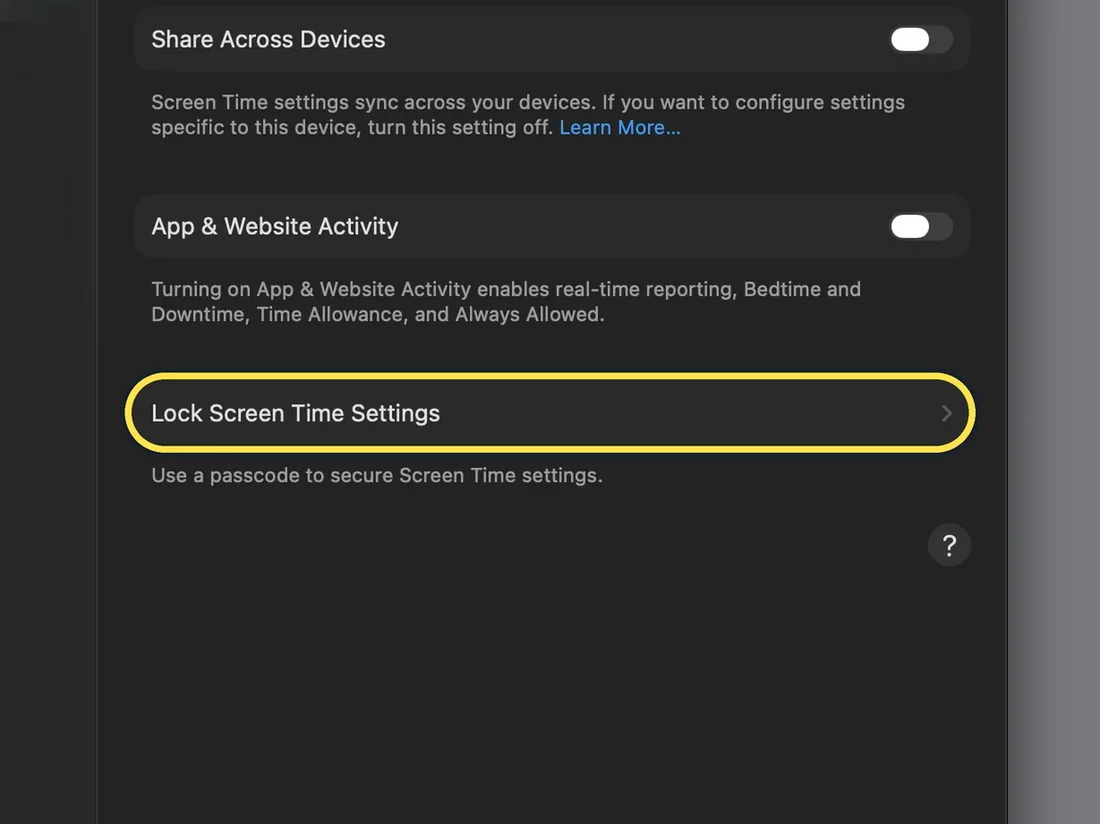
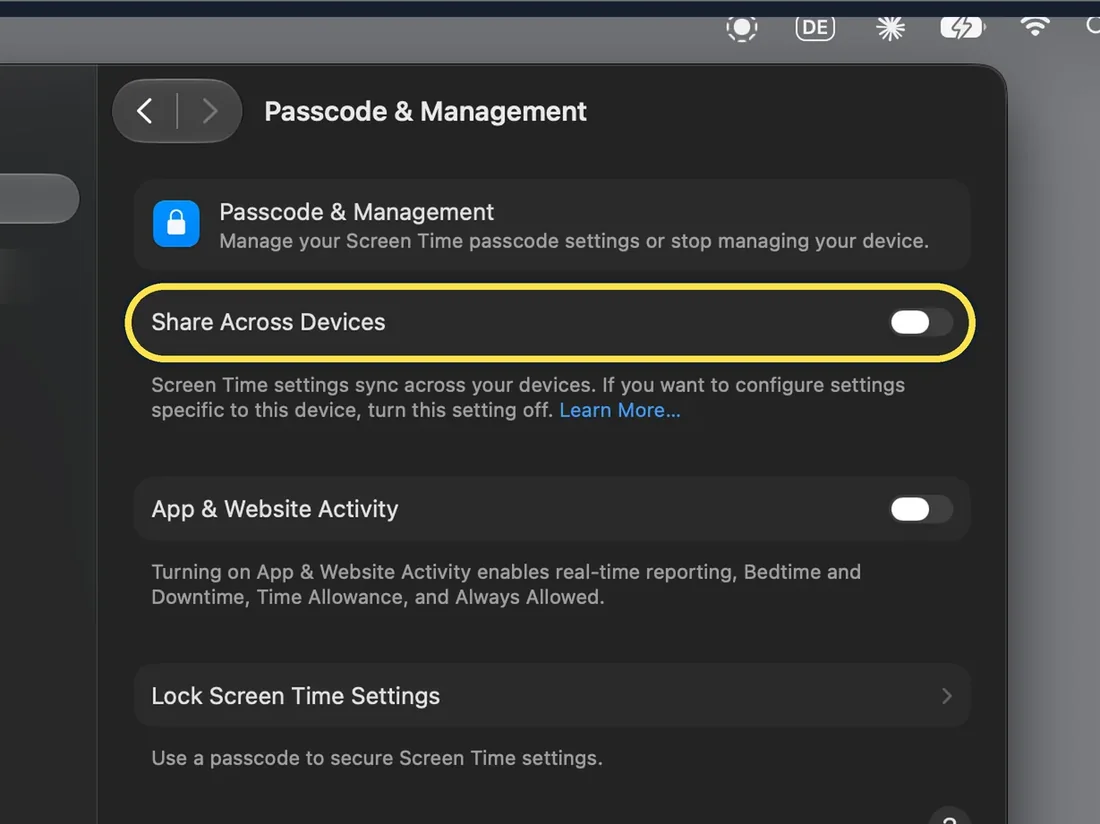
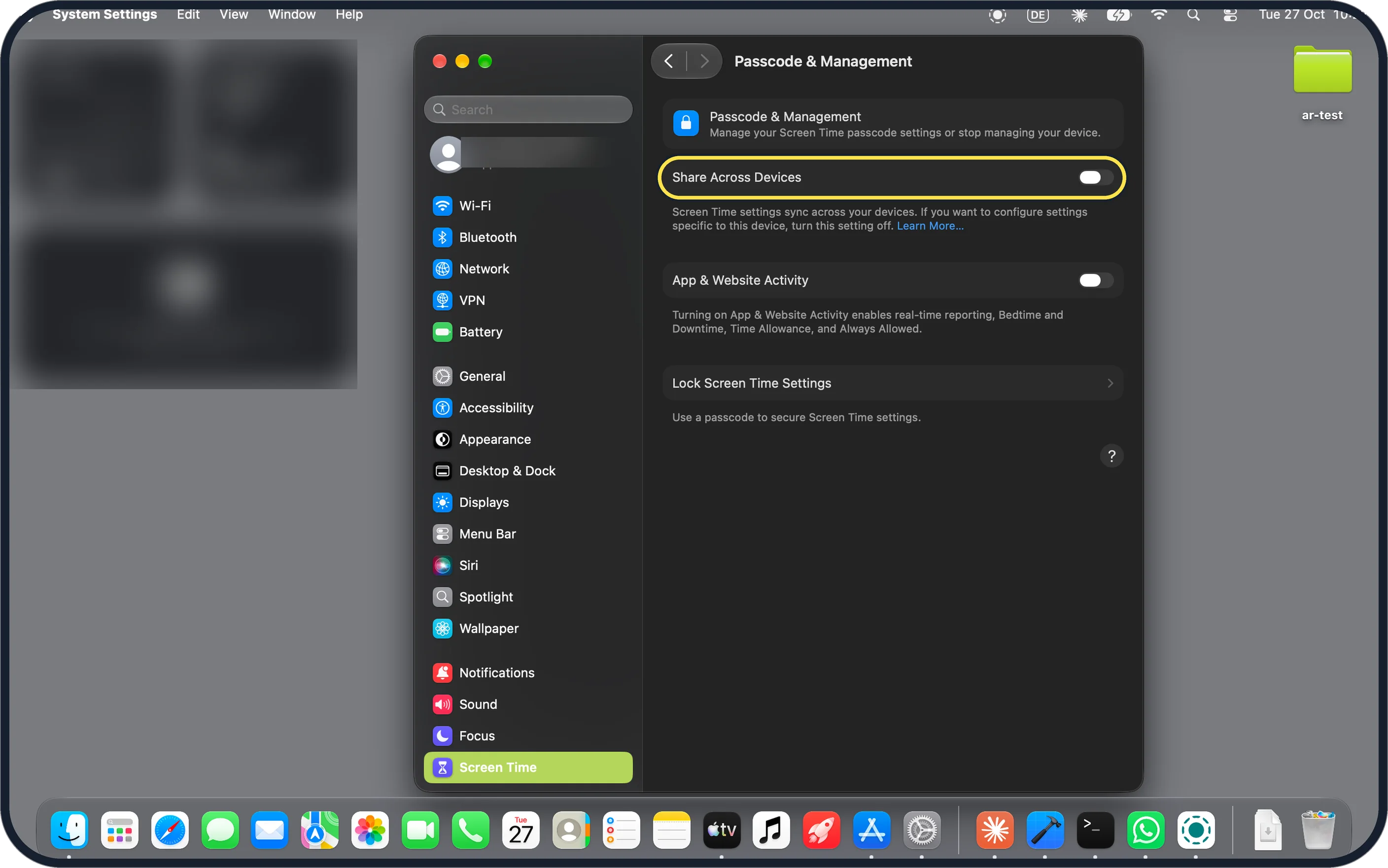
Zoomed in on the setting. Tap to see the whole screen - Limits on the Mac differ from your iPhone? Share Across Devices, on the same page, syncs Screen Time settings across your devices. The page says to turn it off to set settings for this device only. It was off on ours.
Zoomed in on the setting. Tap to see the whole screen - Want to detect nude images? Click Communication Safety on the main Screen Time page. Apple says it can detect nudity and gore in shared images and videos. Source: Get started with Screen Time on your Mac
About this guide
Apple says Screen Time shows how much time you spend on your devices and lets you set schedules, time allowances for app categories and blocked websites.
The screenshots are from our MacBook Neo with macOS 27.2 (26B123) in Dark mode, taken on 27 October 2026. We changed nothing: at the activity prompt we clicked Not Now, and we did not set a Screen Time passcode.
Good to know
On an iPhone, see how to turn on Screen Time on iPhone.
In short: System Settings, Screen Time: Apps & Websites to allow or block apps, Screen Time Activity for schedules, Content & Privacy Restrictions, Passcode & Management.
Links checked in October 2026. Menus and features can change after software updates. These steps match the version named at the top.
📷 Camera Lab: the same 6 scenes photographed with 11 phones, side by side.
Did this guide work for you?
Sorry about that. What happened?