
macOS 27 compared with macOS 26: We rewrote this guide on macOS 27.0.1 (MacBook Neo): it now has 7 steps instead of 5. The macOS 26 page keeps the steps and screenshots as they were.
howtosimply.com/guides/how-to-change-the-default-browser-on-a-mac/ · Checked October 2026 · MacBook Neo · macOS 27.0.1
In this guide
Open System Settings, click Desktop & Dock, scroll down to Default web browser in the Widgets section and choose Google Chrome or another installed browser from the menu.
7 of 7 steps with real screenshots · 1 official source below
- Device
- Mac
- Shown on
- macOS 27.0.1 (MacBook Neo)
- App
- System Settings
- Path
- System Settings › Desktop & Dock › Default web browser
- Real screenshots
- 7 of 7 steps
- Checked
- October 2026
- Sources
- 1 official, linked below
Step by step
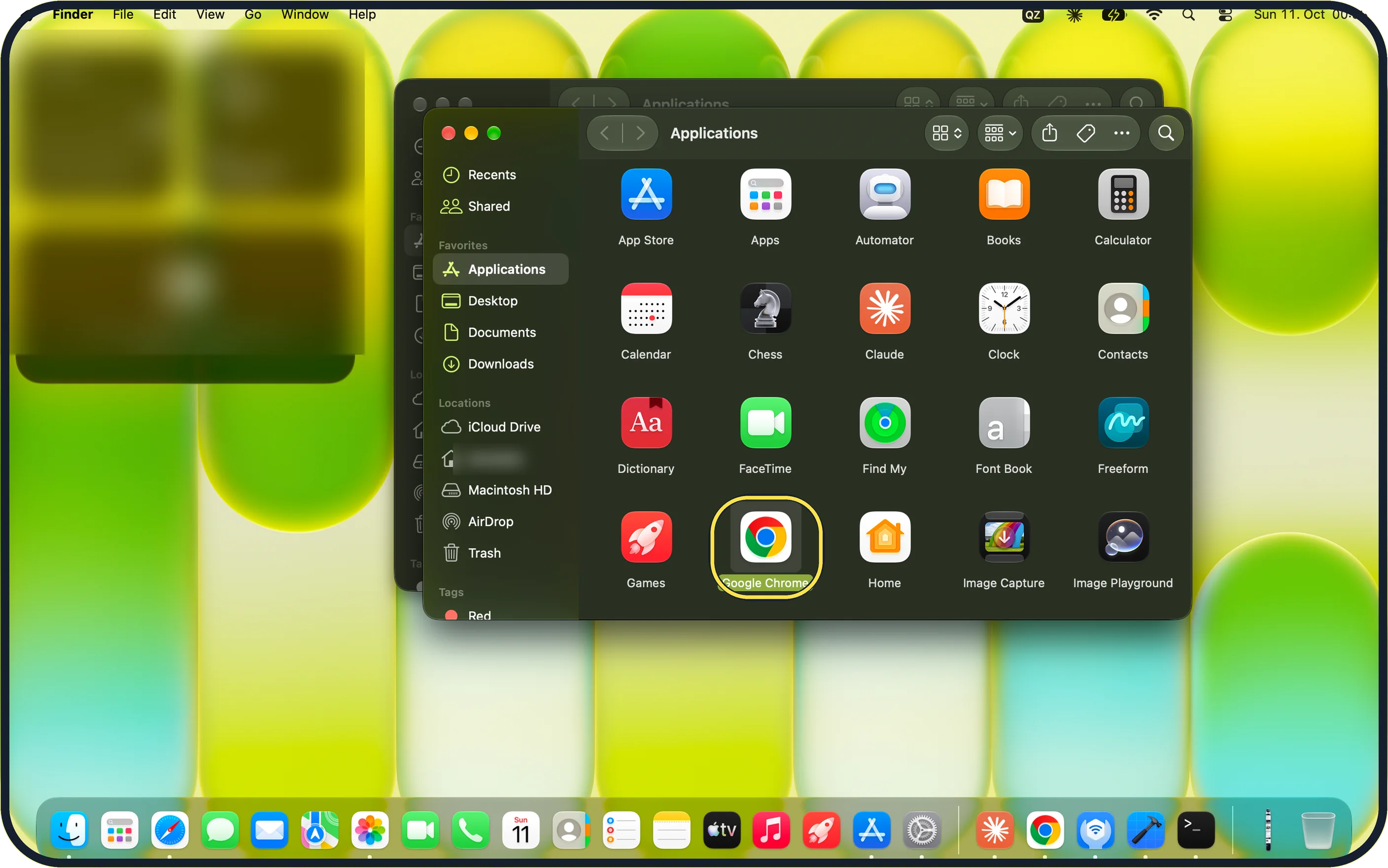
Zoomed in on the setting. Tap to see the whole screenTap the picture to see it full size Install the browser first
Download it from the official website, open the downloaded file and drag the browser into the Applications folder. Open it once.
On our MacBook Neo, Google Chrome was already in the Applications folder.
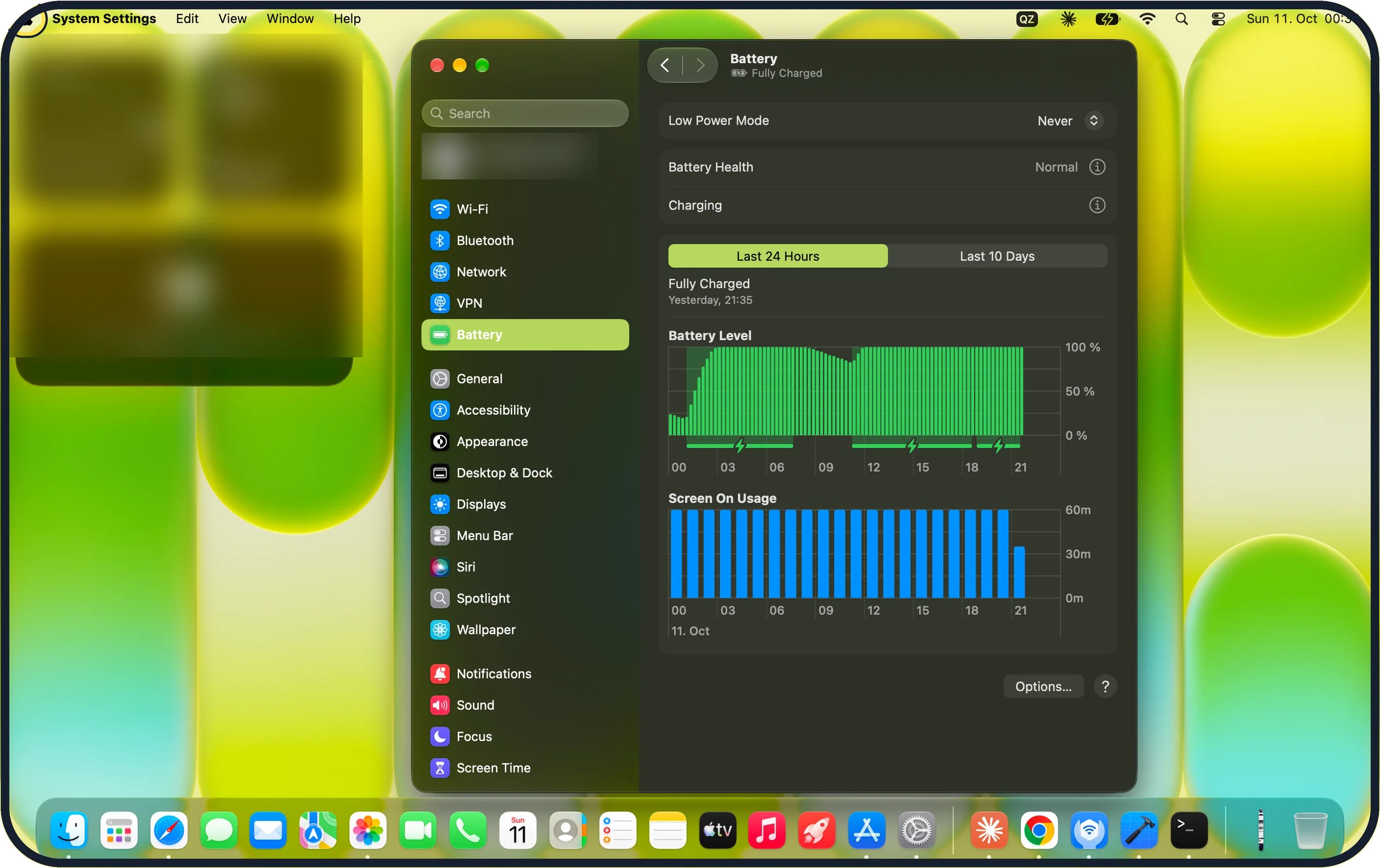
Zoomed in on the setting. Tap to see the whole screenTap the picture to see it full size Open System Settings
Click the Apple menu in the top left corner and choose System Settings.
On our MacBook Neo it opened on the Battery page, which is fine.
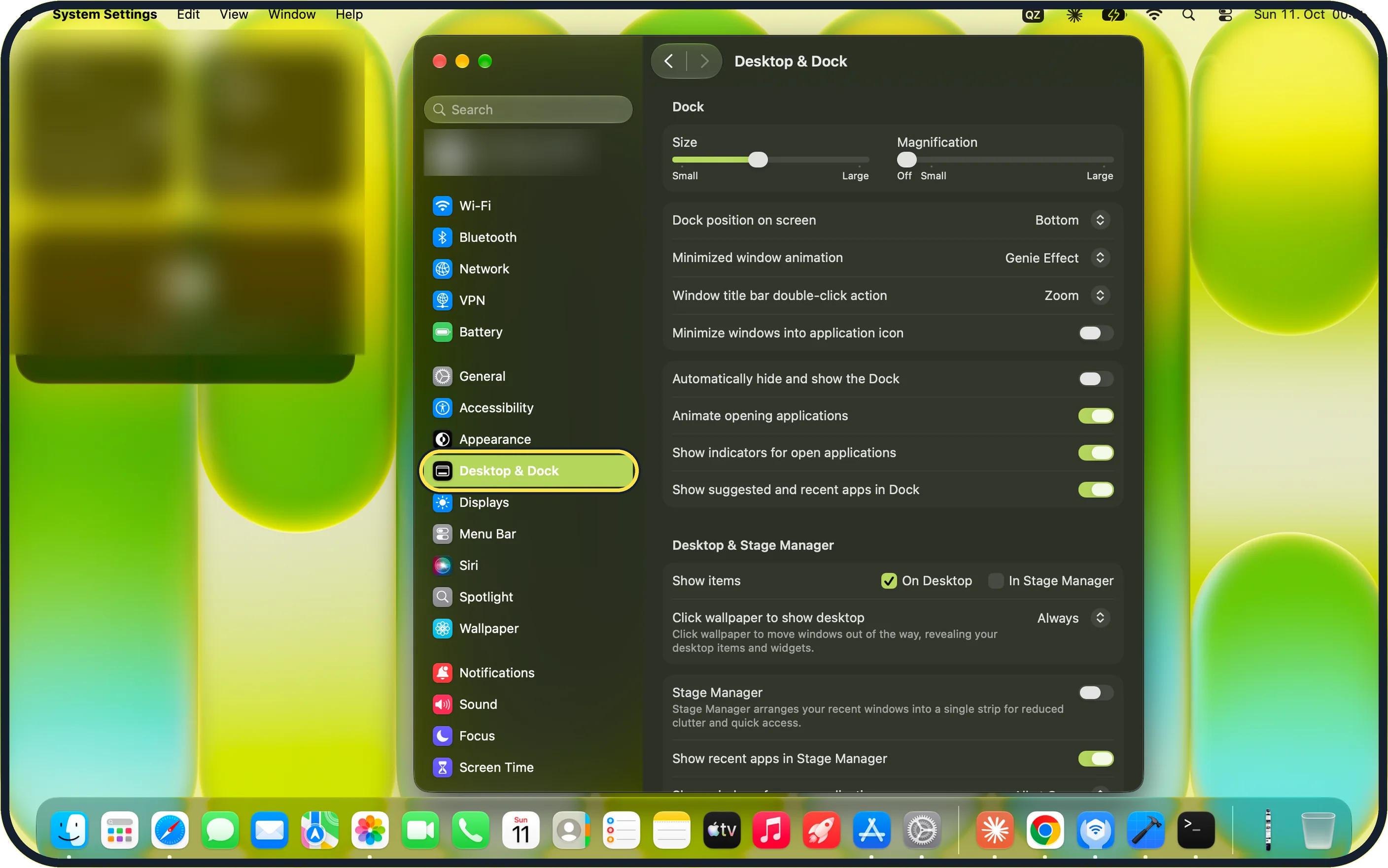
Zoomed in on the setting. Tap to see the whole screenTap the picture to see it full size Click Desktop & Dock
It is in the list on the left, below Appearance.
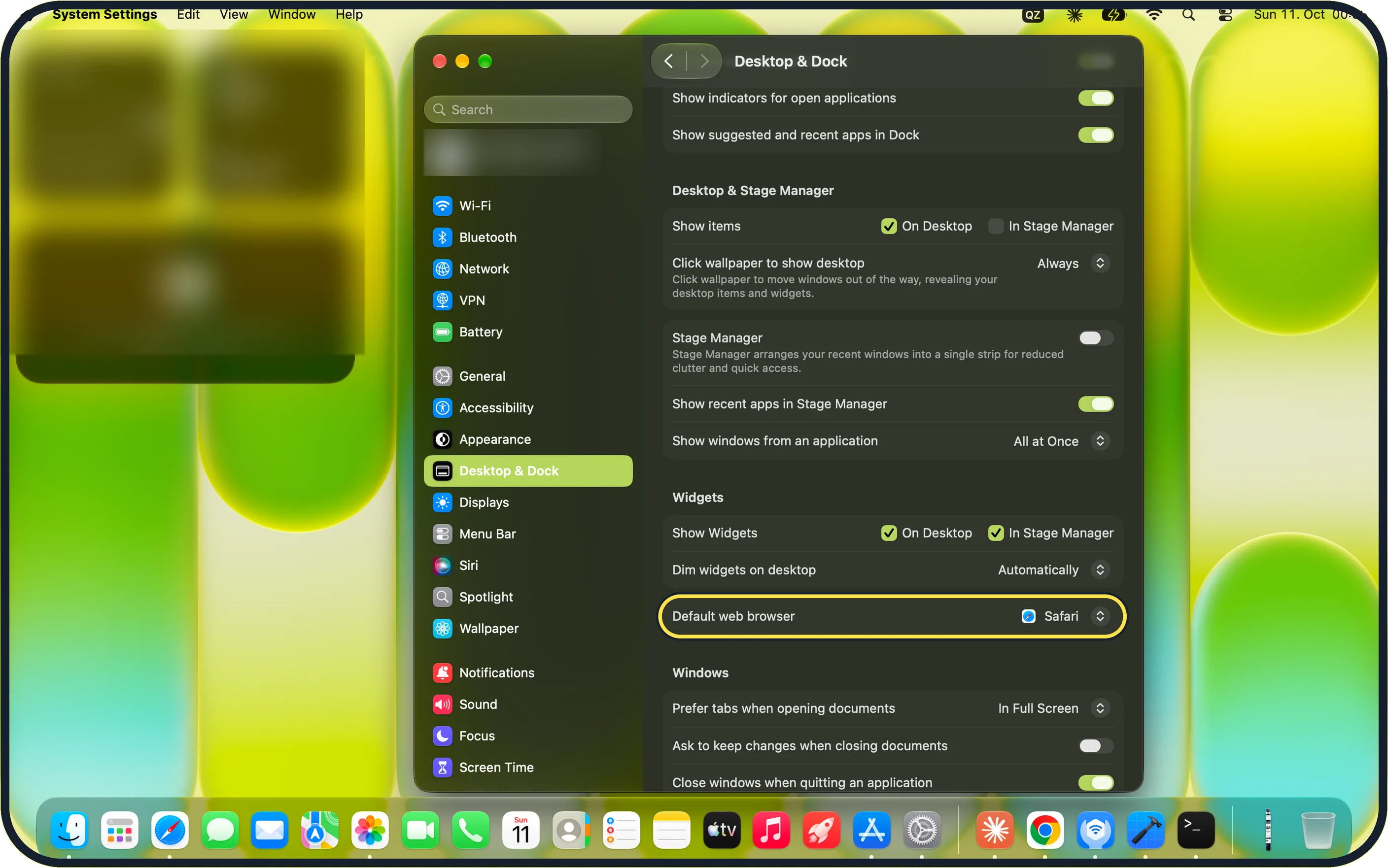
Zoomed in on the setting. Tap to see the whole screenTap the picture to see it full size Scroll to Default web browser
Scroll down the page past Desktop & Stage Manager. On our MacBook Neo the Default web browser row sits in the Widgets section, just above Windows, and read Safari.
Zoomed in on the setting. Tap to see the whole screenTap the picture to see it full size Open the menu on that row
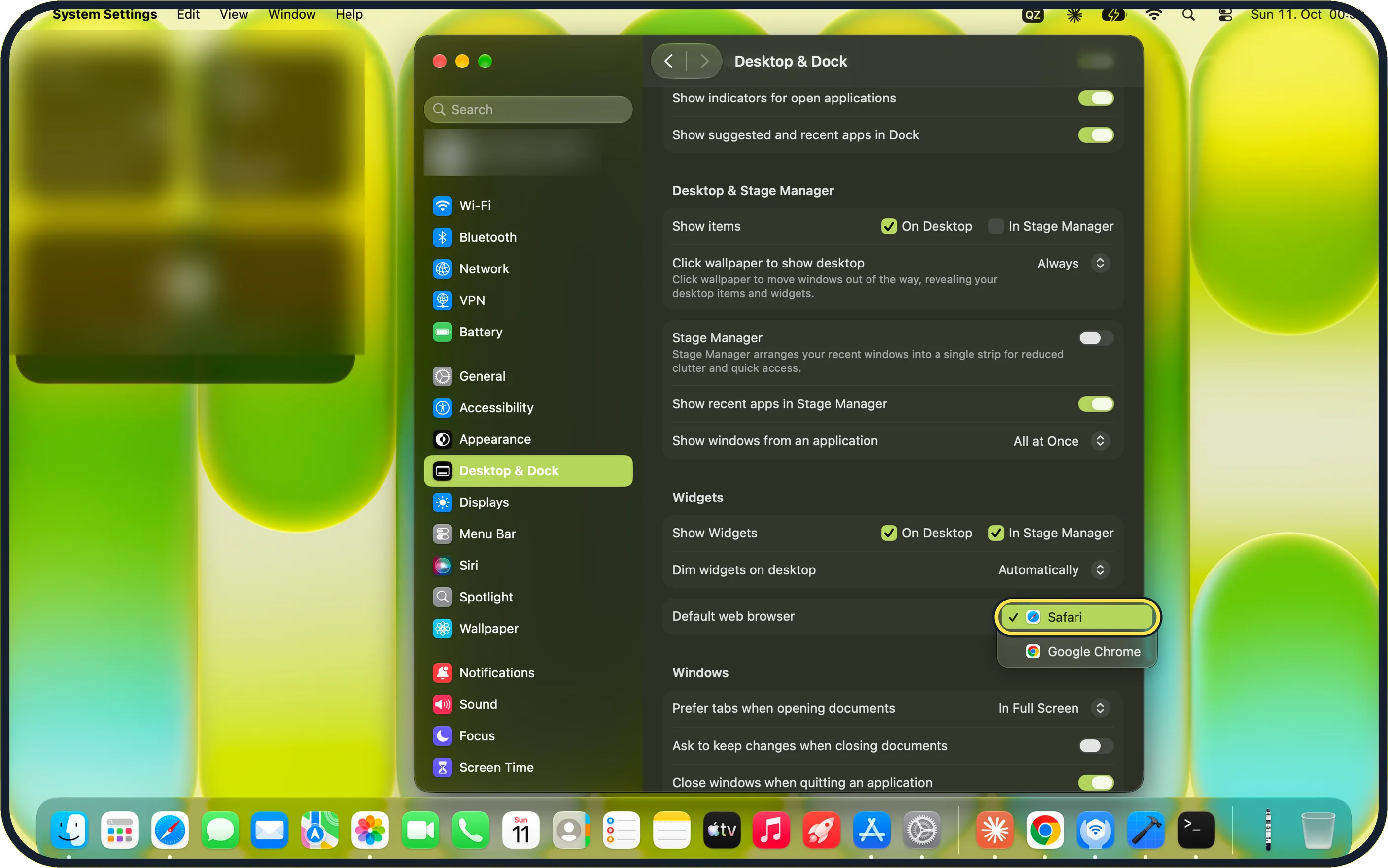
Click the browser name at the right of the row. A list of installed browsers opens, with a tick next to the current one.
On our MacBook Neo it listed only Safari and Google Chrome.
Zoomed in on the setting. Tap to see the whole screenTap the picture to see it full size Choose the browser
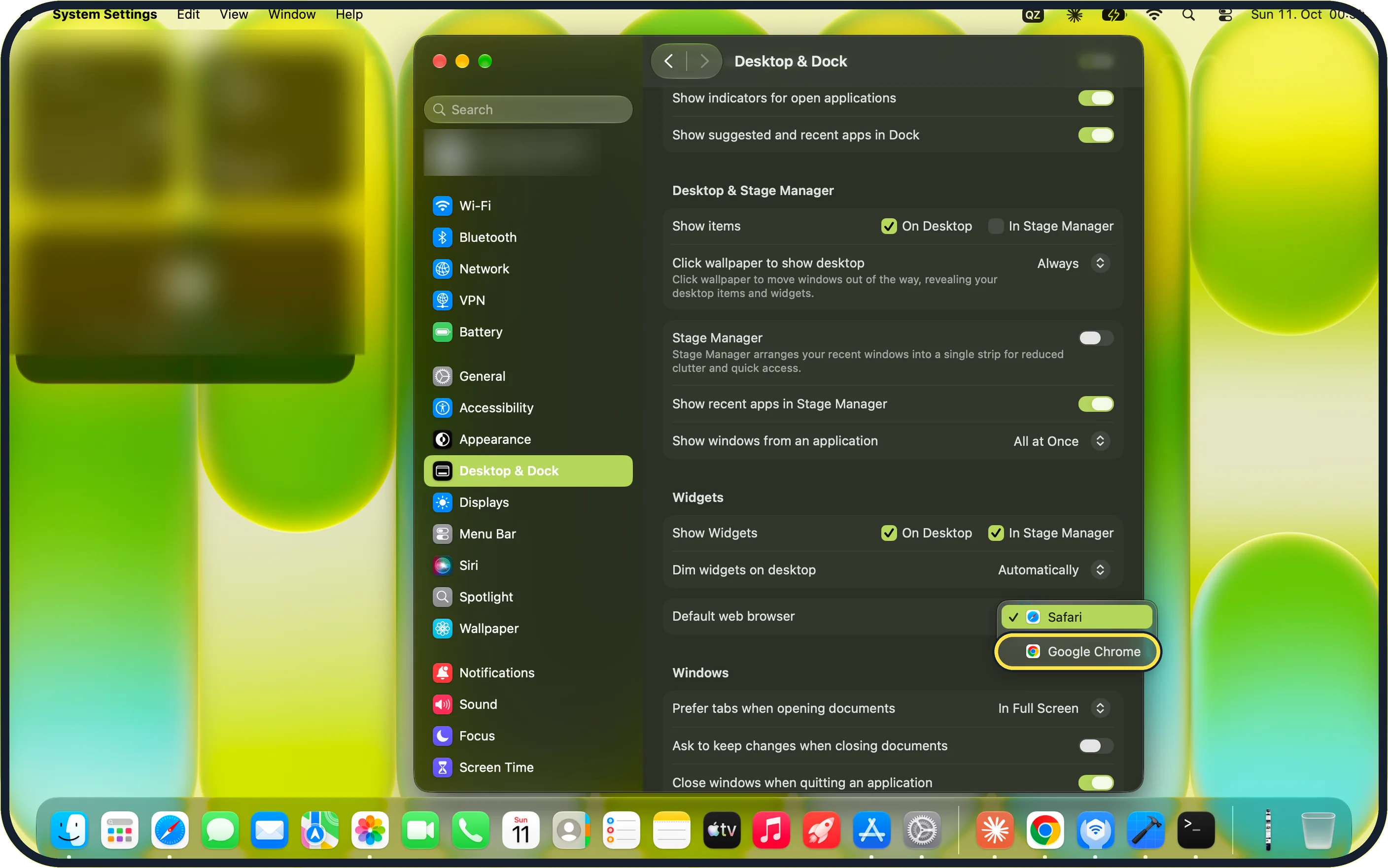
Click the browser you want, here Google Chrome.
Zoomed in on the setting. Tap to see the whole screenTap the picture to see it full size Check the row
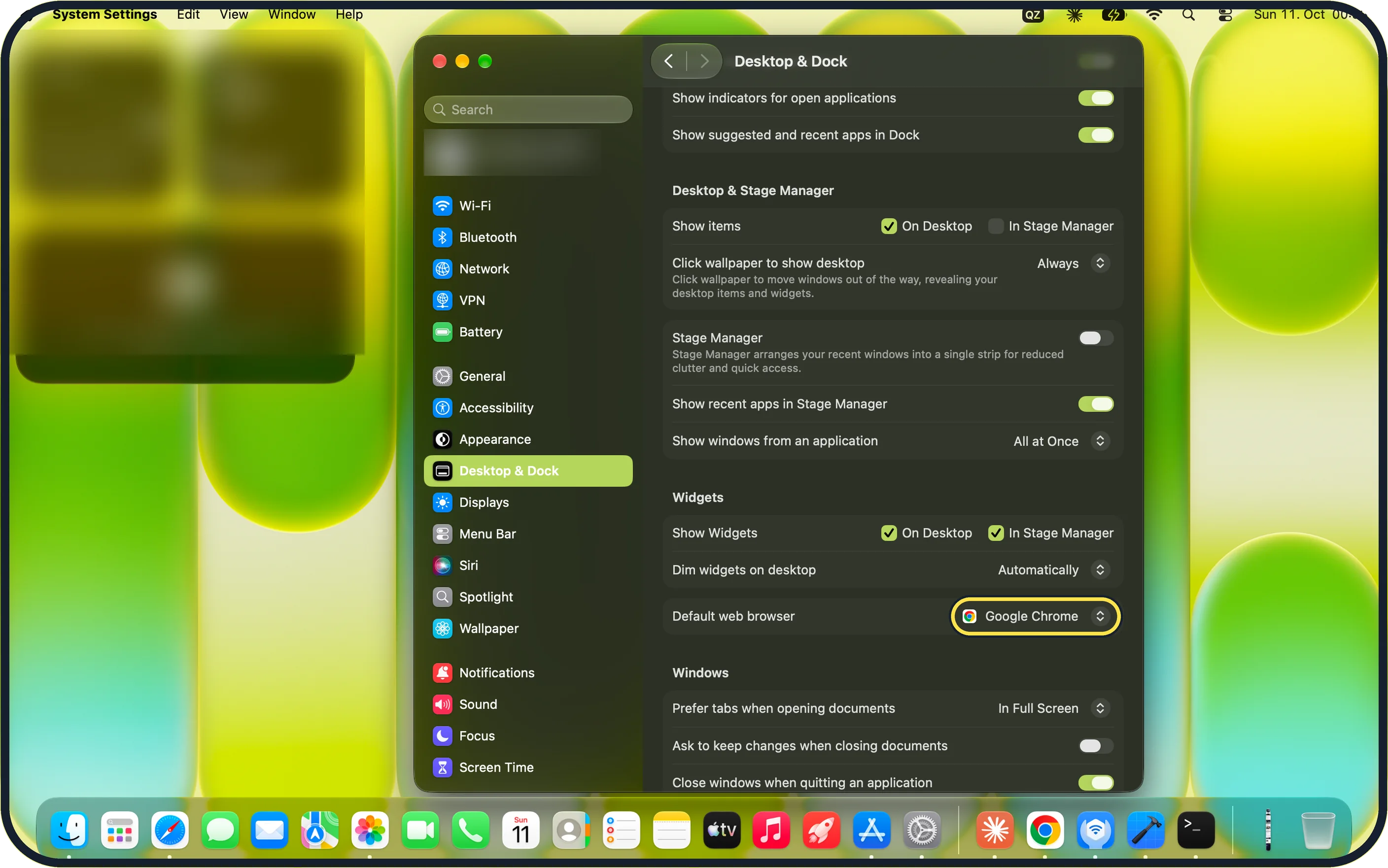
The row now shows the new browser. On our MacBook Neo it read Google Chrome straight away, with no extra prompt.
Apple says links you click in other apps then open in that browser.
What we saw on our device
- Install the browser first: On our MacBook Neo, Google Chrome was already in the Applications folder.
- Open System Settings: On our MacBook Neo it opened on the Battery page, which is fine.
- Scroll to Default web browser: On our MacBook Neo the Default web browser row sits in the Widgets section, just above Windows, and read Safari.
- Open the menu on that row: On our MacBook Neo it listed only Safari and Google Chrome.
- Check the row: On our MacBook Neo it read Google Chrome straight away, with no extra prompt.
If you do not see this option
- Your browser is not in the menu The menu lists only browsers installed on the Mac; on our MacBook Neo that was Safari and Google Chrome. Install the browser in the Applications folder, open it once, then look again.
- No Default web browser row at the top It is not near the top of Desktop & Dock. Scroll past Dock and Desktop & Stage Manager to the Widgets section.
If this does not work
- System Settings opens on another page It remembers the last page used; on our MacBook Neo it opened on Battery. Click Desktop & Dock in the list on the left.
- Links still open in Safari Go back to Desktop & Dock and check the Default web browser row shows the browser you picked, not Safari. If it does not, choose it again from the menu.
About this guide
A Mac opens links in Safari until you choose another browser. The setting is in a place few people expect: under Desktop & Dock, in the Widgets section.
Screenshots: MacBook Neo, macOS 27.0.1, dark mode.
Good to know
Most browsers also ask "Make default?" when you first open them. Clicking yes does the same thing.
To change the default email app, open Mail, choose Mail, Settings, General, and pick another app under Default email reader.
Make one file type open in a different app as well: How to change which app opens a file type on a Mac.
The same on an iPhone: How to change the default browser and other default apps on an iPhone.
In short: System Settings, Desktop & Dock, Default web browser, choose the browser.
Links checked in October 2026. Menus and features can change after software updates. These steps match the version named at the top.
Did this guide work for you?
Sorry about that. What happened?