
macOS 27 compared with macOS 26: We rewrote steps 1, 2, 3 and 4 to match the macOS 27 screens. The macOS 26 page keeps the steps and screenshots as they were.
howtosimply.com/guides/how-to-change-the-accent-colour-on-a-mac/ · Checked October 2026 · MacBook Neo · macOS 27.0.1
In this guide
Open System Settings, click Appearance in the sidebar, then click a colour circle in the Color row under Theme. The name of the chosen colour appears under its circle, such as Green.
3 of 4 steps with real screenshots · 3 official sources below
- Device
- Mac
- Shown on
- macOS 27.0.1 (MacBook Neo)
- App
- System Settings
- Real screenshots
- 3 of 4 steps
- What we did
- Performed: we made the change on our device and show the result
- Checked
- October 2026
- Sources
- 3 official, linked below
Step by step
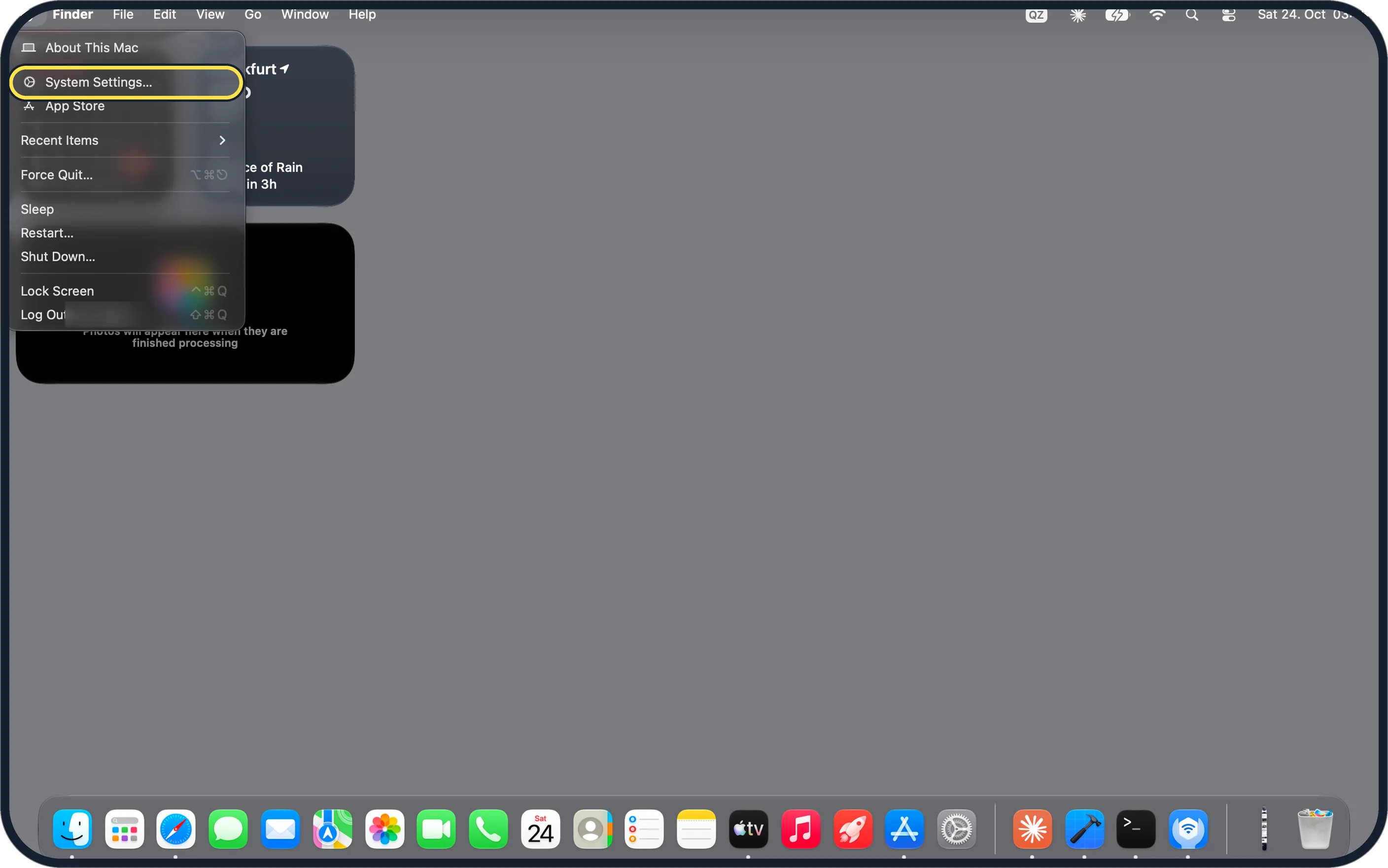
Zoomed in on the setting. Tap to see the whole screenTap the picture to see it full size Open System Settings
Click the Apple menu in the top-left corner of the screen and choose System Settings…
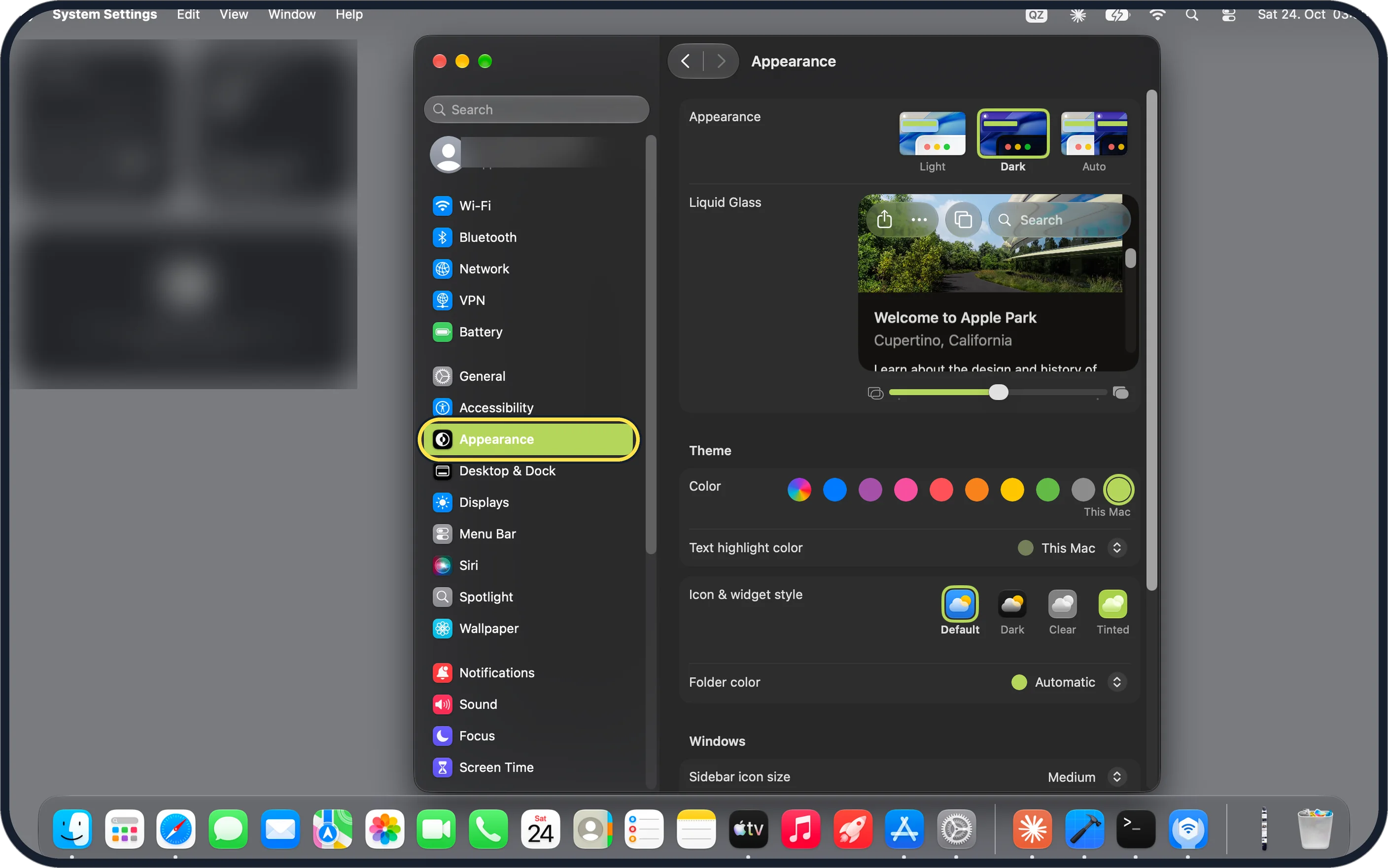
Zoomed in on the setting. Tap to see the whole screenTap the picture to see it full size Click Appearance in the sidebar
Appearance is below Accessibility.
On our MacBook Neo the page opens with Appearance, Liquid Glass and Theme sections.
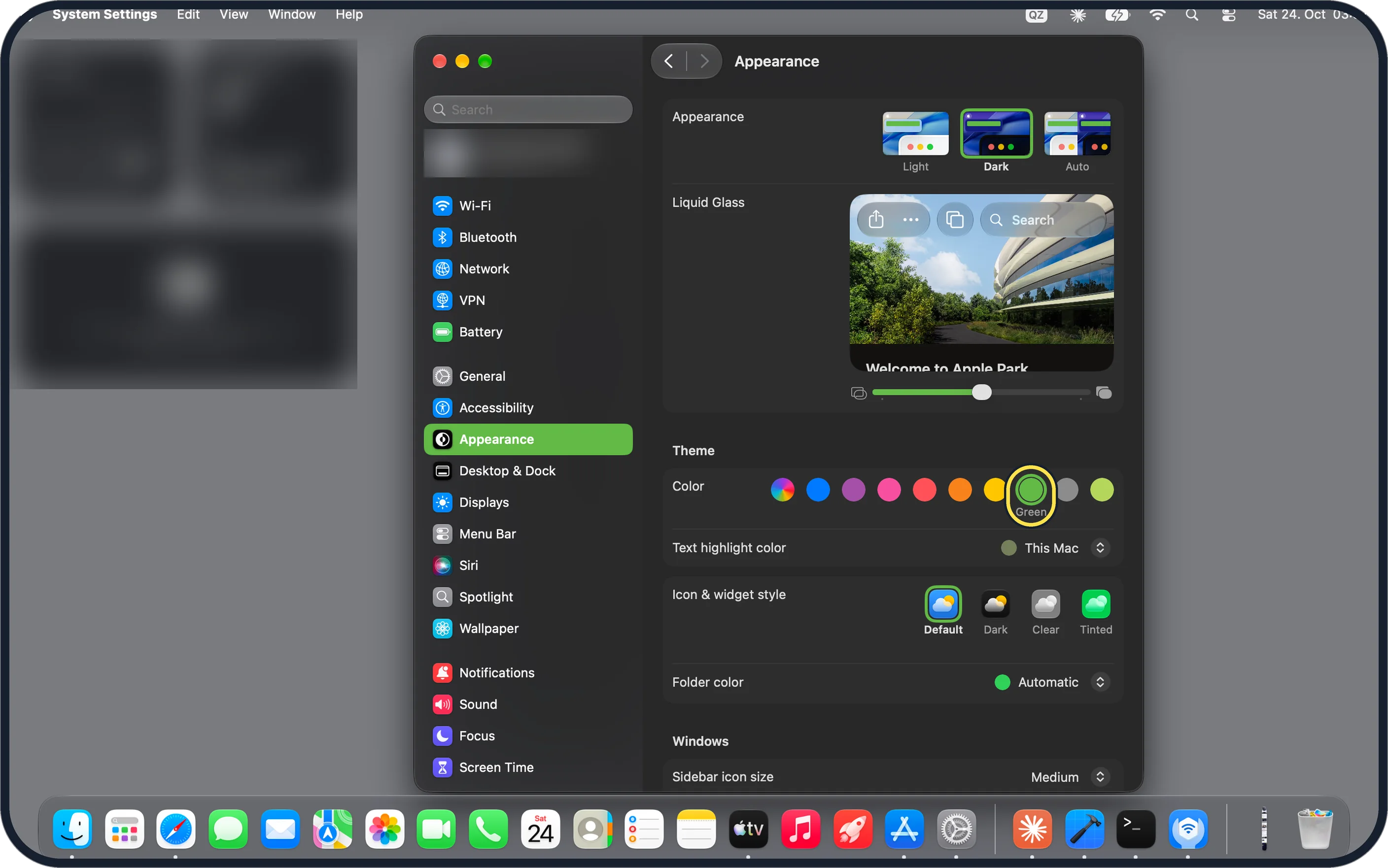
Zoomed in on the setting. Tap to see the whole screenTap the picture to see it full size Click a colour
The circles are in the Color row under Theme, and the chosen colour's name appears below its circle.
On our MacBook Neo the row has ten circles. The last one, labelled This Mac, was selected until we clicked the circle labelled Green.
Choose the highlight colour for text
Text highlight color, the next row, sets the colour for selected text. Click its menu to change it.
On our MacBook Neo it was set to This Mac, and it stayed that way after we chose Green.
If you do not see this option
- There is an extra circle at the end On our MacBook Neo the tenth circle in the Color row was labelled This Mac. It sits after the grey circle.
- Icons take the colour too Apple says that with Tinted chosen under Icon & widget style, icons, text and graphics use the colour chosen under Theme. On our MacBook Neo the options were Default, Dark, Clear and Tinted. Source: Change Appearance settings on Mac · Source: Change Display settings for accessibility on Mac · Source: Change General preferences on Mac
- Your Mac has System Preferences Apple's guide for macOS Monterey 12 says to choose System Preferences, then General. The row is called Accent color there, and the colour for selected text is Highlight color. Source: Change Appearance settings on Mac · Source: Change Display settings for accessibility on Mac · Source: Change General preferences on Mac
If this does not work
- Selected text keeps its old colour Text highlight color is a separate setting. On our MacBook Neo it stayed on This Mac after we chose Green, so set it in its own menu.
- Toolbars take on other colours Apple says Tint window background with wallpaper color lets the wallpaper tint toolbars and status bars. Source: Change Appearance settings on Mac · Source: Change Display settings for accessibility on Mac · Source: Change General preferences on Mac
- All colours on screen look wrong Apple says Color Filters in Accessibility, Display change display colours. Check that they are off. Source: Change Appearance settings on Mac · Source: Change Display settings for accessibility on Mac · Source: Change General preferences on Mac
About this guide
Buttons and selected items on a Mac use an accent colour that you can change in System Settings.
Screenshots: MacBook Neo, macOS 27.0.1, dark mode.
Good to know
Light and dark appearance are at the top of the same page: how to turn on dark mode on a Mac.
On our MacBook Neo the same page also has Folder color, set to Automatic, and Sidebar icon size, set to Medium.
In short: Apple menu > System Settings… > Appearance > Theme > Color.
- Mac User Guide: Change Appearance settings on Mac
- Mac User Guide: Change Display settings for accessibility on Mac
- Apple Support: Change General preferences on Mac
Links checked in October 2026. Menus and features can change after software updates. These steps match the version named at the top.
Did this guide work for you?
Sorry about that. What happened?