
What changed: the screenshots are now our own iPhone 17e on iOS 27.0.1, dark mode, and the wording is checked against those screens.
howtosimply.com/guides/how-to-show-last-names-first-in-contacts-on-an-iphone/ · Checked October 2026 · iPhone 17e · iOS 27.0.1
In this guide
Open Settings, tap Apps, then Contacts, scroll down and tap Display Order. Tap Last, First. Contacts are then written with the last name before the first name. First, Last puts the first name in front again.
4 of 4 steps with real screenshots · 1 official source below
- Device
- iPhone
- Shown on
- iOS 27.0.1 (iPhone 17e)
- App
- Settings
- Real screenshots
- 4 of 4 steps
- Checked
- October 2026
- Sources
- 1 official, linked below
Step by step
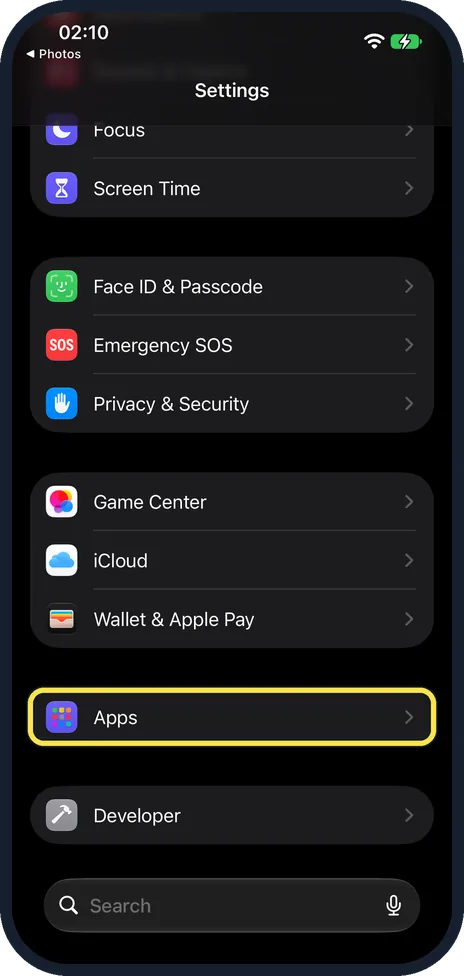
Open Settings and tap Apps
Apps is near the bottom of the main Settings list.
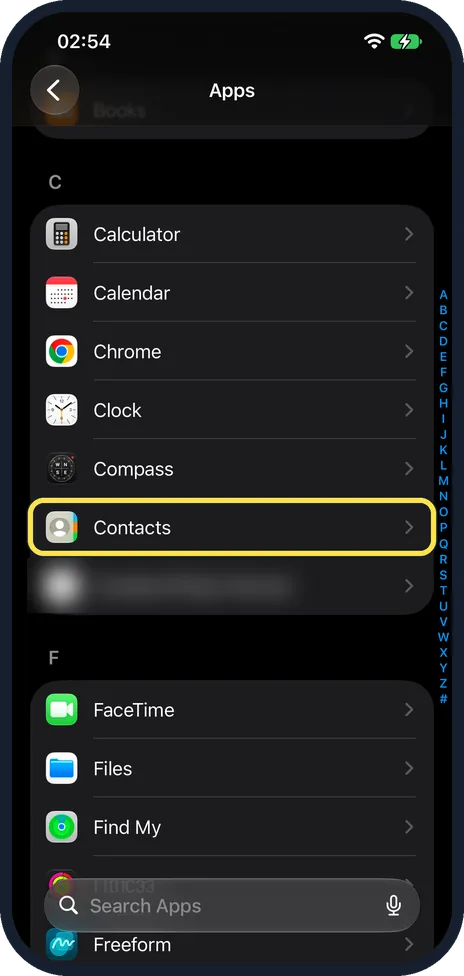
Tap Contacts
The apps are in alphabetical order, so Contacts is near the top, under C.
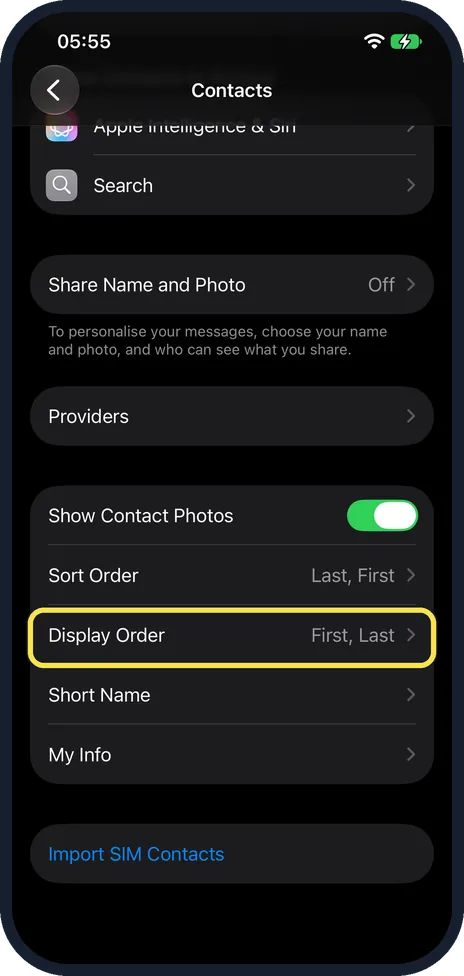
Scroll down and tap Display Order
It is just below Sort Order, in the group that starts with Show Contact Photos. The right side shows the current choice: ours read First, Last.
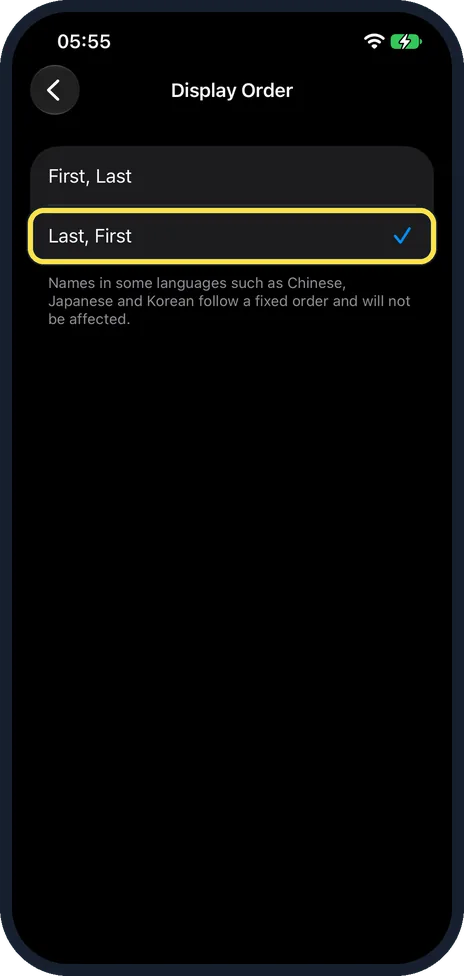
Tap Last, First
The tick moves to your choice. The note below says that names in some languages, such as Chinese, Japanese and Korean, follow a fixed order and will not be affected.
What changed: the screenshots are now our own iPhone 17e on iOS 27.0.1, dark mode, and the wording is checked against those screens.
If you do not see this option
- Your iPhone runs iOS 17 or earlier. Contacts is in the main Settings list itself, not under Apps.
- Search for it. Open Settings, tap the search field at the bottom and type Display Order. Apple notes that the sections in Settings depend on the iPhone model. Source: Find settings on iPhone
- You use an iPad. Apple gives the same steps for iPad: Settings, Apps, Contacts, Display Order. Source: Manage and delete contacts on your iPhone or iPad
If this does not work
- The list is still sorted by first name. Display Order only changes how each name is written. The order of the list is Sort Order, on the same page. Source: Manage and delete contacts on your iPhone or iPad
- Some names do not change. The note on the Display Order page says names in some languages, such as Chinese, Japanese and Korean, follow a fixed order.
- Messages and Mail show shortened names. Short Name, on the same page, decides how names appear in Mail, Messages, Phone and more. Source: Manage and delete contacts on your iPhone or iPad
About this guide
Display Order decides how each name is written: first name before the last name, or after it. It does not change the order of the list. That is Sort Order, on the same page.
The screenshots are our own, taken on an iPhone 17e running iOS 27.0.1, in dark mode.
Good to know
To also sort the list differently: how to sort contacts by first name on an iPhone.
In short: Settings › Apps › Contacts › Display Order › Last, First.
Links checked in October 2026. Menus and features can change after software updates. These steps match the version named at the top.
Did this guide work for you?
Sorry about that. What happened?