
What changed: steps that look different now show our own iPhone 14 Pro on iOS 27.0.1, with the wording checked against that screen.
howtosimply.com/guides/how-to-show-week-numbers-in-the-calendar-on-an-iphone/ · Checked October 2026 · iPhone 14 Pro · iOS 27.0.1
In this guide
Open Settings, tap Apps, then Calendar, and switch on Week Numbers. The Calendar then displays the week number next to every week of the year. The switch is off at first. The setting is in the Settings app, not in the Calendar app itself.
2 of 4 steps with real screenshots · 1 official source below
- Device
- iPhone
- Shown on
- iOS 27.0.1 (iPhone 14 Pro)
- App
- Settings
- Path
- Settings › Apps › Calendar
- Real screenshots
- 2 of 4 steps
- Checked
- October 2026
- Sources
- 1 official, linked below
Step by step
Open Settings and tap Apps
Apps is near the bottom of the main Settings list. On iOS 17 and earlier, Calendar is in the main list itself.
Tap Calendar
The apps are in alphabetical order, so Calendar is near the top, under C.
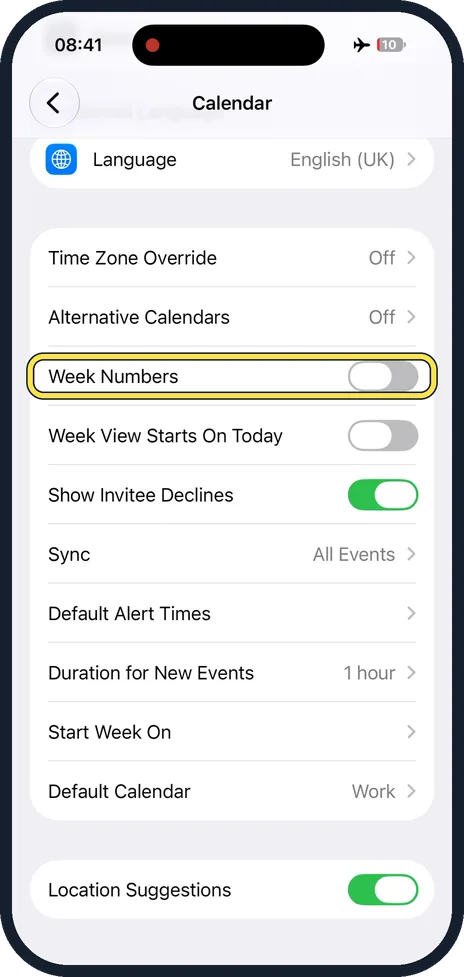
Switch on Week Numbers
It is in the group below Language, after Time Zone Override and Alternative Calendars.
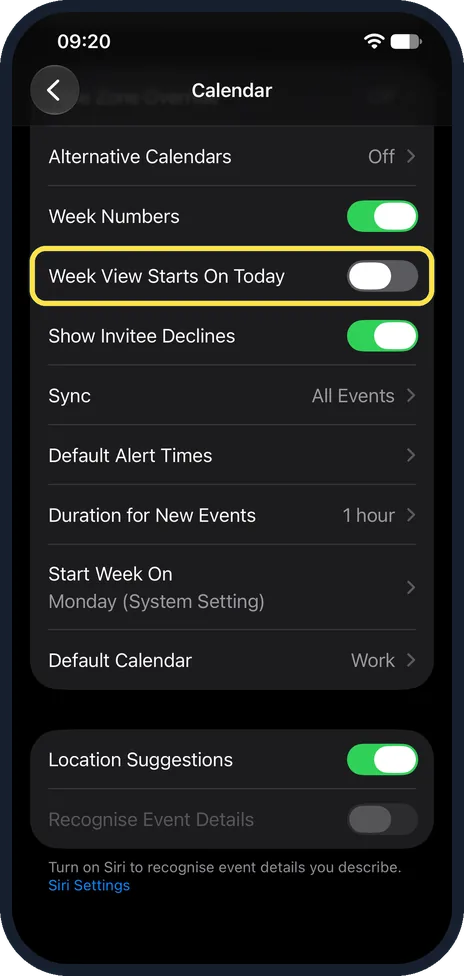
Look at the switch below it
Week View Starts On Today is the next row and is also off at first. Switched on, it shows the current day as the first day in Week view.
What changed: steps that look different now show our own iPhone 14 Pro on iOS 27.0.1, with the wording checked against that screen.
About this guide
Many workplaces plan by week number: delivery in week 42, holiday in week 31. The iPhone Calendar can show these numbers, but the switch is off when the phone is new and it is not inside the Calendar app.
Good to know
Which day a week begins with is set on the same page: how to change the first day of the week in the iPhone Calendar.
To switch the numbers off again, go the same way and switch Week Numbers off.
In short: Settings, Apps, Calendar, Week Numbers on.
Links checked in October 2026. Menus and features can change after software updates. These steps match the version named at the top.
Did this guide work for you?
Sorry about that. What happened?