
You are viewing the macOS 26 version of this guide, recorded on macOS Tahoe 26 (MacBook Pro) on 4 October 2026. It is kept as it was and not updated. See the macOS 27 version.
howtosimply.com/guides/how-to-set-up-text-replacements-on-a-mac/ · Checked 4 October 2026 · MacBook Pro · macOS Tahoe 26
In this guide
Open System Settings, click Keyboard and click Text Replacements. Click the plus button, type a short code in the first field and the full text in the second, then click Add and Done. Typing the code now inserts the full text.
3 of 6 steps with real screenshots · 2 official sources below
- Device
- Mac
- Shown on
- macOS Tahoe 26 (MacBook Pro)
- App
- System Settings
- Real screenshots
- 3 of 6 steps
- Checked
- 4 October 2026
- Sources
- 2 official, linked below
Step by step
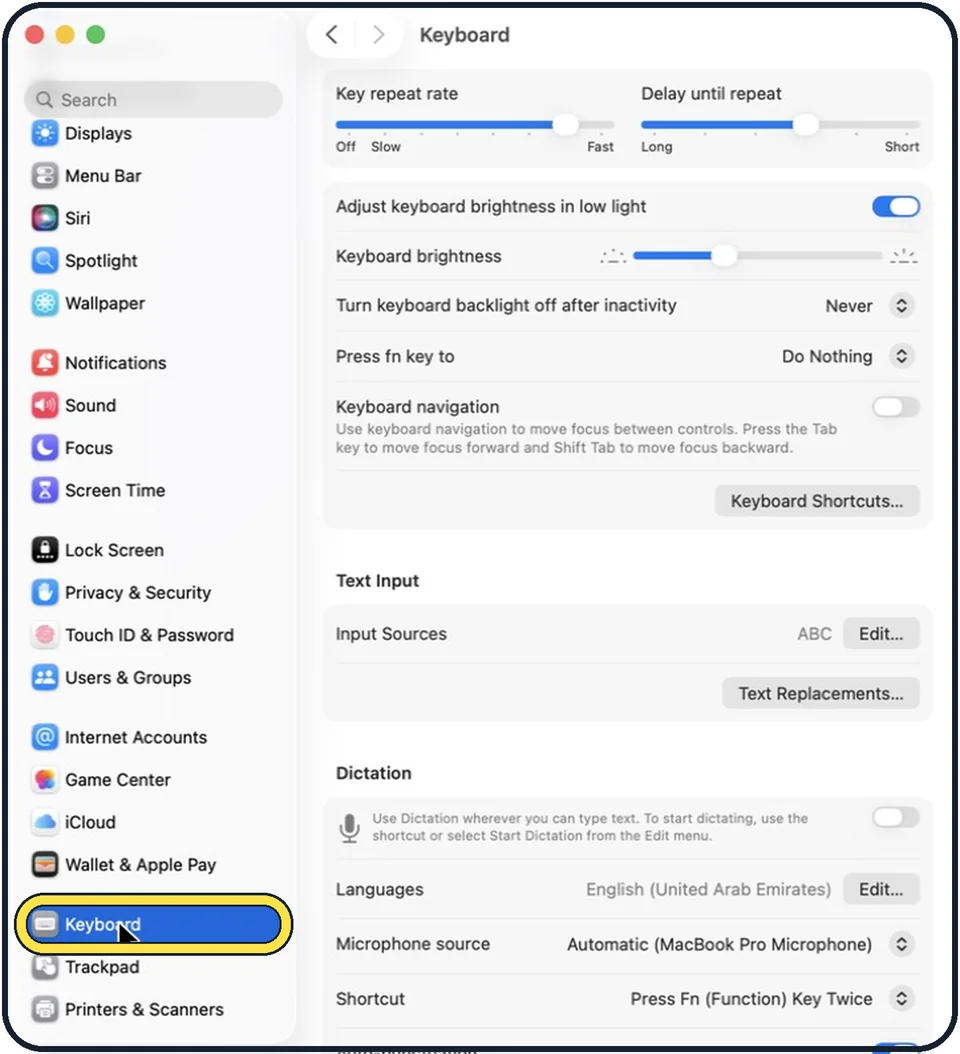
Tap the picture to see it full size Open System Settings and click Keyboard
Click the Apple menu, then System Settings. Keyboard is far down in the sidebar, so scroll.
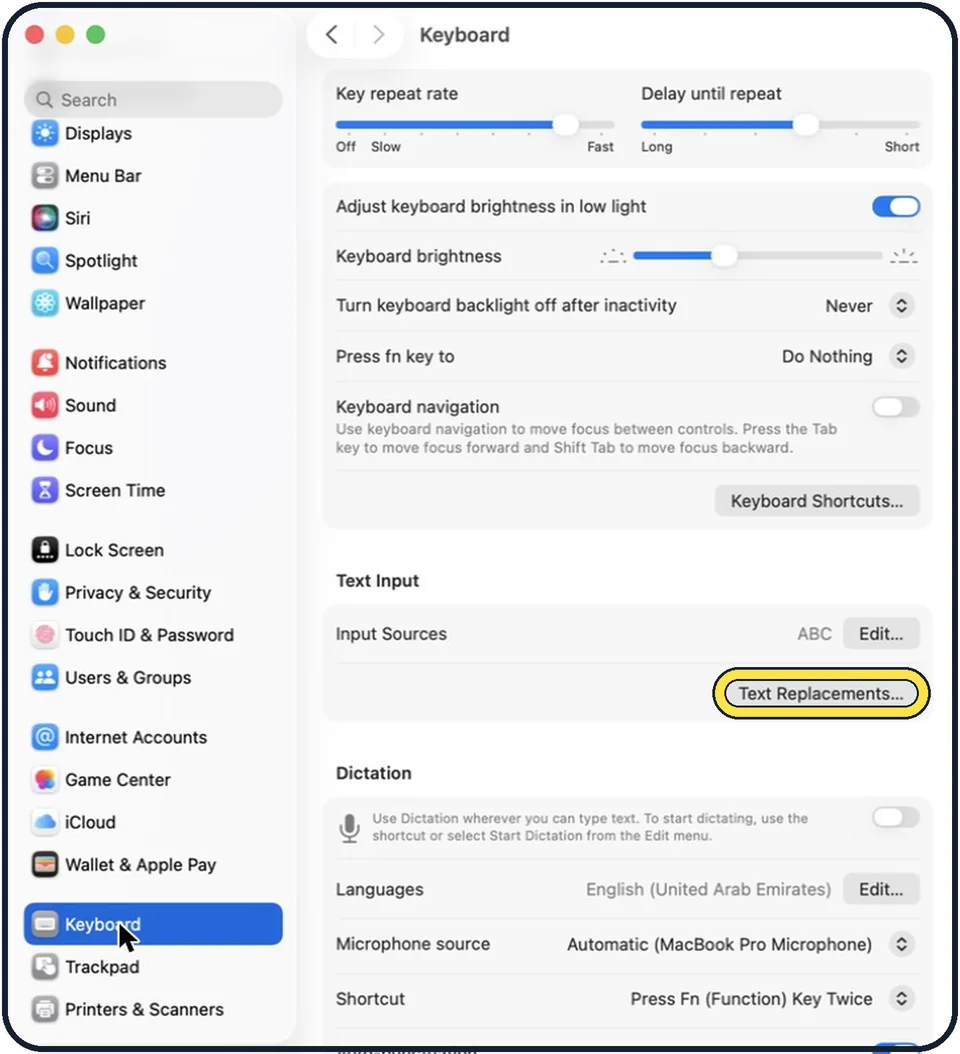
Tap the picture to see it full size Click Text Replacements
The button is in the Text Input section.
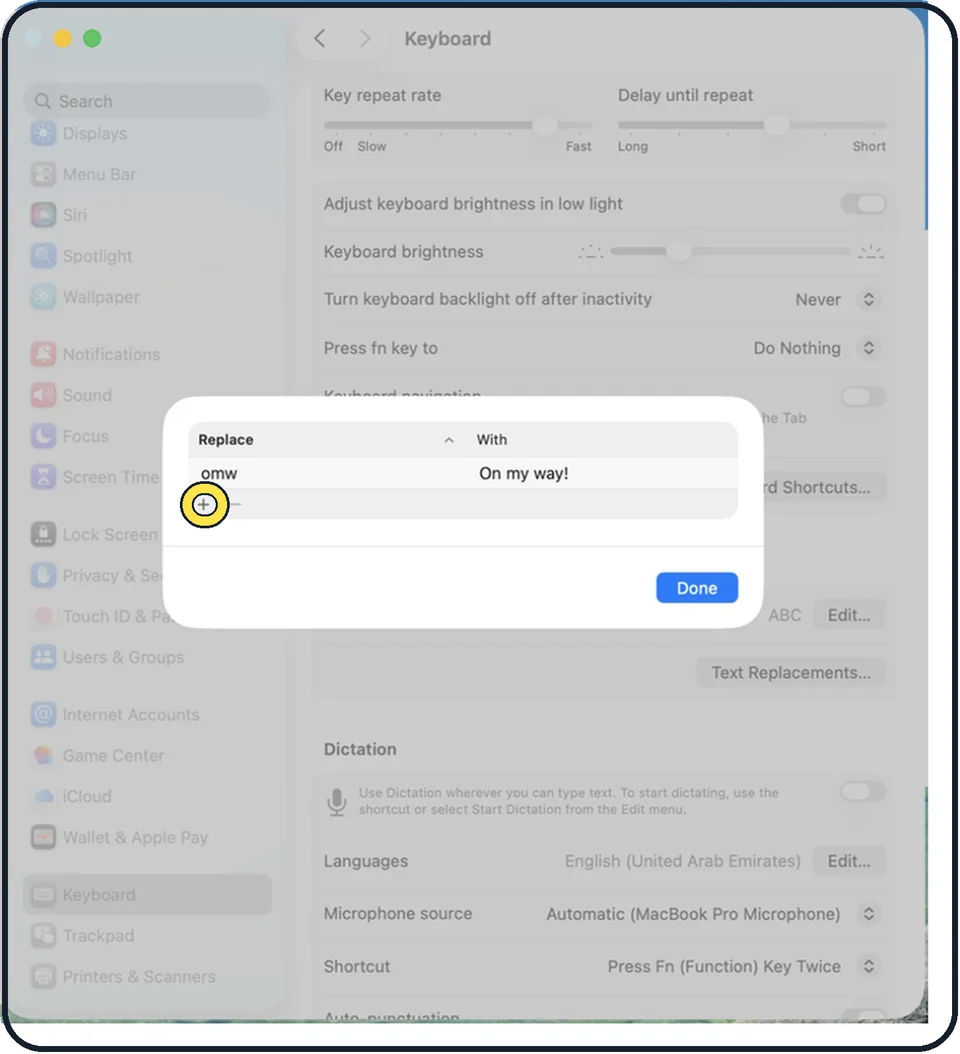
Tap the picture to see it full size Click the plus button
It is at the bottom left of the list.
Type the short code and the full text
In the first field, type the short code. Choose something you would never type by accident. In the second field, type the text it should become.
Click Add, then Done
The new entry appears in the list.
Try it
Open Notes or Mail, type the short code and press the Space bar. The full text replaces it.
What we saw on our device
- Click the plus button: On our MacBook Neo the list already held one entry: omw, replaced with On my way!.
- Type the short code and the full text: On our MacBook Neo, macOS 27 opens a small separate window with Replace and With fields rather than an empty row in the list.
- Click Add: On our MacBook Neo we used hts1 as the code and How To, Simply test as the text.
- Check the list and click Done: On our MacBook Neo hts1 appeared above omw.
- Try it: On our MacBook Neo typing hts1 and a space in a new TextEdit document produced How To, Simply test.
About this guide
A text replacement turns a few letters into a longer text as you type. For example, typing adr could insert your full address. It saves time with email addresses, greetings and phrases you write often.
These steps are for recent versions of macOS, where the settings app is called System Settings. The pictures are our own screenshots from macOS Tahoe 26 on a MacBook Pro.
Good to know
Text replacements do not work in every app. Apple says so itself. In some apps the choices are in the Edit menu under Substitutions, Show Substitutions.
With iCloud Drive set up on your Mac, iPhone and iPad and the same Apple Account on each, a replacement you add on one device works on the others as well.
To copy your replacements to another Mac, select them in the list and drag them to the desktop. That creates a file you can drag into the Text Replacements window on the other Mac.
Start short codes with an unusual letter pair, such as xx, so that ordinary words never trigger them.
Text replacements sync to your iPhone through iCloud: how to create text shortcuts on iPhone.
Autocorrect changing words you meant? How to turn off autocorrect on a Mac.
In short: System Settings > Keyboard > Text Replacements… > + > Replace and With > Add > Done.
- Apple Support: Replace text and punctuation in documents on Mac
- Apple Support: Back up and share text replacements on Mac
Links checked in October 2026. Menus and features can change after software updates. These steps match the version named at the top.
Did this guide work for you?
Sorry about that. What happened?