
howtosimply.com/guides/how-to-change-the-trackpad-speed-on-a-mac/ · Checked October 2026 · MacBook Pro · macOS Tahoe 26
In this guide
Open System Settings, click Trackpad, and drag the Tracking speed slider toward Fast or Slow. It sets how fast the pointer moves across the screen when you move your finger on the trackpad.
4 of 4 steps with real screenshots · 4 official sources below
- Device
- Mac
- Shown on
- macOS Tahoe 26 (MacBook Pro)
- App
- System Settings
- Path
- System Settings › Trackpad › Tracking speed
- Real screenshots
- 4 of 4 steps
- Checked
- October 2026
- Sources
- 4 official, linked below
Step by step
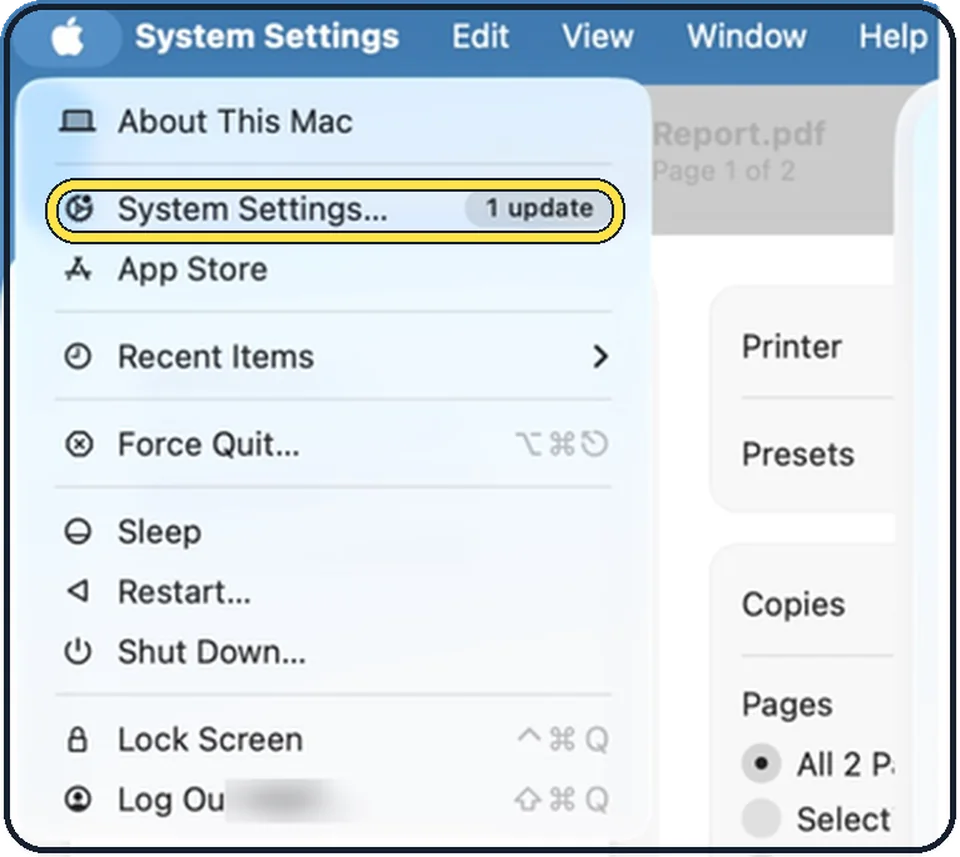
Tap the picture to see it full size Open System Settings
Click the Apple menu in the top left corner of the screen and choose System Settings.
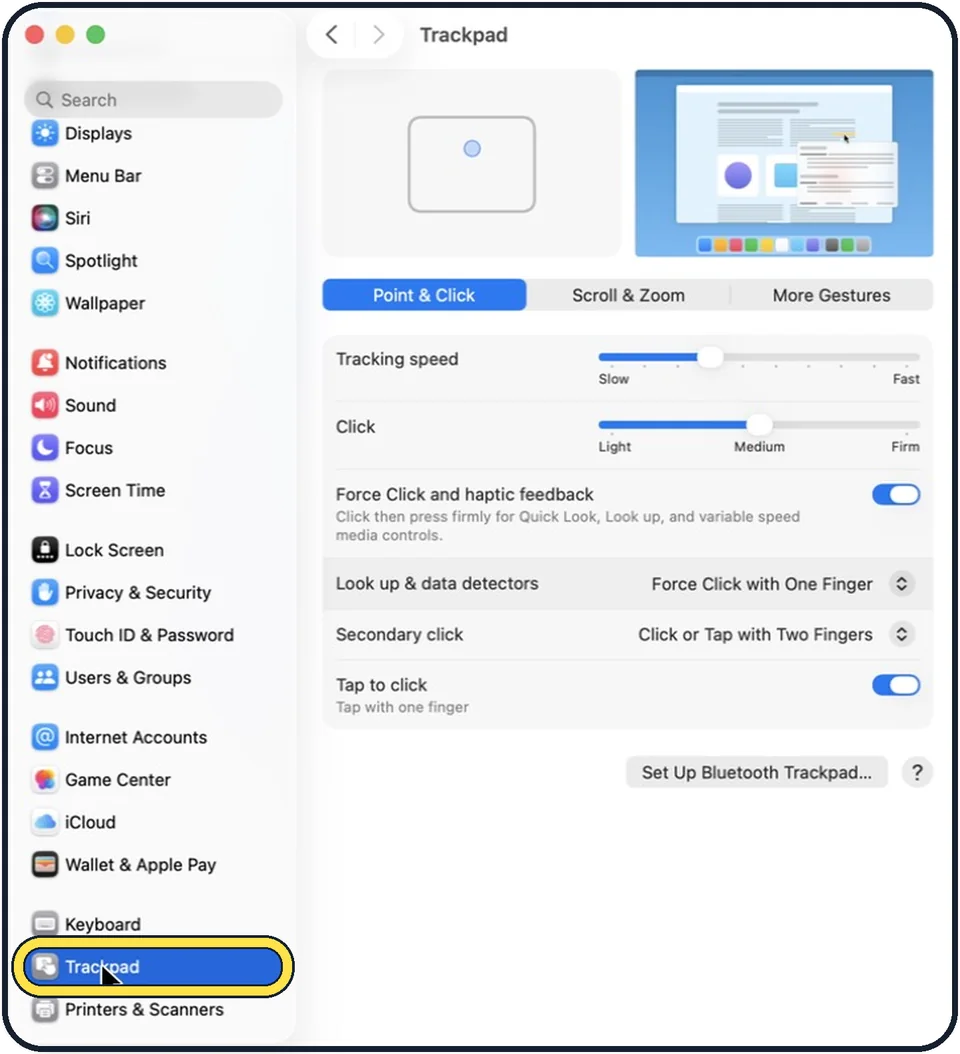
Zoomed in on the setting. Tap to see the whole screenTap the picture to see it full size Click Trackpad in the sidebar
Trackpad is near the bottom of the sidebar, below Keyboard. Scroll down to find it.
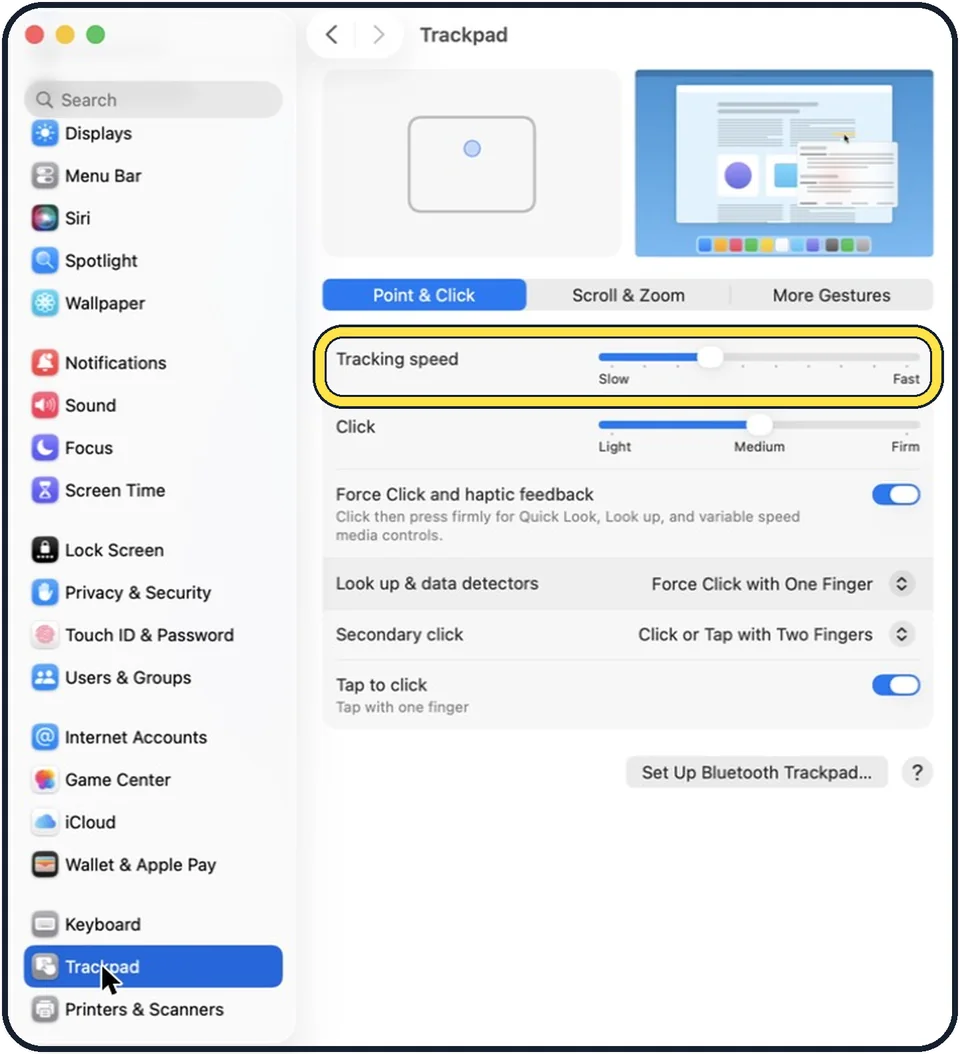
Tap the picture to see it full size Drag the Tracking speed slider
It is the first row of the Point & Click tab, from Slow to Fast.
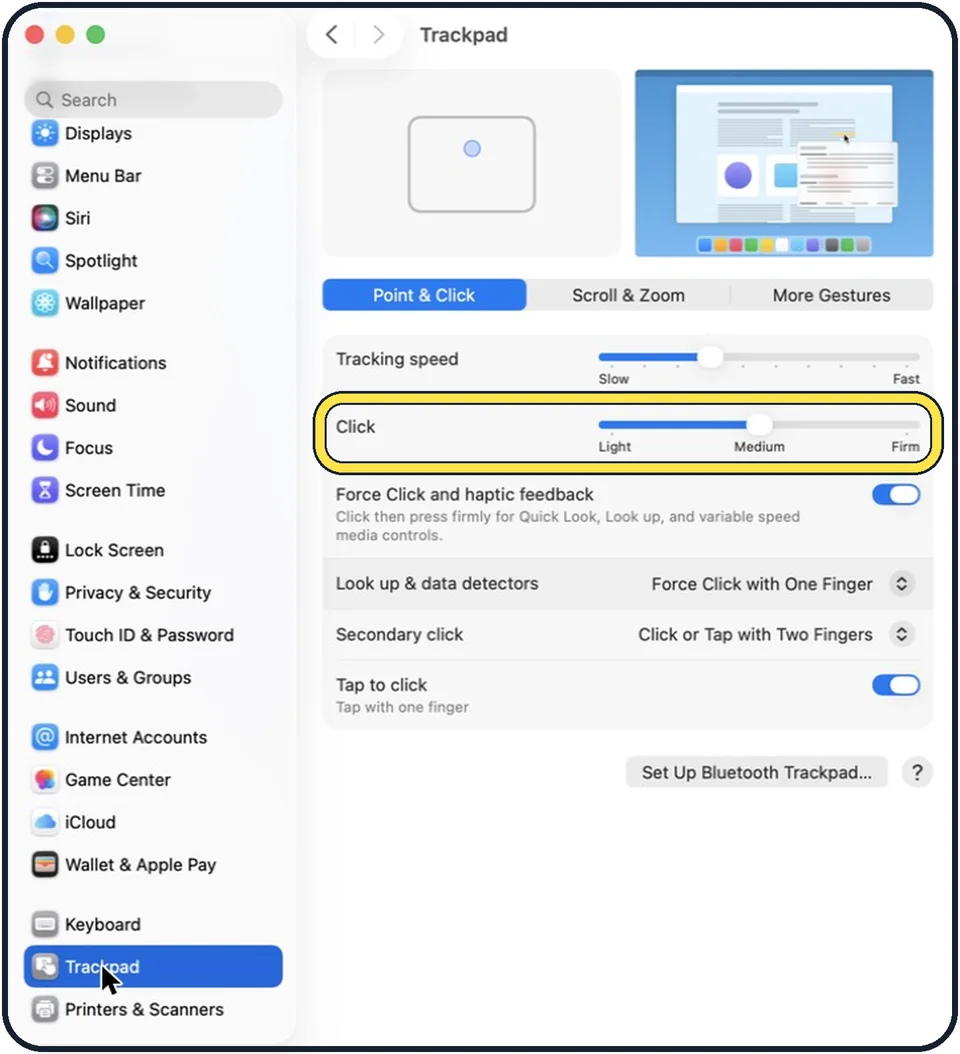
Tap the picture to see it full size Set how firmly you must press
Click, the next row, sets how firmly you must press the trackpad to take action: Light, Medium or Firm.
If you do not see this option
- There is no Trackpad in the sidebar Apple says Trackpad settings need a Mac with a built-in trackpad or a wireless trackpad connected. Source: Change Trackpad settings on Mac
- Some rows are missing Apple says you see only some of the options, depending on the Mac or trackpad you use. Source: Change Trackpad settings on Mac
If this does not work
- Scrolling is too fast or slow Apple says scrolling speed is set separately in Accessibility, Pointer Control, Trackpad Options. Source: Change mouse or trackpad tracking, double-click, and scrolling speed on Mac
- A mouse moves at another speed Apple says Mouse settings have their own Tracking speed slider. Source: Mouse settings on Mac
- The pointer does not move Apple says to use only one finger; if it still fails, a hidden low battery alert may be the cause, so connect power. Source: If the pointer doesn't move when using the trackpad with Mac
About this guide
On a large screen the pointer can feel sluggish, and on a small one too jumpy. Tracking speed is the setting for that.
The screenshots show System Settings on macOS Tahoe 26.
Good to know
The direction of scrolling is on the Scroll & Zoom tab: how to change the scroll direction on a Mac.
In short: System Settings, Trackpad, Tracking speed.
- Mac User Guide: Change Trackpad settings on Mac
- Apple Support: Mouse settings on Mac
- Apple Support: Change mouse or trackpad tracking, double-click, and scrolling speed on Mac
- Apple Support: If the pointer doesn't move when using the trackpad with Mac
Links checked in October 2026. Menus and features can change after software updates. These steps match the version named at the top.
📷 Camera Lab: the same 6 scenes photographed with 11 phones, side by side.
Did this guide work for you?
Sorry about that. What happened?