
howtosimply.com/guides/how-to-merge-duplicate-contacts-on-iphone/ · Checked October 2026 · iPhone 17e · iOS 27.2
In this guide
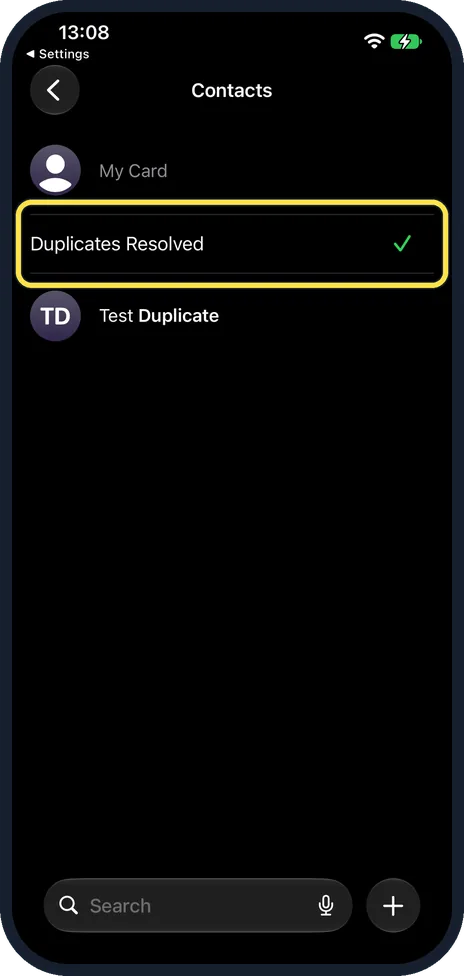
Open Contacts. If two cards have the same name, a Duplicate Found card shows below My Card. Tap View Duplicates, then Merge All, or tap the name to check it and tap Merge. Confirm with Merge. Ours then said Duplicates Resolved.
5 of 5 steps with real screenshots · 3 official sources below
- Device
- iPhone
- Shown on
- iOS 27.2 (iPhone 17e)
- App
- Contacts
- Path
- Contacts › View Duplicates › Merge
- Real screenshots
- 5 of 5 steps
- Checked
- October 2026
- Sources
- 3 official, linked below
Step by step
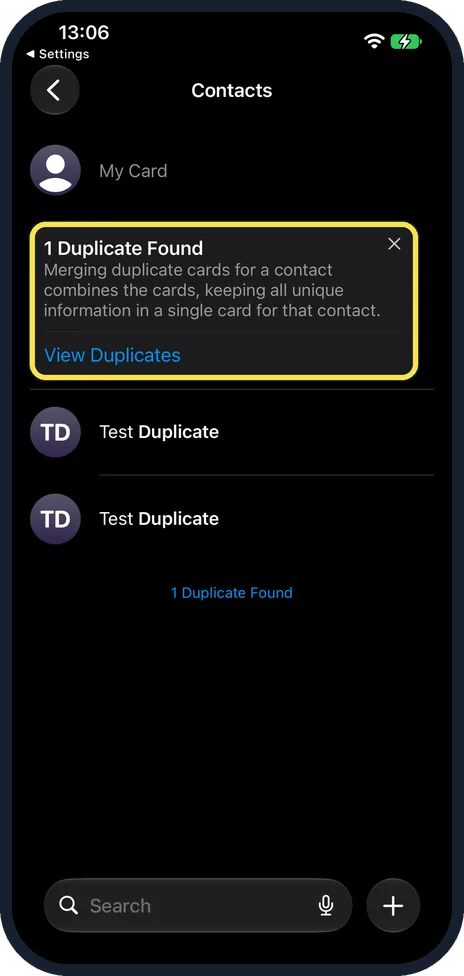
Open Contacts and find Duplicate Found
Open the Contacts app. Ours showed a card below My Card: 1 Duplicate Found. Merging duplicate cards for a contact combines the cards, keeping all unique information in a single card for that contact. Our two Test Duplicate cards were listed under it. Tap View Duplicates.
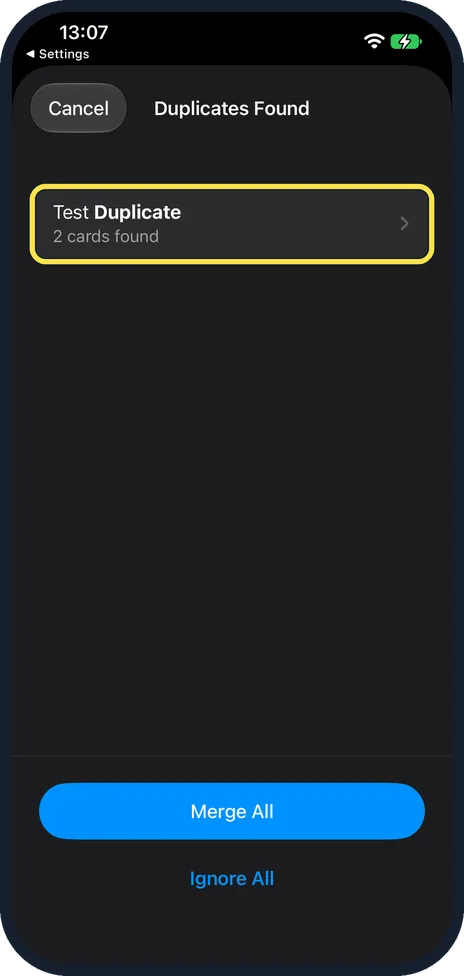
Tap the name, or Merge All
The Duplicates Found page listed Test Duplicate, 2 cards found, with Merge All and Ignore All at the bottom. Merge All merges every pair at once. To check one first, tap its name, as we did.
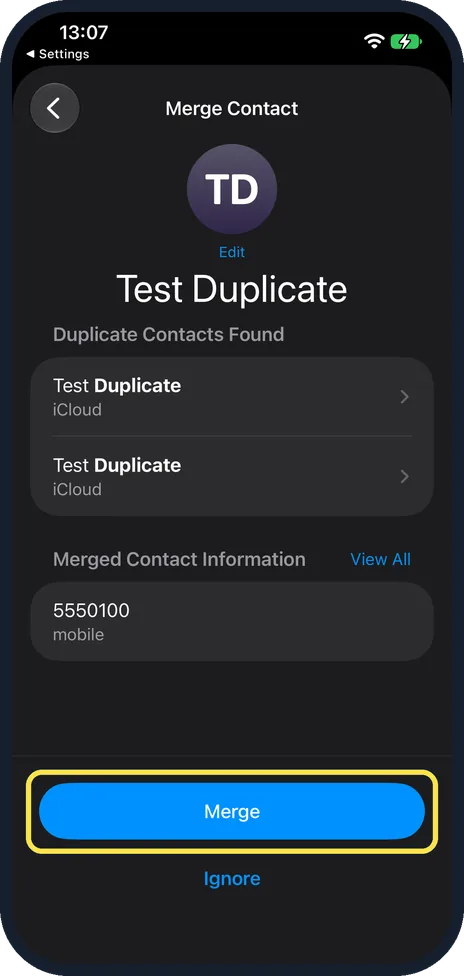
Check the merged card and tap Merge
Merge Contact shows both cards under Duplicate Contacts Found (both iCloud on ours) and what the merged card will hold under Merged Contact Information: our test number, mobile. Tap Merge, or Ignore to keep both cards.
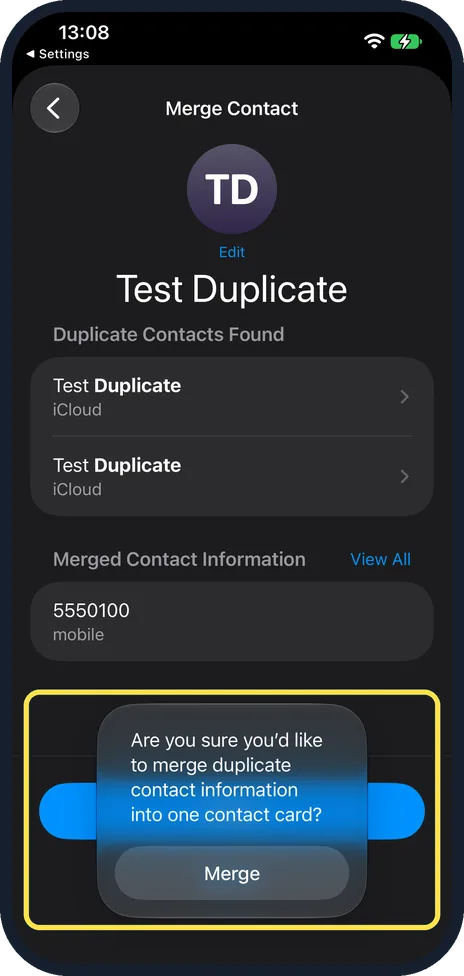
Confirm with Merge
Ours asked: Are you sure you'd like to merge duplicate contact information into one contact card? Tap Merge.
Check the result
Contacts said Duplicates Resolved with a green tick, and only one Test Duplicate card was left.
If you do not see this option
- No Duplicate Found card? Apple says merging is offered for cards with the same first and last name. Ours showed below My Card. With no such cards there is nothing to merge. Source: Get rid of duplicate contacts on iPhone
- Cards in Google or Exchange? Apple says Contacts can hold several accounts, such as iCloud, Microsoft Exchange, Google and Yahoo, and that cards for one person in different accounts can be linked so they show once. Both our test cards were in iCloud. Sources: Get rid of duplicate contacts on iPhone, Add or remove accounts in Contacts on iPhone
If this does not work
- Same person, two different names? Merging only covers cards with the same first and last name. Apple says to join them by hand: tap one card, tap Edit, then Link Contacts, choose the other card and tap Link. Linked cards are not merged. Source: Get rid of duplicate contacts on iPhone
- Duplicates still on your other devices? Apple says iCloud keeps contacts up to date on your devices: Settings, your name, iCloud, See All next to Saved to iCloud, then turn on Contacts. Our test cards were in iCloud. Source: Sync contacts across devices on iPhone
About this guide
The screenshots are from our iPhone 17e with iOS 27.2, in Dark mode, taken on 27 October 2026. We made two test cards in our iCloud account, both called Test Duplicate with the same mobile number, merged them, then deleted the test card.
Apple says the iPhone offers to merge contact cards that have the same first and last name.
Good to know
To back up your contacts before you merge, see how to export contacts from an iPhone.
In short: Contacts, Duplicate Found, View Duplicates, tap the name or Merge All, Merge, then Merge again. Ours ended with Duplicates Resolved.
- Apple iPhone User Guide: Get rid of duplicate contacts on iPhone
- Apple iPhone User Guide: Add or remove accounts in Contacts on iPhone
- Apple iPhone User Guide: Sync contacts across devices on iPhone
Links checked in October 2026. Menus and features can change after software updates. These steps match the version named at the top.
📷 See real photos from the iPhone 17e in our Camera Lab, next to 10 other phones.
Did this guide work for you?
Sorry about that. What happened?