
You are viewing the macOS 26 version of this guide, recorded on macOS Tahoe 26 (MacBook Pro) on 2 October 2026. It is kept as it was and not updated. See the macOS 27 version.
howtosimply.com/guides/how-to-rename-your-mac/ · Checked 2 October 2026 · MacBook Pro · macOS Tahoe 26
In this guide
Open System Settings, click General, click About, click the name at the top and type a new one. The new name is what other devices see on the network and in AirDrop.
2 of 4 steps with real screenshots · 1 official source below
- Device
- Mac
- Shown on
- macOS Tahoe 26 (MacBook Pro)
- App
- System Settings
- Path
- System Settings › General › About › Name
- Real screenshots
- 2 of 4 steps
- Checked
- 2 October 2026
- Sources
- 1 official, linked below
Step by step
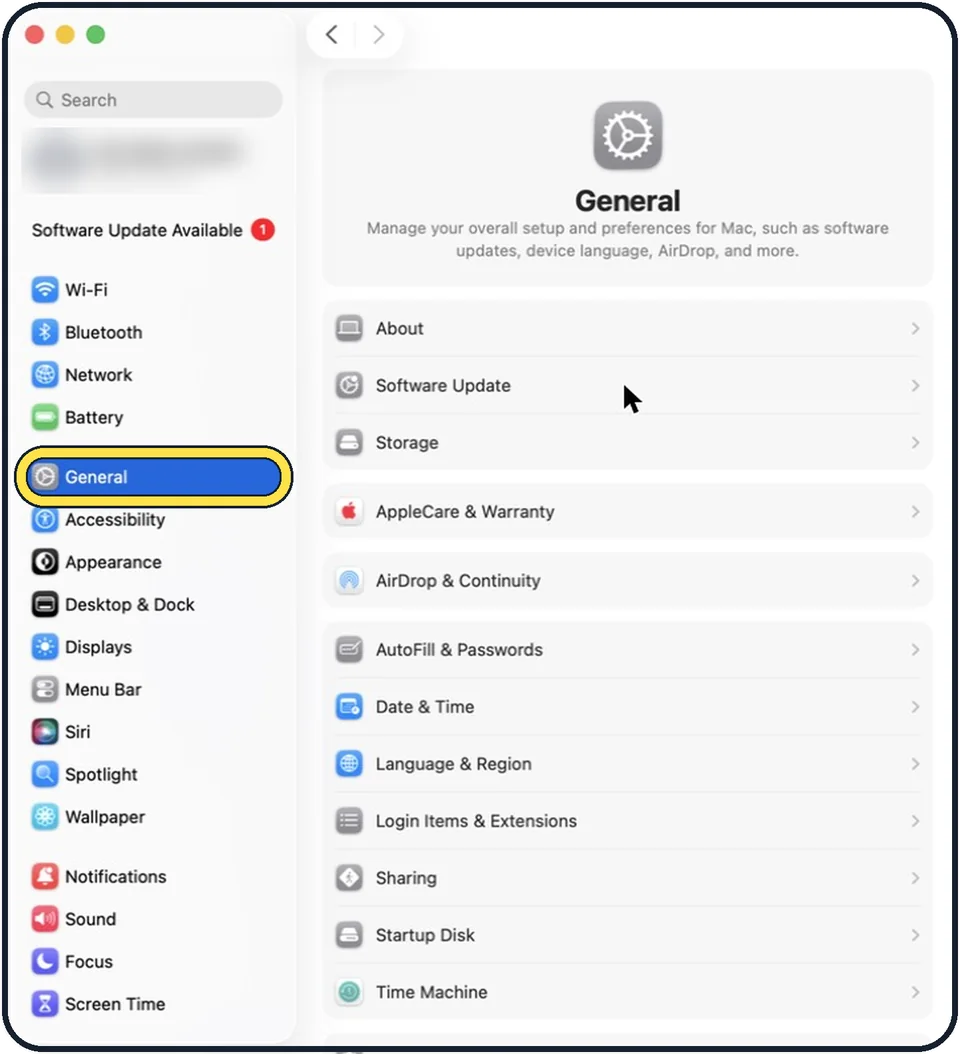
Tap the picture to see it full size Open System Settings and click General
Click the Apple menu in the top left corner and choose System Settings. Then click General in the sidebar.
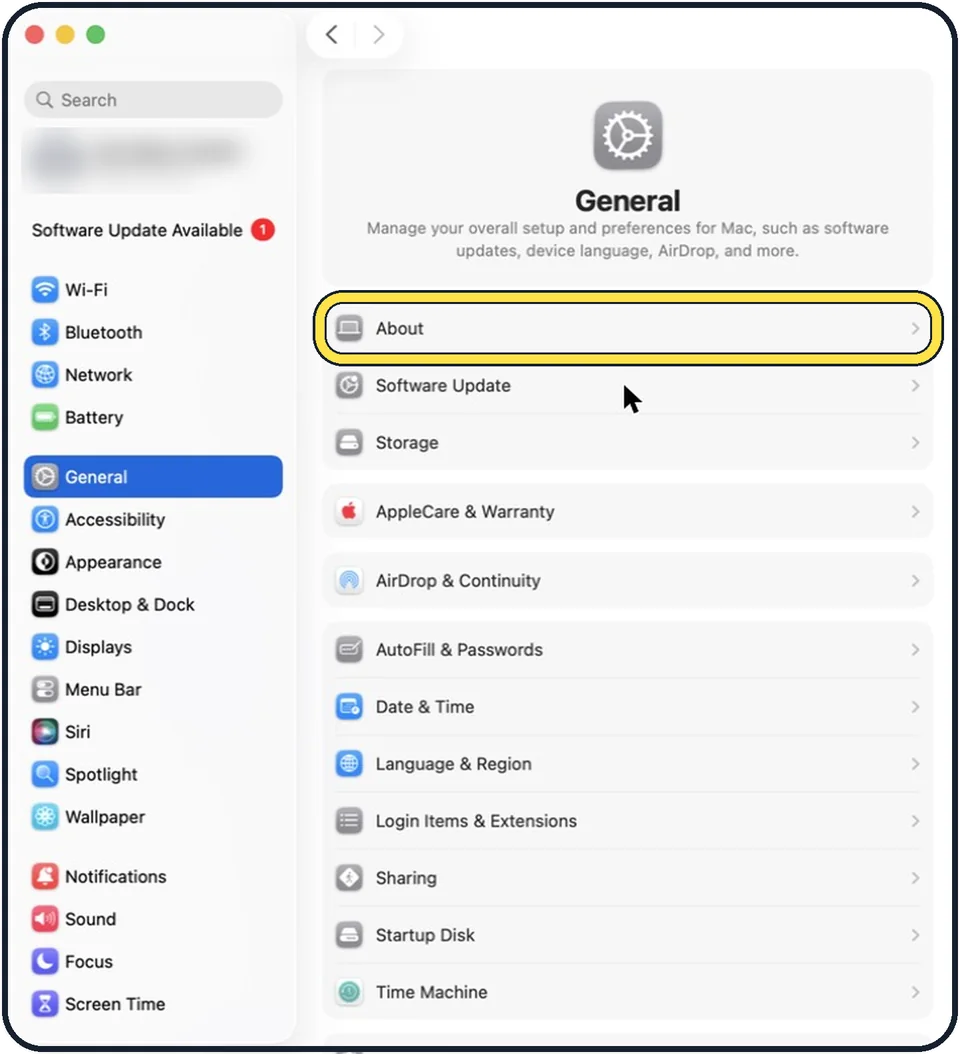
Tap the picture to see it full size Click About
It is the first line on the General page.
Click the name and type a new one
The name is the first line on the About page. Select the current name and type the new one.
Leave the page
Press Return or click somewhere else, and the new name is kept.
What we saw on our device
- Click General, then About: On our MacBook Neo, About sits above Software Update and Storage.
- Click Name: On our MacBook Neo, the About page shows MacBook Neo at the top, then Name, Chip Apple A18 Pro and Memory 8 GB.
- Enter your password, click Modify Settings and type the new name: On our MacBook Neo, clicking Name did not make it editable straight away.
About this guide
A Mac is usually named after its first user, for example Anna's MacBook Pro. Change it if you bought the Mac second-hand, if two Macs at home have the same name, or if you do not want your name shown on shared networks.
These steps are for recent versions of macOS, where the settings app is called System Settings. The pictures are our own screenshots from macOS Tahoe 26 on a MacBook Pro.
Some pictures are simplified diagrams of the screen, not screenshots.
Good to know
Apple calls this the computer name. It identifies the Mac on your local network.
There is a second name, the local hostname. It is the computer name with .local added, and with hyphens in place of spaces: My Computer becomes My-Computer.local. Other devices use it to find shared services on the Mac.
To change the local hostname yourself, open System Settings, General, Sharing, and click Edit in the Local hostname section at the bottom.
Renaming the Mac does not change your user account name or your home folder.
A new name is a good moment to check the login password too: How to change your password on a Mac.
Selling or giving the Mac away instead? How to factory reset a Mac.
In short: System Settings, General, About, Name, password, Modify Settings, type a new name.
Links checked in October 2026. Menus and features can change after software updates. These steps match the version named at the top.
Did this guide work for you?
Sorry about that. What happened?