
howtosimply.com/guides/how-to-pin-and-star-messages-on-whatsapp-on-android/ · Checked October 2026 · Google Pixel 10a, Android 17 (build CP3A.261005.005), WhatsApp 2.26.41.77
In this guide
Touch and hold the message and tap Pin (on a message you can still edit, it is under More). Choose 24 hours, 7 days or 30 days and tap Pin. It shows as a banner at the top of the chat. To star a message, tap More, then Star.
3 of 3 steps with real screenshots · 3 official sources below
- Device
- Android
- Shown on
- Google Pixel 10a, Android 17 (build CP3A.261005.005), WhatsApp 2.26.41.77
- App
- Real screenshots
- 3 of 3 steps
- Checked
- October 2026
- Sources
- 3 official, linked below
Step by step
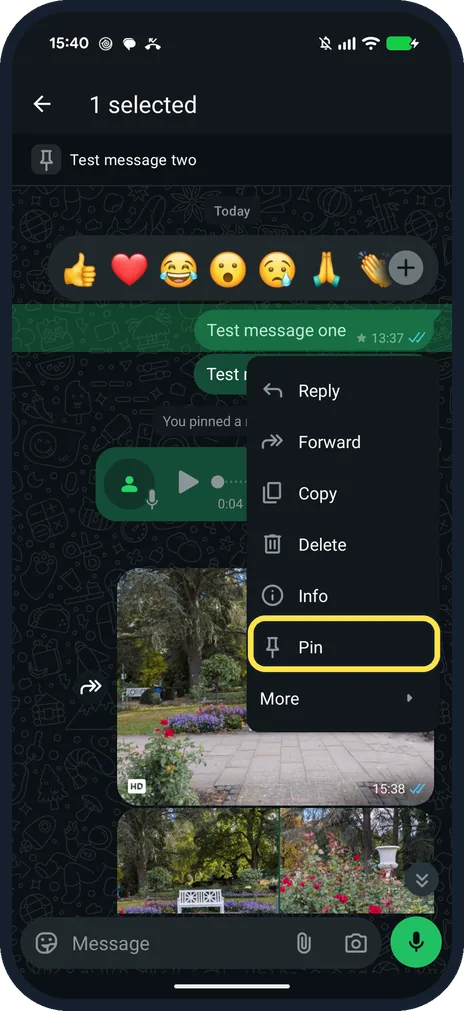
Touch and hold the message and tap Pin
Ours, Test message one: Reply, Forward, Copy, Delete, Info, Pin and More.
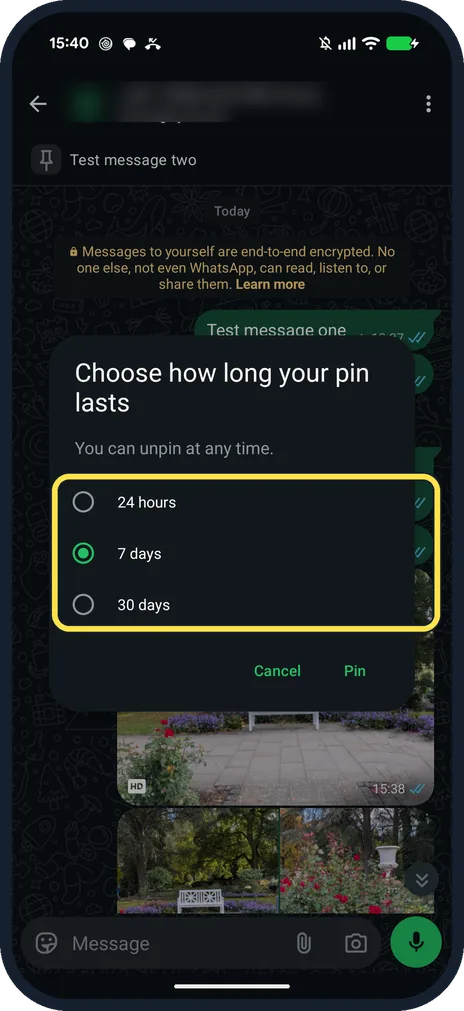
Choose how long and tap Pin
Choose how long your pin lasts: 24 hours, 7 days (selected) or 30 days. You can unpin at any time.
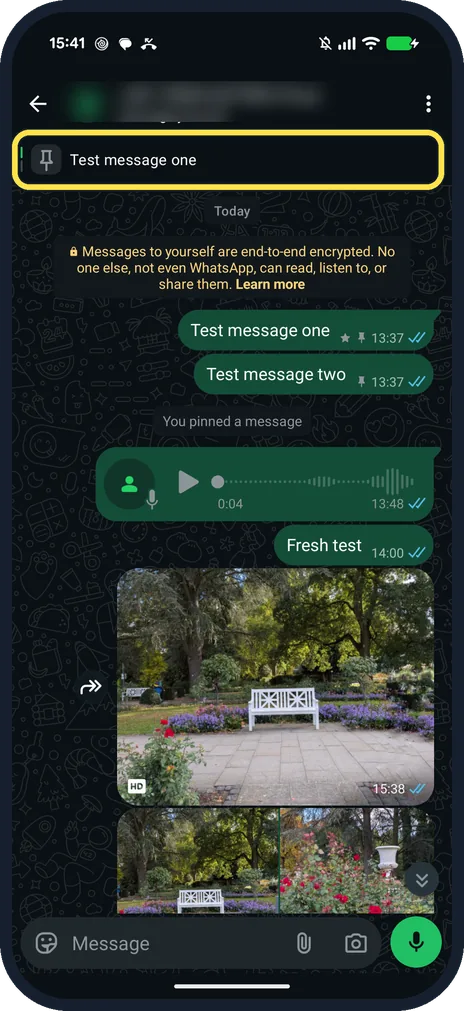
Find the pinned banner
Test message one shows at the top of the chat, with a pin icon next to its time.
If you do not see this option
- No Pin in the menu? On a message we had just sent, the menu had Edit instead, and Pin was under More, with Star.
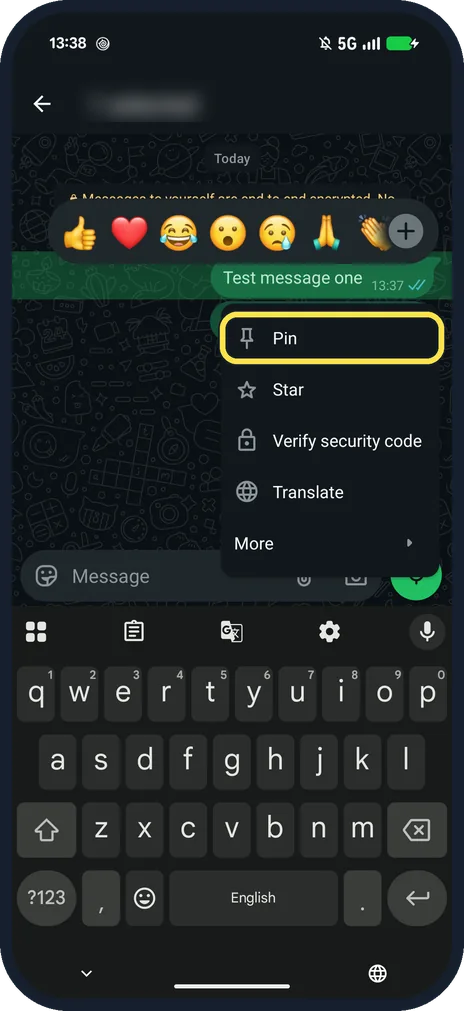
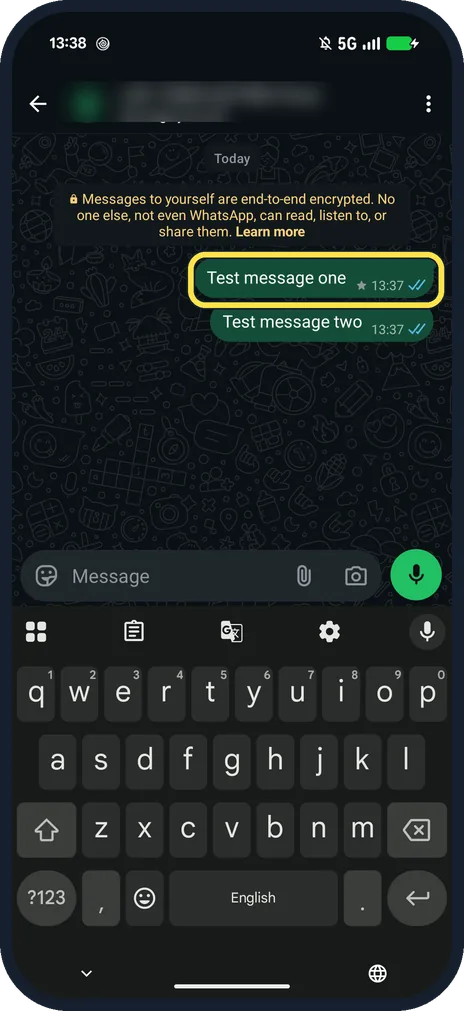
- Want to star instead? Tap More, then Star: ours had Star under More, below Pin. A small star appears next to the time. To see every starred message, tap the three dots on the Updates or Chats tab, then Starred. Source: How to star or unstar a message
- No Pin in a group? WhatsApp says group admins choose whether members can pin: group name, Group permissions, Edit group settings. Source: How to pin a message
If this does not work
- Can't pin another message? WhatsApp says you can pin up to four messages in a chat. Source: How to pin a message
- Pin disappeared? WhatsApp says a pin unpins itself when the time you chose runs out. Source: How to pin a message
- Someone can't see your pin? WhatsApp says people who joined a group after the pin, or cleared their chat history, don't see it. Source: How to pin a message
About this guide
Pin keeps a message at the top of a chat for a set time; Star bookmarks it with no time limit.
The screenshots are from our Google Pixel 10a with Android 17 and WhatsApp 2.26.41.77, in Dark mode, taken on 25 October 2026. We pinned and starred our own test notes in the Message yourself chat.
Good to know
To keep notes in a chat with yourself, see message yourself on WhatsApp.
In short: Touch and hold, Pin (or More, Pin), duration, Pin.
- WhatsApp Help Center: How to pin a message
- WhatsApp Help Center: How to star or unstar a message
- WhatsApp Help Center: How to search WhatsApp
Links checked in October 2026. Menus and features can change after software updates. These steps match the version named at the top.
📷 See real photos from the Pixel 10a in our Camera Lab, next to 10 other phones.
Did this guide work for you?
Sorry about that. What happened?