
What changed: the screenshots are now our own iPhone 17e on iOS 27.0.1, dark mode, and the wording is checked against those screens and Apple's iOS 27 guide.
howtosimply.com/guides/iphone-software-update-failed-or-stuck-7-fixes-to-try/ · Checked October 2026 · iPhone 17e · iOS 27.0.1
In this guide
Connect to Wi-Fi and a charger, and make sure there is enough free space under Settings, General, iPhone Storage. If the update still fails, delete it from that storage list, download it again under Settings, General, Software Update, or update with a computer.
6 of 7 steps with real screenshots · 3 official sources below
- Device
- iPhone
- Shown on
- iOS 27.0.1 (iPhone 17e)
- App
- Settings
- Real screenshots
- 6 of 7 steps
- Checked
- October 2026
- Sources
- 3 official, linked below
Step by step
Check that your iPhone supports the update
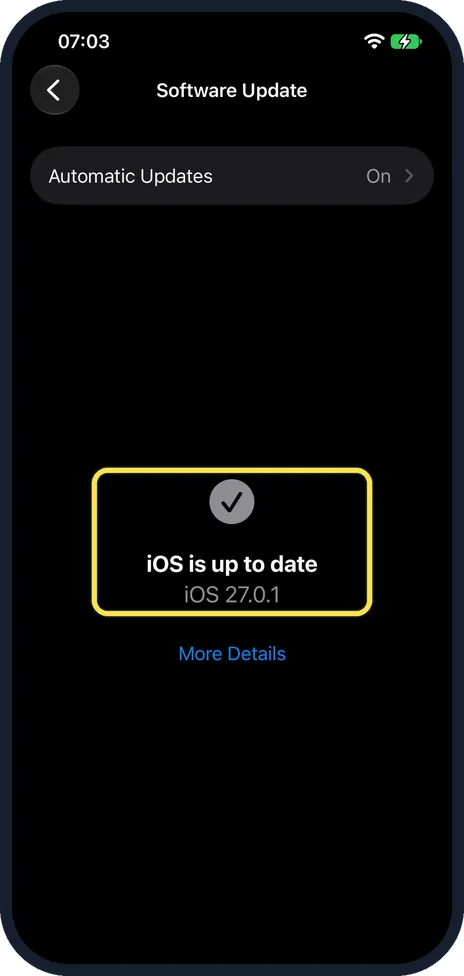
Older models stop receiving new versions of iOS. If Software Update says your iPhone is up to date while a newer version exists, look for your model on Apple's list of compatible devices. Apple says the screen shows the installed version and whether an update is available. On our iPhone 17e it said iOS is up to date, iOS 27.0.1, with Automatic Updates on at the top and a More Details link below.
Watch these steps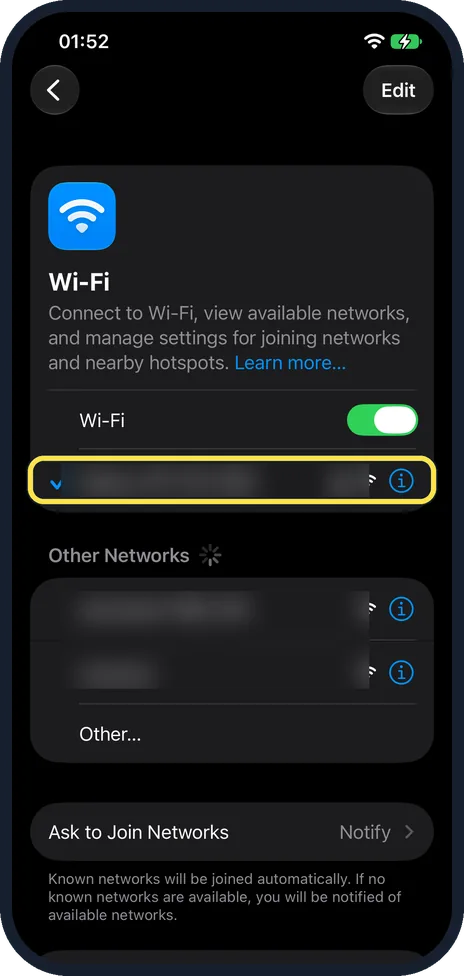
Connect to Wi-Fi and power
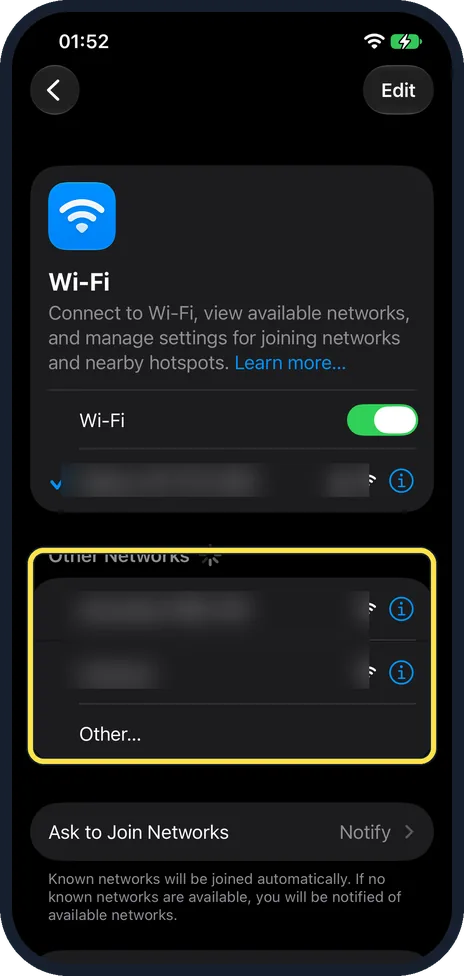
Join a Wi-Fi network and plug the iPhone into a charger. Avoid downloading other things at the same time, because that slows the update. In Settings, Wi-Fi, a tick marks the network you are joined to.
Free up storage
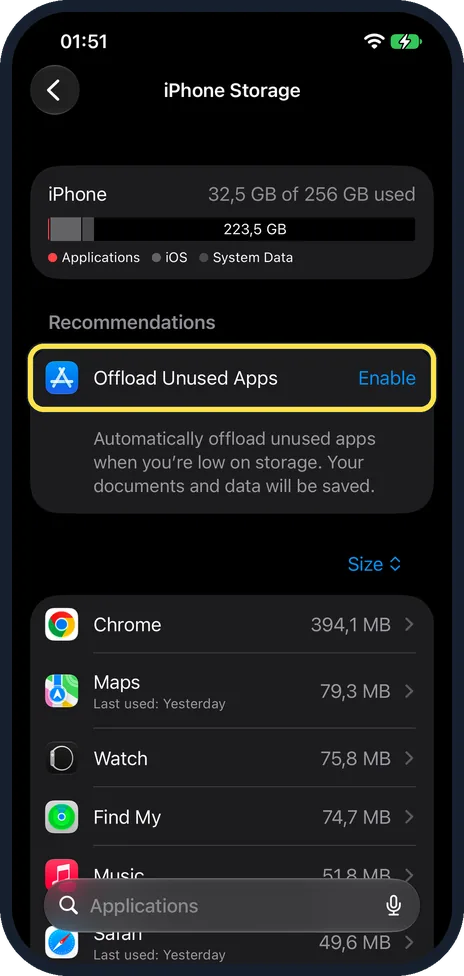
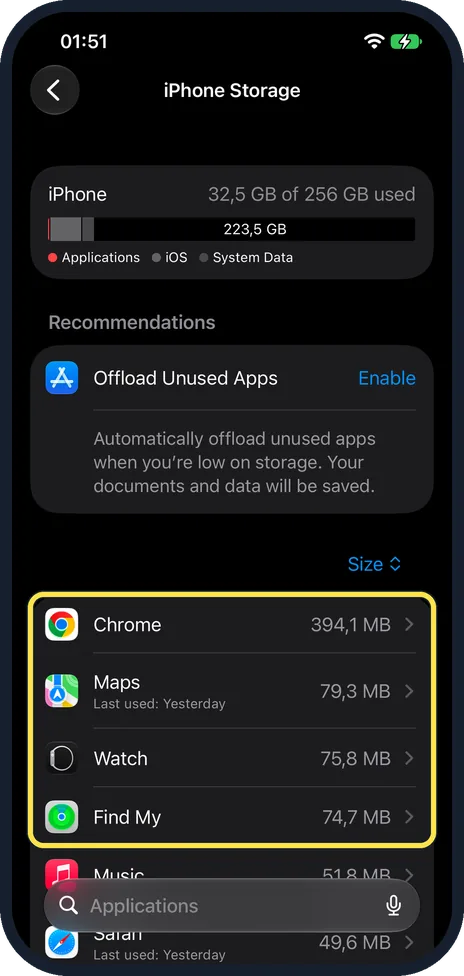
Open Settings, General, iPhone Storage. Tap Enable next to Offload Unused Apps, or delete apps and videos you do not need. On our iPhone 17e Offload Unused Apps was under Recommendations, with an Enable button and the note: automatically offload unused apps when you’re low on storage. Your documents and data will be saved.
Give it time
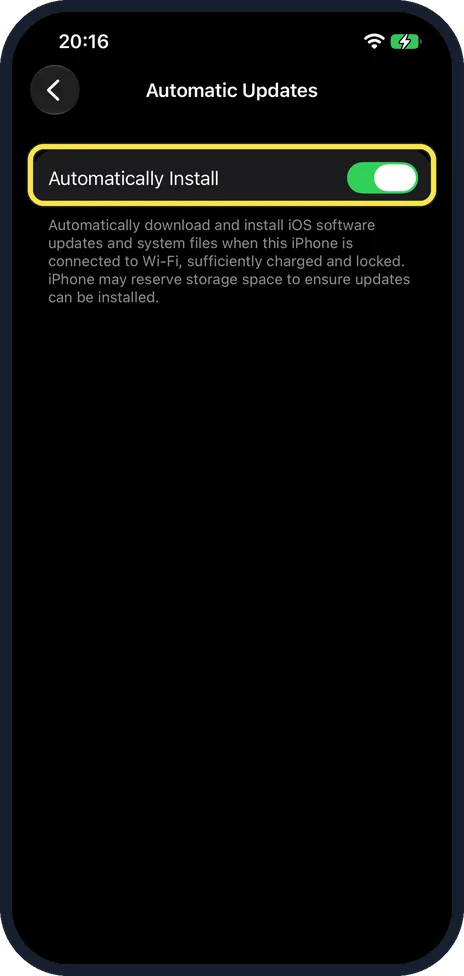
How long the installation takes depends on the size of the update and how much is stored on the phone. Keep it on the charger. If it ran out of power part way, plug it in and turn it on so the update can finish. No update was waiting on our iPhone 17e, so we cannot show the progress screen. To let updates install by themselves, open Settings, General, Software Update, Automatic Updates. On our iPhone 17e with iOS 27.0.1 that page had a single switch, Automatically Install, which was on. Its note says updates download and install when the iPhone is connected to Wi-Fi, sufficiently charged and locked.
Try a different network
If you see "Unable to Check for Update" or a message that the update could not be verified, first try again on the same network. If it still fails, try another Wi-Fi network. Pick one under Other Networks in Settings, Wi-Fi.
Delete the update and download it again
Open Settings, General, iPhone Storage, find the update in the list of apps, tap it and tap Delete Update. Then go to Settings, General, Software Update and download it again. On our iPhone 17e, which was up to date, the list showed only apps: no downloaded update is listed when iOS is up to date.
Update with a computer
Connect the iPhone to a Mac and open Finder, or to a Windows PC and open the Apple Devices app or iTunes. Select the iPhone (on a Mac, in the Finder sidebar, then click General) and click Check for Update.
What changed: the screenshots are now our own iPhone 17e on iOS 27.0.1, dark mode, and the wording is checked against those screens and Apple's iOS 27 guide.
Watch these steps
What we saw on our device
- Check that your iPhone supports the update: On our iPhone 17e it said iOS is up to date, iOS 27.0.1, with Automatic Updates on at the top and a More Details link below.
- Free up storage: On our iPhone 17e Offload Unused Apps was under Recommendations, with an Enable button and the note: automatically offload unused apps when you’re low on storage.
- Give it time: On our iPhone 17e with iOS 27.0.1 that page had a single switch, Automatically Install, which was on.
- Delete the update and download it again: On our iPhone 17e, which was up to date, the list showed only apps: no downloaded update is listed when iOS is up to date.
If you do not see this option
- No Download and Install button When no update is waiting, Software Update shows the installed version and Automatic Updates. Apple says Automatically Download appears only after you turn off Automatically Install. Source: Update iOS on iPhone
- Offload Unused Apps is not under Recommendations Apple's iOS 27 guide puts the switch under Settings, Apps, App Store, Offload Unused Apps. Source: Manage storage on iPhone
If this does not work
- An automatic update never installs Apple says Automatically Install works overnight while the iPhone is charging and on Wi-Fi, and you are told before it installs. Leave it on the charger overnight, or tap Download and Install yourself. Source: Update iOS on iPhone
- Stuck on the Apple logo, or the computer does not see the iPhone If the screen stays on the Apple logo for several minutes, or the computer does not recognise the iPhone, Apple's next step is recovery mode with a computer. Source: If your iPhone or iPad won't update
About this guide
To update, an iPhone needs to be a compatible model and needs an internet connection, enough free storage and power. When one of these is missing you see messages such as "Unable to Check for Update" or "Unable to Download", or the update appears to stop part way. Screenshots: iPhone 17e, iOS 27.0.1, dark mode.
Good to know
Back up the iPhone before a major update, to iCloud or to a computer, so nothing is lost if the update goes wrong.
If the update is not in the storage list, it has not been downloaded yet. Go straight to Software Update.
Apple's iOS 27 guide describes separate iOS Updates and System Files groups on the Automatic Updates page. Our iPhone 17e with iOS 27.0.1 showed only the Automatically Install switch (step 4). We did not switch it off, so we cannot say whether an Automatically Download switch then appears, as Apple says.
In short: Wi-Fi and charger, free up storage, delete the update under iPhone Storage and download it again, or update with a computer.
- Apple Support: If your iPhone or iPad won't update
- Apple iPhone User Guide: Update iOS on iPhone
- Apple iPhone User Guide: Manage storage on iPhone
Links checked in October 2026. Menus and features can change after software updates. These steps match the version named at the top.
Did this guide work for you?
Sorry about that. What happened?