
What changed: the screenshots are now our own iPhone 17e on iOS 27.0.1, dark mode, and the wording is checked against those screens and Apple's iOS 27 guide.
howtosimply.com/guides/iphone-showing-the-wrong-time-how-to-fix-the-date-and-time/ · Checked October 2026 · iPhone 17e · iOS 27.0.1
In this guide
Open Settings, tap General, tap Date & Time and switch on Set Time Automatically and Set Time Zone Automatically. Up to iOS 26 this is one switch, Set Automatically. If the time zone is still wrong, open Settings, Privacy & Security, Location Services, System Services and switch on Setting Time Zone.
6 of 6 steps with real screenshots · 3 official sources below
- Device
- iPhone
- Shown on
- iOS 27.0.1 (iPhone 17e)
- App
- Settings
- Path
- Settings › General › Date & Time
- Real screenshots
- 6 of 6 steps
- Checked
- October 2026
- Sources
- 3 official, linked below
Step by step
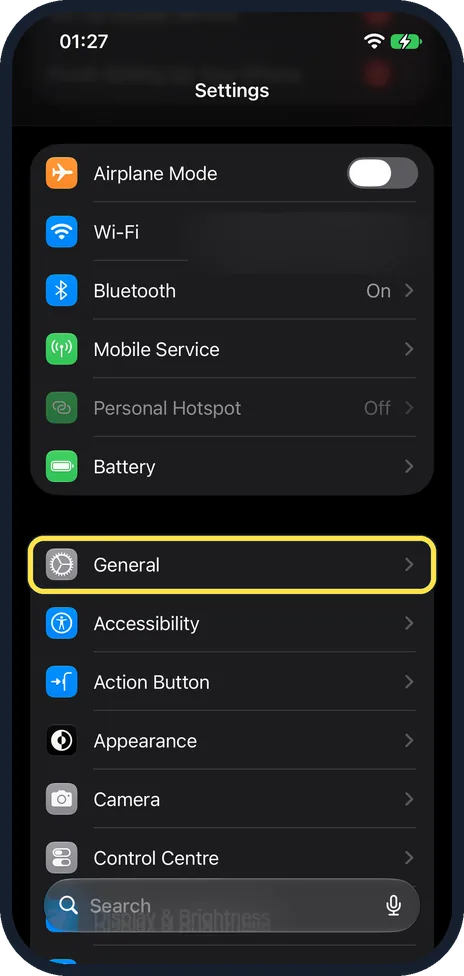
Open Settings and tap General
Tap General. It is the first row of the group below Battery.
Watch these steps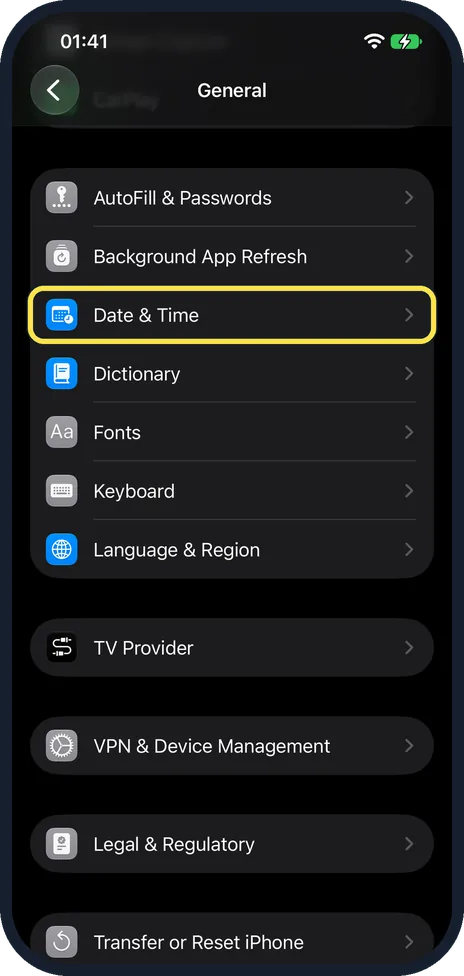
Tap Date & Time
Scroll down the General page to find it, between Background App Refresh and Dictionary.
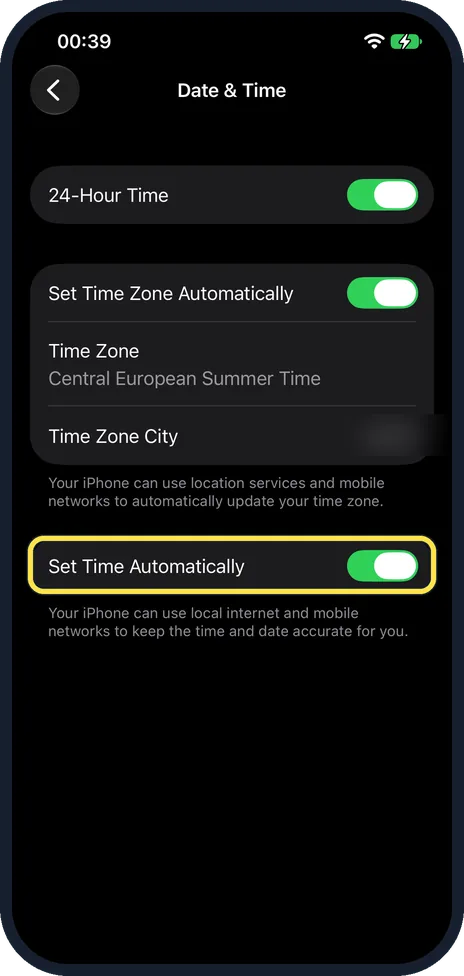
Switch on Set Time Automatically
On iOS 27 it is the last switch on the page, below the time zone rows. The note under it says your iPhone can use local internet and mobile networks to keep the time and date accurate. On our iPhone 17e it was on. Up to iOS 26 there is one switch called Set Automatically that covers time and time zone.
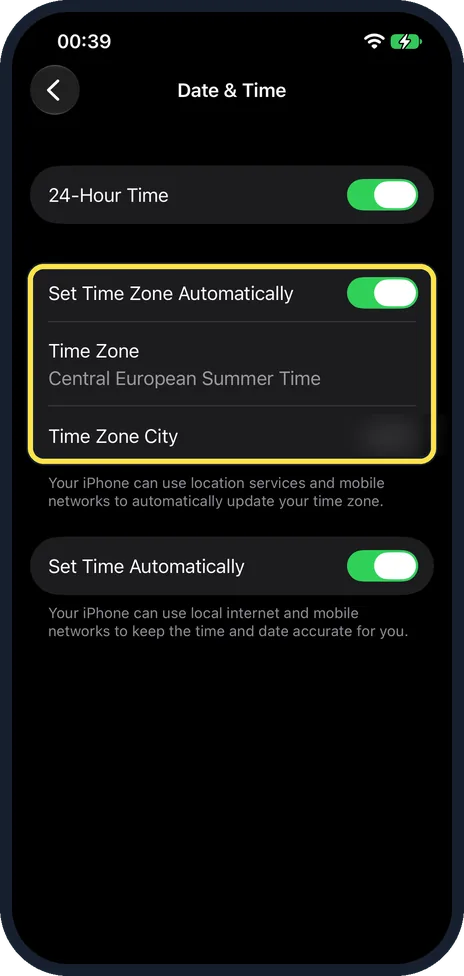
Switch on Set Time Zone Automatically
On iOS 27 the time zone has its own switch, near the top of the page below 24-Hour Time. The note under the group says your iPhone can use location services and mobile networks to update your time zone. On our iPhone 17e it was on, and the Time Zone row showed Central European Summer Time. We blurred the Time Zone City row below it.
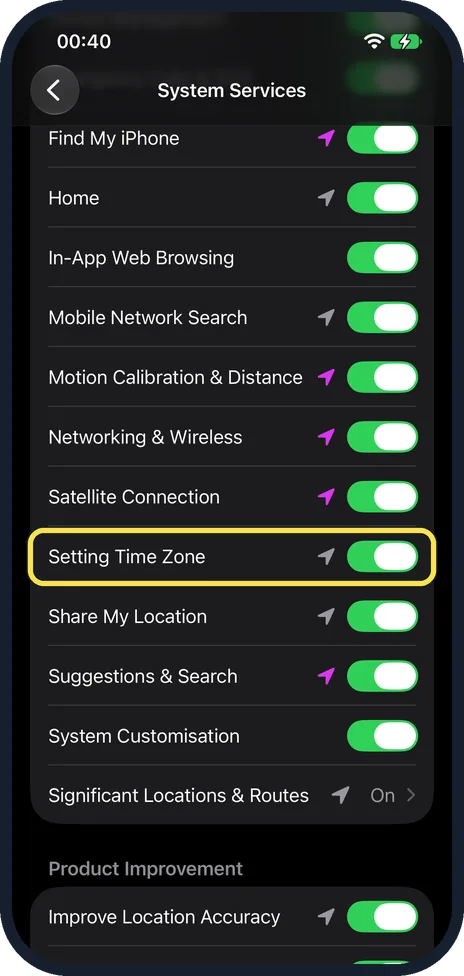
Allow the time zone to use your location
If the time zone is still wrong, open Settings, Privacy & Security, Location Services. Scroll to the bottom and tap System Services. Switch on Setting Time Zone. On our iPhone 17e it was on.
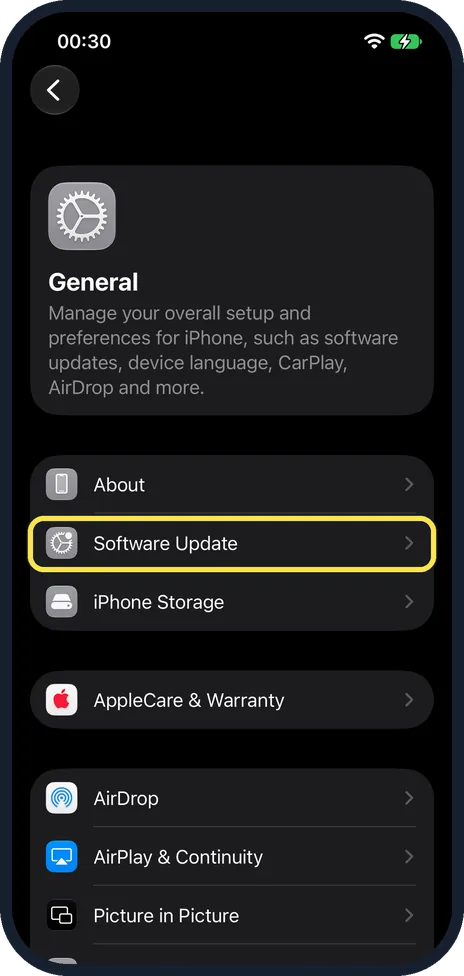
Check the connection and update iOS
Apple's first checks: make sure the iPhone is connected to the internet, and install the latest iOS update under Settings, General, Software Update. If a message says that updated time zone information is available, restart the iPhone and any paired Apple Watch.
What changed: the screenshots are now our own iPhone 17e on iOS 27.0.1, dark mode, and the wording is checked against those screens and Apple's iOS 27 guide.
Watch these steps
If you do not see this option
- Only one Set Automatically switch Up to iOS 26 the Date & Time page has one switch, Set Automatically, for time and time zone. Apple's iOS 27 guide names two: Set Time Zone Automatically and Set Time Automatically. Source: Change the date and time on iPhone · Source: Change the date and time on iPhone (iOS 26)
- No Set By row On our iPhone 17e, with Set Time Zone Automatically on, the page showed Time Zone and Time Zone City but no Set By row. Apple's iOS 27 guide has you turn off Set Time Zone Automatically first, then tap Time Zone City or Set By. On iOS 26 Apple says to tap Time Zone and enter a location in the search field. Source: Change the date and time on iPhone · Source: Change the date and time on iPhone (iOS 26)
If this does not work
- Location Services is off Apple says the time zone is set automatically, but if Location Services is off or you have no service, you can change it by hand. The steps are under Good to know. Source: Change the date and time on iPhone
- The switch is dimmed Apple says a Screen Time passcode or a corporate profile with device restrictions can dim the setting. Check Settings, Screen Time, or ask whoever manages the phone. Apple also notes that the option might not be available with all carriers or in all countries and regions. Source: If you can't change the time or time zone on your Apple device
About this guide
An iPhone normally sets its clock from the network and adjusts to time zones and summer time by itself. If the time is wrong after a flight or a clock change, a switch is usually off.
Screenshots: iPhone 17e, iOS 27.0.1, dark mode.
Good to know
To set things by hand on iOS 27, Apple's iOS 27 guide says: turn off Set Time Zone Automatically, then tap Time Zone City and search for a city, or tap Set By, tap Time Zone Offset, then tap + or -. To change the date and time, turn off Set Time Automatically, then set the date and time. Up to iOS 26, turn off Set Automatically, tap Time Zone and enter a location.
Changing the time settings to change how apps behave, such as game timers, isn't recommended, Apple says.
To change how dates are written: how to change the region, date format and temperature unit on iPhone.
In short: Settings, General, Date & Time, Set Time Automatically and Set Time Zone Automatically. Location Services, System Services, Setting Time Zone.
- Apple Support: If you can't change the time or time zone on your Apple device
- Apple iPhone User Guide: Change the date and time on iPhone
- Apple iPhone User Guide: Change the date and time on iPhone (iOS 26)
Links checked in October 2026. Menus and features can change after software updates. These steps match the version named at the top.
Did this guide work for you?
Sorry about that. What happened?