VIVO
How to open an app in a small window on a vivo phone (Smart sidebar)

In short
Turn on Smart sidebar in Settings, Shortcuts & accessibility, Smart sidebar. Then swipe inward from the thin bar on the right edge and tap an app such as Calculator: it opens as a floating small window over the screen. Drag a lower corner to resize it, or tap the minimise button to turn it into a bubble.
7 of 7 steps show a real screenshot from our V70 Lite 5G. Each step was checked against the maker's own instructions, linked at the end.
Steps
- 1
Open Smart sidebar settings
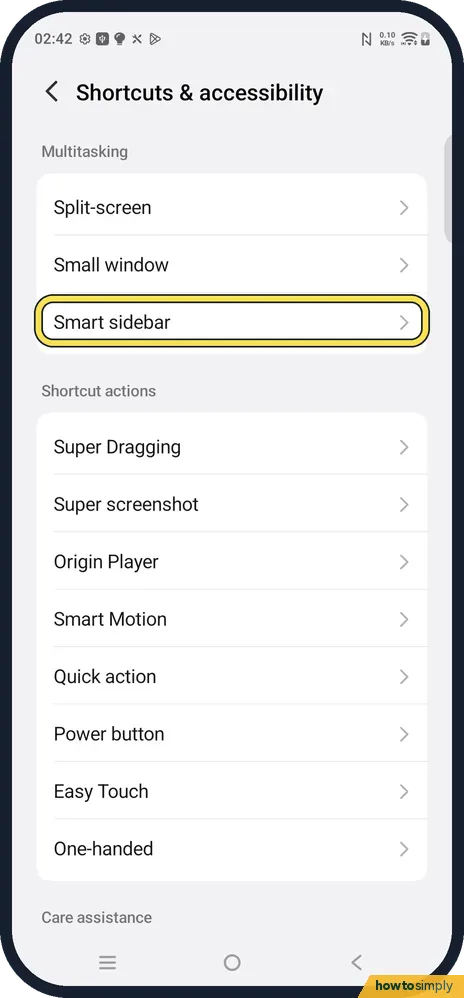
Open Settings, Shortcuts & accessibility. Under Multitasking you see Split-screen, Small window and Smart sidebar. Tap Smart sidebar.
- 2
Turn on Smart sidebar
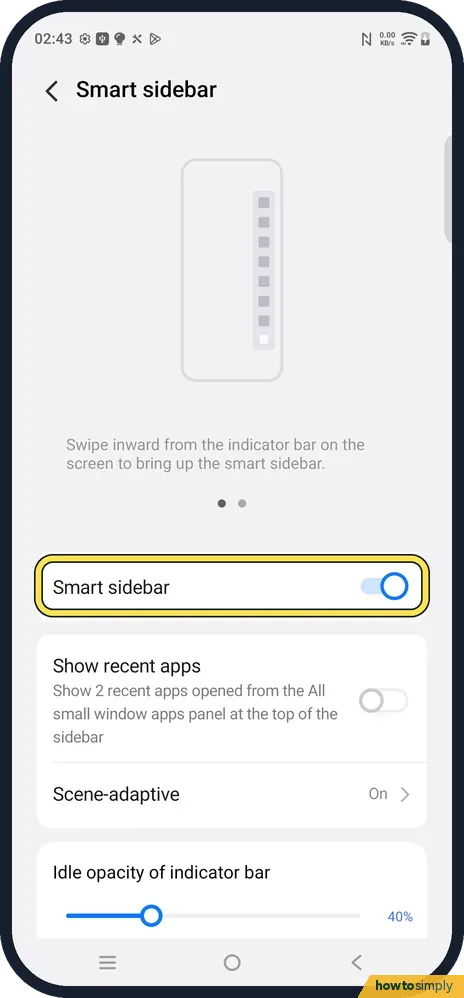
The switch was on on ours. The page explains: swipe inward from the indicator bar on the screen to bring up the smart sidebar. Idle opacity of indicator bar (40 % on ours) makes the bar easier or harder to see.
- 3
Swipe in from the indicator bar
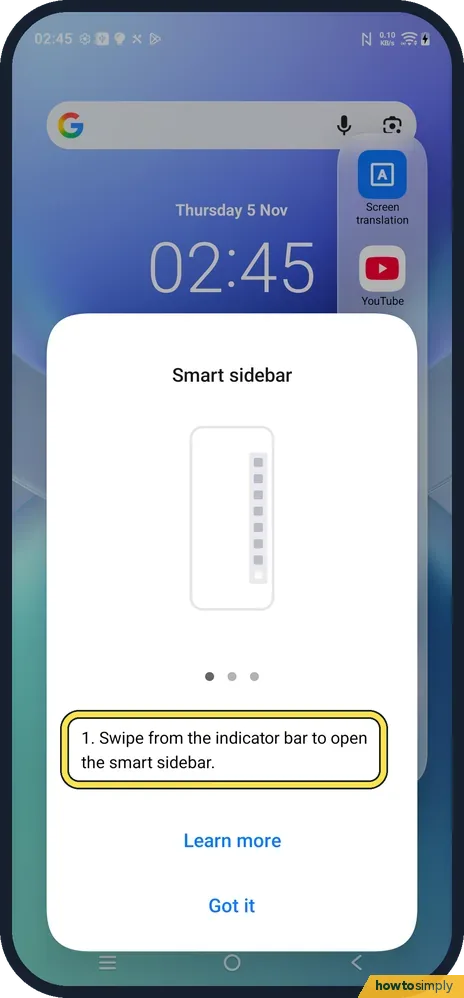
On the right edge of the screen there is a thin bar. Swipe from it towards the middle. The first time, a tip explains this; tap Got it.
- 4
Tap an app in the sidebar
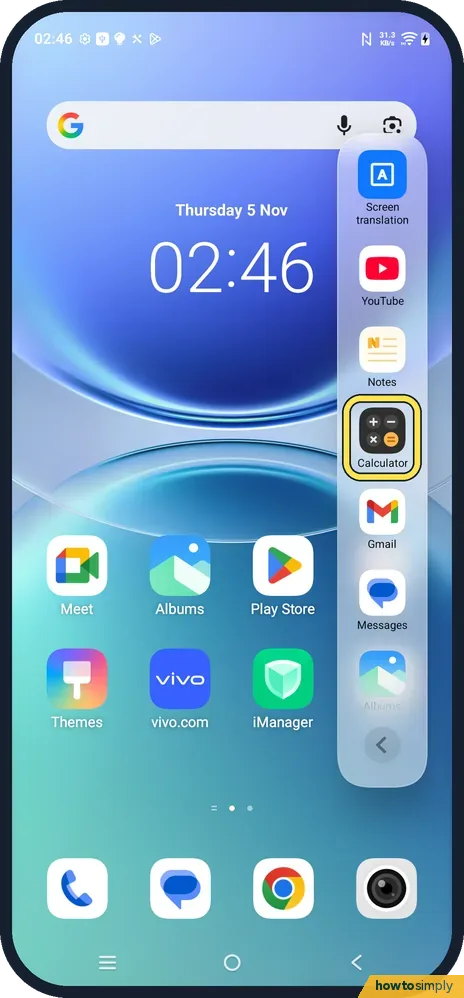
The sidebar lists apps that support small windows. Ours had Screen translation, YouTube, Notes, Calculator, Gmail and Messages. Tap Calculator.
- 5
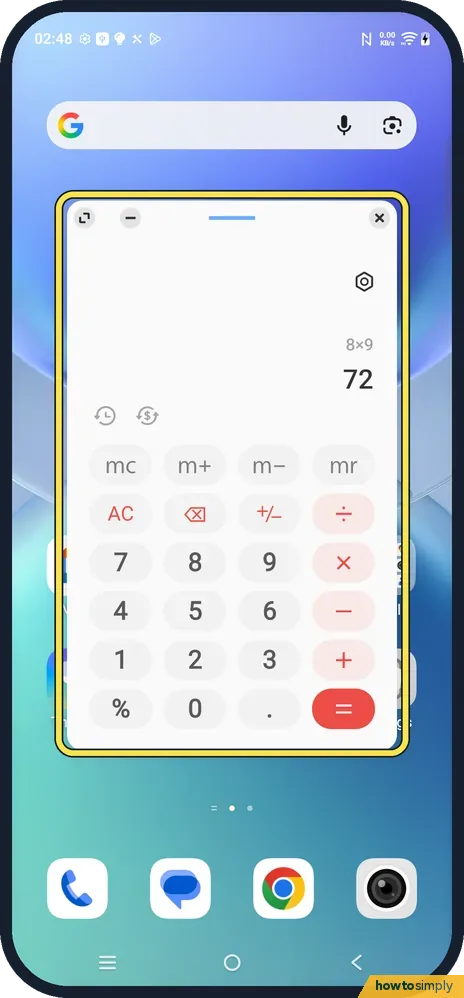
Use the app in its small window
The app opens as a floating window over the home screen or the app behind it, with its own buttons at the top. We worked out 8 × 9 = 72 without leaving the screen behind.
- 6
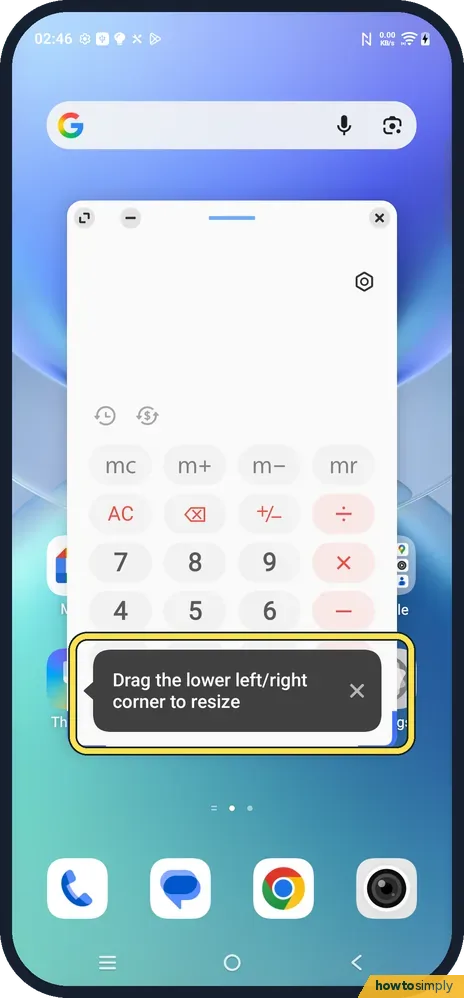
Resize the window
Drag the lower left or right corner to make the window bigger or smaller. The phone shows this tip the first time.
- 7
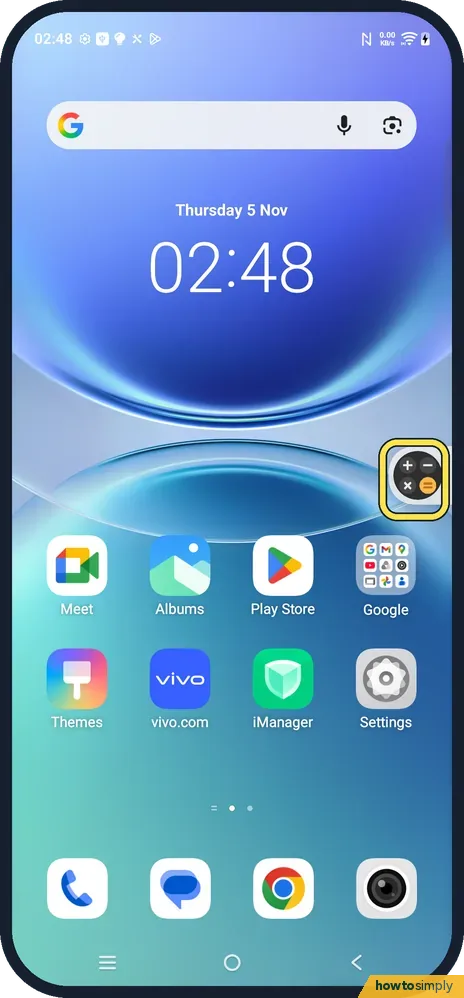
Minimise it to a bubble
Tap the minimise button at the top left of the window. The app shrinks to a round bubble at the edge of the screen; tap the bubble to open the window again.
If you do not see this option
- App not in the sidebar? Only apps that support small windows can open this way. vivo also lets you drag an app from the app drawer to the small-window area at the top of the screen. Source: How to enable the small window mode?
- No indicator bar on the edge? Check that Smart sidebar is on (step 2) and turn up Idle opacity of indicator bar so it is easier to see.
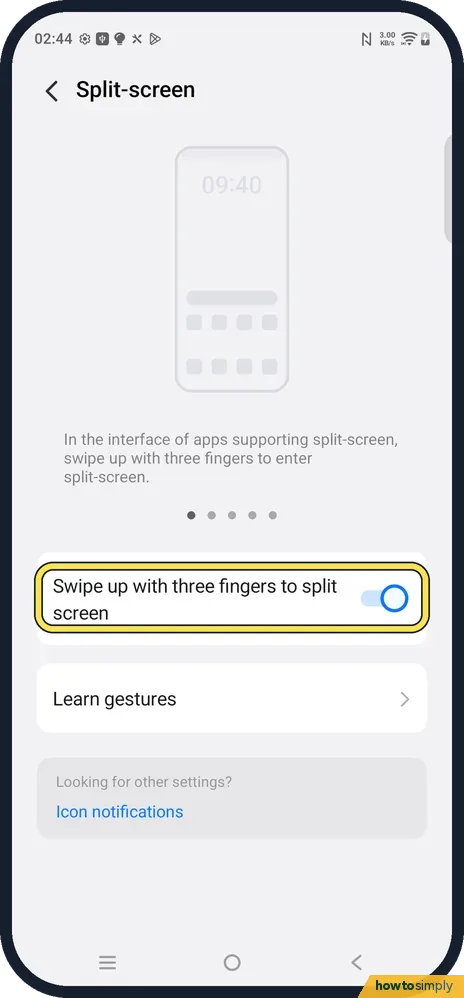
- Want two apps side by side instead? That is Split-screen: in apps that support it, swipe up with three fingers. The switch is in Shortcuts & accessibility, Split-screen. Source: Shortcuts & Accessibility FAQs
If this does not work
- The window closes when you swipe it? Small window, Small-window close gesture says Drag to the Delete button area. Drag it there only when you want to close it.
- Notifications open in full screen? The Small window page says you can pull down a floating notification that supports small window mode to open a small window.
- Sidebar opens by accident? Lower Idle opacity of indicator bar or turn Smart sidebar off when you do not use it.
Good to know
The small window stays on top while you use the app behind it. It is handy for a calculator, notes or a chat while you shop or read.
The Smart sidebar page also has Show recent apps (off on ours), which shows two recent small-window apps at the top of the sidebar, and Scene-adaptive (On).
Super Dragging, in the same Shortcuts & accessibility list, lets you tap and hold text or images in a small window or split screen and drag them into another app. It was on on ours for supported apps such as Chrome and Gmail.
About this guide
- Device
- Android
- Shown on
- vivo V70 Lite 5G (V2529, EEA), OriginOS 6, Android 16 (build PD2512SF_EX_A_16.1.19.5)
- App
- Settings
- Path
- Settings › Shortcuts & accessibility
- Real screenshots
- 7 of 7 steps
- Checked
- October 2026
- Sources
- 2 official, linked below
Sources
Links checked October 2026. Menus and features can change with updates.Spotted a mistake? Menus change with updates, and we want every step to match your screen. Email us about this page or use the contact form. We read every report, and fixes are listed on What changed.
Liked this guide?
Follow us for new guides and short how-to videos.
Did this guide work for you?
Sorry about that. What happened?