
howtosimply.com/guides/how-to-change-the-scroll-direction-on-a-mac/ · Checked October 2026 · MacBook Pro · macOS Tahoe 26
In this guide
Open System Settings, click Trackpad, open the Scroll & Zoom tab and switch Natural scrolling off or on. For a mouse, the same switch is under Mouse.
3 of 4 steps with real screenshots · 1 official source below
- Device
- Mac
- Shown on
- macOS Tahoe 26 (MacBook Pro)
- App
- System Settings
- Path
- System Settings › Trackpad › Scroll & Zoom › Natural scrolling
- Real screenshots
- 3 of 4 steps
- Checked
- October 2026
- Sources
- 1 official, linked below
Step by step
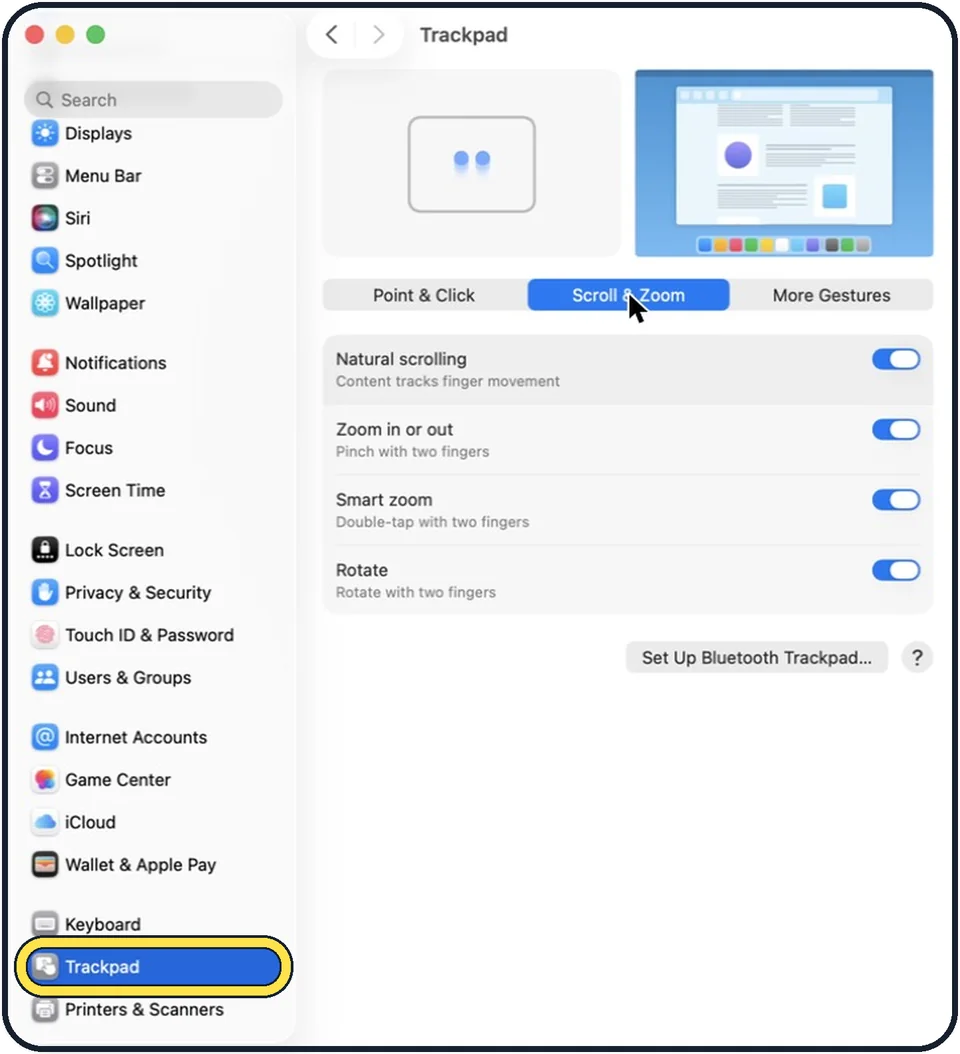
Zoomed in on the setting. Tap to see the whole screenTap the picture to see it full size Open System Settings and click Trackpad
Click the Apple menu, then System Settings. Trackpad is near the bottom of the sidebar, so scroll down.
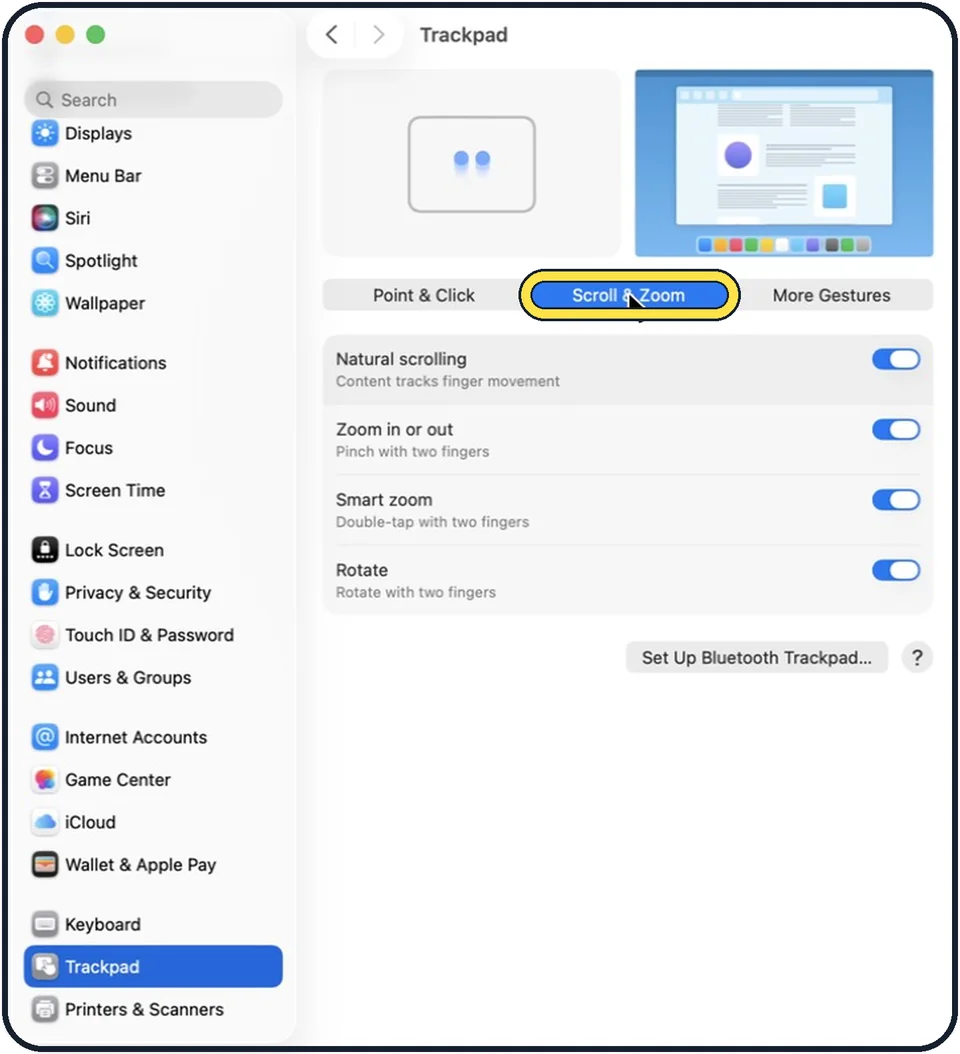
Zoomed in on the setting. Tap to see the whole screenTap the picture to see it full size Click the Scroll & Zoom tab
The Trackpad page has three tabs: Point & Click, Scroll & Zoom and More Gestures.
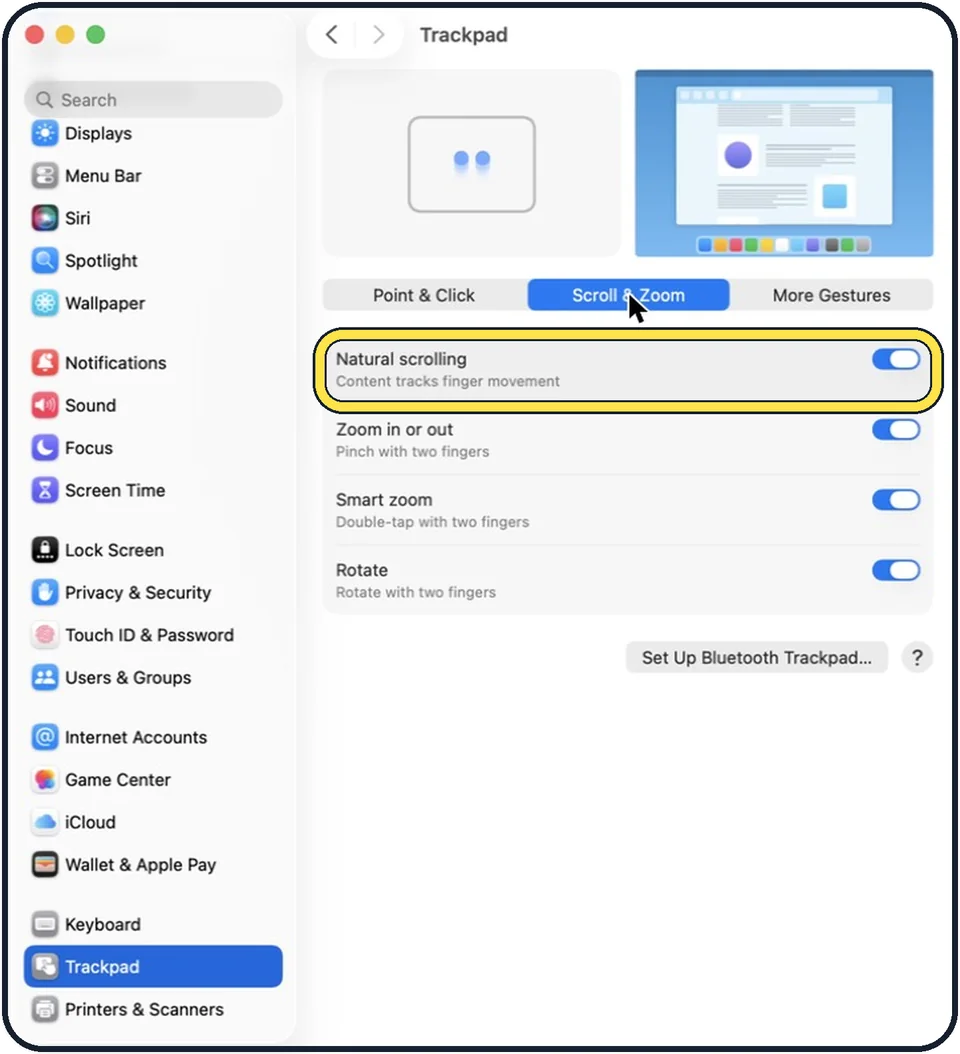
Tap the picture to see it full size Switch Natural scrolling off
With the switch on, the content moves in the same direction as your fingers. With it off, scrolling works the way it does on most Windows laptops.
Test it
Open a long web page and scroll with two fingers. Change the switch back if it feels wrong.
About this guide
On a Mac the page follows your fingers: push two fingers up and the content moves up, as on a phone. Apple calls this natural scrolling. People who come from Windows often prefer the opposite direction.
These steps are for recent versions of macOS, where the settings app is called System Settings. The pictures are our own screenshots from macOS Tahoe 26 on a MacBook Pro.
Good to know
If you use a mouse, open Mouse in the sidebar. It has its own Natural scrolling switch.
The Point & Click tab has two more settings that newcomers often look for: Tap to click, and Secondary click for the right-click.
Which options you see depends on the Mac model and on the trackpad or mouse that is connected.
More on the right-click: how to right-click on a Mac.
In short: System Settings, Trackpad, Scroll & Zoom, Natural scrolling.
Links checked in October 2026. Menus and features can change after software updates. These steps match the version named at the top.
Did this guide work for you?
Sorry about that. What happened?